Counter guide
The Counter tool on One of the Things counts one tap at a time. Use one counter full screen, up to 12 counters in a grid, or lay the device on a table and use it face to face as a scoreboard or life counter. Each counter has its own name, color, step, goal and range, and Undo reverses a slip. Counted values are not saved, so reloading starts again from the starting values. This guide covers getting started, the three views, editing counters, goals and repeats, undo, saving setups you use often, and shortcuts.
Getting started
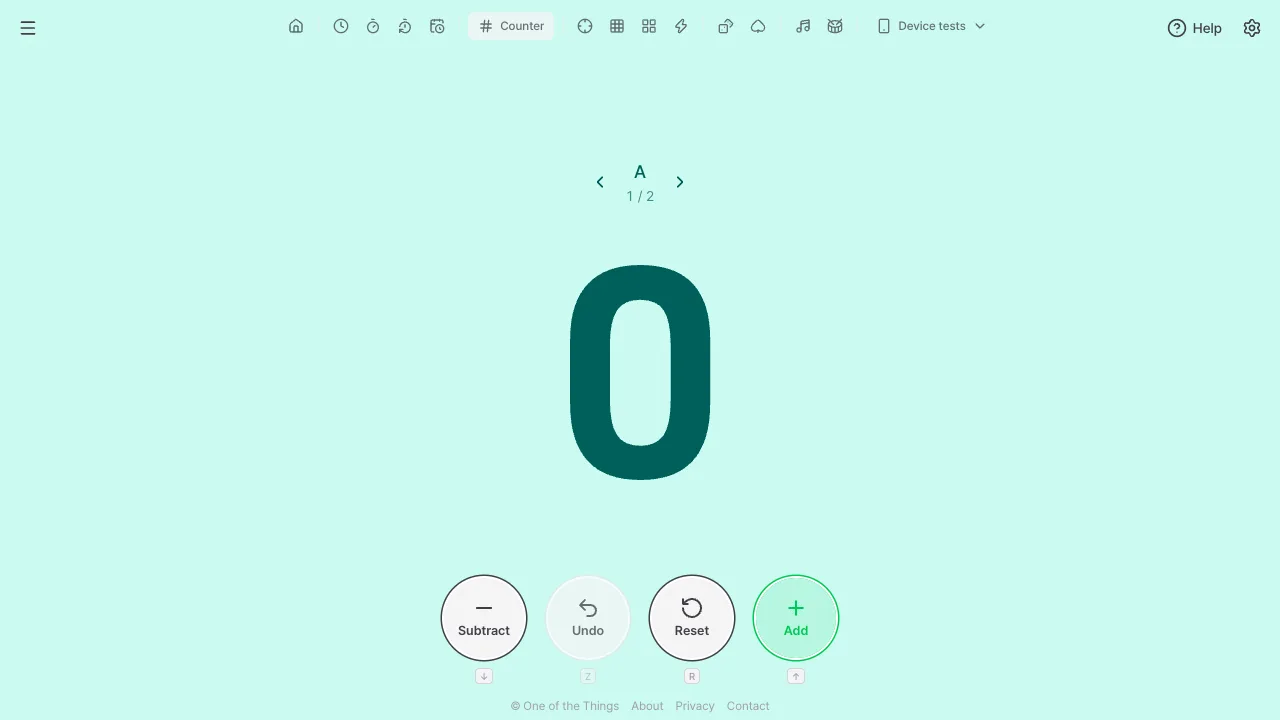
When you first open it, one counter starts at 0. You can start tapping without changing anything.
- Choose 'Counter' from the menu button at the top left. On wide screens you can click 'Counter' in the tool list at the top.
- Tap the number area briefly, or press the 'Add' button, to count one at a time. On a keyboard, press the Up Arrow or Space.
- 'Subtract' (Down Arrow) counts down, and 'Undo' (Z) reverses the last action.
- 'Reset' (R) returns this counter to its starting value. It does not ask first, and Undo brings the value back.
Three views
The counters are one list; only the way you see them changes. Switching views keeps the counted values.
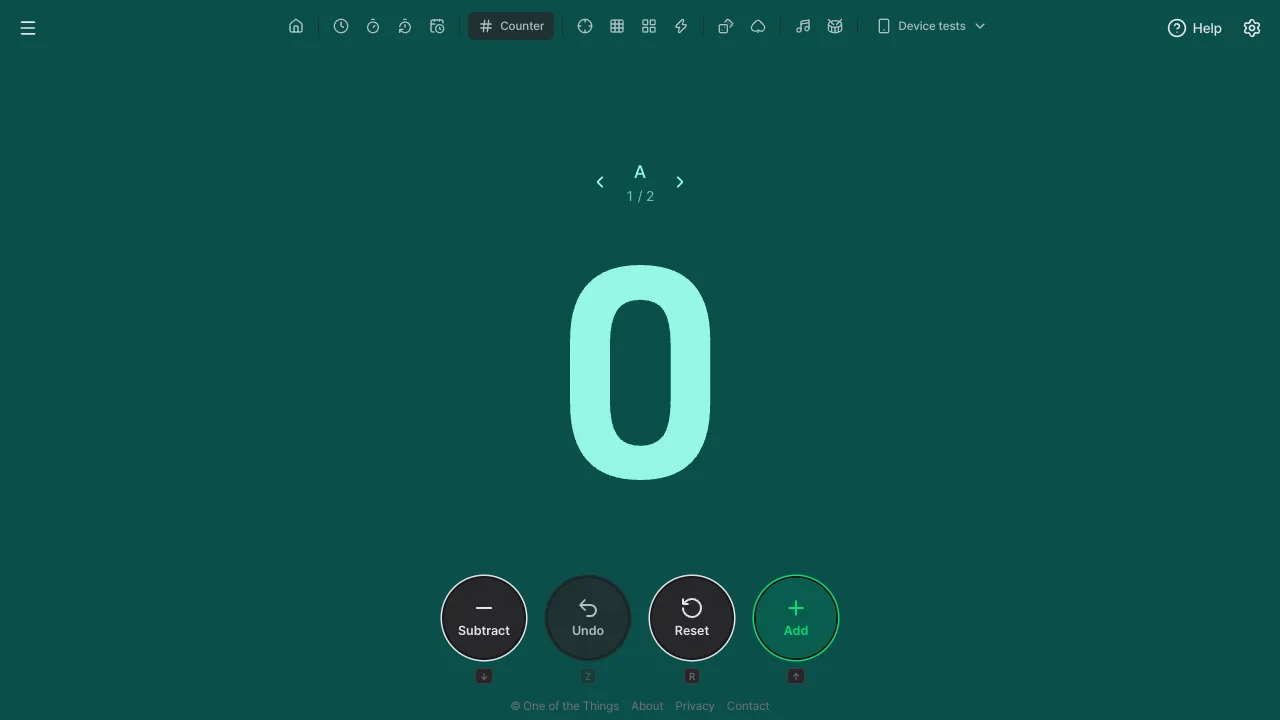
- Single: shows one counter's number as large as the screen allows. With more than one, step with the ‹ › buttons beside the name (they wrap around). Tap anywhere to count (you can turn that off in settings).
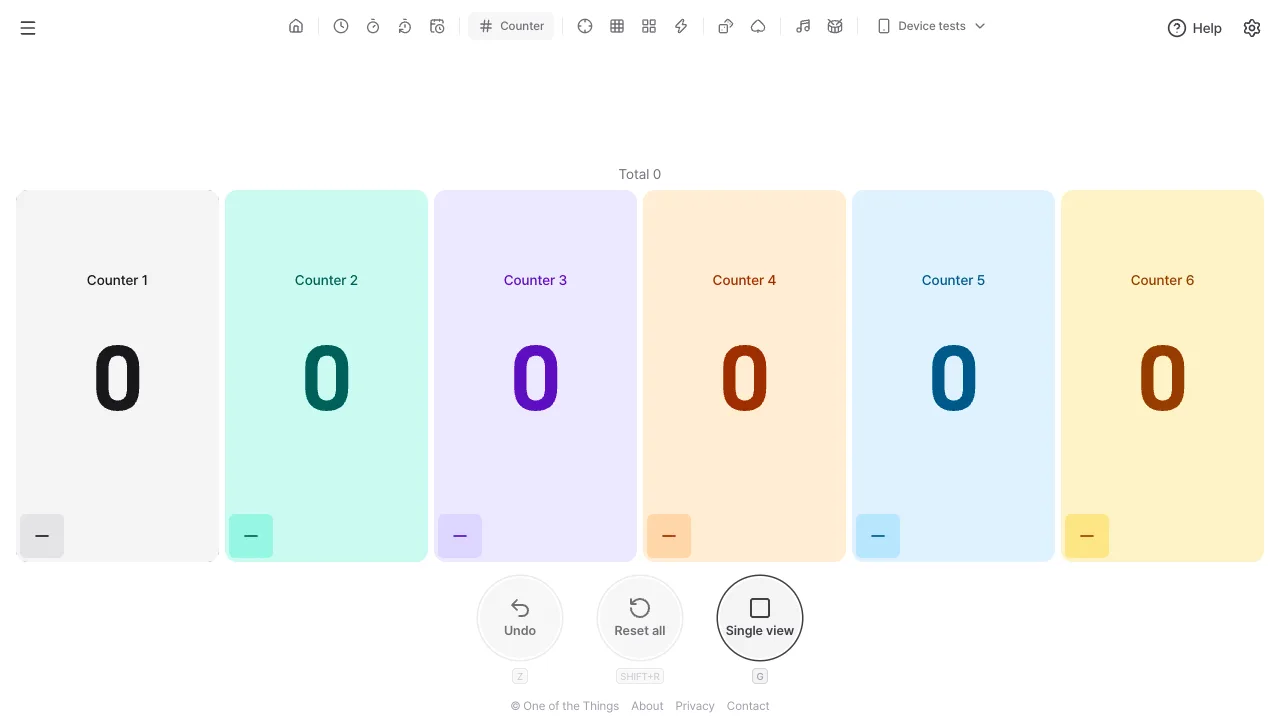
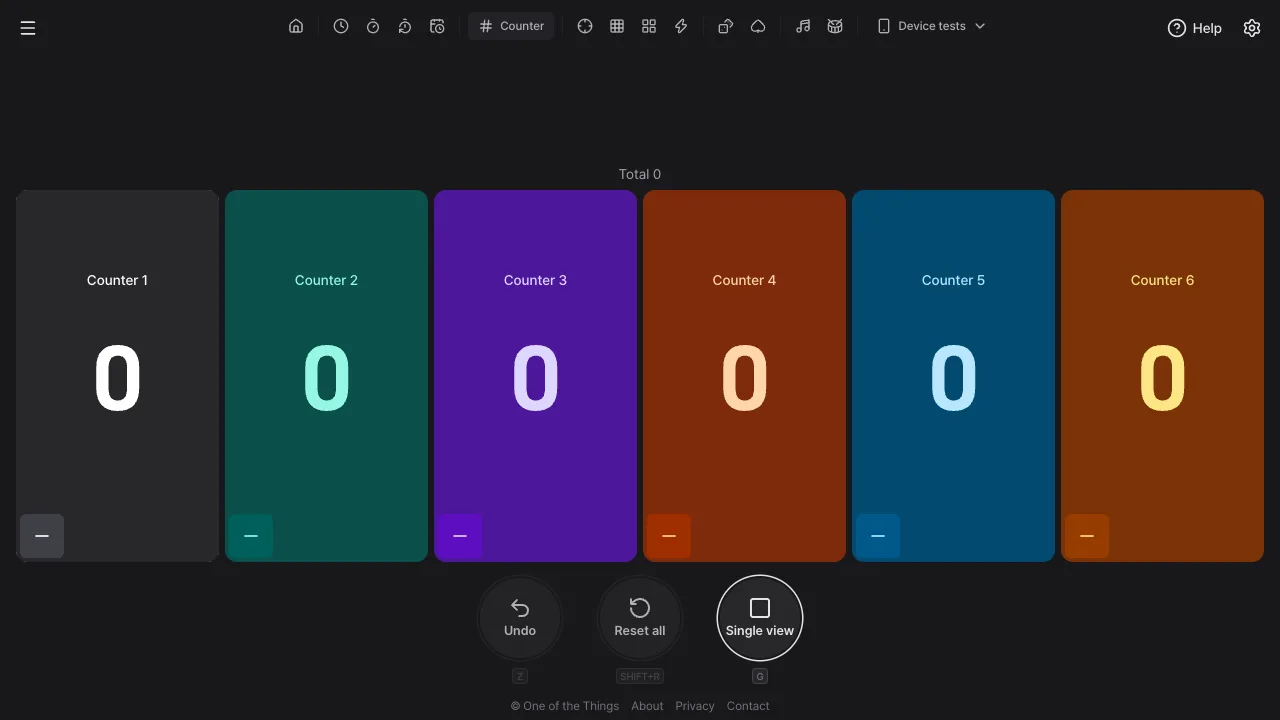
- Grid: splits 2–12 counters into tiles. The whole tile is its 'Add' button, and the − button in the bottom-left corner subtracts. Hold a tile for half a second to open the editor. An empty slot offers 'Add counter'.
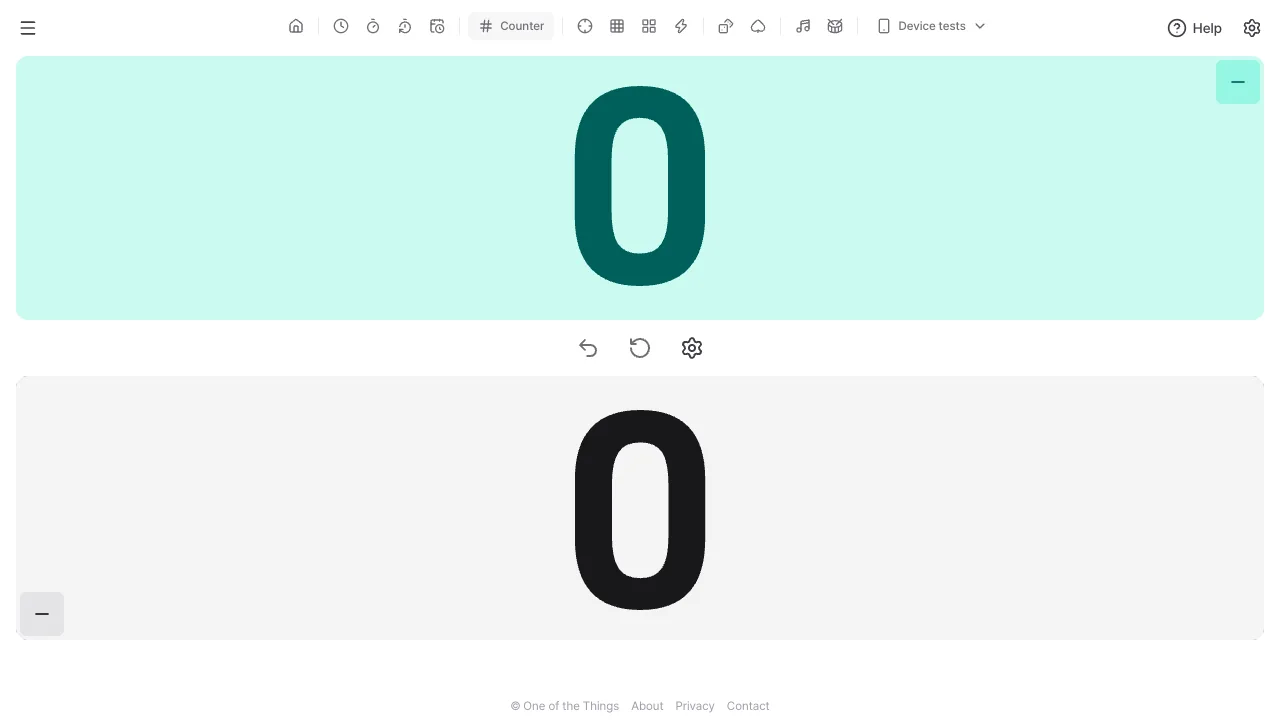
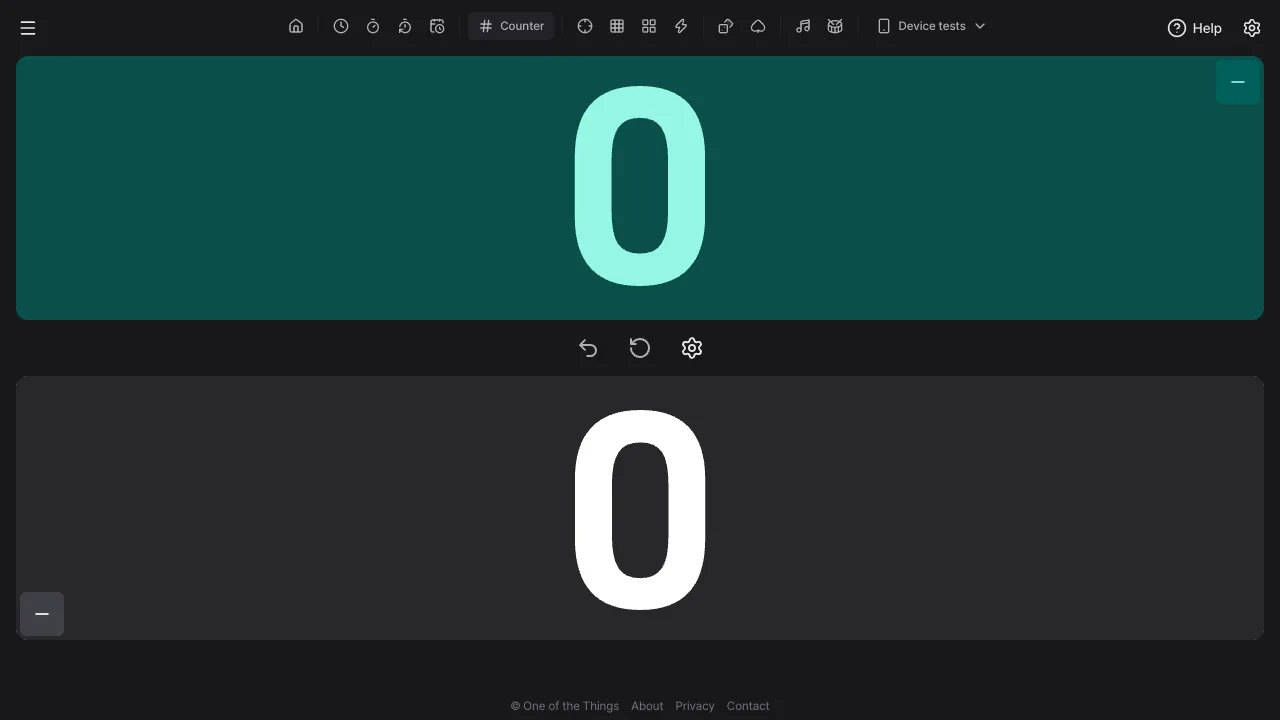
- Facing: for 2–4 counters, lay the device flat between two people. The top row is rotated 180° so the person opposite reads it right way up. Numbering starts at the side where the device is (the bottom row). Use the icons in the middle band for Undo, Reset all and Settings.
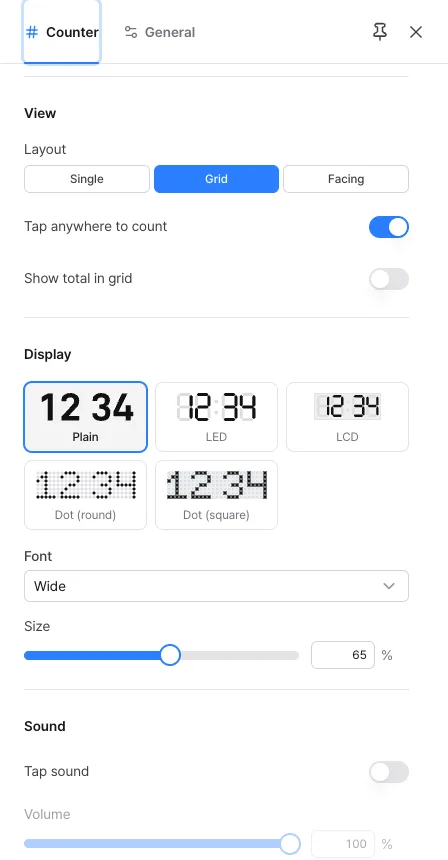
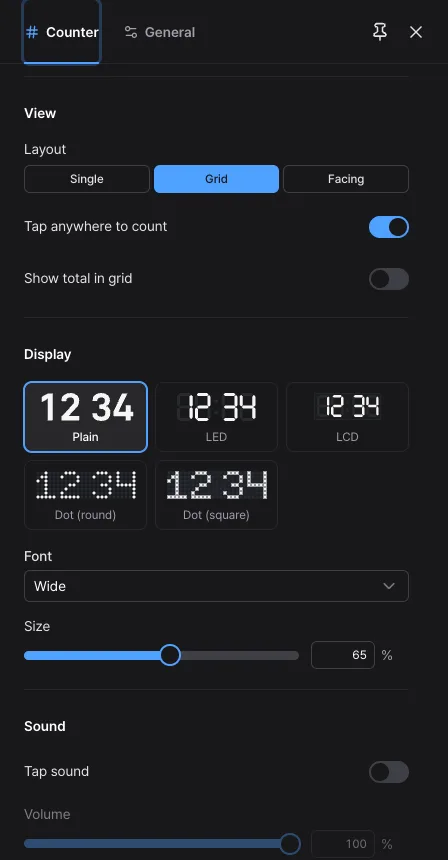
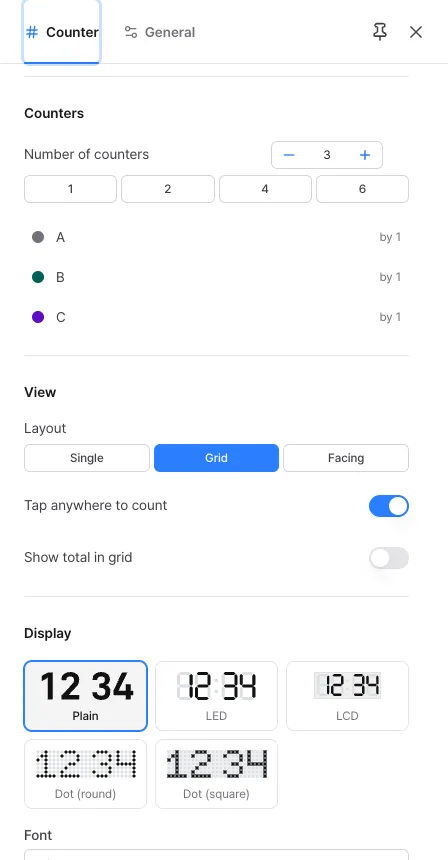
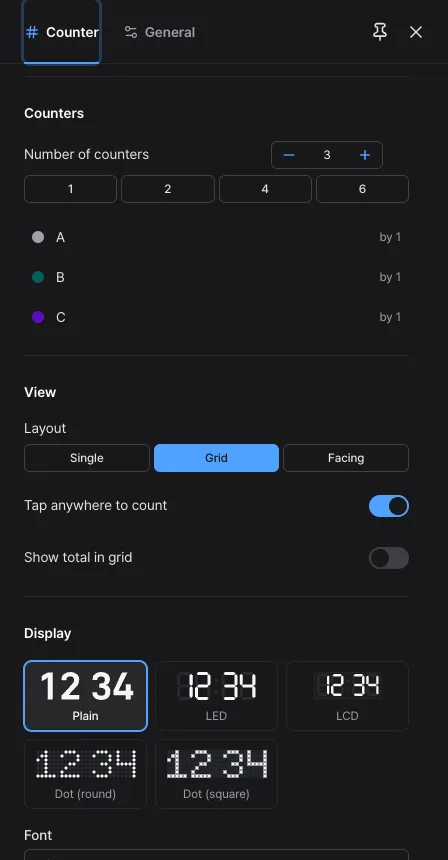
- Switching: use 'Layout' in the settings panel or press G to go Single → Grid → Facing. With only one counter you always see Single, and Facing works only with 2–4 counters (otherwise the grid is shown).
Editing a counter
Name, color, step, start value, goal and range are set per counter. Changes apply immediately; there is no confirm button.
- Opening: in Grid or Facing, hold a tile for half a second, press E, or tap a counter row under 'Counters' in the settings panel. It opens as a bottom sheet on touch devices and as a centered window elsewhere.
- Name and color: names can be up to 20 characters; blank shows 'Counter 1' style numbering. There are eight colors, and in Single view the stage background takes the counter's color.
- Step and start value: 'Step' is how much each tap adds or subtracts (1–1000); the start value is the first value and what Reset returns to. Changing them keeps a value you have already counted and applies from the next tap. A counter you have not counted yet moves to the new start value, so you can set a starting value such as 20 before you begin.
- Minimum and maximum: by default the minimum is 0 and there is no maximum, so a counter never goes below 0. Set the minimum to 'None' to allow negatives for scores or life totals. Changing the range clips the current value into it.
- Lock: when on, a padlock appears before the name, the − button disappears and 'Reset all' skips it. The lock is not saved and clears on reload.
- Delete: appears when there is more than one counter, and asks first if there is a counted value. Add more with 'Number of counters' in the settings panel or the A key (up to 12).
Goals and repeats
Set a goal and you are told the moment it is reached. What happens after is chosen per counter.
- Goal: only values above the start value work (equal or lower means no goal). A progress bar appears under the number.
- Keep counting: counting continues past the goal; you are only notified at the moment it is reached.
- Stop: stops at the goal when counting up. Pressing add at the goal changes nothing, while subtract works as usual.
- Start over: on reaching the goal the value returns to the start value and the lap count goes up, shown as '×3' beside the bar. Good for repeating a fixed count such as 33; subtracting below the start value takes a lap back and returns toward the goal.
- Notification: the tile briefly brightens on reaching the goal, and with sound and vibration on you get a dedicated goal sound and a long vibration. Screen readers announce 'reached its goal'.
Undo and reset
A slip can be reversed. There are three ways to go back.
- Undo: keeps the last 50 value-changing actions and reverses them one at a time. 'Reset all' is reversed in one step. The button is dimmed when there is nothing to undo.
- Reset: returns the selected counter's value and laps to its start value. It does not ask, and Undo can bring it back.
- Reset all: returns every counter to its starting value. It asks once and leaves locked counters alone.
- Not the same as Reset settings: 'Reset settings' at the top of the settings panel returns things like count, names and colors to defaults; it is separate from counted values.
- When the whole list changes: choosing a preset or opening another setup by link returns every value to its new start value and clears Undo. If there were counted values, you are told 'Reset to the starting values'.
Saving setups you use often
Counted values are not saved. Reload or visit another tool and every counter returns to its start value. What can be saved is the counter list (number, names, colors, step, goals, ranges) and the view and display settings.
- Built-in presets: tap 'Scoreboard, 2 teams', 'Life totals, 4 players', 'Repeat to 33' or 'Attendance' at the top of the settings panel to fill in a suitable count, view and names at once. Names go in using the current language and you can edit them afterwards.
- My presets: set the count, names, colors and so on, press 'Save as preset' and name it (up to 12, names up to 20 characters). Volume, size and vibration differ by device, so they are not included.
- Save as default: press 'Save as default' and this tool will always open with that setup.
- Sharing by address: choosing a preset changes the address to that setup, so you can bookmark it or send it as a link or QR code. Only the setup is sent, never counted values.
Keyboard shortcuts
The keyboard acts on the 'selected counter': the visible one in Single view, and the last tile you pressed in Grid or Facing.
- ↑ · = · numpad +: add. ↓ · − · numpad − · Backspace: subtract. When no button has focus, Space and Enter also add.
- ← · →: move to the previous or next counter (in Single view the screen switches).
- 1–9: select the counter with that number.
- Z: undo. R: reset the selected counter. Shift + R: reset all (with confirmation).
- G: change view. E: edit the selected counter. A: add a counter.
- Tab: in Grid and Facing it stops at each tile, where Space or Enter adds to that tile.
Ways to use it
A few examples and the setups that suit them.
- Scoreboard: open the 'Scoreboard, 2 teams' preset in Facing view and put the device between you. With no minimum, negative scores work too.
- Life totals for board games: the 'Life totals, 4 players' preset starts at 20 and each of four players faces their own tile. Set 'Step' to 5 or 10 to move big scores quickly.
- Attendance, stock or headcount: the 'Attendance' preset gives a three-tile grid with Present, Absent and Late. Turn on 'Show total in grid' to see the overall number on one line.
- Counting repetitions: 'Repeat to 33' sets a goal of 33 with 'Start over', so a lap is added every 33. Handy for prayer beads, skipping rope or workout sets.
- Counting in a pocket: turn off 'Tap anywhere to count' so only the 'Add' button counts and accidental touches do nothing.
Frequently asked questions
- I reloaded and the numbers went back to 0.
- Not saving counted values is how this tool works. After a reload or a visit to another tool, every counter starts from its start value. Settings such as names, count and goals can be kept with 'Save as default' or a preset, but the values cannot. Write down any number that matters.
- I tap the screen but the number does not go up.
- A short press counts (under half a second, with the finger hardly moving). A long press opens the editor. If you turned off 'Tap anywhere to count' in Single view, use the 'Add' button or the keyboard. The number also stops if it hit its maximum, or the goal with 'Stop'.
- It will not go below 0.
- The default minimum is 0. If you need negatives for scores or life totals, set 'Minimum' to 'None' in the counter editor. The scoreboard and life-total presets start with no minimum.
- Facing shows up as a grid.
- Facing works only with 2–4 counters. With 1 you see Single and with 5 or more you see the grid; set the number back and the chosen view returns.
- Where does my information go?
- There is no sign-up, and default settings and presets are stored only in this device's browser. Counted values are neither stored nor sent to a server. Details are in the Privacy Policy.
Try it out right away. You can always return to the original settings with 'Reset settings' in the settings panel.
Other guides
- Clock guide
- Timer guide
- Stopwatch guide
- Countdown guide
- Target Time guide
- Number Recall guide
- Sequence Recall guide
- Reaction Time guide
- Random number guide
- Card Flip guide
- Metronome guide
- Rhythm guide
- Touchscreen Test guide
- Multi-touch Test guide
- Dead Pixel Test guide
- Refresh Rate Test guide
- Gyroscope Test guide
- Accelerometer Test guide