Metronome guide
The One of the Things metronome keeps practice time with accurate beats. Set the tempo from 30 to 400 BPM and the bar from 1 to 12 beats, and split each beat in nine ways such as 8ths, triplets and 16ths. There are eighteen sounds and thirteen looks. This guide covers starting the metronome, setting tempo and meter, choosing a sound and look, and saving the setups you use often.
Getting started
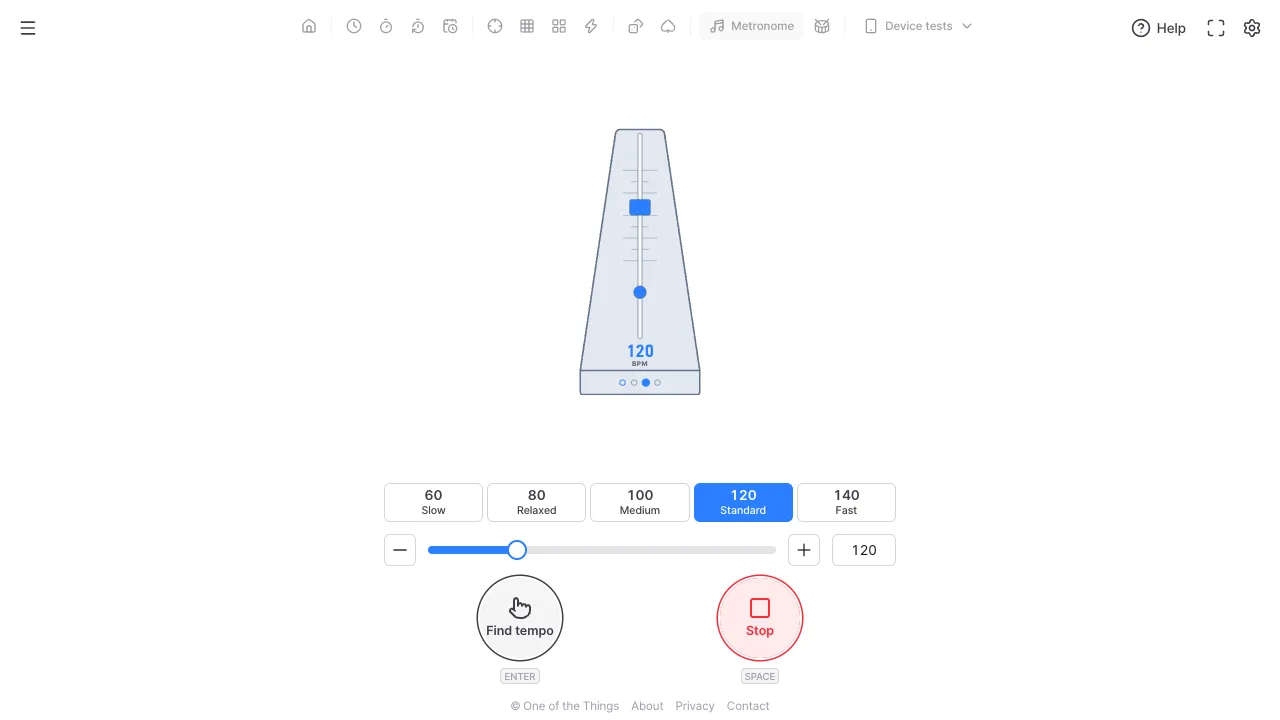
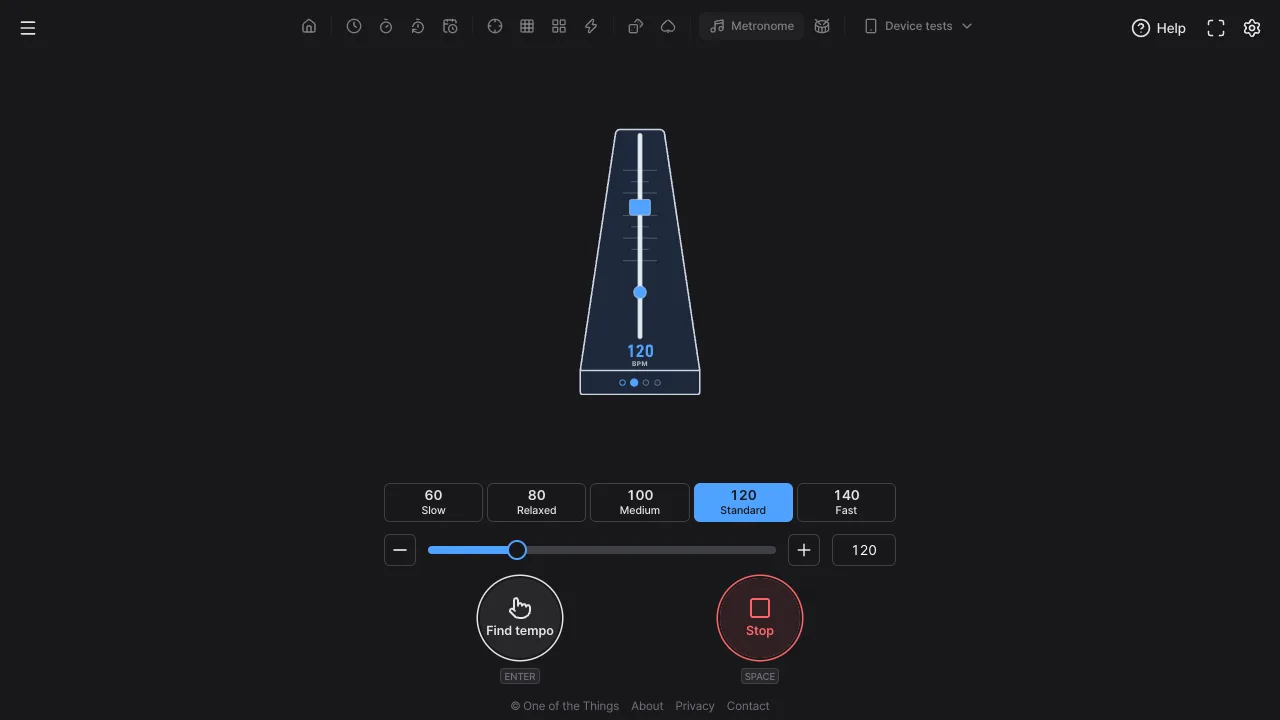
When you first open it, a Classic metronome is ready at 120 BPM with four beats per bar and the first beat accented. You can just press Start without changing anything.
- Open the menu with the menu button at the top left and tap 'Metronome'. On a wide screen you can also tap it right in the tool list at the top.
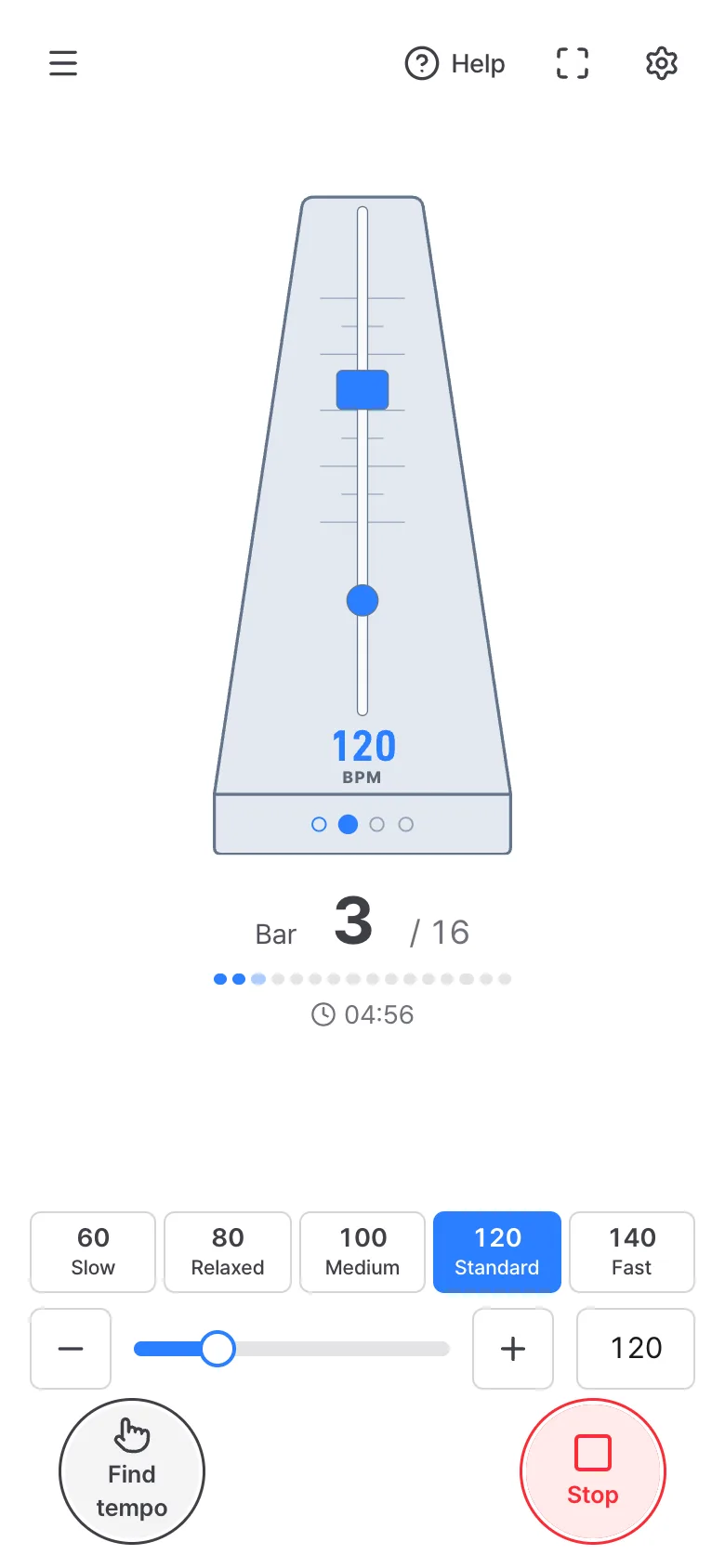
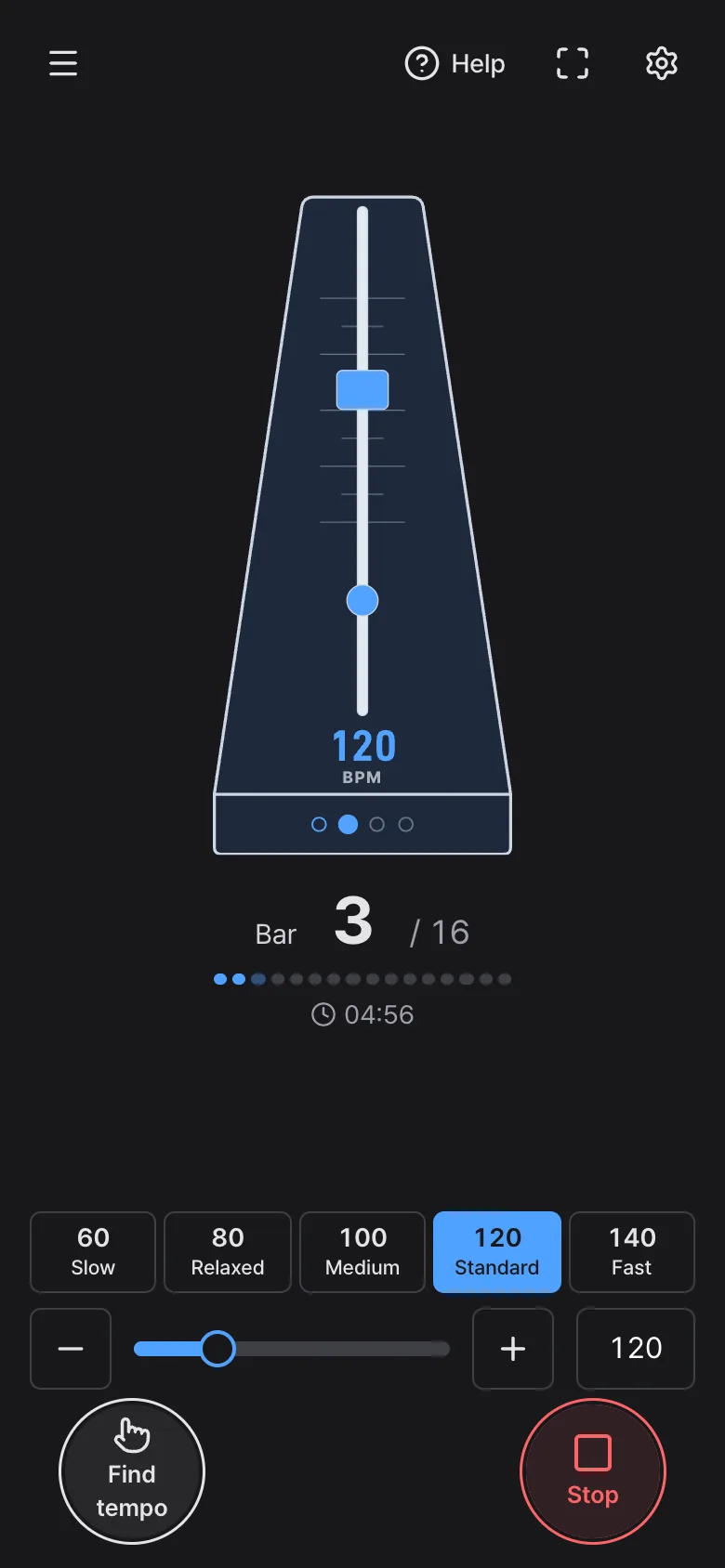
- Pick a speed with the tempo buttons under the picture (from 60 Slow to 140 Fast). For fine control, use the slider or the '−' and '+' buttons.
- Tap 'Start' at the bottom right, or press the Space key. On a phone you can also tap the metronome picture briefly.
- While it is ticking, the same button changes to 'Stop'. Tap it again to stop; the next start begins from the first beat.
Setting the tempo
Tempo is measured in BPM, beats per minute. You can set 30 to 400 BPM, and you can change it while the metronome is playing. Beats that are already scheduled stay as they are, and the new tempo takes over from the beats right after.
- Tempo buttons: 60 Slow, 80 Relaxed, 100 Medium, 120 Standard, 140 Fast. Tapping one changes only the BPM.
- '−' and '+' buttons: change the BPM by 1. Hold one down and it repeats quickly after 0.4 seconds. The ↑ and ↓ keys do the same.
- Slider and the number box on the right: use them when you know the exact number. If you leave the box empty, the previous value comes back.
- Find tempo: tap the button several times to the beat of a song or the speed you want, and it finds the BPM. The BPM is set from the second tap and gets more accurate the longer you tap (the last 8 taps are used). If you stop for more than 2 seconds, it shows the BPM it found and the next tap starts a fresh count. On a keyboard, press Enter.
Meter and subdivision
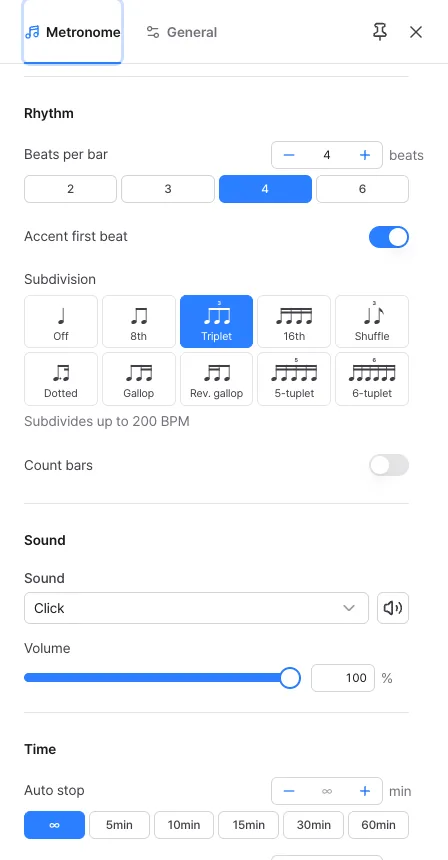
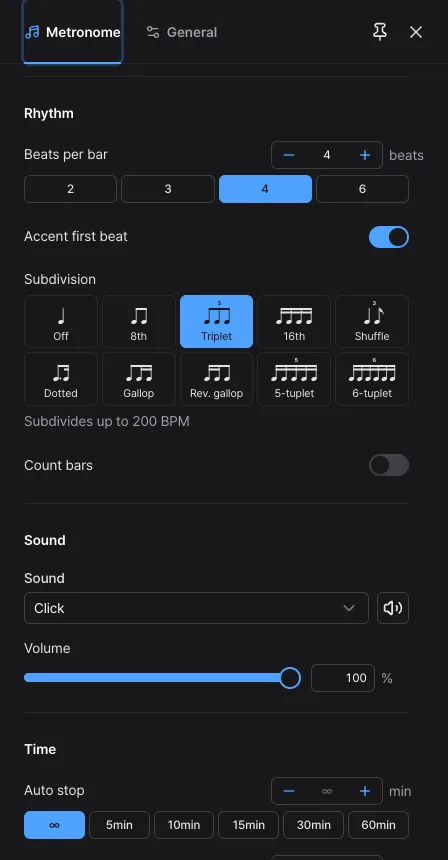
In the 'Rhythm' group of the settings panel (the gear at the top right) you decide how a bar is built. The tempo you change while playing is only on the main screen; this group holds the values that rarely change.
- Beats per bar: 1 to 12 beats. 2, 3, 4 and 6 are one-tap buttons.
- Accent first beat: when on, only the first beat of each bar plays a step higher, so you can hear where the bar starts.
- Subdivision: adds small sounds between the beats. Choose Off (default), 8th, Triplet, 16th, Shuffle, Dotted, Gallop, Rev. gallop, 5-tuplet or 6-tuplet. Each button shows the notes of one beat so you can see the rhythm. Subdivision sounds are quieter than the beats (half the volume).
- Subdivision limit: when the tempo is so fast that sounds would be less than 0.1 seconds apart, the metronome stops subdividing and plays only the beats. The limits are 300 BPM for 8th, 200 for Triplet and Shuffle, 150 for 16th, Dotted, Gallop and Rev. gallop, 120 for 5-tuplet and 100 for 6-tuplet. The limit is written under the chosen subdivision, and the setting itself stays, so lowering the tempo brings the subdivision back.
- In the Simple, Ring, Blocks and Grid looks, the subdivided positions are drawn as small dots or cells.
- Count bars: when on, a 'Bar' label and the current bar number appear in large type right under the picture, and the number changes in place. If you set 'Auto stop (bars)', '/ 16' and a progress line that fills one segment per bar are added (a single bar when there are many bars), and if you set minutes, the time left is shown too. When there is no room below (for example with the phone turned sideways) it moves to the right of the picture, and if that does not fit either the picture gets a little smaller. Counting starts from bar 1 each time you start, and if you change the beats per bar while it plays, the next beat starts a new bar and the count carries on. It shows up to 999 and then '999+'. Handy for counting long rests or seeing how many bars you have practised. It is not shown in the Sleep and Rest looks.
Sound and auto stop
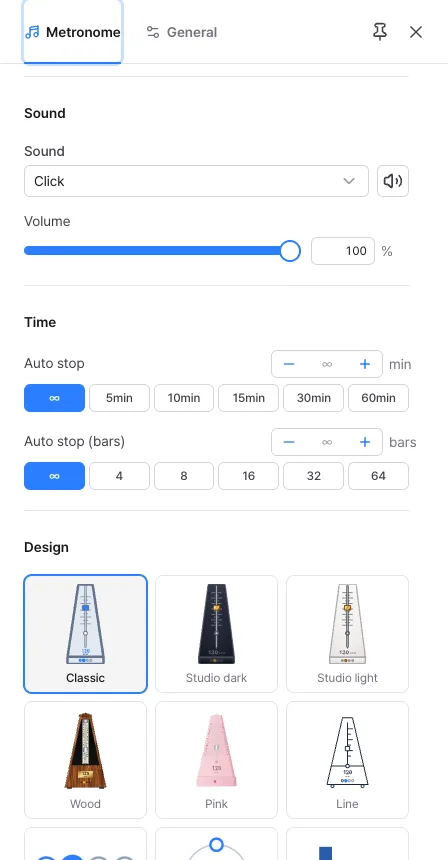
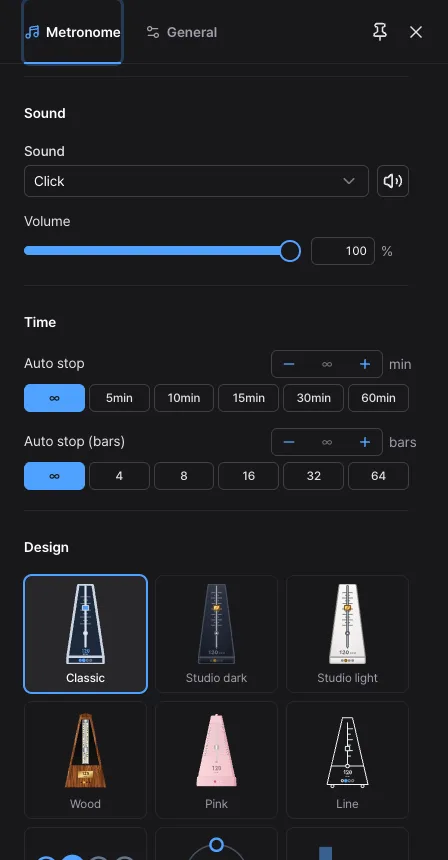
Choose the sound and volume in the 'Sound' group, and set auto stop in the 'Time' group.
- Sound: eighteen to choose from. Seven basics such as Click, Woodblock, Clave, Sine tone, Hi-hat, Rimshot and Cowbell, plus others such as Mechanical, Digital beep, Water drop, Stick and Heartbeat. Every sound has a normal beat and an accent beat one step higher.
- Preview: use the speaker button next to the box. Choosing a sound while stopped plays it once; choosing one while playing does not play it separately, and the new sound takes over from the next beat.
- Volume: from 0 to 100%.
- Auto stop: in the 'Time' group, pick ∞ (keep going), 5, 10, 15, 30 or 60 min, or enter anything from 1 to 180 minutes. The time left shows under the picture, and the metronome stops quietly when it runs out.
- Auto stop by bars: in 'Auto stop (bars)', pick ∞, 4, 8, 16, 32 or 64, or enter anything from 1 to 999 bars. The metronome plays those bars to the end and then stops, and with Count bars off the bars left show under the picture, like '12 bars left'; with Count bars on, '/ 16' appears beside the bar number and the progress line below it fills up to 16 segments. If you lower it below the bar already reached, it finishes the current bar and stops. Set together with minutes, it stops at whichever comes first.
Changing the look
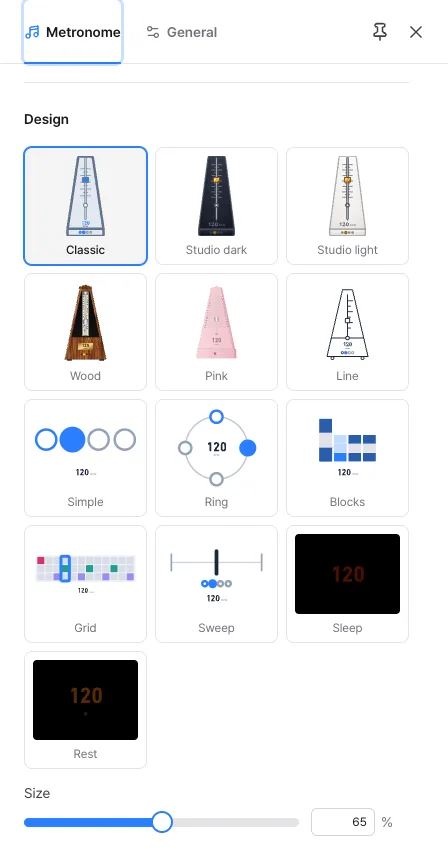
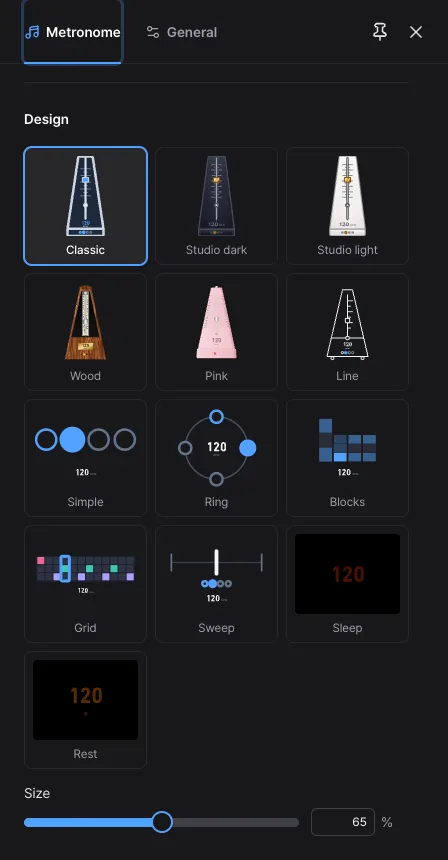
Tap a preview tile in the 'Design' group to change how the metronome looks. There are thirteen looks, and the main screen changes right away.
- Three devices: Classic, Studio dark and Studio light. A metronome with a swinging pendulum, and the dots on its base light the current beat. When you change the tempo, the weight moves too.
- Three pyramids: Wood, Pink and Line. Mechanical metronomes with a printed scale.
- Five simple looks: Simple, Ring, Blocks, Grid and Sweep. There is no device picture, only the beat display, which is easy to read from a distance. For these you can pick an accent color from the swatches below.
- Sleep and Rest: looks for dark rooms (see 'Before sleep and when resting' below).
- Size: set from 30% to 100% with the slider. If the bar display would overlap the picture, it moves beside the picture or the picture gets a little smaller.
- Reduce motion: if reduce motion is on in your device settings, the pendulum and the Sweep bar stay in the center and only the beat display changes.
Before sleep and when resting
Sleep and Rest are looks with as little light and motion as possible. They don't promise any health or sleep benefit; they simply make the screen gentler on the eyes in a dark room.
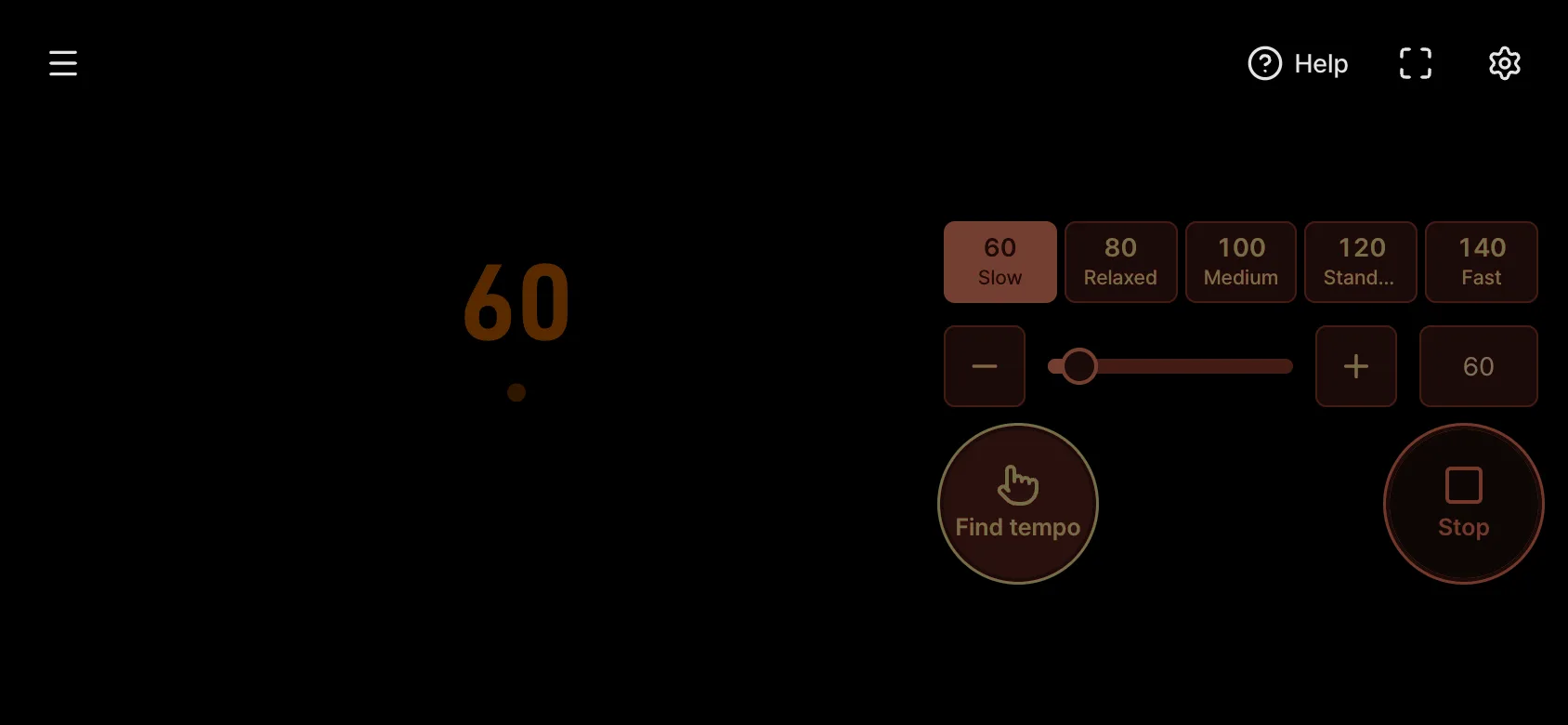
- Sleep: only dark red digits are shown, and the beats are not drawn.
- Rest: dark amber digits and a single dot. The dot does not blink on every beat; it slowly brightens and dims over the course of a bar.
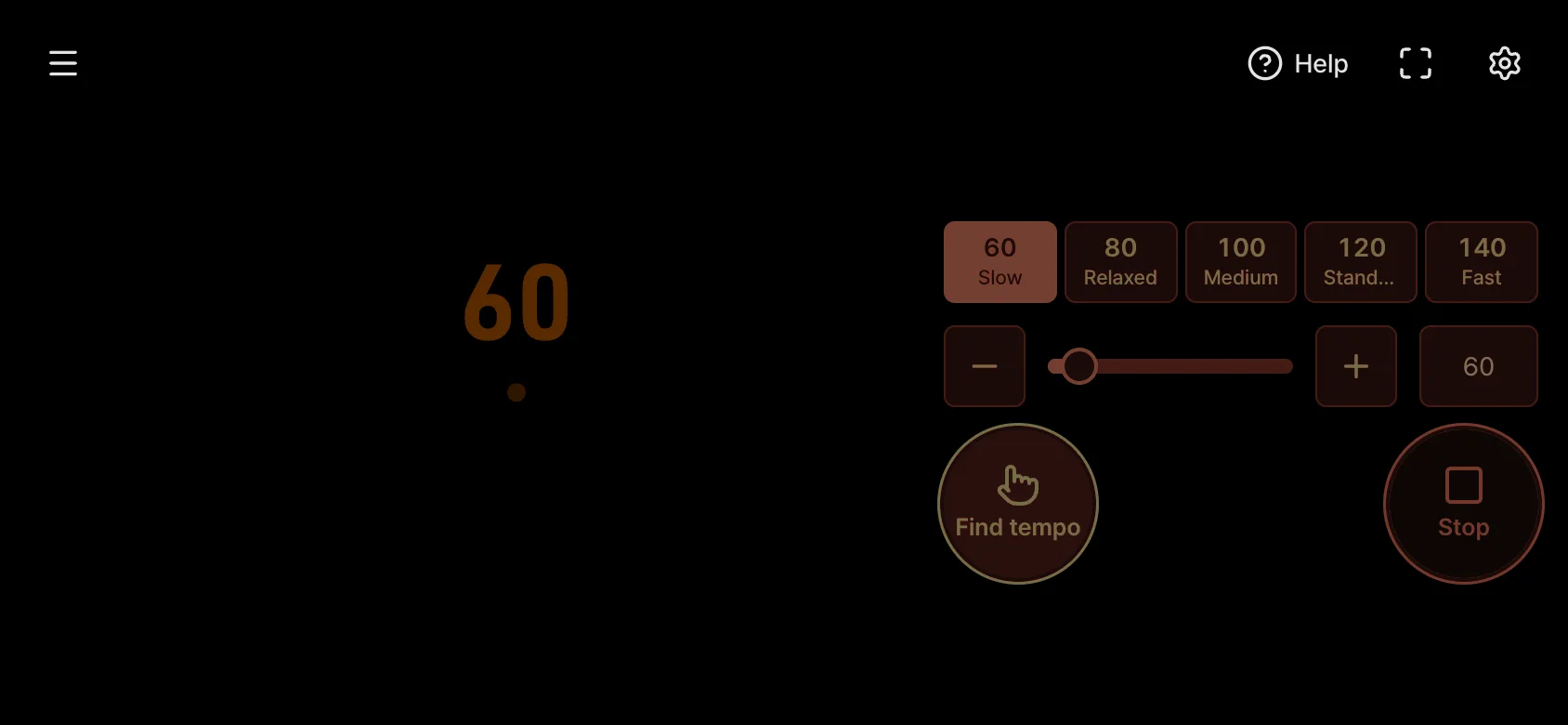
- Color and background: no blue light is used, the background is pure black, and the control buttons are dimmed to a dark red too.
- Hiding the screen: if nothing is touched for 4 seconds while playing, the menu, buttons and time left disappear, and in Sleep the digits slowly fade too until the screen is fully black. Move the mouse, touch the screen or press a key to bring them back. The first touch on the screen while hidden only wakes it and does not stop the metronome, so a stray tap in the dark is harmless. The Space key, however, stops it right away.
- Built-in presets: 'Rest' (80 BPM, 1 beat, Woodblock, 15 min) and 'Sleep' (60 BPM, 1 beat, Sine tone, 30 min) in the Presets group change only the meter, sound and auto stop. You choose the look separately.
While you do something else
You often leave the metronome running while you read music or use another app. The beat sounds are scheduled ahead on the audio clock, not by a screen timer, so the beat stays steady even when the screen is busy or the tab is hidden.
- Viewing another tab: the beats still play on time in a hidden tab. While the tab is hidden, sounds are scheduled up to 2 seconds ahead.
- Keeping the screen on: the screen stays on while the metronome is playing ('Screen on' at the top of the settings panel, on by default).
- Hearing sound with the screen off: on a phone, keep 'Screen-off sound' at the top of the settings panel turned on (it is on by default) and the metronome keeps playing with the screen off. For details, see the 'Tips' tab in 'Help'.
- Reloading starts over: the running state and changed settings are not saved, so opening the page again gives you a stopped metronome with the default settings. Don't close this tab or move to another page while it is ticking.
Saving setups you use often
Metronome settings are not saved every time you change them. Keep the setups you use often in the 'Presets' group. Volume and size differ from device to device, so presets don't include them.
- Change the tempo, meter, sound and look the way you want, then tap 'Save as preset' under 'Presets' at the top of the settings panel. If you leave the name blank, it gets an easy name such as '120 BPM 4 beats'.
- After that, choose it from the box. Choosing it also puts the settings in the address, so you can bookmark it.
- To always open with the same setup, tap 'Set default'.
- Use 'Manage' to rename, overwrite or delete presets, and send the same setup to another device or person with a copied link or a QR code.
Ways to use it
A few examples of how to use the metronome and the settings that suit them.
- Practicing an instrument: start at a slow tempo (60 to 80 BPM) and repeat until you can play accurately, then raise the tempo a little at a time. For a song in 3, set beats per bar to 3 and keep the first-beat accent on.
- Learning a tricky rhythm: switch Subdivision to 8th, Triplet or 16th and feel what happens between the beats. In the Simple or Grid looks, the subdivided positions are visible too.
- Finding a song's tempo: tap 'Find tempo' to the music several times and the BPM appears. You can practice with that value right away.
- Ensembles and lessons: increase the size and pick a simple look such as Simple, Ring or Blocks so the beat can be seen from across the room.
- Breaks: pick 'Rest' or 'Sleep' in the Presets group and the look with the same name for a gentle screen in a dark room. The metronome stops quietly when the auto stop time is reached.
- Counting long rests: when you rest for many bars in an ensemble, turn on 'Count bars' and let the screen count for you. Put the number of rest bars in 'Auto stop (bars)' and '/ 16' and a progress line appear next to the bar number, so you can see how many are left, and it stops when they are done.
Frequently asked questions
- I can't hear any sound.
- Because of browser policy, you have to tap the screen once before sound turns on. If a notice appears at the top, tap the screen. If you see 'Could not turn on sound', tap 'Start' again. If your phone is in silent mode, check that 'Sound in silent' at the top of the settings panel is on, and that the volume is not 0.
- Do the beats slow down or wobble when I look at another tab?
- No. Beat sounds are scheduled ahead on the audio clock, so the spacing between beats stays even even if the screen slows down. Late beats are never played in a rush all at once.
- I chose a subdivision, but I don't hear the extra sounds.
- The tempo is above the limit for that subdivision (8th 300 BPM, Triplet and Shuffle 200, 16th, Dotted, Gallop and Rev. gallop 150, 5-tuplet 120, 6-tuplet 100). The note under the subdivision in the settings panel says it is not subdividing right now. Lower the tempo and it subdivides again.
- I tapped Find tempo but the BPM didn't change.
- The first tap only starts the count, so the BPM does not change yet. Tap to the beat two or more times and the BPM is set. If more than 2 seconds pass between taps, counting starts over from that tap.
- My settings went back to the start after I reloaded.
- Settings are not saved every time you change them. To always open with your setup, tap 'Set default' under 'Presets' at the top of the settings panel, or keep it as one of your own presets.
- The screen went dark or the buttons disappeared.
- The Sleep and Rest looks hide the buttons when nothing is touched for 4 seconds while playing. Move the mouse or touch the screen and they come back. Other looks don't do this.
Try it out right away. You can always return to the original settings with 'Reset settings' in the settings panel.
Other guides
- Clock guide
- Timer guide
- Stopwatch guide
- Countdown guide
- Target Time guide
- Number Recall guide
- Sequence Recall guide
- Reaction Time guide
- Random number guide
- Card Flip guide
- Rhythm guide
- Touchscreen Test guide
- Multi-touch Test guide
- Dead Pixel Test guide
- Refresh Rate Test guide
- Gyroscope Test guide
- Accelerometer Test guide