Rhythm guide
One of the Things's Rhythm is a small drum machine: tap steps to build a pattern of sounds and hear it repeat. Pick a sound for each track, set every step to off, normal or accent, and make anything from an 8-beat to a shuffle, or a polyrhythm where each track has a different number of steps. This guide walks you through getting started, editing steps, working with tracks, setting the meter and bars, and saving the patterns you make.
Getting started
When you first open it, the default 8-beat pattern is ready. You can just press Start without changing anything and the drums loop.
- Open the menu with the menu button at the top left and tap 'Rhythm'. On a wide screen you can also tap it right in the tool list at the top.
- Press 'Start' at the bottom right or the Space key. The same button becomes 'Stop'; press it again to stop.
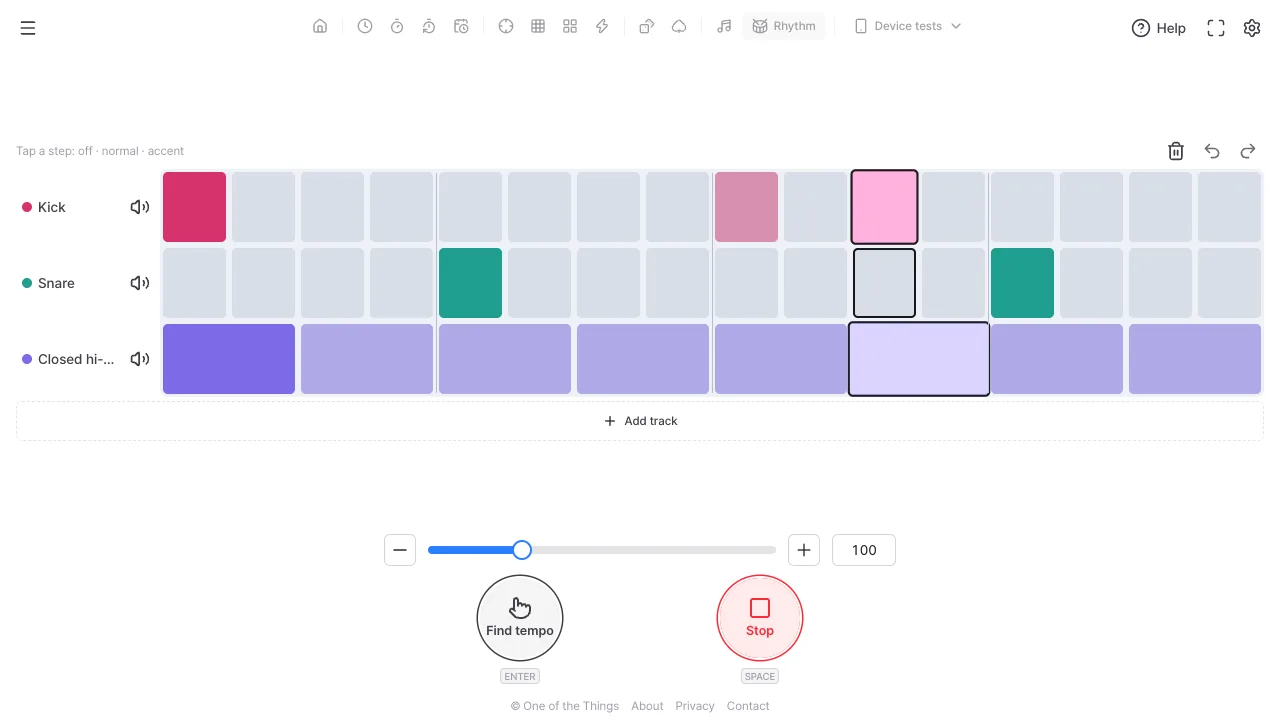
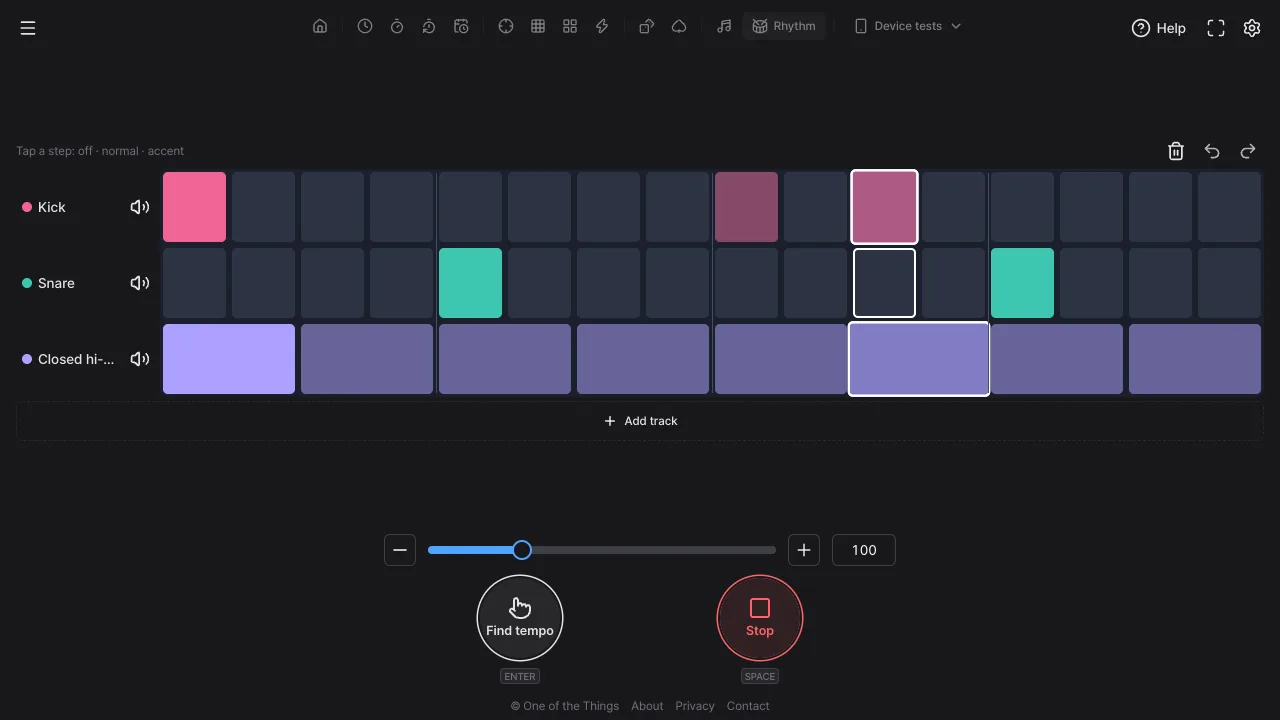
- Each horizontal row is one sound (Kick, Snare, Closed hi-hat) and each column is a position in the beat. A filled step plays a sound there, and while it runs a vertical line sweeps from left to right to show where you are.
- You can keep tapping steps while it plays. Your change takes effect from the next step that has not sounded yet.
Tapping steps to build a rhythm
Each step is one hit of sound. Tap it to change how strong it is and build your pattern.
- Tap a step: each tap goes off → normal → accent → off. A stronger color means a louder hit. An accent plays at the track volume and a normal step plays softer.
- Drag to paint: press a step with a mouse or pen and drag sideways, and every step you pass in the same track takes the same state as the step you pressed. Moving to another track is ignored.
- Painting on a phone: when there are so many steps that the grid scrolls sideways, swiping right away scrolls and a short tap changes just that step. Hold a step for about 0.3 seconds and it changes and painting starts, so you can drag over steps, and reaching the grid edge scrolls on its own. A grid that does not scroll paints as soon as you press.
- Undo and redo: use the buttons above the grid or Ctrl/Cmd+Z, and Ctrl/Cmd+Shift+Z, to step through the last 50 changes. One paint drag counts as one change. The history is cleared when you reload.
- Keyboard: Tab into the grid, move along a track with ←/→ and between tracks with ↑/↓, and change a step with Enter. Space still starts and stops while a step has focus.
Working with tracks (sounds)
A track is one row that plays one sound, and you can have up to 8. Tap the sound name at the left of a track to open its settings.
- Track settings: tap the track name (for example Kick). With a mouse it opens as a small window beside the name, and on a touch screen it slides up from the bottom.
- 12 sounds: Kick, Snare, Rim, Clap, Closed hi-hat, Open hi-hat, Low tom, High tom, Cowbell, Clave, Shaker and Click. Tapping one plays it right away while stopped, and 'Preview' replays the current sound.
- Steps per bar and track volume: steps run from 1 to 48 (quick picks 4, 8, 12, 16) and track volume from 0 to 100%.
- Mute: the speaker button at the left of a track silences it without touching its steps. Handy for hearing the tracks one by one.
- Add a track: tap the 'Add track' row below the grid (when the screen is not tall enough, the + button in the tool row above it) and the next unused sound is added. A new track has every step off and the same step count as the last track.
- Delete a track: turn on the trash button ('Delete mode') in the tool row and a red delete button appears next to each track name, so you can remove several in a row. Tap the trash button again or press Esc to finish. 'Delete track' at the bottom of the track settings does the same. You cannot delete the last remaining track.
- Deleted by mistake: tap 'Undo' in the notice right after. 'Clear all steps' keeps the track and empties only its steps.
Starting from a built-in pattern
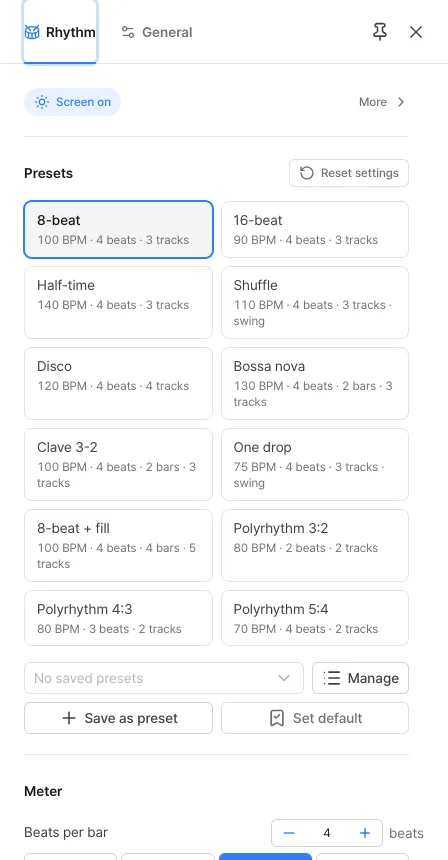
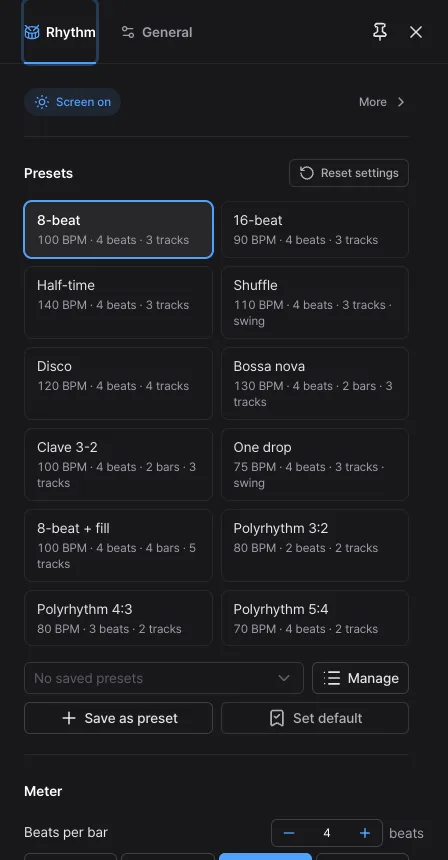
At the top of the settings panel (gear at top right), 'Presets' holds 12 built-in patterns as tiles. Tapping one replaces the current pattern, and Undo brings your pattern back. The second line of each tile sums up the pattern, like '100 BPM · 4 beats · 2 bars · 3 tracks'.
- 8-beat · 16-beat: the most basic pop and rock drums. The 16-beat has a busier hi-hat.
- Half-time · Shuffle: half-time plays the snare once per bar on beat 3 for a heavy, stretched feel, and the shuffle has swing for a bouncy groove.
- Disco · One drop: disco has a kick on every quarter and off-beat open hi-hats, and one drop is a relaxed reggae groove with kick and rim only on beat 3.
- Bossa nova · Clave 3-2: two-bar patterns, classic Latin rhythms.
- 8-beat + fill: a four-bar pattern with a snare and tom fill in the last bar.
- Polyrhythm 3:2 · 4:3 · 5:4: practice patterns where two tracks have different step counts.
Meter, bars, polyrhythm and swing
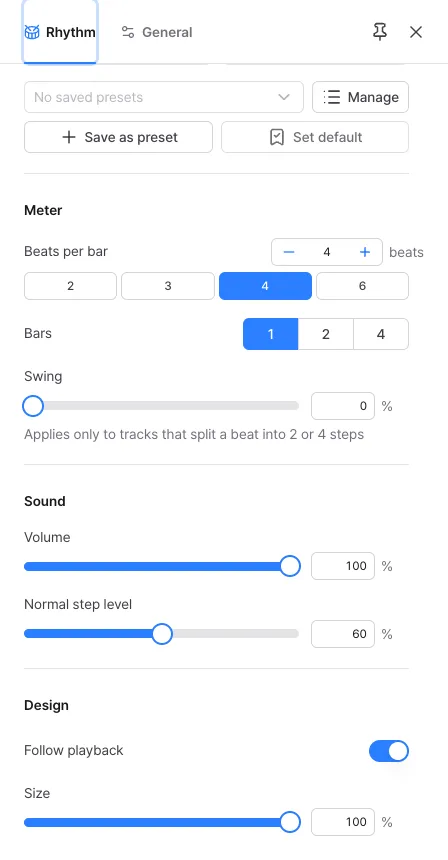
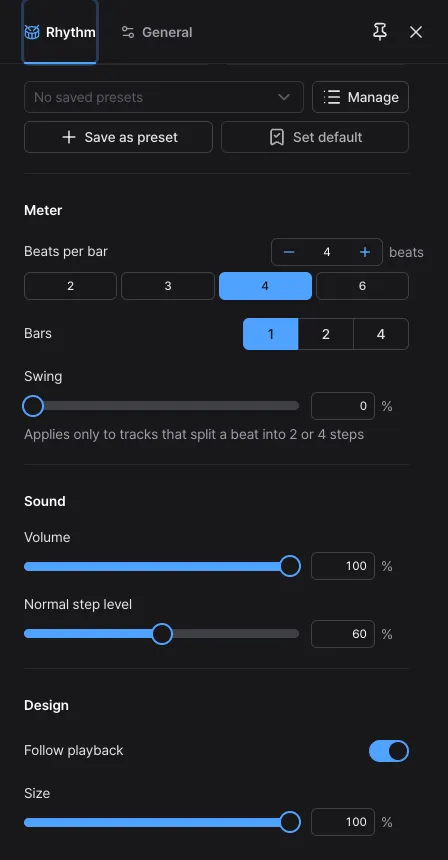
The 'Meter' section of the settings panel sets the frame of your pattern. Changing the meter can also be undone.
- Beats per bar: quick picks 2, 3, 4 and 6, or any value from 1 to 12. Changing it keeps the steps per beat and trims beats off the end of the bar or adds empty ones (16 steps in 4 beats becomes 12 steps in 3 beats). Tracks whose steps don't divide evenly into beats, such as polyrhythm tracks, and tracks that would go over 48 steps keep their step count and are stretched or squeezed to the new bar length.
- Bars: 1, 2 or 4. Raising it fills the new bars with a copy of the last bar, and lowering it removes the later bars.
- Steps per track: set in the track settings. In 4 beats, 8 steps is eighth notes, 16 steps is sixteenth notes and 12 steps is eighth-note triplets. Changing the count moves your active steps to the nearest new step.
- Polyrhythm: when tracks have different step counts, their steps have different widths so you can see the clash, and you hear it too. Give one track 3 steps and another 4 for 3 against 4.
- Swing (0–50%): on tracks that split a beat into 2 or 4 steps, it delays the 2nd and 4th steps within each beat. 0 is straight and around 33% sounds like a shuffle. It does not apply to triplet or polyrhythm tracks, and only the sound is delayed, not where the step is drawn.
Building patterns with several bars
The grid shows one bar at a time, so even a four-bar pattern keeps wide steps on a phone.
- Bar buttons: tap 1, 2, 3 or 4 in the tool row above the grid (as many as the pattern has) to switch bars. The 1–4 keys work too.
- Follow playback: when on, the bar that is playing is shown automatically. Tapping another bar button while it plays turns following off so you can edit that bar, and the 'Follow playback' button turns it back on. A small dot on a bar button marks the bar that is playing.
- Copy bar: with 2 or more bars, choose 'Copy to next bar' or 'Copy to all other bars' from 'Copy bar' in the tool row.
- Making a fill: in a one-bar pattern, set the bars to 4 and all four bars become the same, so editing only the last bar gives three bars of groove and a fill in the last.
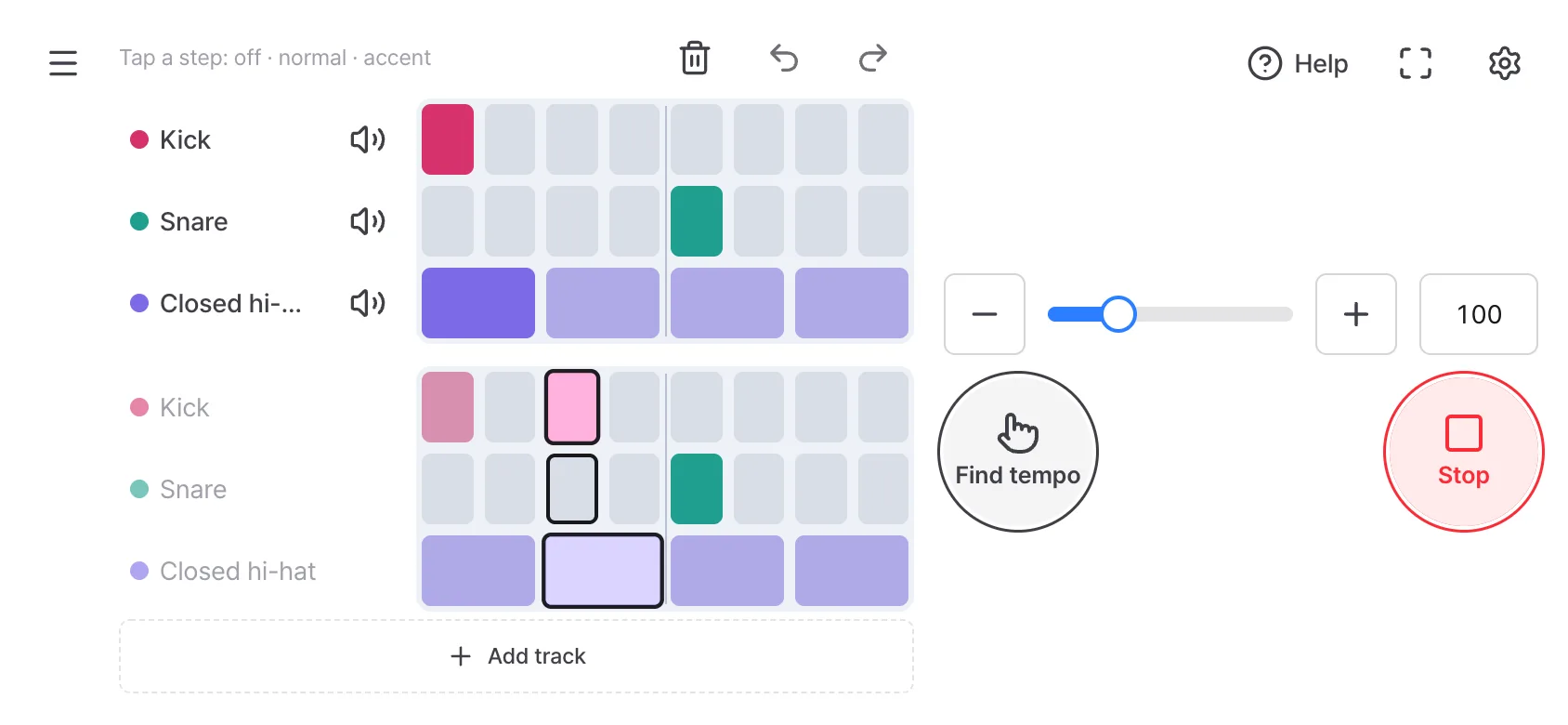
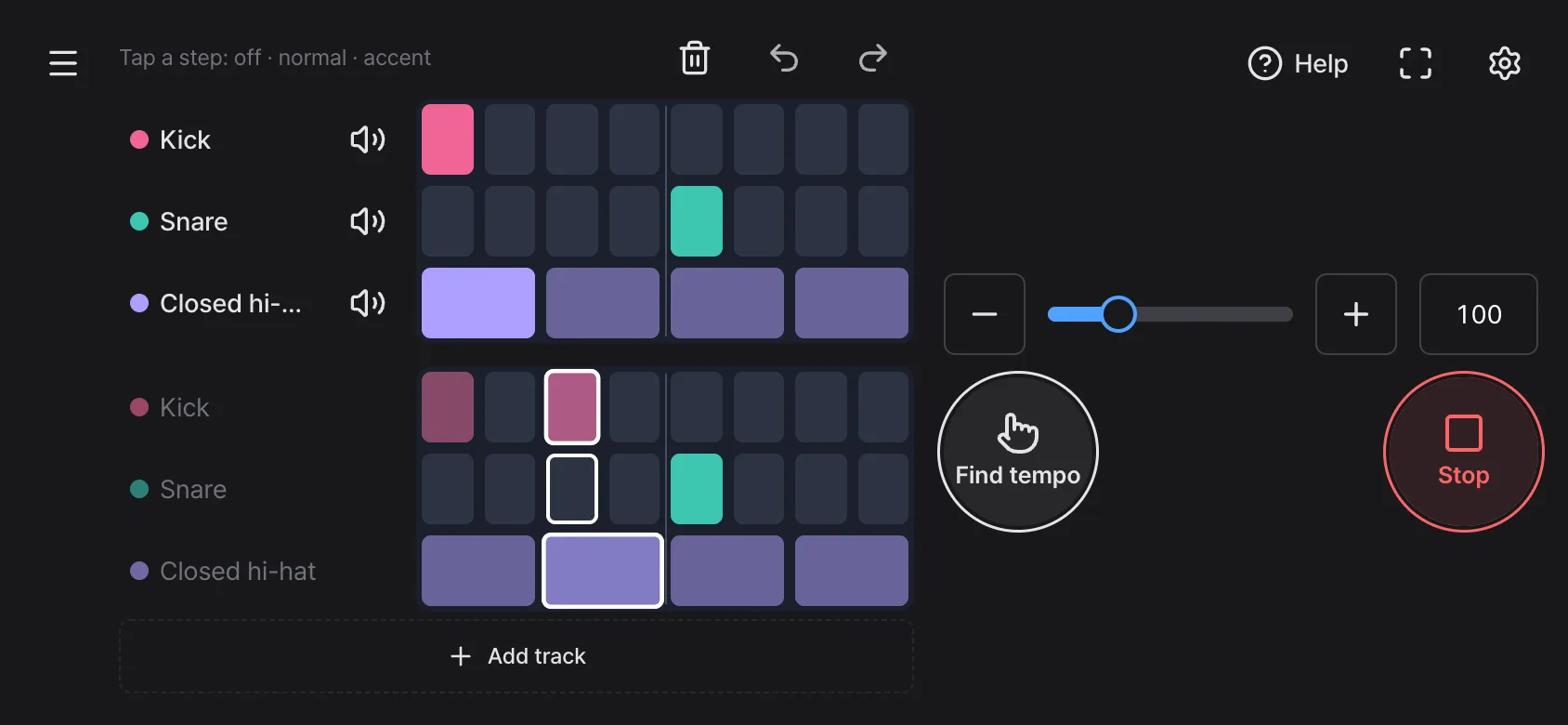
- Half-bar view (on a phone held upright, for example): when the cells are too narrow to fit a whole bar on one line, the bar folds into two rows of halves, the first half on top and the second half below. Track names in the lower half are dimmed; use the names in the upper half for track settings and mute. With too many tracks for two rows, the '1/2' button in the tool row flips between halves, and with follow playback on, the half that is playing is shown automatically. If any track has an odd number of steps, the grid scrolls sideways instead of folding.
Setting tempo and sound
Set the speed and start from the controls at the bottom. You can keep editing while it plays and the sound does not cut out.
- BPM: set 30–300 with the − and + buttons, the slider or the number box. Holding a button keeps changing the value, and the ↑/↓ keys change it by 1.
- Find tempo: tap 'Find tempo' (Enter key) several times in time with the music to find the BPM.
- Editing while it plays: changes to steps, sounds, volume, swing and BPM leave the steps due within the next 0.1 seconds as they are and apply from the step after. Changing beats, bars or steps continues from your current position in the new length.
- Volume: in the 'Sound' section of the settings panel, 'Volume' is the master volume and 'Normal step level' (20–100%) sets how much quieter a normal step is than an accent.
- Size and screen: 'Size' (50–100%) in the 'Design' section shrinks the grid, and turning on 'Screen on' at the top of the settings panel stops the screen from turning off while it plays.
Saving the patterns you make
The pattern you are editing is saved in this browser every time it changes, so it survives a reload. Settings such as volume, normal step level and size are not saved on every change, though. Keep patterns you like as presets.
- After building a pattern, press 'Save as preset' in the 'Presets' section. If you leave the name empty, it gets a name like 'Rhythm 100 BPM'.
- From then on, pick it from the menu under the built-in tiles and the pattern you are editing becomes that one. You can keep up to 24.
- Use 'Manage' to rename, overwrite or delete. A pattern cannot be opened from a link, so link copying and QR code sharing do not exist yet.
- 'Set default' keeps the volume, normal step level, size and follow playback settings as your defaults rather than the pattern, and 'Reset settings' also resets only these settings. Your pattern stays as it is.
Ways to use it
The same tool serves different jobs depending on how you set it.
- Practicing a drum groove: start the 8-beat slowly at 60–70 BPM and raise the BPM bit by bit as it gets comfortable. Mute tracks one at a time to hear the kick, snare and hi-hat separately.
- Polyrhythm practice: play the Polyrhythm 3:2 tile slowly, tap one track by hand and fit it against the other. Move up to 4:3 and 5:4 as it gets easy.
- Jotting down an idea: tap the pattern in your head into steps and save it as a preset if you like it.
- Fill practice: raise it to 4 bars and put toms and snare only in the last bar to get used to the flow changing at the end.
- Instead of a metronome: keep a single Click track and mix accents and normal steps to make a beat with strong and weak notes.
FAQ
- I can't hear any sound.
- Browsers only turn sound on after you tap the screen once. If a notice appears at the top, tap the screen. If your phone is in silent mode, check that 'Sound in silent' at the top of the settings panel is on. Also check that the track is not muted, that its track volume and the master volume are not 0, and that it has active steps.
- I changed a step while it was playing but the sound didn't change right away.
- Sounds are scheduled slightly ahead on the audio clock, up to 0.1 seconds, so steps already scheduled still play as they were and your change applies from the next step. If the tab is hidden, the browser runs the page slowly and the scheduling window grows to 2 seconds.
- The screen scrolls when I try to paint steps on my phone.
- When there are so many steps that the grid scrolls sideways, swiping right away scrolls. To paint, hold the first step for about 0.3 seconds and then drag. A grid with few steps that does not scroll paints as soon as you press.
- What happens when I reload?
- Playback stops, but the pattern you were editing is kept in this browser and opens as it was. In a private window, or if you clear site data, the pattern you were editing and your saved presets are lost together. To keep several patterns, save them as presets. The undo history is cleared on reload.
- I changed the step count and my active steps moved.
- Changing the step count moves each active step to the new step closest in position within the bar. If two steps end up in the same place, the stronger one stays. If you do not like the result, undo it.
- Raising swing doesn't change anything.
- Swing only applies to tracks that split a beat into 2 or 4 steps, meaning the steps divided by the beats is 2 or 4, such as 8 or 16 steps in 4 beats. It does not apply to triplet tracks such as 12 steps, or to polyrhythm tracks.
Try it out right away. You can always return to the original settings with 'Reset settings' in the settings panel.
Other guides
- Clock guide
- Timer guide
- Stopwatch guide
- Countdown guide
- Target Time guide
- Number Recall guide
- Sequence Recall guide
- Reaction Time guide
- Random number guide
- Card Flip guide
- Metronome guide
- Touchscreen Test guide
- Multi-touch Test guide
- Dead Pixel Test guide
- Refresh Rate Test guide
- Gyroscope Test guide
- Accelerometer Test guide