Accelerometer Test guide
The Accelerometer Test on One of the Things is a device check that tells you whether the acceleration sensor in your phone or tablet works. Move the device and the acceleration along X (side), Y (up-down) and Z (front-back) shows up as numbers and a graph, and holding the device in six poses ticks each one off automatically. Rotation is covered by the Gyroscope Test; this tool looks at straight-line movement and gravity. There is no score or history, and the sensor values stay on your device.
Getting started
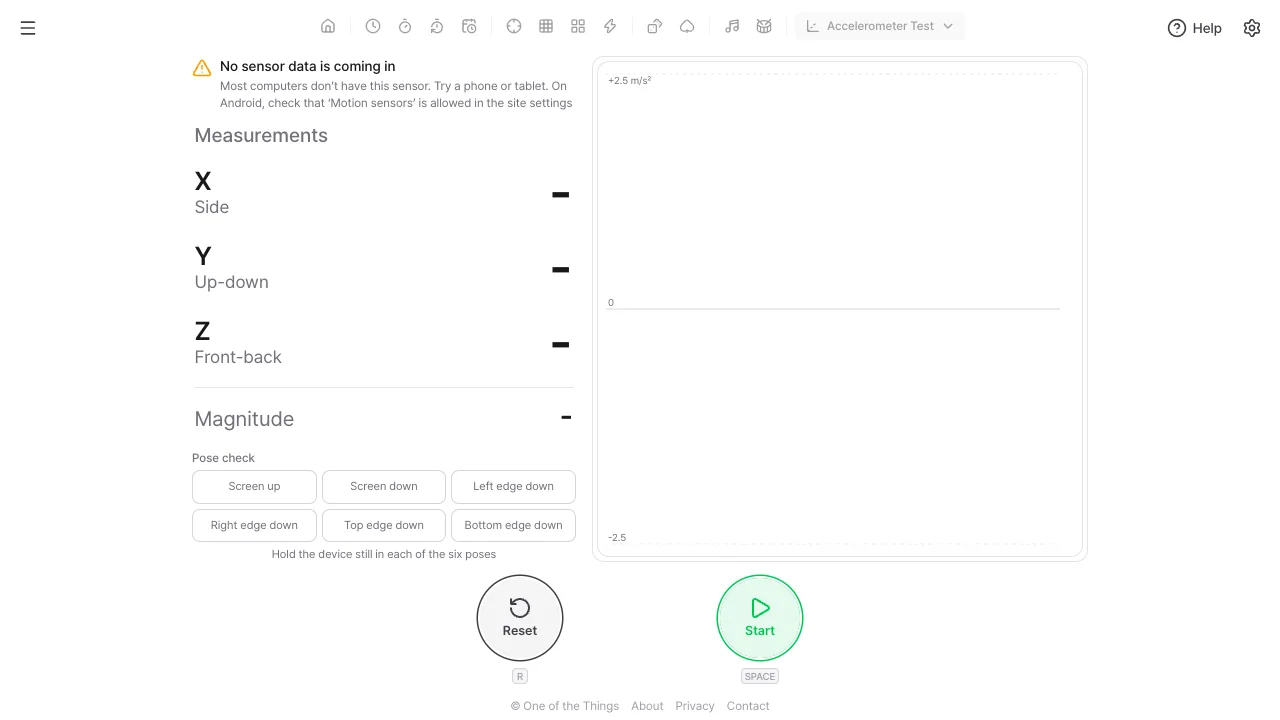
Open this on a phone or tablet. Most computers have no such sensor, so no values arrive.
- Open the menu at the top left and choose 'Accelerometer Test'. On a wide screen you can also open 'Device tests' in the tool list at the top and choose 'Accelerometer Test'.
- Press 'Start' or the Space key. On iPhone and iPad, tap 'Allow' when asked for motion sensor access.
- Move or tilt the device. The values and the graph follow right away.
Reading the values
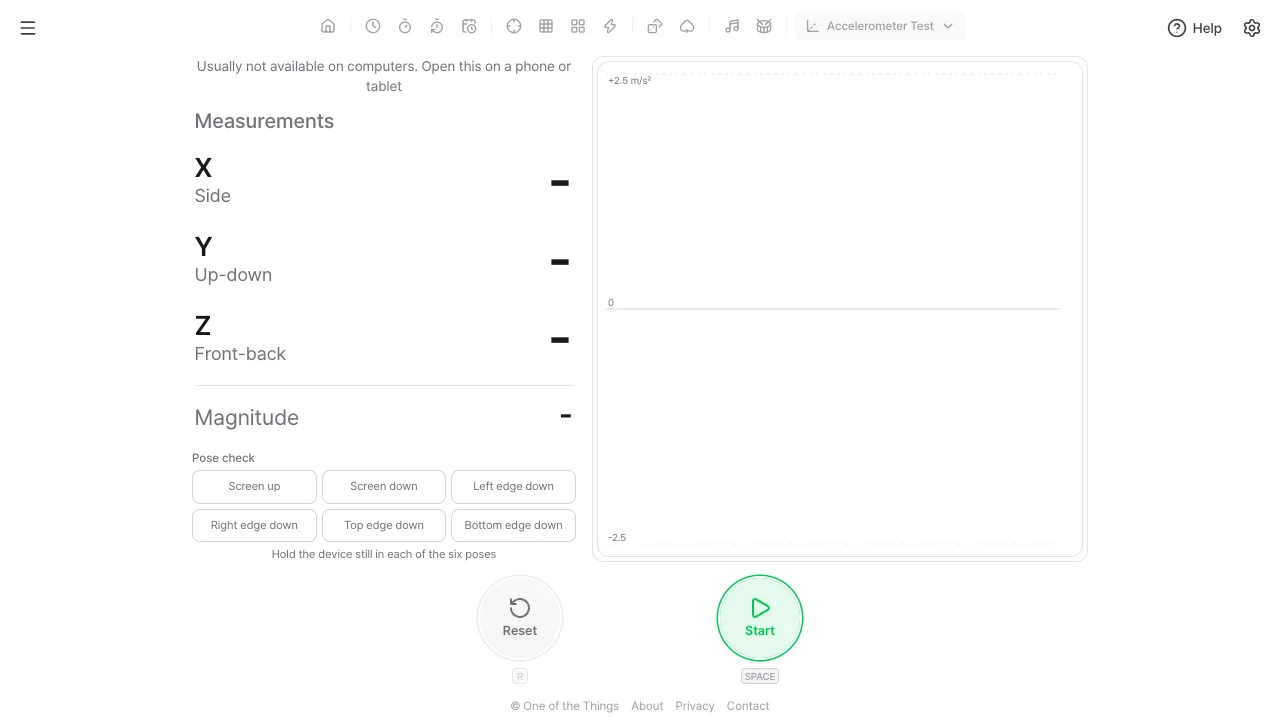
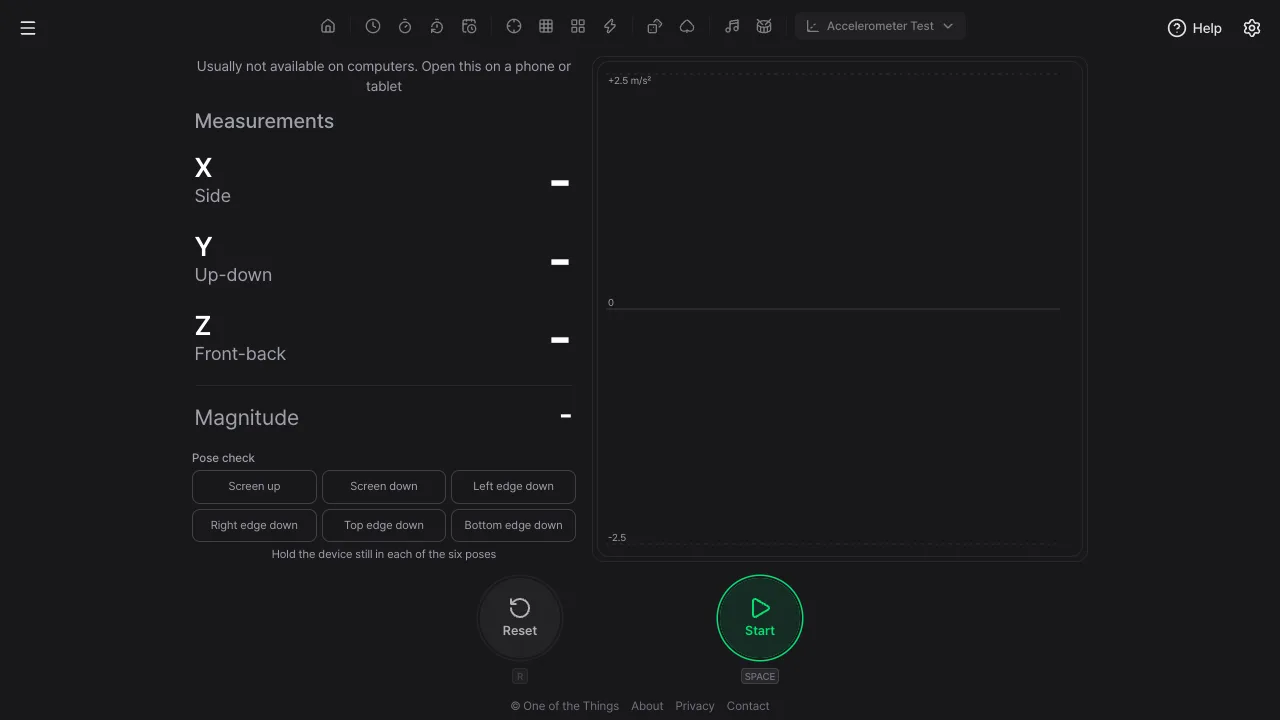
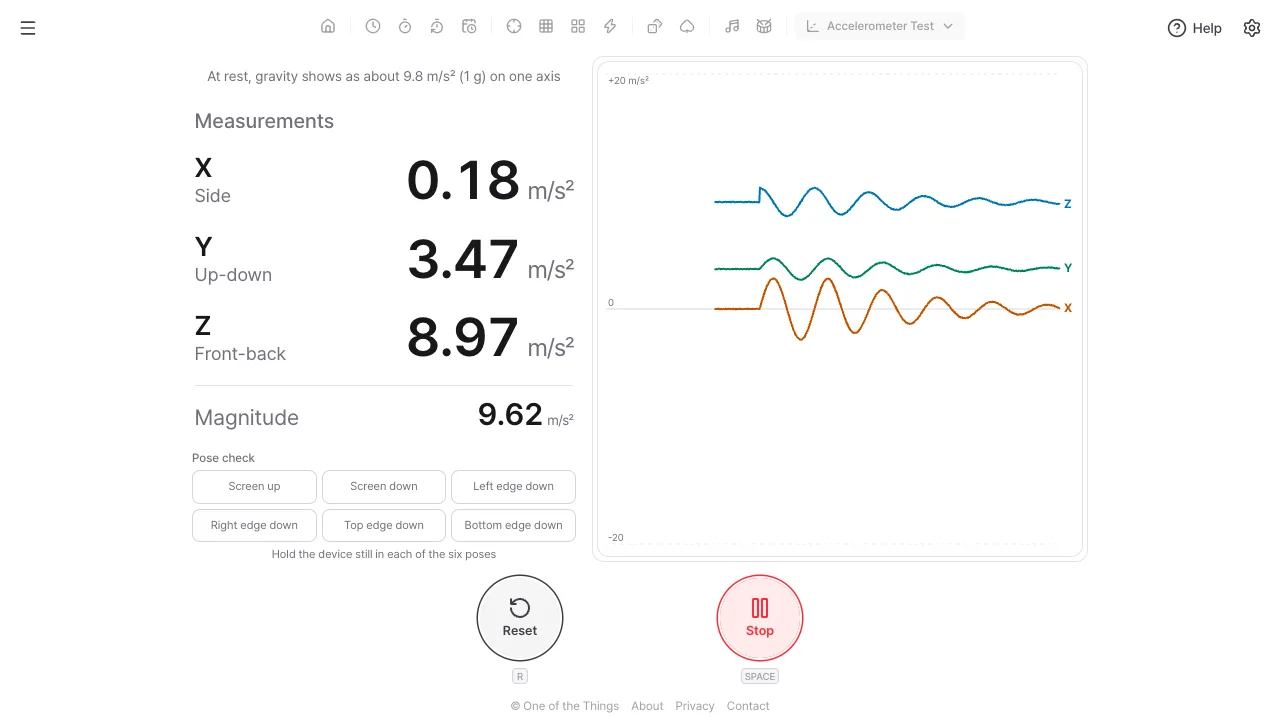
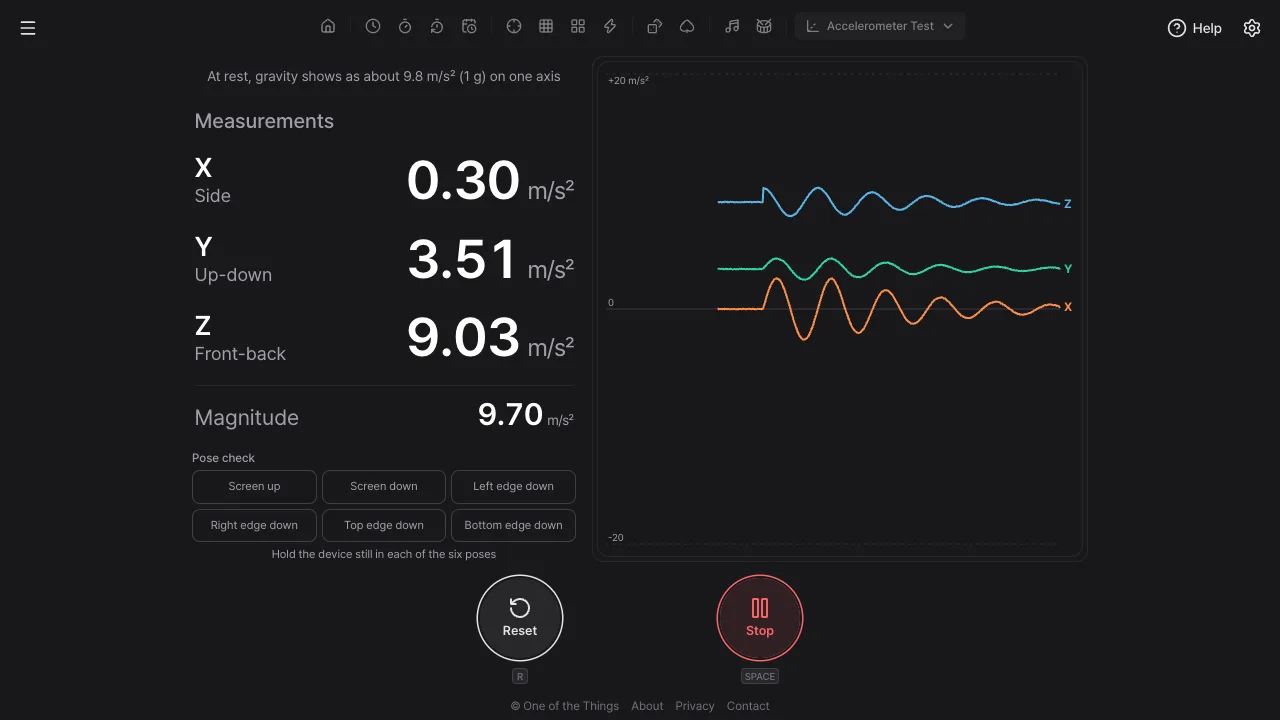
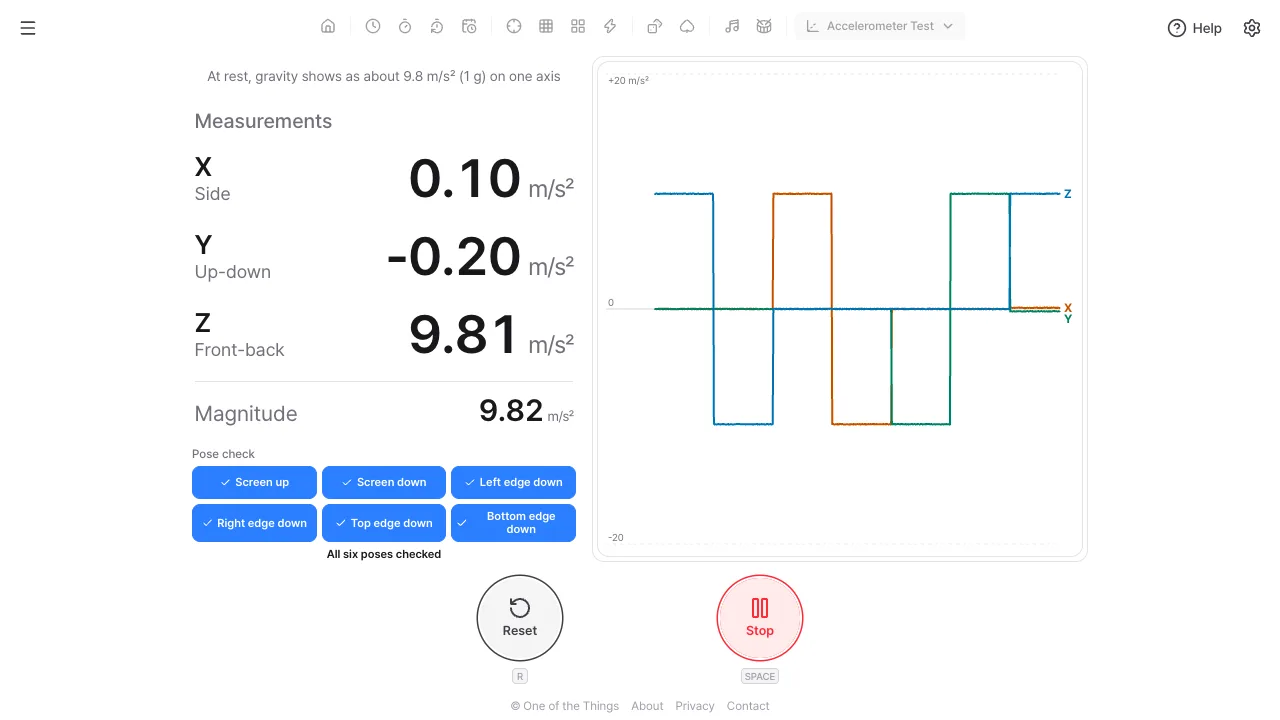
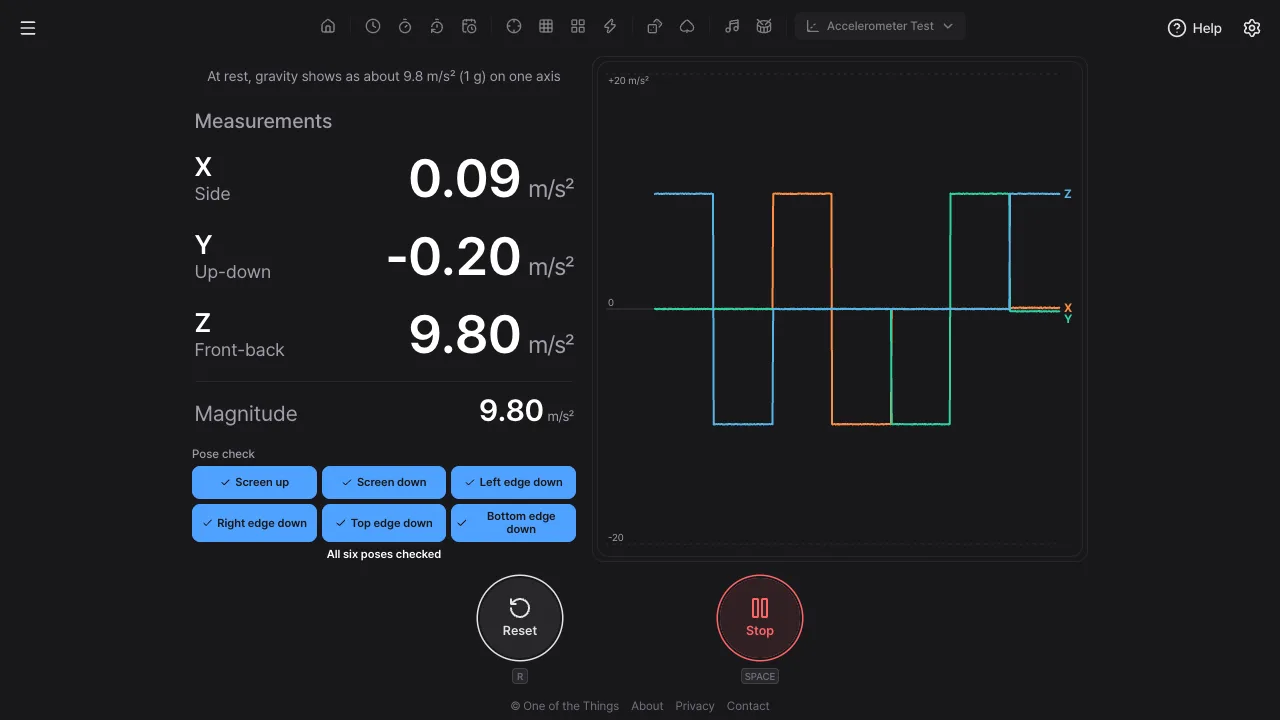
The measurements box shows the acceleration in three directions and its magnitude in m/s² (or g), and the graph below draws them over time.
- X (side): to the right is + when the device is held upright.
- Y (up-down): toward the top of the screen is +. This is up and down while the device stands upright; lying flat, Z becomes the up-down axis.
- Z (front-back): toward the side the screen faces (your face) is +.
- Magnitude: the three values combined. Lying flat it is about 9.81 m/s² (1 g).
- Acceleration is neither speed nor position. At a steady speed it is 0, and it only appears when you start or stop moving. A swing the other way when you stop is normal, so judge by the direction at the start of the movement.
- The graph has three lines, X, Y and Z, also told apart by the letters at their ends. The right edge is now and the left edge is the time window ago. The graph is unfiltered, so it jumps more than the numbers.
- 'Stop' freezes the last values and graph, 'Resume' carries on, and 'Reset' clears the values, the graph and the pose check.
- Touching the screen does nothing, so you don't stop it while tilting. Shortcuts: Space or Enter for Start, Stop and Resume, and R for Reset.
With or without gravity
Choose 'Gravity' in the 'Sensor' group of the settings panel. It starts as 'With gravity'.
- With gravity: even at rest, gravity shows as about 9.8 m/s² (1 g) on one axis. Lying flat, Z at about 9.8 means the sensor is alive, and tilting moves the value from axis to axis. The magnitude stays near 9.8 in any pose.
- Without gravity: only the acceleration caused by movement. At rest it is near 0, it changes only while you move, and it swings the other way when you stop.
- Devices without a linear-acceleration sensor get gravity estimated and subtracted by calculation. Very slow movements can be mistaken for gravity and fade away.
- Changing the gravity setting clears the graph. The pose check always uses the value with gravity, whatever this setting is.
Pose check
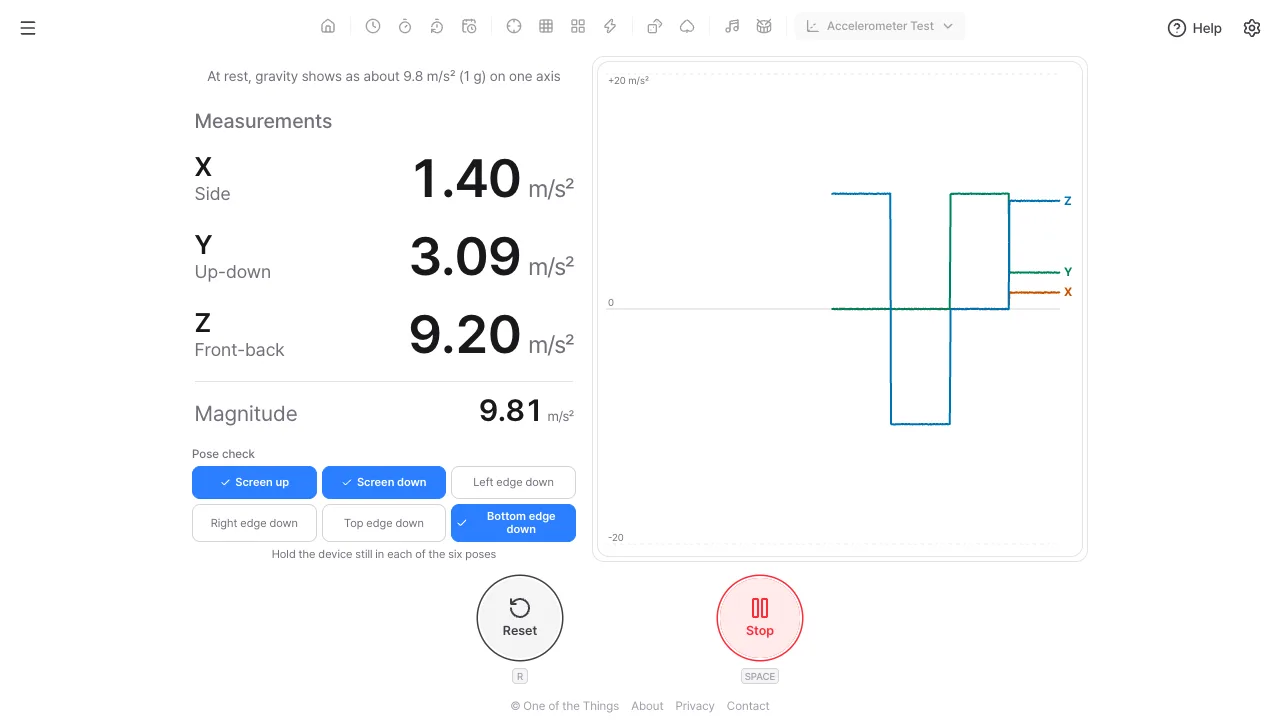
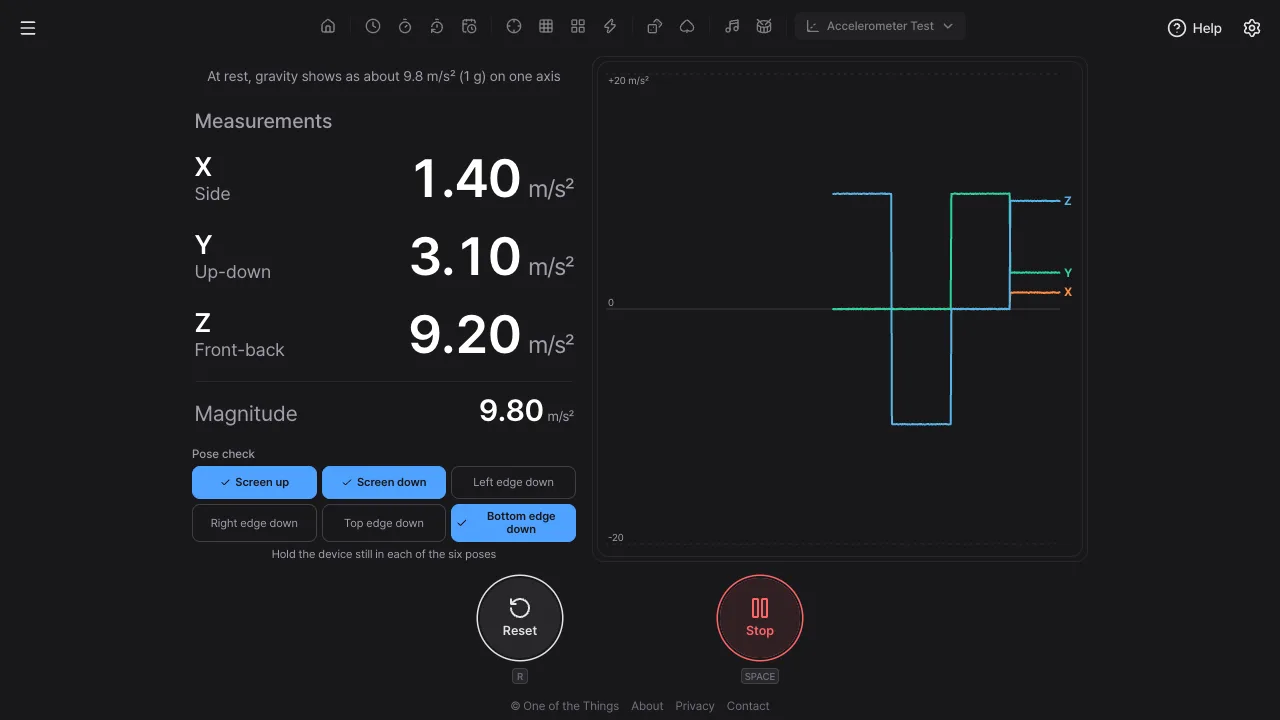
Hold the device in six poses one after another. The tool checks automatically that gravity shows on the right axis with the right size, and ticks the cell.
- The six poses are: screen up (flat, screen toward the sky), screen down (flipped, screen toward the floor), left edge down, right edge down, top edge down (upside down, standing) and bottom edge down (standing upright). What counts is which side points down.
- Hold each pose still for about half a second to get the tick. Passing through it while swinging doesn't count, and the tilt must be within about 18 degrees.
- When all six are done, 'All six poses checked' appears. 'Stop' and 'Resume' keep the checks, 'Reset' clears them.
- If one pose keeps failing, that axis or the sensor's scale may be off.
- If the device doesn't report gravity, you see 'This device doesn't report gravity, so poses can't be checked'.
Changing the look
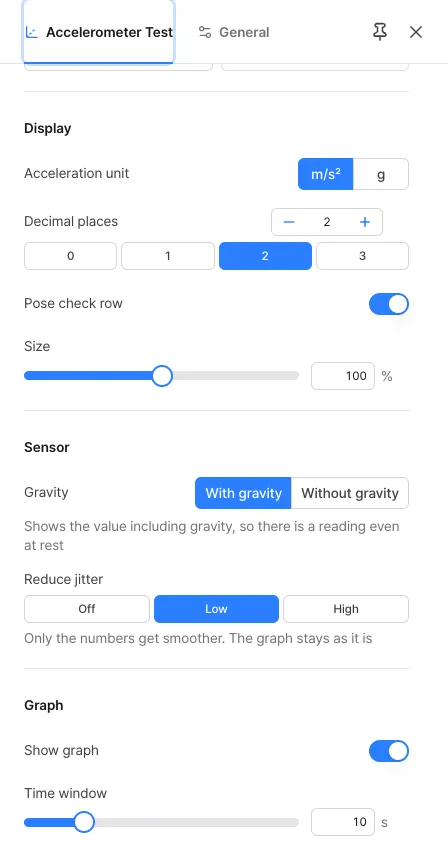
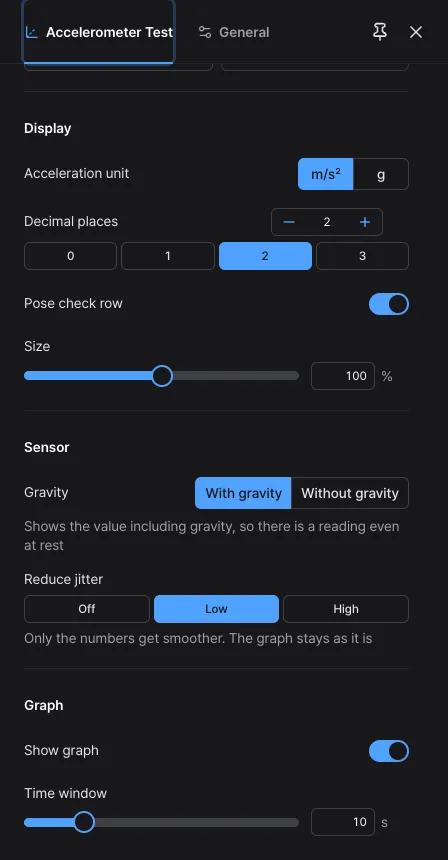
Change these in the 'Display', 'Sensor' and 'Graph' groups of the settings panel. They apply immediately, even while measuring, and opening the settings panel doesn't stop the measurement.
- Acceleration unit: m/s² (default) or g. 1 g is 9.80665 m/s².
- Decimal places: 0 to 3 (default 2).
- Pose check row: when on (default), the six pose cells show. Turn it off if you only want the values.
- Size: changes the number size from 50 to 150%. You can also pinch with two fingers, or hold Ctrl (⌘) and scroll.
- Reduce jitter: Off, Low (default) or High. Only the numbers get smoother; the graph stays as it is.
- Graph: turn it on or off, and set the time window from 5 to 30 seconds (default 10). With it off, the numbers are drawn larger.
Frequently asked questions
- Why doesn't it work on a computer?
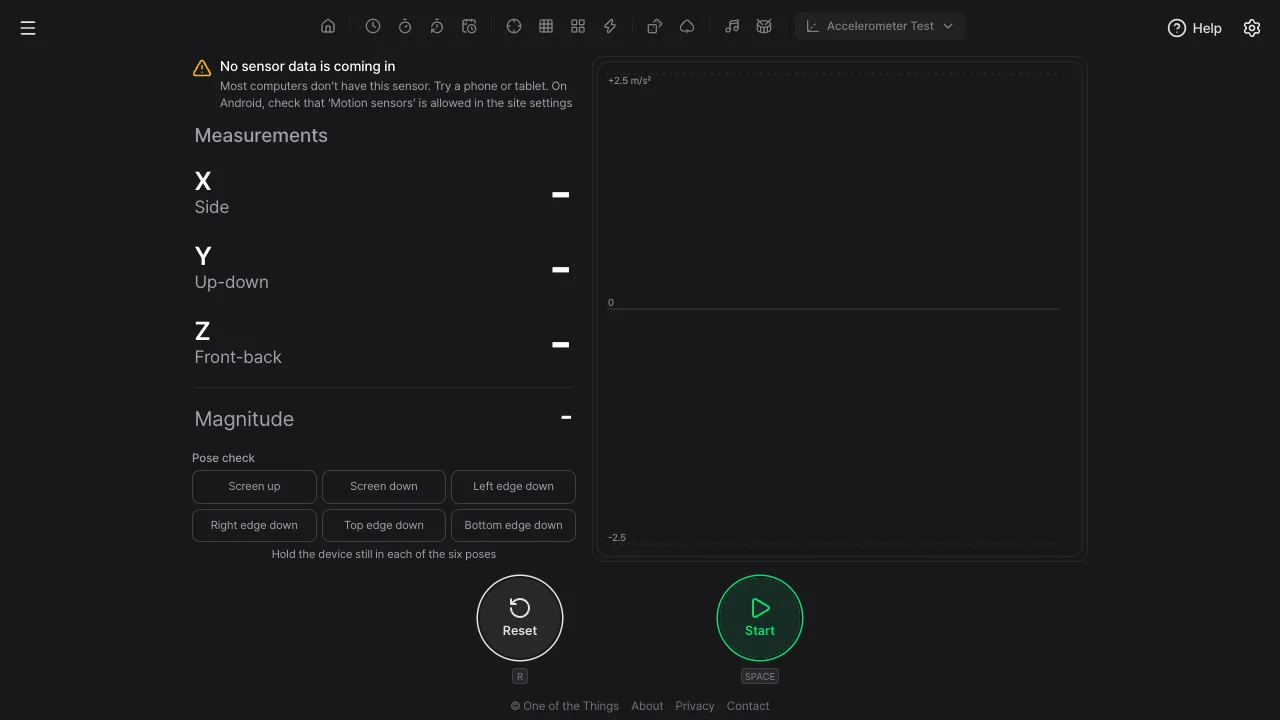
- Most computers have no acceleration sensor, so the browser sends no values. Even after pressing Start you see 'No sensor data is coming in'. Open it on a phone or tablet. Laptops and 2-in-1 devices that have the sensor may work too.
- I allowed it on iPhone but it still doesn't work.
- Allow and deny are remembered per site. If you tapped 'Don't Allow' once, close this tab, open it again and press Start to allow. If that doesn't help, delete this site under Settings > Apps > Safari > Advanced > Website Data and try again. Sensors only work on a secure connection (HTTPS).
- No values arrive on Android.
- In Chrome's site settings, check that 'Motion sensors' is set to allowed. Battery-saver mode or privacy settings can also block sensors.
- The value swings the other way when I stop moving.
- That is normal. Acceleration is how fast the speed changes, so you get a value once when you start moving one way and once in the opposite direction when you stop. Judge by the direction at the start of the movement.
- It isn't 0 even when the device is still.
- With gravity that is normal: at rest, gravity shows as about 9.8 m/s² along one direction. Even without gravity, sensor error or a shaky hand can leave a small value.
- How is an accelerometer different from a gyroscope?
- An accelerometer measures straight-line movement and gravity; a gyroscope measures turning (rotation). Tilt can also be read from the direction of gravity, so an accelerometer can show tilt. Check the rotation sensor in the Gyroscope Test.
- What are m/s² and g?
- m/s² (metres per second squared) is how fast the speed changes each second, and 1 g is the acceleration of Earth’s gravity, 9.80665 m/s². You can switch the unit in the settings.
Try it out right away. You can always return to the original settings with 'Reset settings' in the settings panel.