Dead Pixel Test guide
One of the Things's Dead Pixel Test is a device check that fills the whole screen with one color and lets you switch colors to look, with your own eyes, for a dot that always stays in the same place. It can reveal dots that never light up and look black (dead pixels) and dots stuck lit in one color (stuck pixels). There is no automatic verdict, score or record: looking is the test. This guide covers how to start, how to spot the dots, notes for each kind of device, what to do if you see one, and common questions.
Getting started
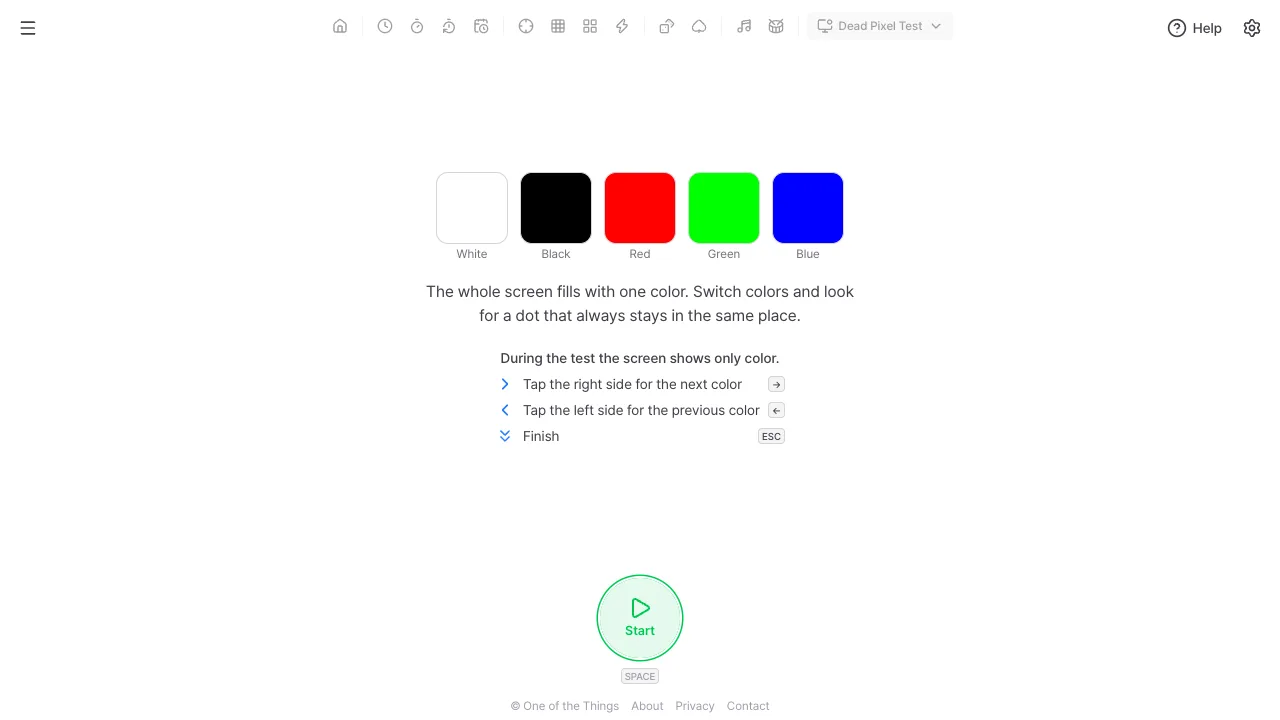
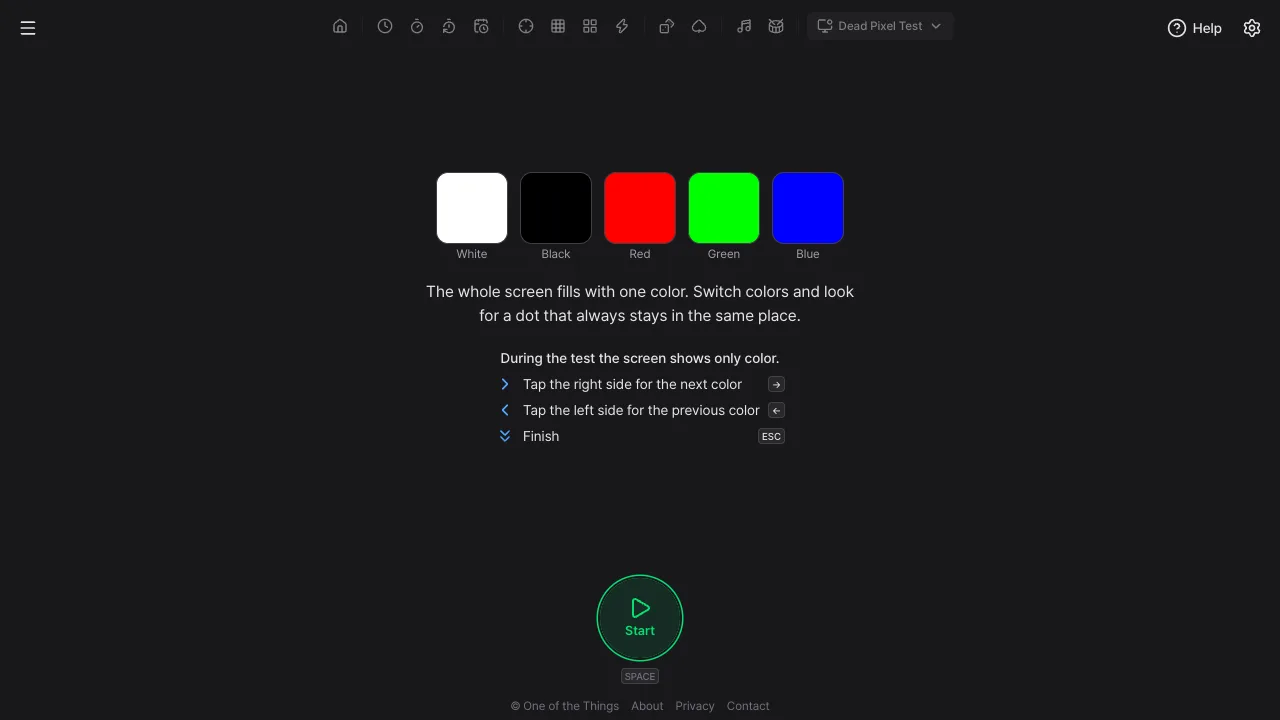
When you start, the whole screen fills with a single color. Nothing is drawn except that color, so any dot that looks different stands out right away.
- Tap the menu button at the top left and choose 'Dead Pixel Test'. On a wide screen you can also open 'Device tests' in the tool list at the top and choose 'Dead Pixel Test'.
- Press the Start button, or press the Space key or the Enter key. Pressing a color chip on the start screen starts from that color. In browsers that support full screen, the test fills the whole screen.
- Tap the right half of the screen or press the → key for the next color, and tap the left half or press the ← key for the previous one. After the last color it wraps around to the first, so you can keep going round.
- The test screen shows only the color, with no buttons or text. Check the controls beforehand in the list under the color chips on the start screen.
- To finish, swipe down on the screen (finger or pen) or press the Esc key. Leaving full screen also closes the test.
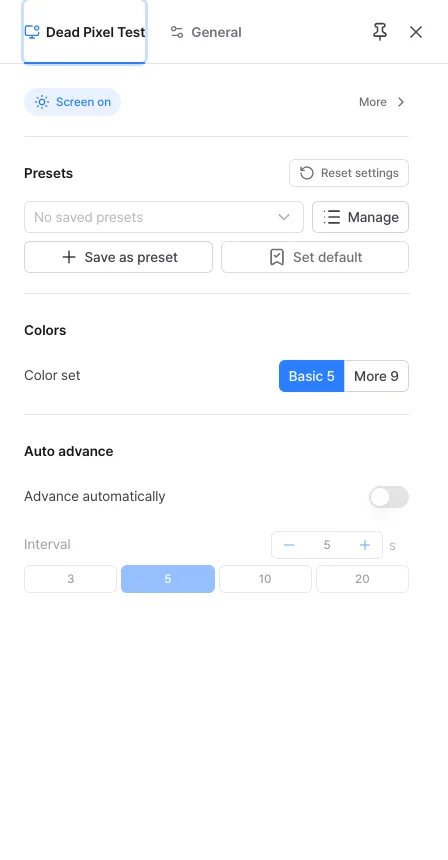
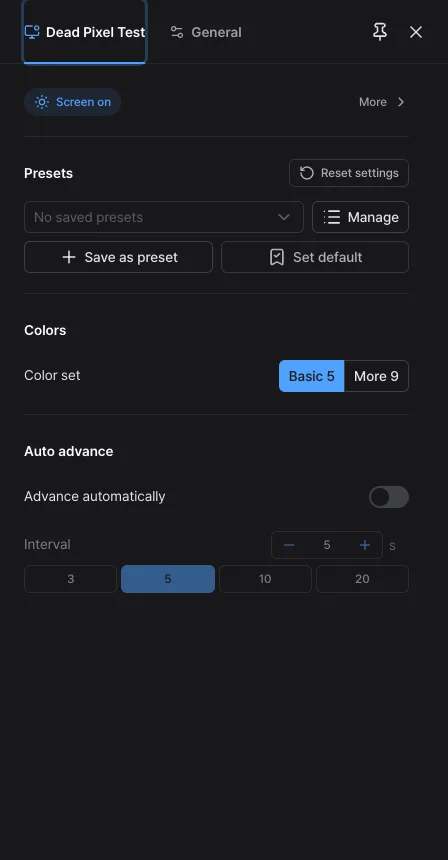
Open the settings panel from the start screen. It cannot be opened during the test.
- Color set: choose Basic 5 (white, black, red, green, blue; the default) or More 9 (adds yellow, cyan, magenta and gray). Both start with white.
- Advance automatically: when on, the test moves to the next color by itself at the interval you set, and the first color follows the last. It is meant for a TV or monitor you cannot reach. It is off at first.
- Interval: 2 to 30 seconds, 5 at first. It cannot be set shorter than 2 seconds, out of care for people sensitive to flashing. When you change color yourself, the interval starts counting again.
- Save settings you use often as a preset, or share them as a link. Opening a link never starts the test by itself.
How to spot the dots
Different dots show up on different colors. Switch colors one by one and scan the whole screen slowly. Getting close to the screen helps.
- A dead pixel never lights up, so it looks black on every color. It is easiest to see on a bright screen such as white.
- A stuck pixel stays lit in one color (red, green, blue, white and so on). It is easiest to see on the black screen.
- On the red, green and blue screens you can find a dot where one subpixel of that color is off, or where a subpixel of another color is always lit. With More 9, yellow, cyan and magenta show cells where two subpixels light together, and gray shows dim or faint dots and uneven blotches.
- If it is a pixel problem, the dot stays in the same place when you change color. To rule out dust or a fingerprint, wipe the screen, look again, and check that it still stays in the same place across colors.
- Night mode, eye-comfort modes (True Tone, Night Shift, blue-light filters), inverted colors and color filters change the screen's colors themselves, so turn them off while you test. The higher the brightness, the easier the dots are to see; a web page cannot change brightness, so raise it yourself.
By device
How far the screen can be filled depends on the device and the browser.
- iPhone: In browsers such as Safari a page cannot hide the address bar and the toolbar at the bottom, so the pixels under them can't be checked. The start screen shows the same note, and 'See how' opens the 'Tips' tab of Help. Turning the phone sideways makes the address bar smaller. If you open the page from the Home Screen, there is no address bar and only the status bar area at the top can't be checked.
- iPad and Android: Starting hides the address bar and toolbar (and on Android the status bar and navigation bar too) and paints the whole screen. Leaving full screen closes the test.
- PC and TV: In full screen the browser may show a note at the top for the first few seconds about how to leave full screen, which briefly covers that spot. With several monitors, the one that has this page open is filled. To check another monitor, move the page there and then start.
If you see a dot
One dot does not mean the screen is broken for certain. Check the following, in order.
- Wipe the screen, switch colors and check whether the dot shows up again in the same place. If it is always in the same place, it may be a pixel problem.
- What counts as a defective pixel for an exchange or repair differs by maker and model. Ask the store or the manufacturer. This tool does not count dots or judge against any standard.
- Image retention (burn-in) is a faint shape left behind after the same picture stayed on for a long time. It looks like an area or a shape rather than a single dot, which sets it apart from a defective pixel.
- This tool has no repair feature for flashing a stuck pixel back to life. Flashing screens can be dangerous for people with photosensitivity, and the effect is not certain.
Common questions
- Can't it find defective pixels automatically?
- A web page cannot read whether the pixels on your screen are actually lit; a person looking at the screen is the test. That is why there is no automatic verdict, score or record.
- Can I use it with a screen reader?
- Each time the color changes, the test screen announces the color name and position (for example 'White, 1 of 5'), but the dots have to be seen with your eyes, so this tool is a check for people who can see.
- Will the screen turn off during the test?
- If 'Keep screen on' in the settings panel is on, the screen is kept awake during the test and released when you close it. If the browser doesn't allow it, it may not be kept awake.
- Is the changing color dangerous because it flashes?
- The color changes at once with no effect, and even with auto advance the interval cannot be set shorter than 2 seconds. How fast you change colors by hand is up to you, so if you are sensitive to flashing, leave auto advance off and change colors slowly.
- Where does my information go?
- Nothing is sent or saved. The test only paints colors on the screen inside this device.
Try it out right away. You can always return to the original settings with 'Reset settings' in the settings panel.
Other guides
- Clock guide
- Timer guide
- Stopwatch guide
- Countdown guide
- Target Time guide
- Number Recall guide
- Sequence Recall guide
- Reaction Time guide
- Random number guide
- Card Flip guide
- Metronome guide
- Rhythm guide
- Touchscreen Test guide
- Multi-touch Test guide
- Refresh Rate Test guide
- Gyroscope Test guide
- Accelerometer Test guide