Stopwatch guide
The One of the Things stopwatch is a simple tool that times things with just two buttons. It shows hundredths of a second, records up to 99 laps, and marks your fastest and slowest laps with color. This guide walks you through starting it, the buttons and shortcuts, reading laps, changing the look and sounds, and saving the setups you use often.
Getting started
When you first open it, it is ready and stopped at zero. You can just start without changing anything.
- Open the menu with the menu button at the top left and tap 'Stopwatch'. On a wide screen you can also tap it right in the tool list at the top.
- Press 'Start', the right one of the two buttons at the bottom, or the Space key. On a phone you can also tap the digits once.
- While it runs, the same button becomes 'Pause'. To mark a split time, press 'Lap' on the left (Enter key).
- After pausing, the left button becomes 'Reset' (R key). Press 'Resume' on the right to keep timing from where you stopped.
Buttons and shortcuts
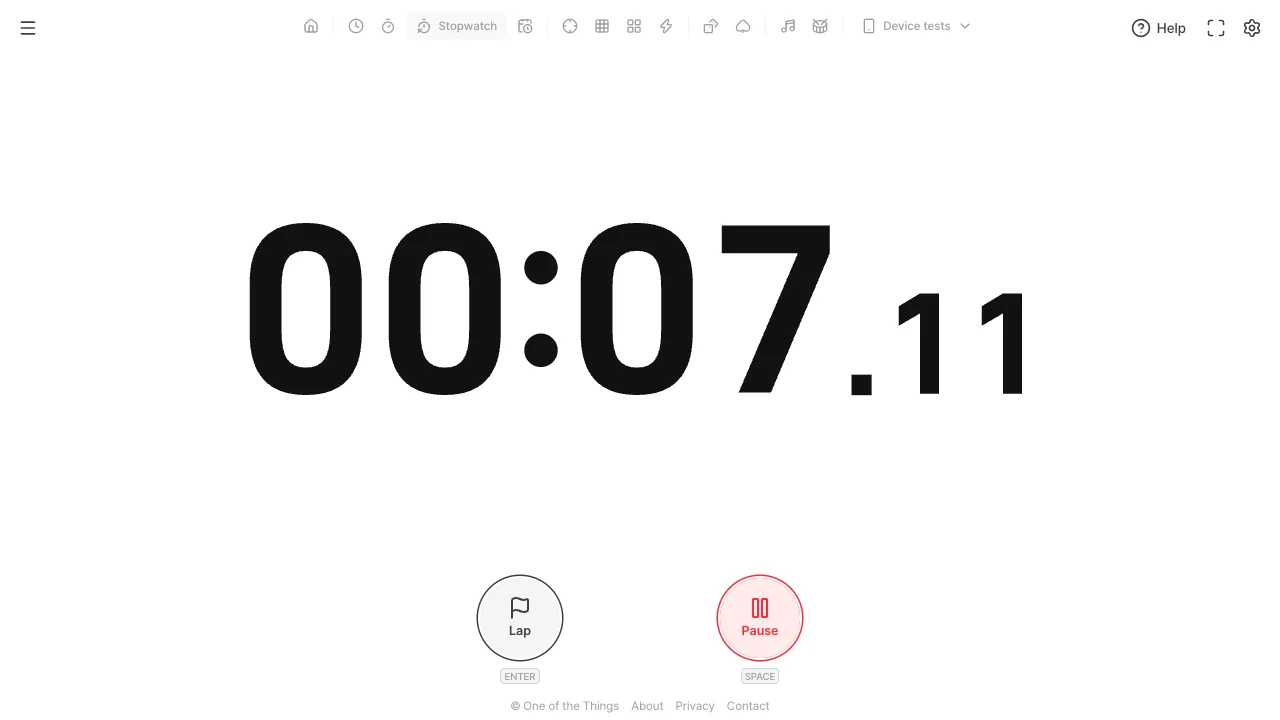
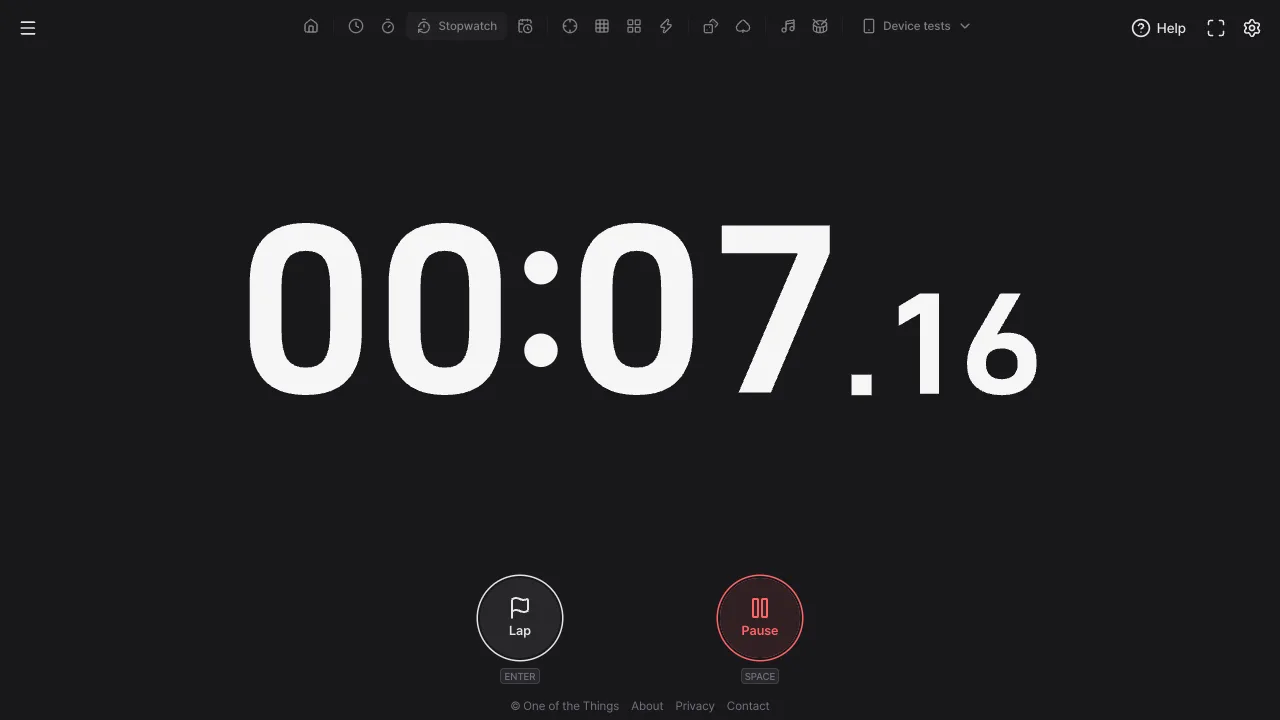
There are only two buttons, and the button in the same spot changes what it does with the state. You can press the same place again without moving your finger. Every button has an icon as well as a label, so you can tell them apart even if the colors are hard to see.
- Start state: the left 'Lap' is disabled and only the right 'Start' (green) works.
- Running: 'Lap' on the left and 'Pause' (red) on the right. When laps reach the maximum, 'Lap' is disabled.
- Paused: 'Reset' on the left and 'Resume' (green) on the right.
- Space: start, pause and resume. A short tap on the digits does the same.
- Enter: records a lap while running and starts from the initial state. While paused it does nothing, so you never restart by accident when aiming for a lap.
- R: resets only while paused. Pressing it by mistake while running does not erase your times.
- Shake: on supported phones, turn on 'Shake' at the top of the settings panel (or 'Shake to start or stop' in the 'Device' group of the 'General' tab), and shaking the phone starts, pauses and resumes.
Recording and reading laps
A lap keeps a split time while the stopwatch keeps running. Use it for running laps, sections of a talk, or work steps, whenever you need times for each part.
- The list appears when you record the first lap. It sits at the bottom of the screen, just above the buttons, using about half of the empty space below the digits (at least three rows), and scrolls inside when there are many laps. It moves the digits up a little if there is not enough room. After the first lap, recording more laps does not move the digits.
- Each row shows the number, the lap time and the total time. The lap time is how long it took from the previous lap to this one, and the total is the time measured from the start. The newest lap is at the top.
- With two or more laps whose times are not all the same, the fastest lap is shown in green and the slowest in red. Screen readers announce them as 'Fastest' and 'Slowest'.
- Lap times are compared in the units you see on screen. With hundredths shown they are compared to the hundredth, with them off to the second, so laps that look the same on screen count as the same.
- The stretch you are timing right now is not in the list. The big digits at the top show the time so far.
- Up to 99 laps are recorded, and 'Max laps' in the 'Time' group can lower that. When it is full, only 'Lap' stops working; pause, resume and reset still work.
- In full screen there is no lap list, only the digits.
Changing the look
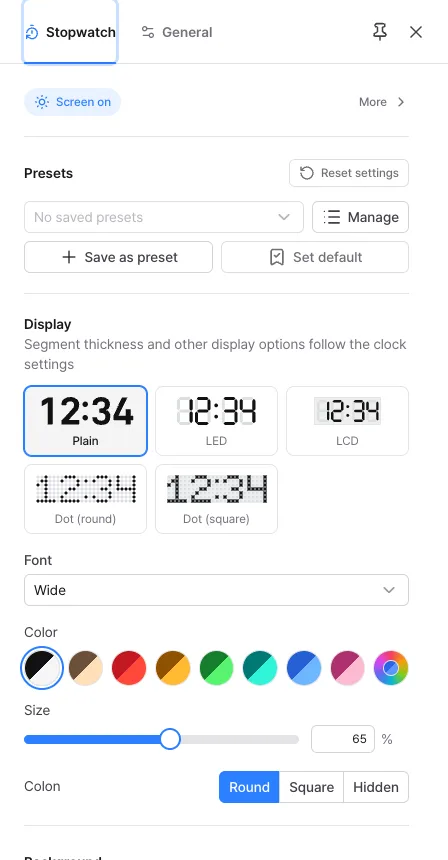
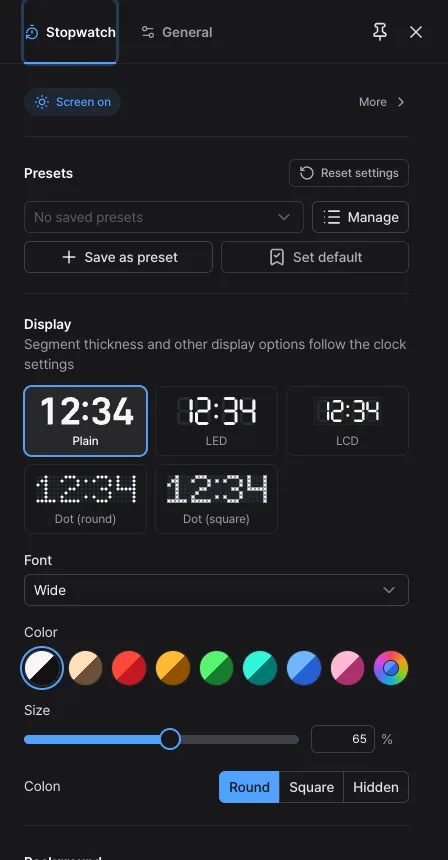
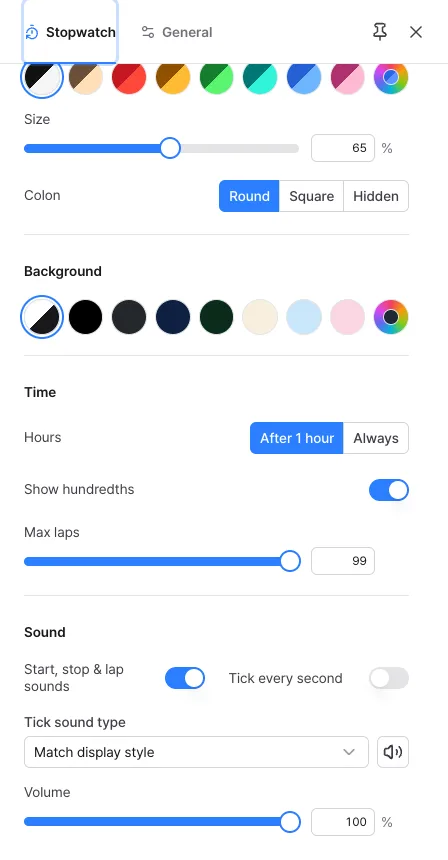
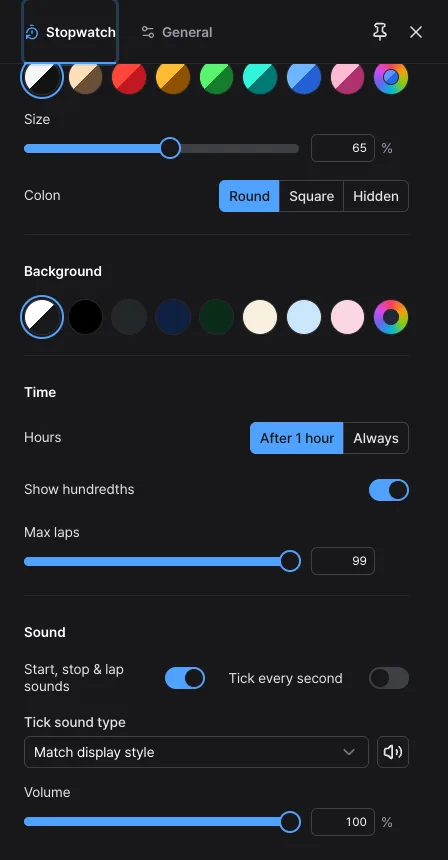
Change it in the 'Display' group of the settings panel (the gear in the top-right corner) and the 'Background' group below it. The stopwatch has its own settings separate from the clock, and it has no Flip style.
- Style: five choices, Plain, LED, LCD, Dot (round) and Dot (square).
- Font: choose a digit font only in the 'Plain' style. The default, 'Wide', is easy to read from far away, and 'Narrow' takes less width.
- Color: pick from Mono, warm white, red, amber, green, teal, blue and baby pink, or choose your own with 'Custom'.
- Size: set the digit size from 25% to 100% of the screen with the slider. It starts at 65%.
- Colon: choose 'Round', 'Square' or 'Hidden'. Dot styles offer only 'Shown' and 'Hidden'. In the LED, LCD and dot styles, 'Hide unlit parts' makes the unlit cells invisible.
- Background: in the 'Background' group, follow 'App theme', or pick black, graphite, navy, forest, cream, sky, baby pink or your own color with 'Custom'. Full screen keeps the background you chose.
- Other display settings such as segment thickness follow the clock settings.
Time and lap count
The 'Time' group sets how the digits are shown and how many laps are kept.
- Hours: 'After 1 hour' (the starting choice) adds the hours place once an hour is reached, and 'Always' shows it from the start.
- Show hundredths: on at first, adding two small hundredths digits. When off, it switches to seconds and the display changes once a second. Time is rounded down, so the digits change only after a full second has passed.
- Max laps: from 1 to 99, starting at 99. If you lower it below the current count while running, laps already recorded are kept and only new laps are blocked.
Confirming by sound
The stopwatch tells you by sound that a press registered. Turn the sounds on and off in the 'Sound' group.
- Start, stop & lap sounds: on from the start. Start and resume, stop, and lap each have a different sound, so you can tell what you pressed without looking. Reset is silent, and so is a lap that cannot be recorded because the list is full.
- Tick every second: a short sound each time the second changes while running. It is off at first.
- Tick sound type: choose 'Match display style' (the default) or a soft, bright, digital or low beep, and preview it with the speaker button beside it. If the tick is on while running, the new sound starts from the next tick.
- Volume: applies to both sounds together. With both off, the volume is not used.
Leaving it on
Things worth knowing for long timings or when you view it from far away.
- Screen on: if 'Screen on' at the top of the settings panel is on (it is at first), the screen is kept from turning off while the stopwatch runs, in browsers that support it.
- Full screen: the 'Full screen' button hides the menu and buttons and shows only the digits. In browsers without full screen such as iPhone, 'Add to Home Screen' opens it without an address bar (see 'Help' in the menu).
- Phone sideways: turned sideways, the digits look bigger. On a short screen, the lap list moves beside or below the digits.
- A refresh starts over: the running state and laps are not saved, so reopening the page brings back zero. While timing, don't close the tab or move to another page.
- Pull-to-refresh is blocked: pulling the screen down on a phone does not refresh the page by accident.
Saving the settings you use often
Stopwatch settings are not saved every time you change them. Keep the settings you use often in the 'Presets' group.
- Change the display, time and sounds the way you want, then tap 'Save as preset' in the 'Presets' group. If you leave the name blank, it gets an easy name such as 'LED' or 'Plain · Wide'.
- After that, choose it from the box. The stopwatch has no built-in presets, only the ones you make. Choosing one also puts the settings in the address, so you can bookmark it.
- To always open with the same look, tap 'Set default'.
- Use 'Manage' to rename, overwrite or delete presets, and send the same settings to another device with a copied link or a QR code.
- Volume and size are not included in presets, because the right values differ from device to device.
Ideas for using it
A few ways to use the stopwatch, with settings that suit each one.
- Running and track training: press Enter or 'Lap' every lap. The fastest and slowest laps show up in color right away, and keeping hundredths on reveals small differences.
- Practicing a talk: press Lap at each section to check the time per part. Make it large and go full screen so you can see it from far away.
- Logging work or study time: turn hundredths off for a calmer display, and pause during breaks. Past an hour, the hours place is added by itself.
- Cooking and experiments: time in pieces with pause and resume. Turn on the tick every second to hear it running without looking.
- Games and puzzles: press Lap at the end of each round and compare the time per round. The fastest round is marked in green.
Frequently asked questions
- Does the time drift while I look at another tab?
- No. In a hidden tab the screen may be drawn less often, but the time is recalculated from when you started and the current time, so you see the correct value when you come back. Accuracy depends on your device's clock.
- I refreshed and all my times disappeared.
- The running state and laps are not saved. Every time the page opens it starts fresh, so screenshot or write down any laps you need to keep while timing. Keep the tab open while timing.
- I press Enter while paused but no lap is recorded.
- This is on purpose. Laps are recorded only while running, and Enter does nothing while paused, so you never restart by accident when aiming for a lap. To keep timing, press Space or 'Resume'. If 'Lap' is disabled even while running, the laps have reached the maximum.
- I can't hear any sound.
- Browser rules require one tap on the screen before sound can play. The stopwatch always starts with a press, so it gets ready on your first press. If your phone is in silent mode, see 'Help' in the menu for how to play sound anyway, and check that the switches and volume in the 'Sound' group are not turned off.
- The digits don't show hours or hundredths.
- Hours appear only after an hour has passed. To see them from the start, set 'Hours' to 'Always'. Hundredths show only while 'Show hundredths' is on. Both are in the 'Time' group of the settings panel.
- The fastest and slowest laps are not colored.
- They are marked only when there are two or more laps and the lap times are not all the same. Comparison uses the units you see on screen, so with hundredths off, laps that show the same second count as the same. If several laps tie for fastest, only the first one recorded is marked.
Try it out right away. You can always return to the original settings with 'Reset settings' in the settings panel.
Other guides
- Clock guide
- Timer guide
- Countdown guide
- Target Time guide
- Number Recall guide
- Sequence Recall guide
- Reaction Time guide
- Random number guide
- Card Flip guide
- Metronome guide
- Rhythm guide
- Touchscreen Test guide
- Multi-touch Test guide
- Dead Pixel Test guide
- Refresh Rate Test guide
- Gyroscope Test guide
- Accelerometer Test guide