Card Flip guide
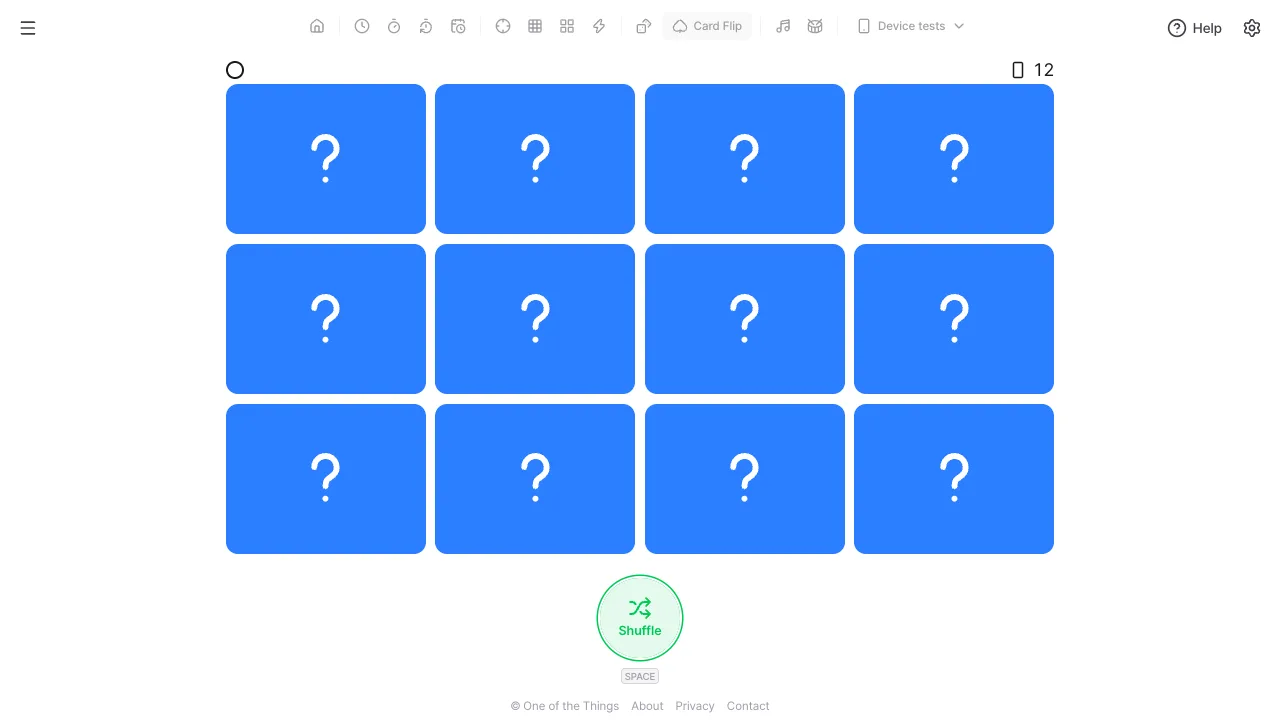
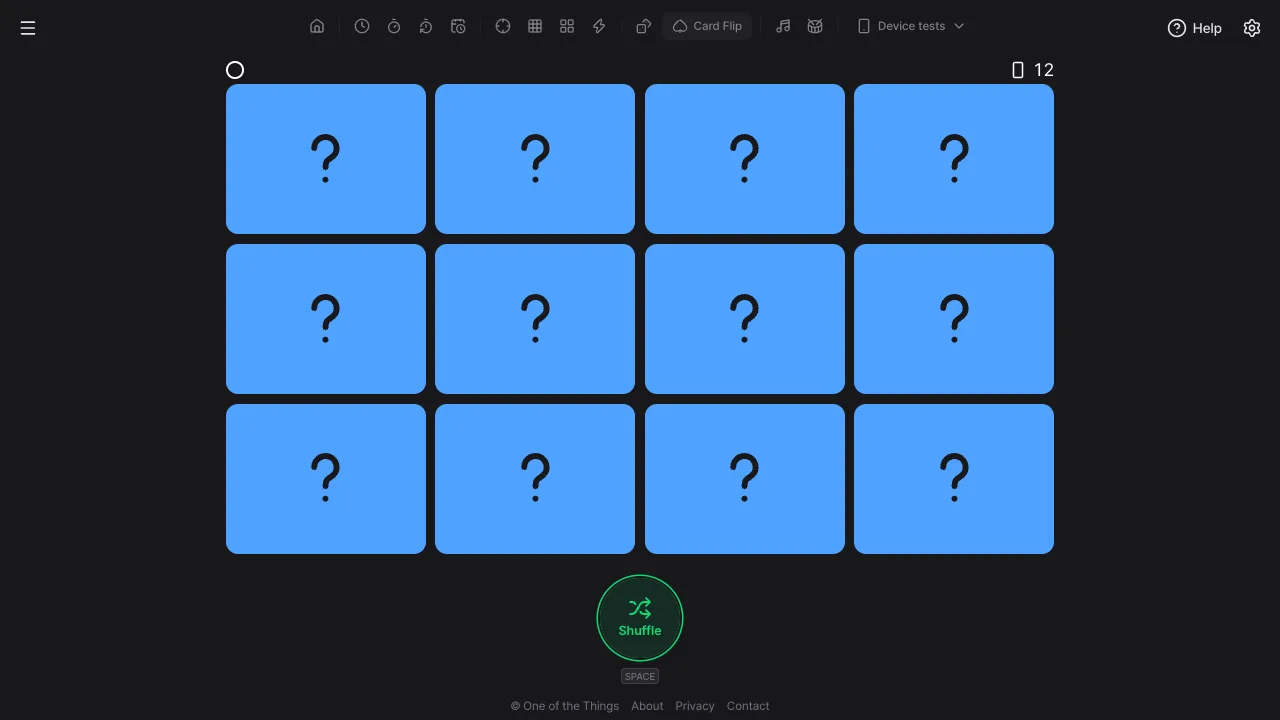
The Card Flip tool on One of the Things is a quick way to pick someone: players take turns flipping one card at a time, and whoever flips a ○ card is picked. Every card on the board looks the same face down (a question mark). Most turn out blank, and only the number of ○ cards you choose are mixed in. Choose how many cards and how many ○ cards, start flipping, and press 'Shuffle' for a new round. This guide covers how a round works, when it ends by itself, the settings, how to keep it fair for everyone, and saving the setups you use often.
Getting started
When you first open it, 12 cards are on the board with one ○ card mixed in. You can start flipping without changing anything.
- Open the menu with the menu button at the top left and tap 'Card Flip'. On a wide screen you can also tap it right in the tool list at the top.
- Decide the order. The first player taps one card briefly. With a keyboard, press Tab to enter the board, choose a card with the arrow keys, and press Space or Enter.
- If the card is blank, that player is safe and the next player flips another card.
- If a ○ card comes up, that player is picked. Press 'Shuffle' to start a new round with the same settings.
How a round goes
Flipping always works the same way. The only difference is whether the card you flipped is blank or a ○ card.
- Flipping: tap a card briefly with a finger or the mouse (under half a second, without moving much). Holding it down or sliding does not flip it, so a card is not flipped by accident while you grab the screen as the phone is handed over. If a second finger touches, those presses are all canceled.
- Outside the cards: pressing the gap between cards or outside the board does nothing.
- When a ○ card comes up: the ○ appears, pops slightly larger and settles back, and a sound plays. On devices that support vibration, it vibrates briefly. One of the remaining ○ marks above the board is filled in.
- When it ends by itself: the round ends once every ○ card is found, and cards still face down fade. It also ends when every remaining card is a ○ card (for example, with 12 cards and one ○, when the eleventh card is blank), and the remaining ○ cards flip over one by one on their own. If several ○ cards come up this way, treat them as taken by the next players in turn, one each.
- Shuffle: it reshuffles right away, even in the middle of a round, without asking. Just after a round ends, the button dims for about a second so that the finger that tapped the last card does not press it by mistake.
- Line above the board: on the left, the ○ cards not found yet (found ones are filled circles); on the right, the number of cards still face down. If there are too many ○ cards to fit on one line, it changes to numbers like '3 / 29'.
Choosing the cards and ○ cards
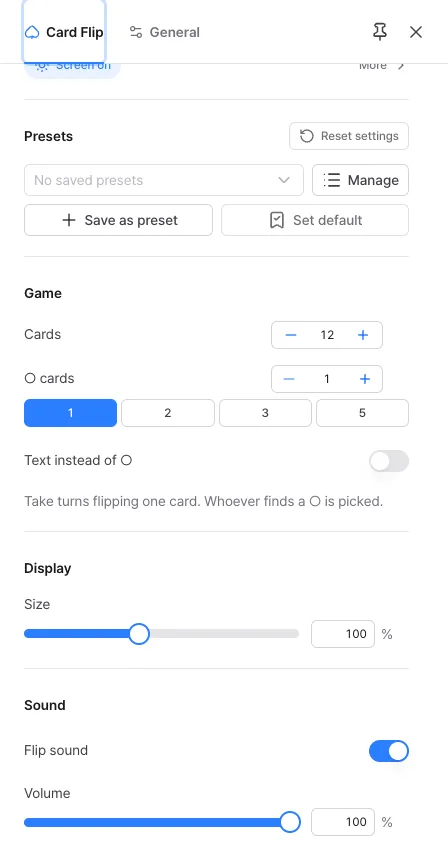
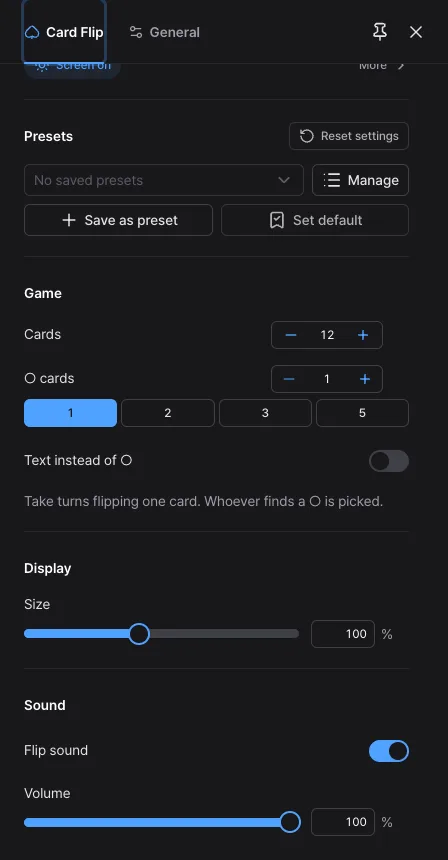
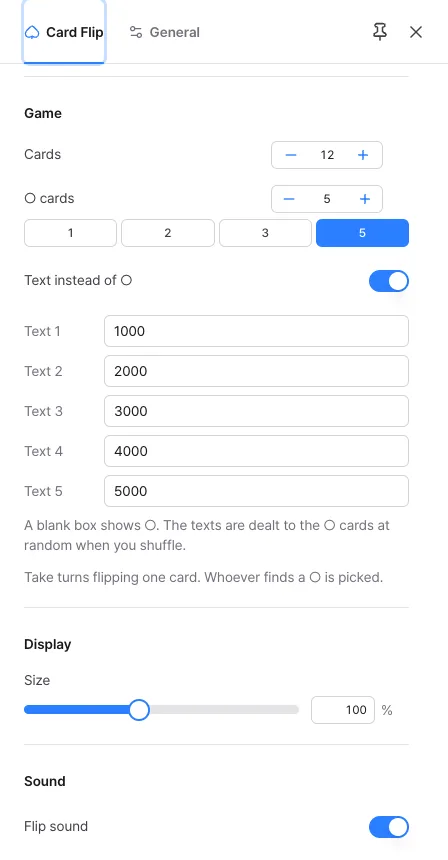
Change the settings in the 'Game', 'Display' and 'Sound' groups of the settings panel. When you change the number of cards or ○ cards, the board is reshuffled right away.
- Cards: choose from 4, 6, 8, 9, 12, 15, 16, 20, 24, 25 or 30 (12 at first). Only numbers that divide the board into an even grid are offered, and the minus and plus buttons move one step at a time within that list.
- ○ cards: from 1 up to one fewer than the number of cards (1 at first). If every card were a ○ there would be no reason to flip, so that is the limit, and if you lower the number of cards below it, the ○ cards are lowered to match.
- Size: changes the size of each card from 30 to 200% (100% at first, with the long side of a card at 200px). On a large screen the cards stop at 100% so they do not get too big, and on a screen where the board already fills the space, such as a phone, they stay at the size that fits until you lower it. You can also change it by spreading or pinching two fingers or with Ctrl (⌘) + wheel, and it is not part of a preset.
- Sound: turn the 'Flip sound' off or adjust the volume. Volume is not part of a preset.
- Changing the number of cards or ○ cards discards the round in progress and reshuffles. Choosing the same value again changes nothing, and changing the size or sound leaves the round as it is.
Adding penalty texts
Instead of a ○, each card can show a different text. Write amounts or penalties, and whoever flips a card follows what it says.
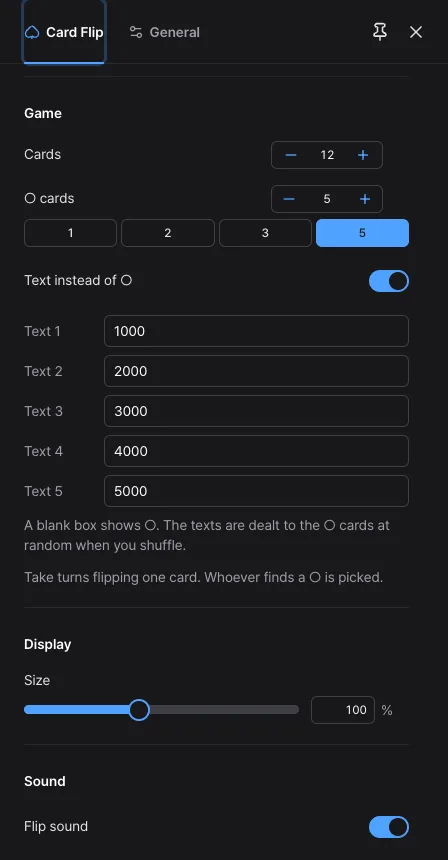
- Turn it on: switch on 'Text instead of ○' in the Game group. A box 'Text 1', 'Text 2'… appears for every ○ card.
- Type: write a number or words up to 12 characters in each box (for example 1000, 2000, 3000, 4000, 5000, or 'Sing a song'). A blank box shows ○.
- Dealing: the texts are dealt to the ○ cards at random every time you shuffle. Editing a text does not reshuffle the board and takes effect right away.
- Keeping: texts are part of a preset, so you can name and save a set of penalties you use often.
- Small cards: when cards are small the text is small too. Use fewer cards or raise the Size setting.
Keeping it fair for everyone
The position of the ○ cards is decided once, when the cards are shuffled, and never changes during a round, so a card has the same chance of being a ○ whichever turn it is flipped on.
- To be exactly fair to each person, make the number of cards a multiple of the number of players. For example, with 12 cards and three players, everyone can flip four cards, so everyone has the same chance of being picked.
- If it is not a multiple, the players who go first get one more chance to flip. For example, with 12 cards, one ○ and five players, the 1st and 2nd players can flip three times and the others twice, so the first two are picked with a 3 in 12 chance and the others with a 2 in 12 chance.
- If no card count matches the number of players, change who starts after each round.
Saving setups you use often
Card Flip settings are not saved every time you change them. A refresh brings back the default settings, so keep the setups you use in the 'Presets' group.
- Change the cards, ○ cards and sound the way you want, then tap 'Save as preset'. If you leave the name blank, it is named after the settings, like '12 cards · ○ 2'. Volume is not part of a preset.
- After that, choose it from the box (up to 12, names up to 20 characters). Choosing it also puts the settings in the address, so you can bookmark it.
- To always open with the same setup, tap 'Set default'.
- Use 'Manage' to rename, overwrite or delete presets, and send the same setup to someone with a copied link or a QR code. To go back to the start, tap 'Reset settings'. This also clears the settings you saved with 'Set default', but you can bring them back with 'Undo' in the notice that appears.
Ideas for using it
A few ways to use Card Flip, with settings that suit each one. What a ○ means is up to the people sitting around it.
- Choosing who does the dishes or cleaning: take turns flipping with 12 cards and one ○, and whoever finds the ○ takes the job.
- Who buys the snacks: use a few more cards than there are players with one ○, and whoever is picked pays.
- Picking several people: raise the ○ cards, for example 20 cards and 3 ○ cards, and several people are picked. The round ends by itself once every ○ is found.
- Speaking order or splitting teams: decide what the ○ means for your group, for example going first or joining one team.
- Adjusting the tension: with fewer cards (4 to 6) someone is picked within a turn or two, and with 30 cards and one ○ it stays suspenseful to the end.
- Playing with kids: the cards simply flip over, with no startling effects, so it is easy to play with children.
Frequently asked questions
- Can I change the result by when I press or which card I choose?
- No. The position of the ○ cards is decided once when the cards are shuffled, using the browser's unpredictable cryptographic random numbers, and it does not change during a round. The order, speed and place you press have no effect, and a card has the same chance of being a ○ whichever turn it is flipped on.
- I tapped a card but it did not flip.
- A card flips only on a short tap (under half a second, with the finger hardly moving). Holding it down or sliding does not flip it, and pressing the gap between cards or outside the board does nothing. After a round has ended, cards do not respond, so press 'Shuffle' to start a new round.
- Can I press 'Shuffle' in the middle of a round?
- Yes. It reshuffles right away with the same settings, without asking. This tool keeps no history, so the only thing you lose is the round in progress. Just after a round ends, it briefly ignores presses for about a second so the finger that tapped the last card does not press the button by mistake.
- The round ended before I flipped every ○ card.
- Either every ○ card was found, or every remaining card is a ○ card. In the first case, the remaining cards are all blank, so they stay face down and fade. In the second, the remaining ○ cards flip over one by one on their own to show where they were.
- Why can I not choose any number of cards?
- Only numbers that divide the board into an even grid of columns and rows can be chosen (4, 6, 8, 9, 12, 15, 16, 20, 24, 25 and 30). A board with a short last row looks awkward.
- Where does my information go?
- There is no sign-up, and your default settings and presets are stored only in this device's browser. The cards you flip and the board are neither saved nor sent to any server. See the Privacy Policy for details.
Try it out right away. You can always return to the original settings with 'Reset settings' in the settings panel.
Other guides
- Clock guide
- Timer guide
- Stopwatch guide
- Countdown guide
- Target Time guide
- Number Recall guide
- Sequence Recall guide
- Reaction Time guide
- Random number guide
- Metronome guide
- Rhythm guide
- Touchscreen Test guide
- Multi-touch Test guide
- Dead Pixel Test guide
- Refresh Rate Test guide
- Gyroscope Test guide
- Accelerometer Test guide