Multi-touch Test guide
One of the Things's Multi-touch Test shows how many fingers your screen can detect at the same time. Put several fingers on the screen and it shows how many are touching now and the most that have touched at once, and it draws a circle and a number around each finger so you can see which ones are recognized. It is a device check, not a game: there is no score, timer or record. This guide covers how to run the test, how to read the numbers, what it means when the count stops growing, screen edges and system gestures, finger marks and colors, when the test cannot be used, and frequently asked questions.
Running the test
Put your fingers on the screen. There is no start button: counting begins with the first touch.
- Open the menu with the button at the top left and choose 'Multi-touch Test'. On a wide screen you can also open 'Device tests' in the tool list at the top and choose 'Multi-touch Test'.
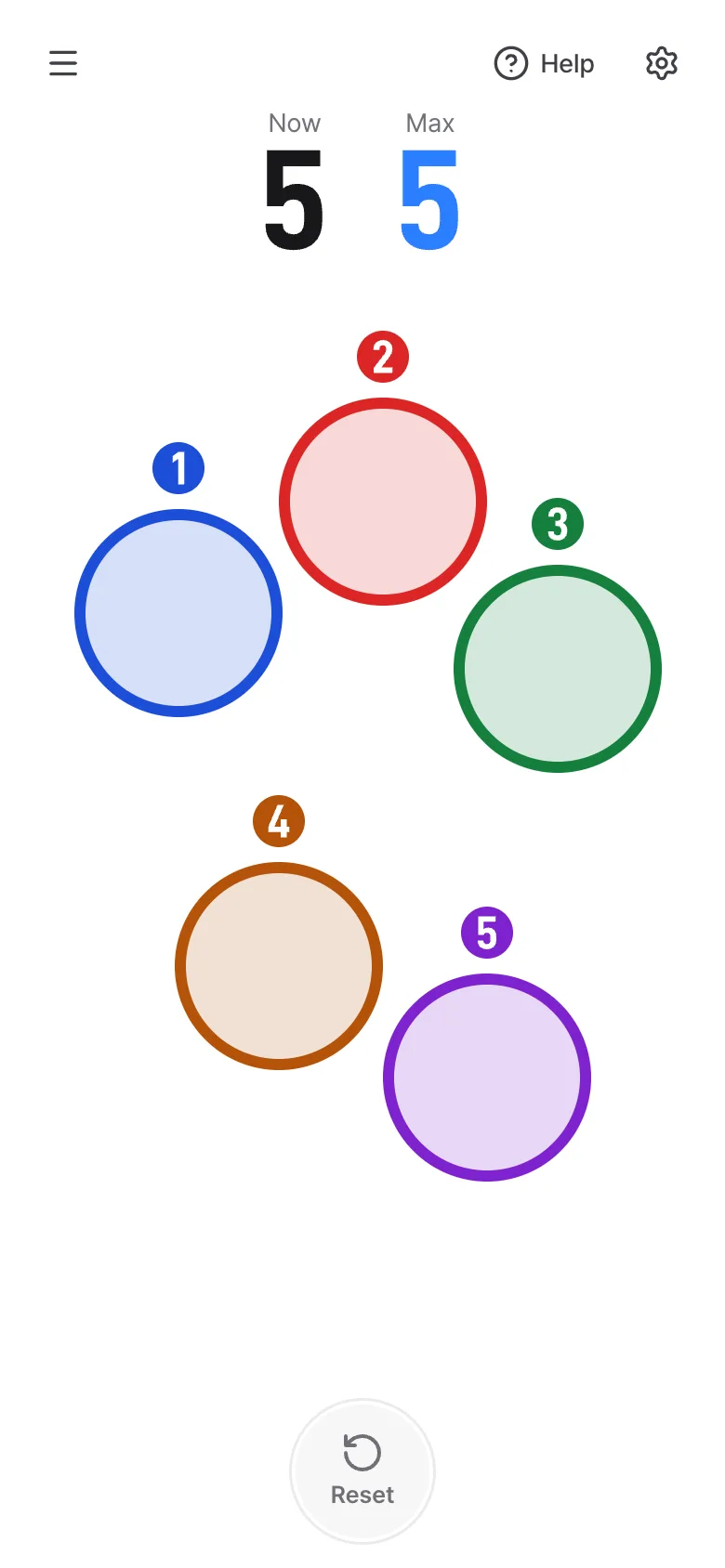
- Put as many fingers as you can on the screen at the same time. A circle and a number appear around each finger, and the 'Now' number shows how many are touching.
- The 'Max' number shows the most fingers that have touched at once since you opened the page or pressed 'Reset'.
- Lift your fingers: 'Now' goes back to 0 and 'Max' stays. Press 'Reset' (or R on a keyboard) to start counting again.
While fingers are on the screen
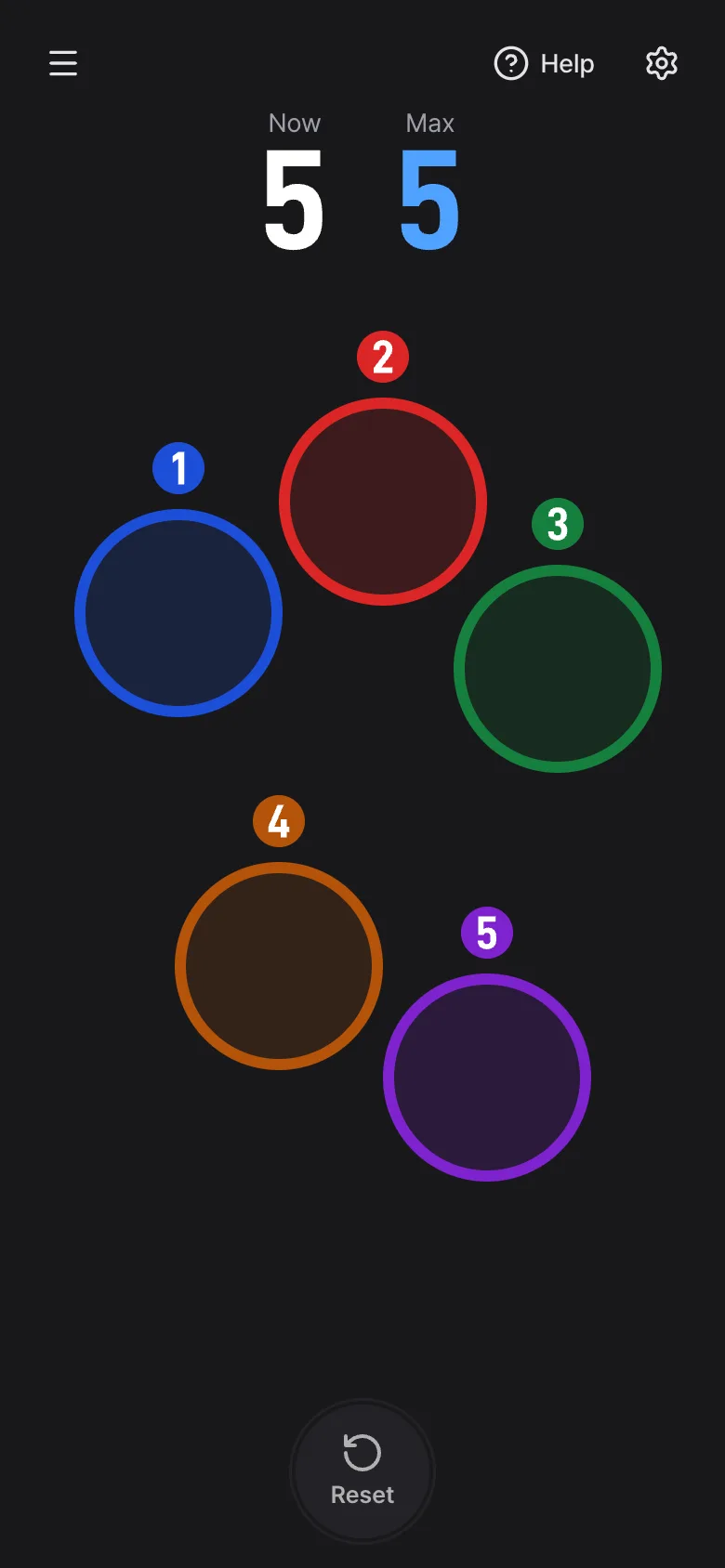
Each finger gets a circle that follows it, with a number badge above it.
- The number is the finger's place number, not the order it touched: each new finger takes the smallest number not in use. If you lift finger 1 while 2 and 3 stay, the next finger that touches becomes 1.
- Because of this, no number is ever larger than 'Max'.
- A finger that slides off the edge of the screen keeps being counted until you lift it.
- Only fingers are counted. Mouse clicks and pen touches are ignored.
Reading the numbers
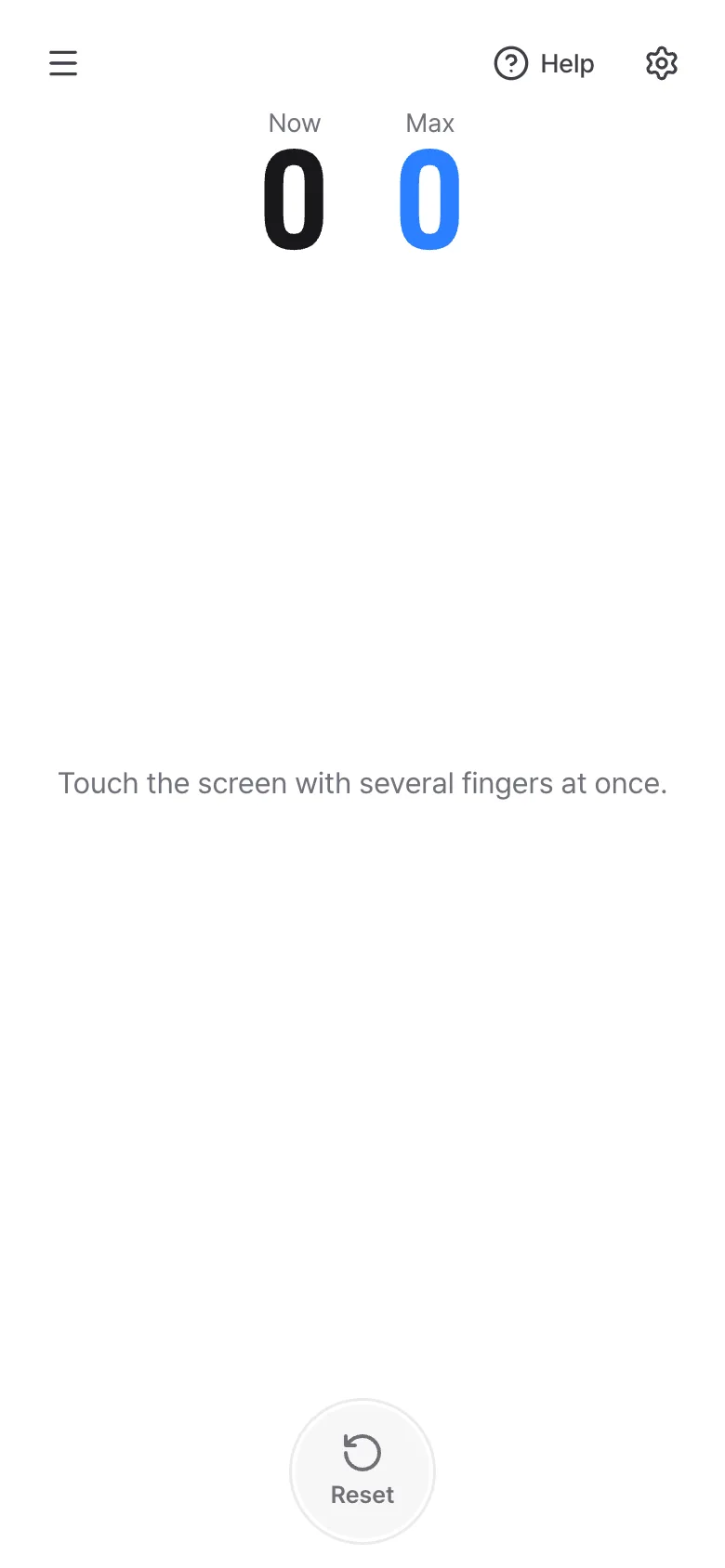
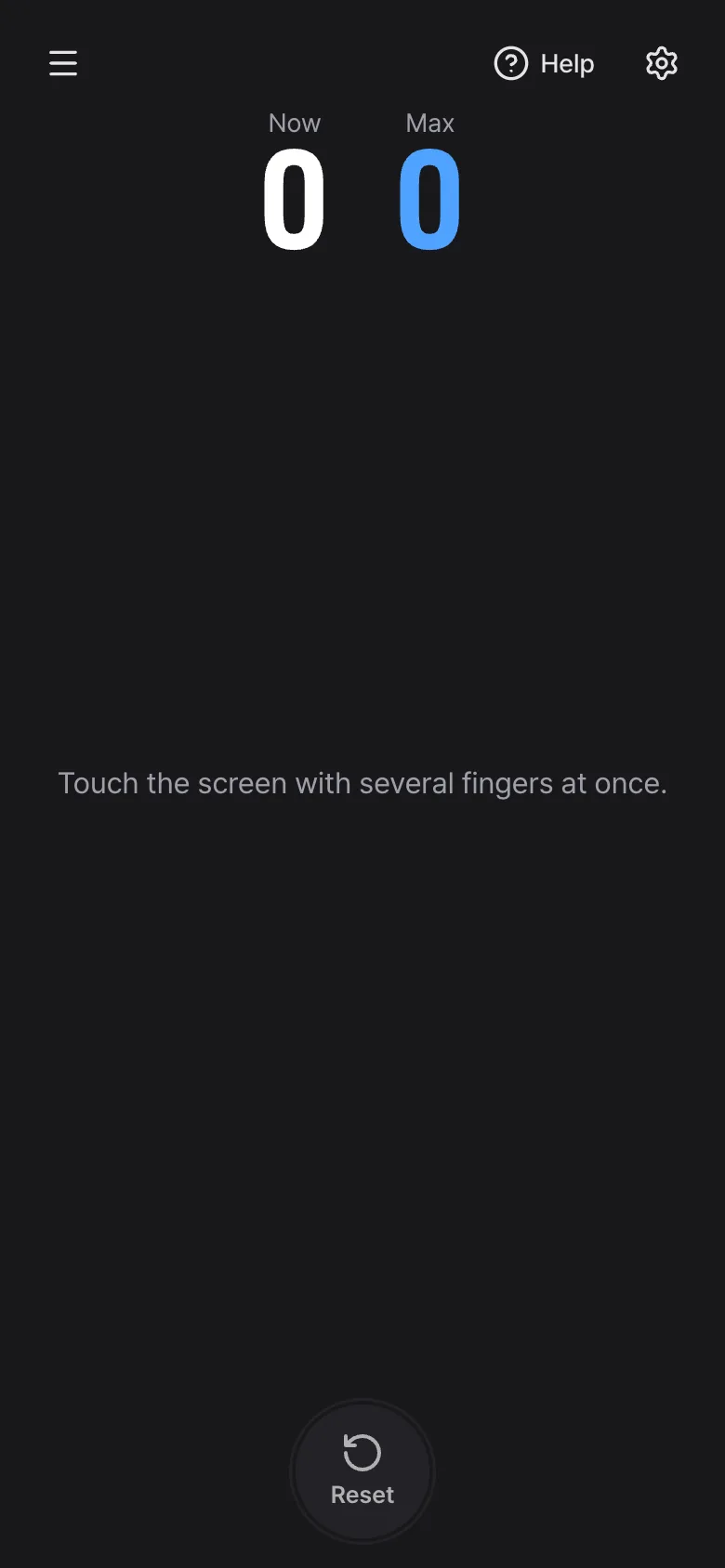
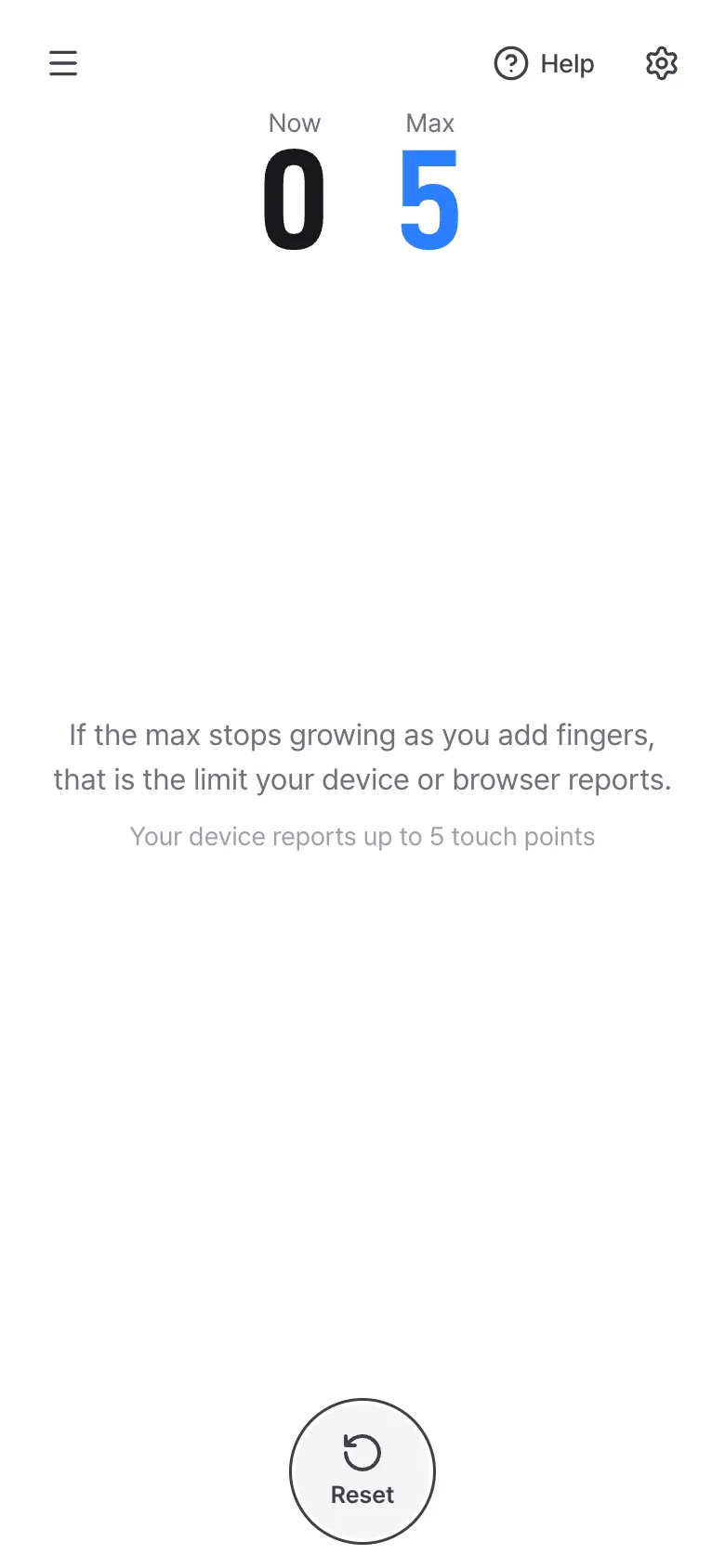
Two big numbers at the top: 'Now' and 'Max'.
- Now: how many fingers are touching the screen at this moment.
- Max: the most fingers that have touched at once since you opened the page or pressed 'Reset'. It does not go down when you lift your fingers, and new touches do not reset it.
- When all fingers are lifted, a hint says that if the max stops growing as you add fingers, that is the limit your device or browser reports.
- Below the hint, browsers that report it also show the number of simultaneous touches your device says it supports. That is only what the device claims and can be inaccurate: trust the Max you measured.
- 'Reset' sets Max to the number of fingers touching right now. The reset button in the settings panel only resets settings, not these numbers.

When the number stops growing
Add fingers one by one. If Max stops at some number, that number is what your device and browser can detect.
- Stopping at 10 is common, but some screens count more and many phones stop at 5 or fewer. Whatever number it stops at is the result.
- Two people can put their fingers on a large screen together, so the count can go past 10.
- If Max is lower than you expected, turn off multi-finger gestures in your device settings (see the next section), keep your fingers away from the edges, or try another browser. Some browsers report fewer touch points than the hardware supports.
- If the numbers jump around while you hold still, the screen may be registering ghost touches, or your palm may be touching. Keep your palm off the screen.
Edges and system gestures
The device can take some touches before the page ever sees them, and a web page cannot prevent that.
- Swiping in from the screen edge (back, home) and multi-finger system gestures, such as four- or five-finger app switching on an iPad or three-finger screenshots on some Android phones, are taken by the device. The tool then shows 'The system took over n fingers.' for a moment.
- When that happens Max does not go down: those fingers did touch, so they were counted.
- Put your fingers away from the screen edges, and turn off multi-finger gestures in your device settings to count more fingers.
- A palm resting on the screen may be ignored by the device because it is not a finger.
- With a screen reader such as VoiceOver or TalkBack in its touch-exploration mode, touches are taken by the reader, so the finger count may not match.
Finger marks and colors
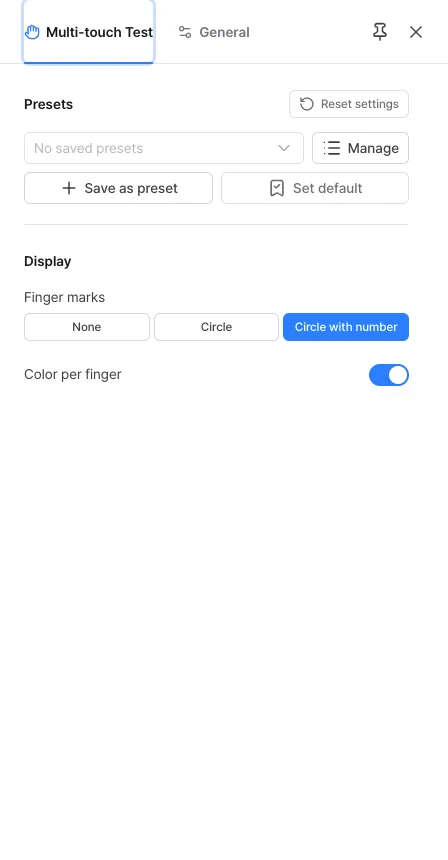
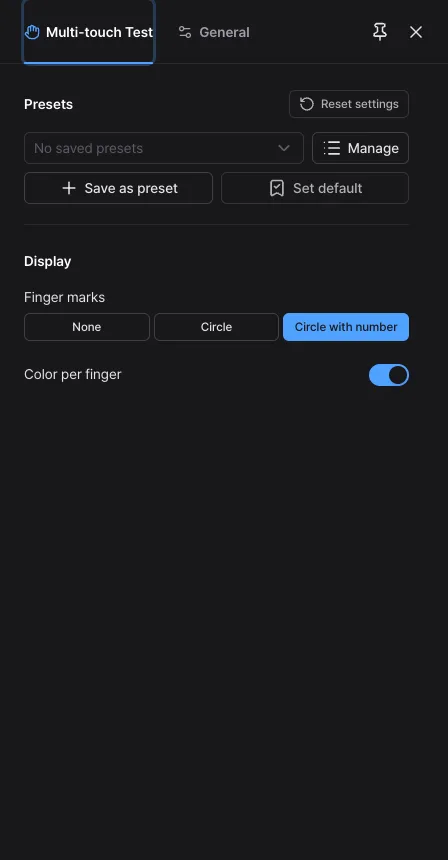
Open the settings panel with the button at the top right. The 'Display' section changes how fingers are drawn.
- Finger marks: 'Circle with number' (the default) draws a circle and a number badge, 'Circle' draws only the circle, and 'None' shows only the two numbers at the top.
- Color per finger: on by default, each finger gets its own color (ten colors, then they repeat from the first). Turn it off to draw every finger in the app accent color. It is unavailable when the marks are 'None'.
- The number badge does the same job as the color, so you never need to tell colors apart.
- This tool has no sound, vibration, record or size setting.
- Swiping to open the menu or settings, and pinching to resize, are turned off here so that several fingers do not open panels or change the size. Use the buttons in the corners.
When you cannot use it
A few devices and settings cannot count touches.
- Devices without a touch screen, such as most computers, cannot use this tool. It says so and shows 0 and 0. If your device does have a touch screen and was misdetected, just touch the screen and it starts working.
- Mouse and pen are not counted, only fingers.
- With VoiceOver or TalkBack on, the screen reader takes over your touches, so the number may be wrong. Turn it off while testing.
- A screen protector, or a wet or dirty screen, can drop touches. Clean and dry the screen first.
- If you switch to another app or the screen turns off, all fingers are cleared and counting continues from the next touch.
Frequently asked questions
- Is the Max the number of fingers my screen supports?
- It is the most fingers your device and browser reported at the same time in this test. The hardware may support more than the browser reports, and the number your device reports under the hint is only a guide.
- Why is my Max lower than the phone's specification?
- Specifications often count something different, such as the limit of the touch controller. The operating system, the browser, multi-finger gestures and edge touches can lower the count. Keep your fingers away from the edges, turn off multi-finger gestures and try again.
- Is my touch position sent anywhere?
- No. Touch positions are used only on this device to draw the circles, and are not sent or saved. Closing or reloading the page removes them.
- Why does 'The system took over n fingers' appear?
- The device took some touches for a system gesture, such as swiping in from an edge or a multi-finger gesture, or ignored a palm. A web page cannot prevent that. Keep your fingers away from the edges and turn off multi-finger gestures if you want a higher count.
Try it out right away. You can always return to the original settings with 'Reset settings' in the settings panel.