Refresh Rate Test guide
One of the Things’s Refresh Rate Test measures, when you press “Start”, how many times per second your screen redraws (the screen refresh rate, in Hz) and shows it. Below it, motion at 12, 24, 30, 60 and 120 fps is drawn side by side so you can see what a higher refresh rate improves. Use it to check that a 120 Hz or 144 Hz screen really runs that fast. There is no score or record, and the measured values never leave this device.
Getting started
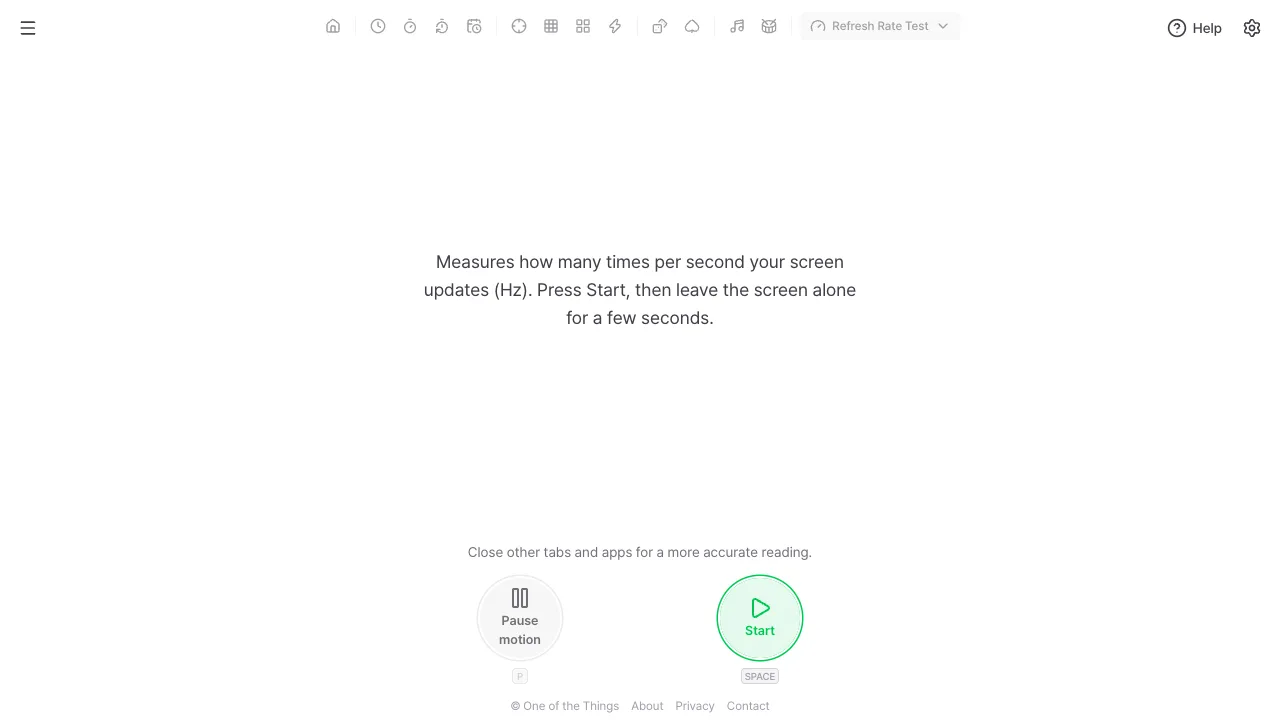
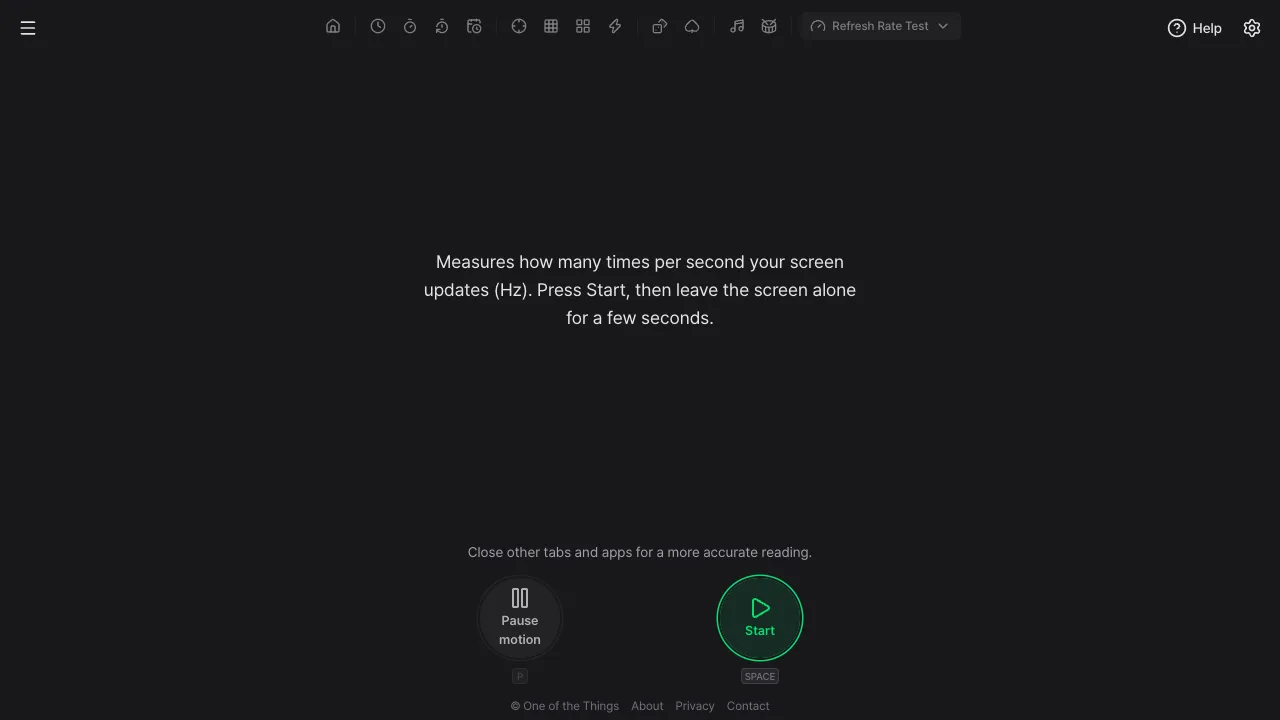
On the start screen, press “Start”. It begins measuring after about half a second, and the result appears about 3 seconds later. Just opening the page does not measure anything.
- Press the menu button at the top left and choose “Refresh Rate Test”. On a wide screen you can also open “Device tests” in the tool list at the top and choose “Refresh Rate Test”.
- On the start screen, press the “Start” button. On a keyboard, press Space, Enter or R; a short tap on the screen also works.
- Leave the screen alone for about 3 seconds while it says “Measuring…”. The thin bar below shows the progress.
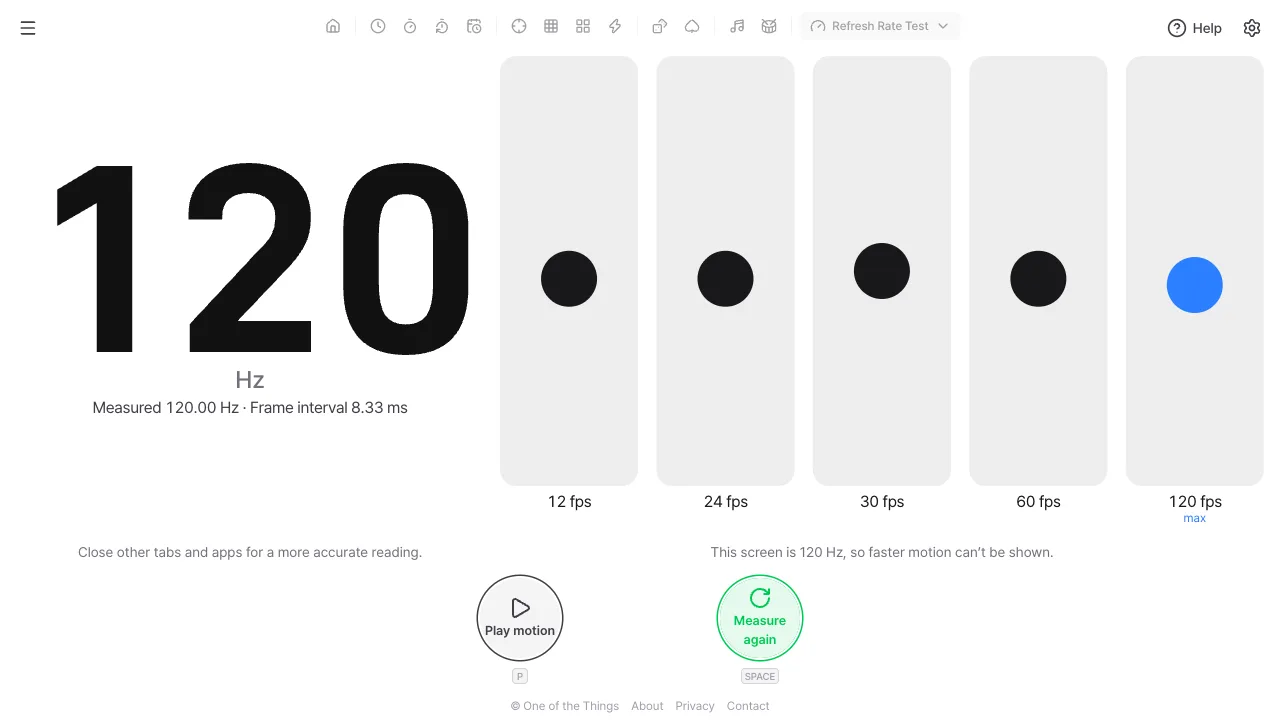
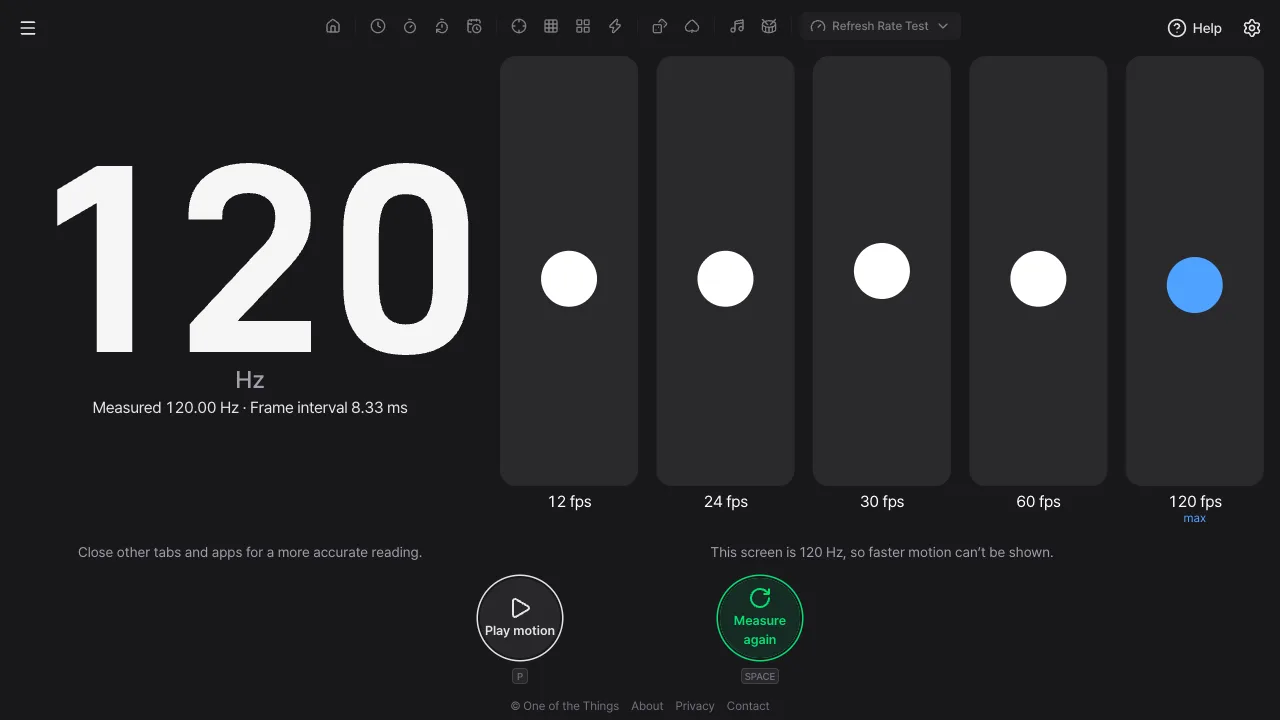
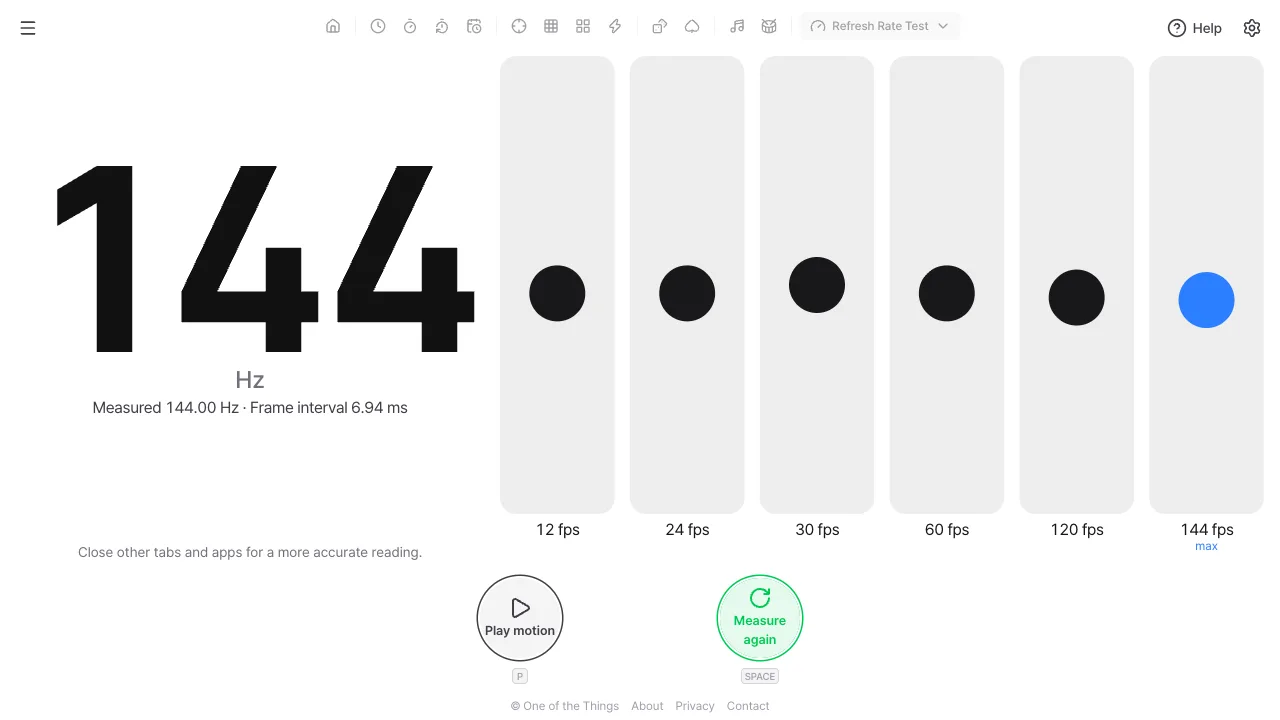
- The big number is the screen refresh rate. Hz is the number of times the screen updates per second: 60 means 60 times a second (about every 16.7 ms) and 120 means 120 times a second (about every 8.3 ms).
- “Measured” under the number is the value actually measured. The big number rounds a value very close to a standard one, such as 59.94, to 60; the value before rounding is shown below it.
- To measure again, press “Measure again”. On a keyboard, press Space, Enter or R.
Measuring accurately
This tool measures how fast the browser redraws this page. Make sure nothing stops the device from running at the speed it can reach right now.
- Close other tabs and apps. If the background is busy, frames get dropped and the value comes out low or you see “The reading was unsteady”.
- Keep the screen on and this page in front while measuring. If you switch to another tab or the screen turns off, that measurement is thrown away and it starts again by itself from the beginning when you return.
- Plug in the charger and turn off low power mode (battery saver). Low power mode lowers the refresh rate.
- Use only one browser, and turn off things like screen recording or screen mirroring.
- If you moved the window to another monitor or changed the display’s refresh rate setting, press “Measure again”. The result does not change by itself.
When the value is low
Sometimes a screen you know is 120 Hz reads 60 or 30. In many cases the tool is not wrong; one of the reasons below applies.
- Variable refresh rate (ProMotion, LTPO and similar): when nothing on the screen moves, the screen lowers its refresh rate by itself. That is why a small ball keeps moving even while measuring, to keep the rate high; but if the operating system lowers it midway, the value can jump around and show “The reading was unsteady”.
- Low power mode and battery saver: iPhone’s Low Power Mode is known to cut web page updates to 30 fps and cap the refresh rate at 60. Android also lowers it with battery saver or the “Standard” refresh rate setting. If you see 30 or 60, check these settings.
- Web browsers on iPhone: browsers that use the same engine as Safari sometimes tie web page updates to 60 even when the screen is 120 Hz (it depends on the device and iOS version). This tool cannot get around that limit; an app that draws directly on the screen instead of in a web page is not subject to it.
- Computers: check that a low refresh rate is not selected in Windows’ advanced display settings or in macOS display settings. The cable or connection type (such as the HDMI version) may also be unable to carry a high refresh rate.
- Privacy settings: some browsers deliberately make time less precise. Then the value can differ from the real one or you may see “Couldn’t measure”.
Reading the comparison
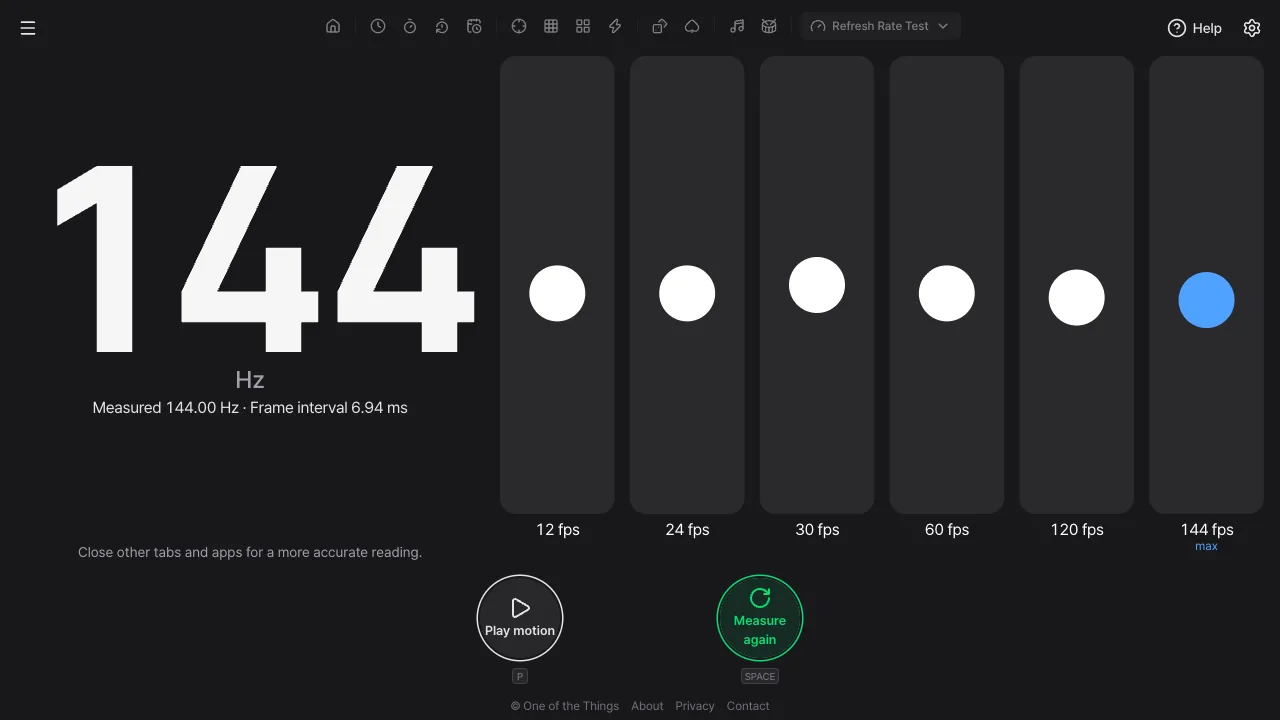
When the measurement ends, the same ball moves up and down below the big number (to its right on a wide screen), drawn at 12, 24, 30, 60 and 120 fps from the left. fps is how many times per second a column draws a new picture; the “max” column at the far right runs at the fastest speed this screen can show.
- The 12 fps column changes position only 12 times a second, so it looks jerky. Next to the 60 fps column you can see what a low frame rate looks like.
- A 60 Hz screen can draw at most 60 fps, so a 120 fps column would look the same as the max one; it is left out and “This screen is 60 Hz, so faster motion can’t be shown.” appears. On a 120 Hz screen the 120 fps column is shown.
- If the refresh rate is not a multiple of the fps (for example the 60 fps column on a 90 Hz screen), the column updates every one frame and every two frames in turn and looks uneven. Real video and games look the same way.
- Freeze it with “Pause motion” (key P) to compare the one-frame position difference between columns, and press “Play motion” to continue.
- If Reduce motion is on in your device settings, the comparison starts paused and moves only after you press “Play motion”. The small ball that moves while measuring stays as it is, because the measurement needs it.
Settings
Change them in the tool tab of the settings panel. Everything except the measuring time applies right away; if you change the measuring time in the middle of a measurement, it starts over with the new time.
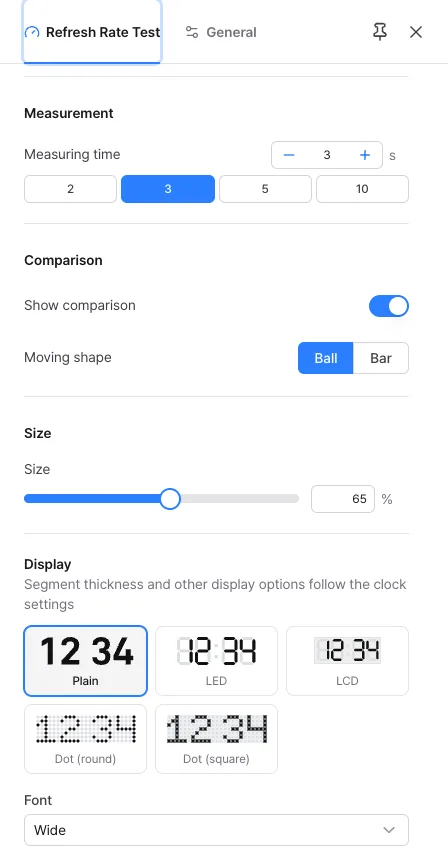
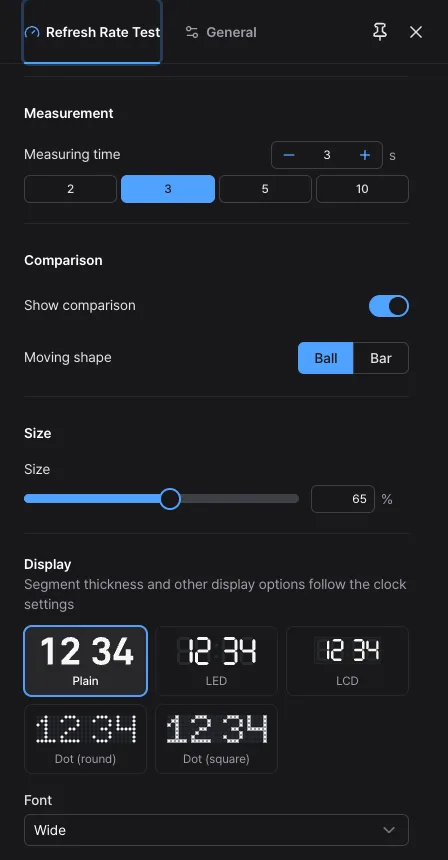
- Measuring time: 2–10 seconds (3 at first). The longer it is, the more the unsteadiness averages out; the shorter, the sooner you get a result. The first few frames are thrown away in the calculation.
- Show comparison: turn it off and only the big number and the notes remain, with a larger number.
- Moving shape: a ball (the default) or a horizontal bar. A bar spans the whole column, so stutter and a one-frame offset are easier to see.
- Size: the size of the big number. Pinch with two fingers or use Ctrl + wheel as well. Screens differ from device to device, so it is not kept in presets or the address.
- Display: choose the look of the big number (standard, LED, LCD, dot styles), font, color, background and hiding the off segments, the same way as in the clock and stopwatch.
Keeping the settings you use often
The Refresh Rate Test settings are not saved each time you change them. Refreshing the page returns to the default settings, so keep a setup you use often in the “Presets” group.
- Change the measuring time, comparison and display the way you want, then tap “Save as preset”. If you leave the name blank, it is named after the settings, like “5s · ball”. Size is not part of a preset.
- After that, choose it from the box (up to 12, names up to 20 characters). Choosing it also puts the settings in the address, so you can bookmark it.
- To always open with the same setup, tap “Set default”. To go back, tap “Reset settings”.
Ways to use it
A few ways to use the Refresh Rate Test.
- When you buy a new phone or monitor: check that it really reaches the 120 Hz or 144 Hz in the ad. With a variable refresh rate, the ball that moves while measuring helps it show the high value.
- Before setting up a game: knowing the screen’s refresh rate makes it easier to pick the game’s frame limit.
- Seeing the effect of low power mode: measure with it on and off and see how much the refresh rate drops.
- Understanding 24 fps video: the 24 fps column is how a film moves; look at it next to the 60 fps column to feel the difference.
- Checking the refresh rate setting: after changing the display settings on a computer, press “Measure again” to see whether the real value changed.
Frequently asked questions
- My phone is 120 Hz but it reads 60.
- Web browsers on iPhone sometimes tie web page updates to 60 even when the screen is 120 Hz, and low power mode, battery saver and the “Standard” refresh rate setting also lower the value. Check “When the value is low” and measure again.
- The value is 59.94, so why does it show 60?
- A screen panel’s refresh rate is a fixed value such as 60, 120 or 144, so values like 59.94, 119.88 and 143.856, whose intervals are off by about 0.1%, are rounded to 60, 120 and 144 in the big number (when within 1%). The value before rounding is shown as-is in “Measured” under the number.
- I see “The reading was unsteady”.
- It means many frames were dropped or the intervals were uneven. Close other tabs and apps and measure again. On a screen that changes its refresh rate automatically the value can jump around too; the number is then the one that came up most often.
- I changed the screen’s refresh rate but the number did not change.
- After a result appears it is not measured again by itself. If you moved the window or changed a setting, press “Measure again”.
- Where does my information go?
- Nothing is sent or stored anywhere. The frame times are used only to calculate the value on this device, and the result is not saved. When you open the page again, it begins at the start screen.
- Can’t it tell the highest refresh rate my screen can do?
- Not on the web. All the browser reports is the interval between screen updates, and there is no standard way to get the highest value the panel can do. So this tool measures “the speed this page receives right now”.
Try it out right away. You can always return to the original settings with 'Reset settings' in the settings panel.