Gyroscope Test guide
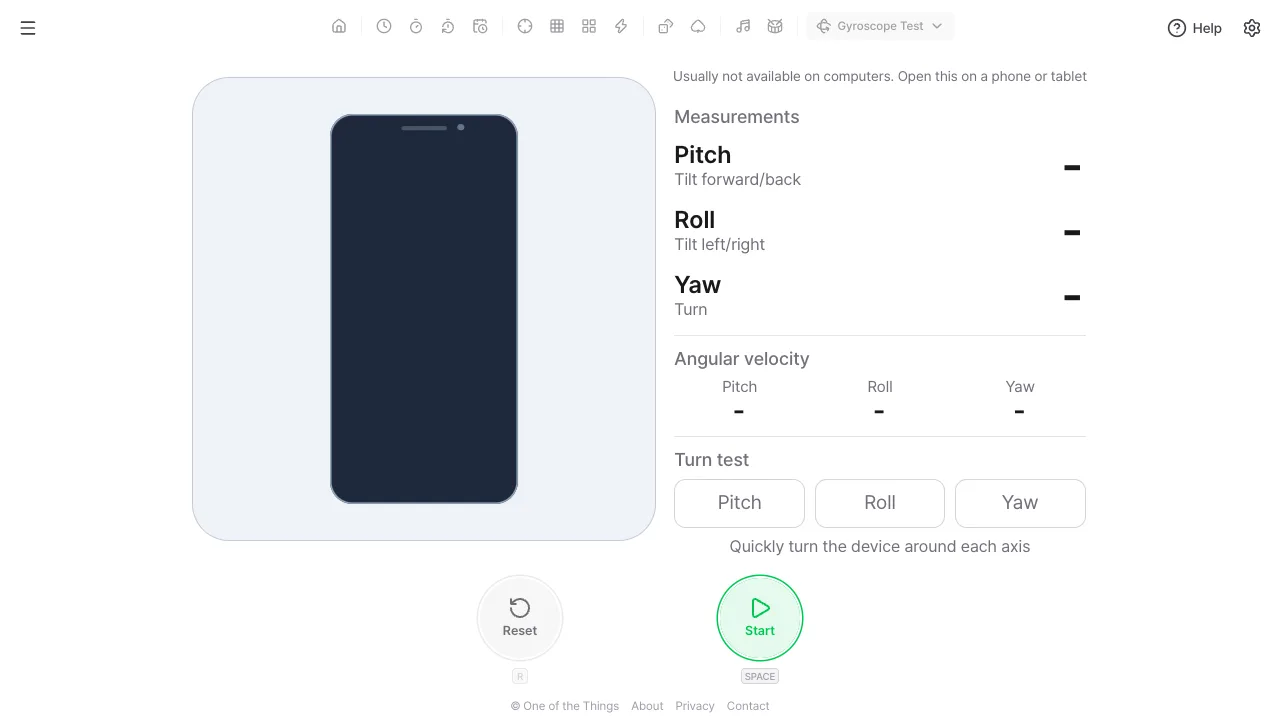
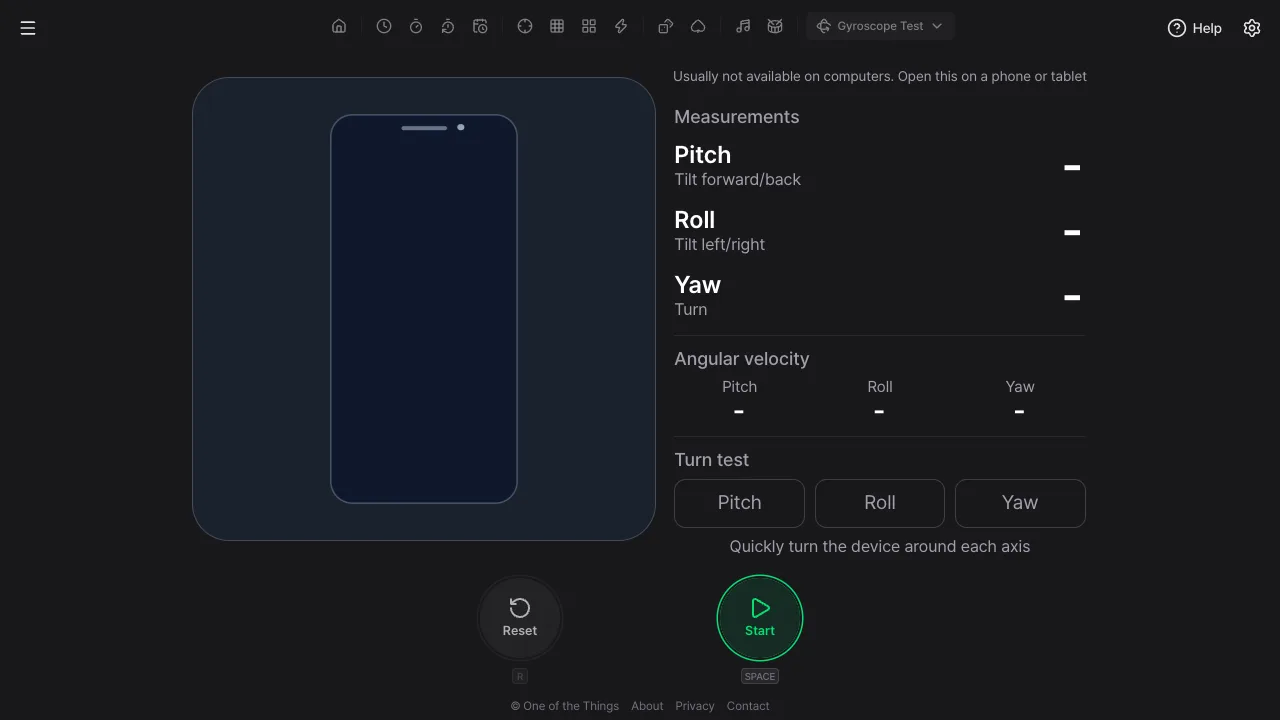
The Gyroscope Test on One of the Things is a device check that tells you whether the rotation sensor in your phone or tablet works. Tilt or turn the device and the Pitch, Roll and Yaw angles and the angular velocity show up as numbers, a 3D phone drawing tilts the same way, and turning the device around each axis ticks it off. There is no score or history, and the sensor values stay on your device.
Getting started
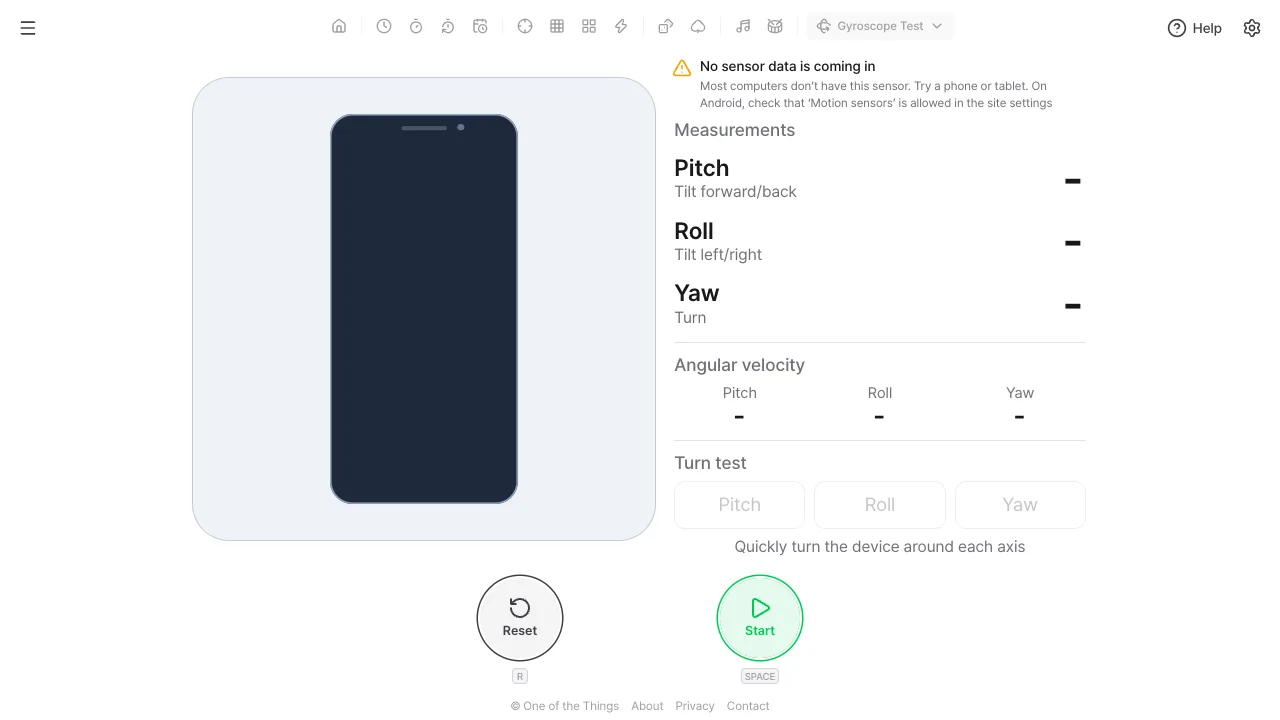
Open this on a phone or tablet. Most computers have no such sensor, so no values arrive.
- Open the menu at the top left and choose 'Gyroscope Test'. On a wide screen you can also open 'Device tests' in the tool list at the top and choose 'Gyroscope Test'.
- Press 'Start' or the Space key. On iPhone and iPad, tap 'Allow' when asked for motion sensor access.
- Tilt the device or turn it in place. The values and the drawing follow right away.
- Turn on your device's orientation lock (portrait) so the drawing doesn't rotate with the screen.
Reading the values
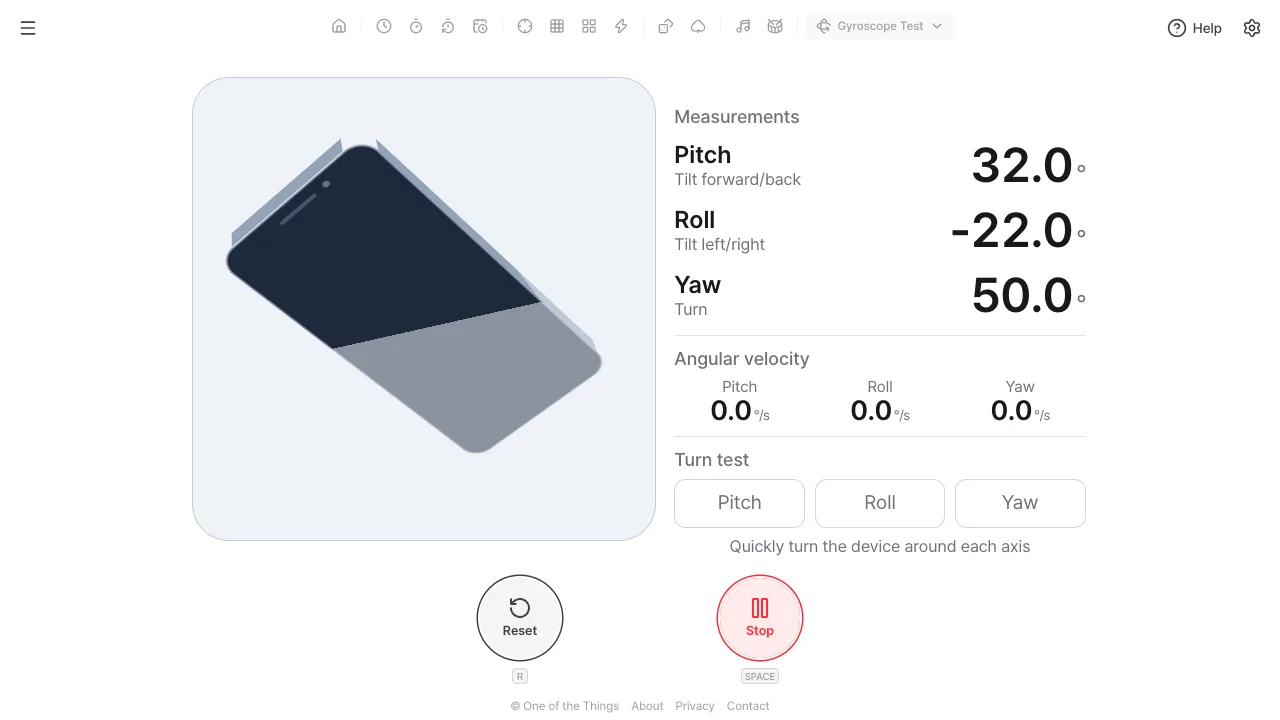
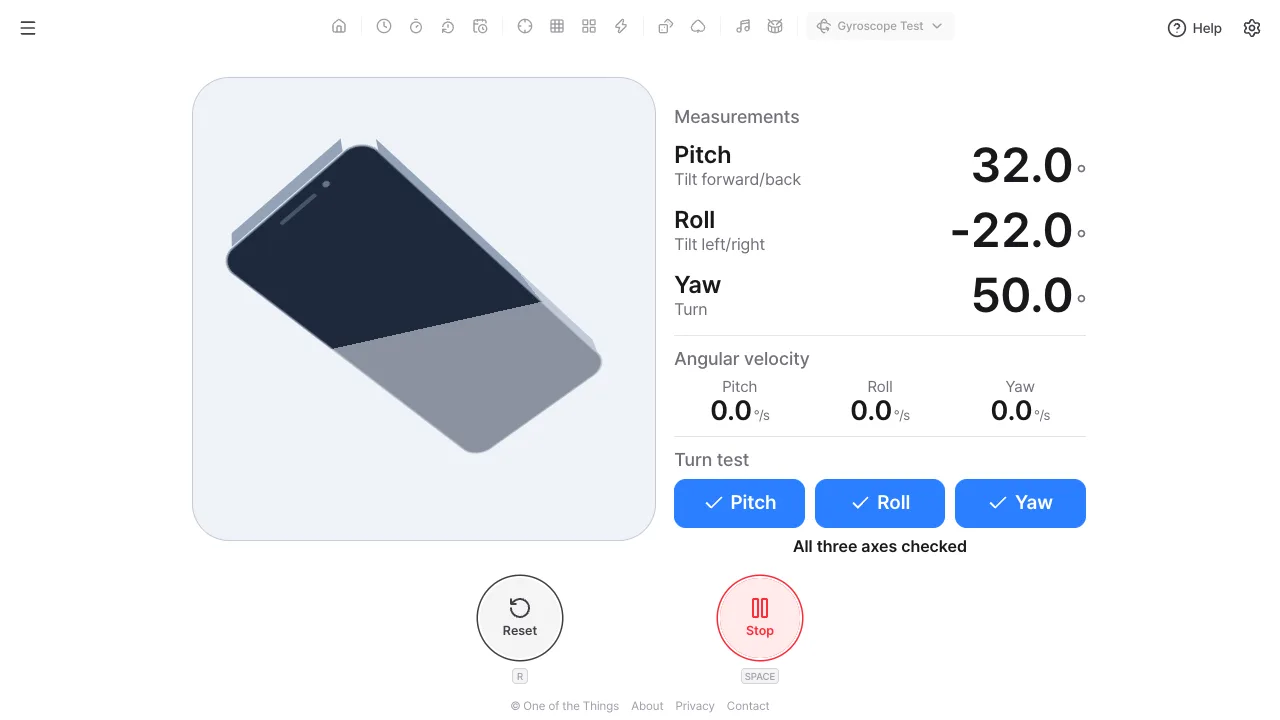
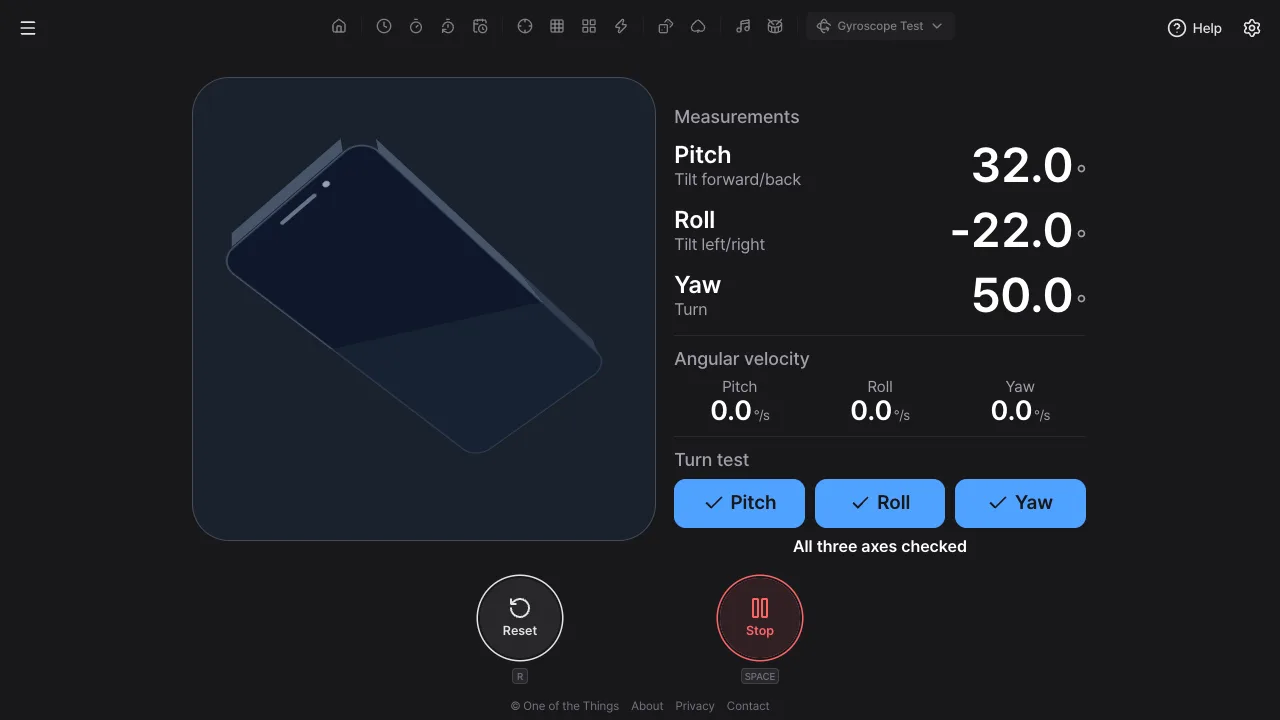
The measurements box shows three angles and the angular velocity. They are measured against the device body, so they stay the same when the screen rotates to landscape.
- Pitch (tilt forward/back): raising the top of the device is +, lowering it is −.
- Roll (tilt left/right): lowering the right side is +, lowering the left side is −.
- Yaw (turn): turning counter-clockwise while the device lies flat is +. Zero is the direction you were facing when you started, not north.
- Angular velocity: how fast the device is turning (degrees per second). It is near 0 when still and only has a value while you turn.
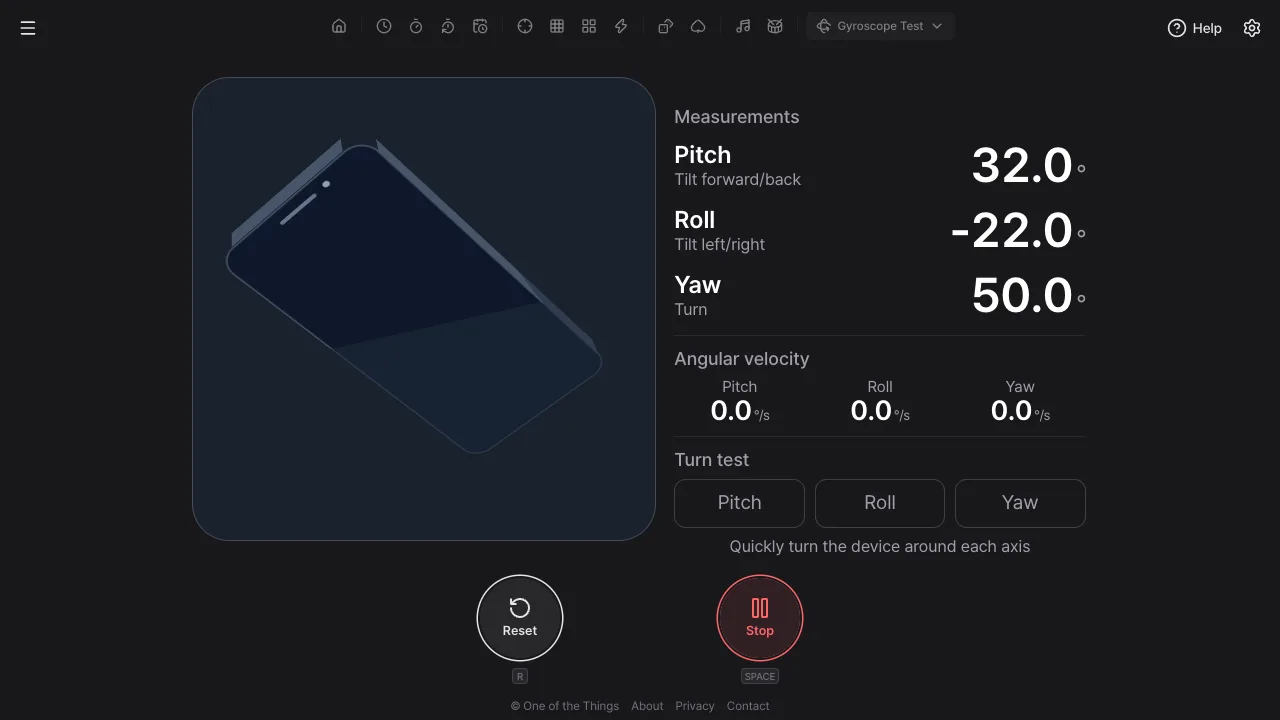
- The 3D phone drawing tilts like your device. If you see the back (light grey), the device is upside down. The faint plate behind it is the level reference plate.
- 'Stop' freezes the last values and drawing so you can read a pose, 'Resume' carries on, and 'Reset' clears the values, the reference direction and the turn test.
- Touching the screen does nothing, so you don't stop it by accident while tilting. On a keyboard, Space or Enter starts, stops and resumes, and R resets.
Turn test
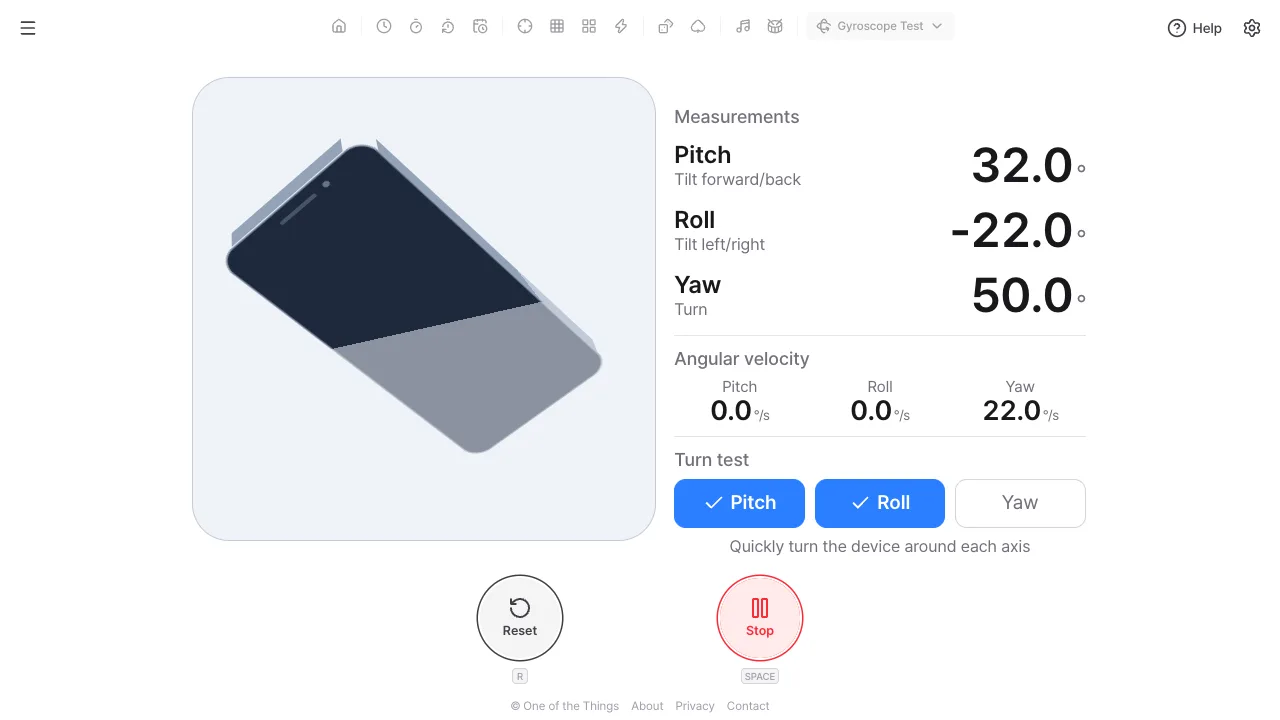
The Pitch, Roll and Yaw cells start with a faint outline. Quickly turn the device around that axis and the cell gets a check, confirming the axis really turned.
- An axis is checked when its angular velocity stays at 40 degrees per second or more for about 0.1 seconds. A deliberate turn clears that easily, while a single spike from a knock or from putting the device down is ignored.
- Turn for Pitch around the left-right axis (raise and lower the top), for Roll around the up-down axis (tilt side to side) and for Yaw around the axis through the screen (spin in place while lying flat). It is fine if other axes move too.
- When all three are checked you see 'All three axes checked'. 'Stop' and 'Resume' keep the checks and 'Reset' clears them.
- The angles are computed by Android and iOS from several sensors, so they can move even if the gyroscope is missing or broken. If the angles move but the angular velocity and the turn test do not respond, the gyroscope may be missing or broken.
- Turning off 'Turn test row' in settings only hides the row; the checks keep running.
Changing the look
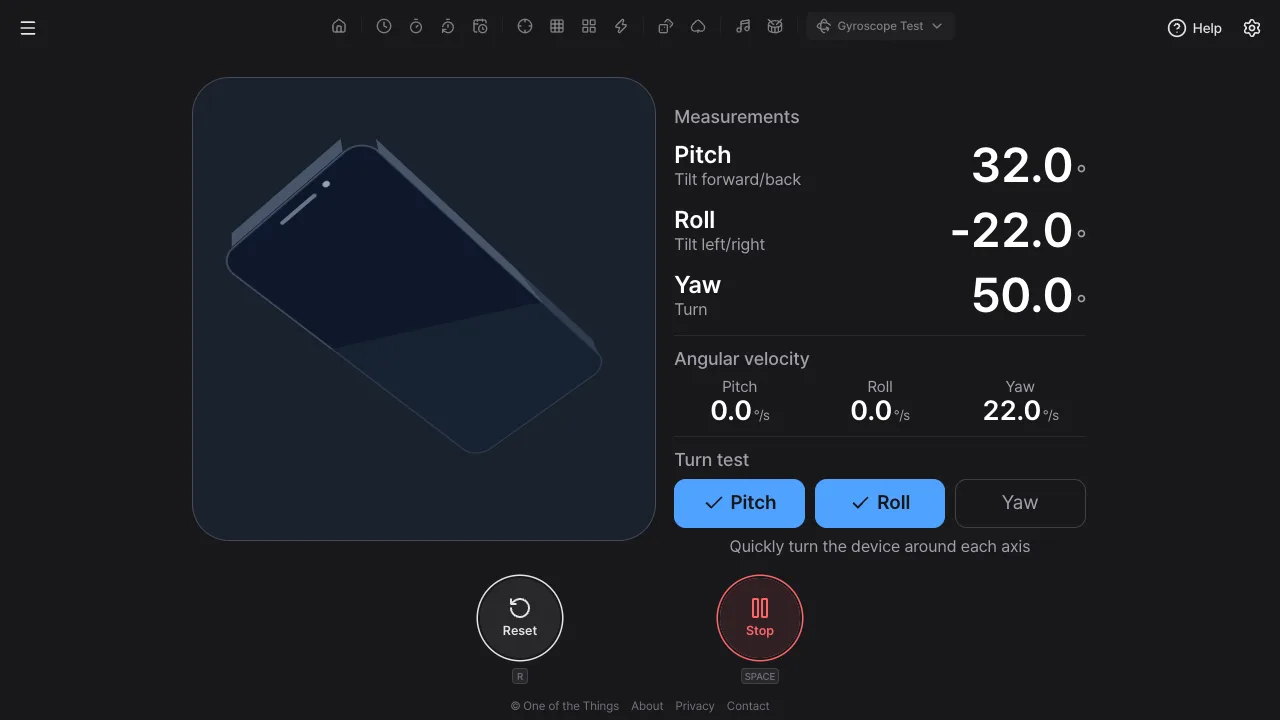
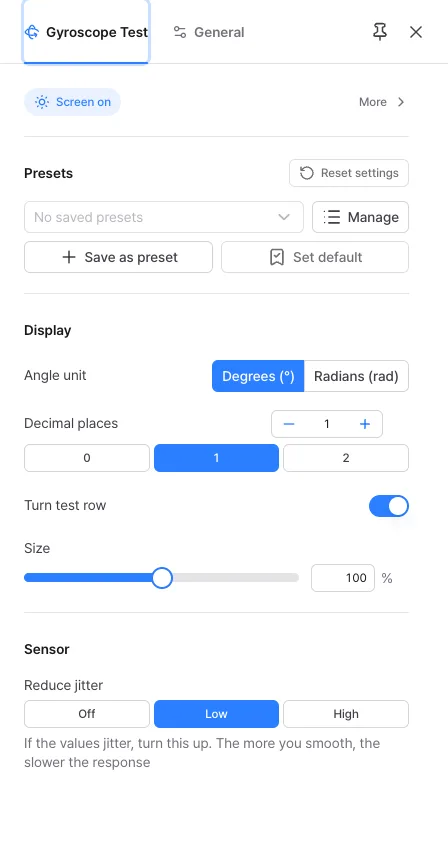
Change these in the 'Display' and 'Sensor' groups of the settings panel. They apply right away while measuring, and opening the settings panel does not stop the measurement.
- Angle unit: degrees (°, the default) or radians (rad). The angular velocity follows the same unit (°/s or rad/s).
- Decimal places: 0 to 2 (1 by default). Radians get two more places because the values are smaller.
- Turn test row: on by default. Turn it off if you only want the values.
- Size: from 50% to 150% for the drawing and numbers. Pinch with two fingers, or hold Ctrl (⌘) and scroll.
- Reduce jitter: off, low (default) or high. If the values jitter, turn it up; the more you smooth, the slower the response. The turn test is judged the same way whatever this is set to.
Frequently asked questions
- Why doesn't it work on a computer?
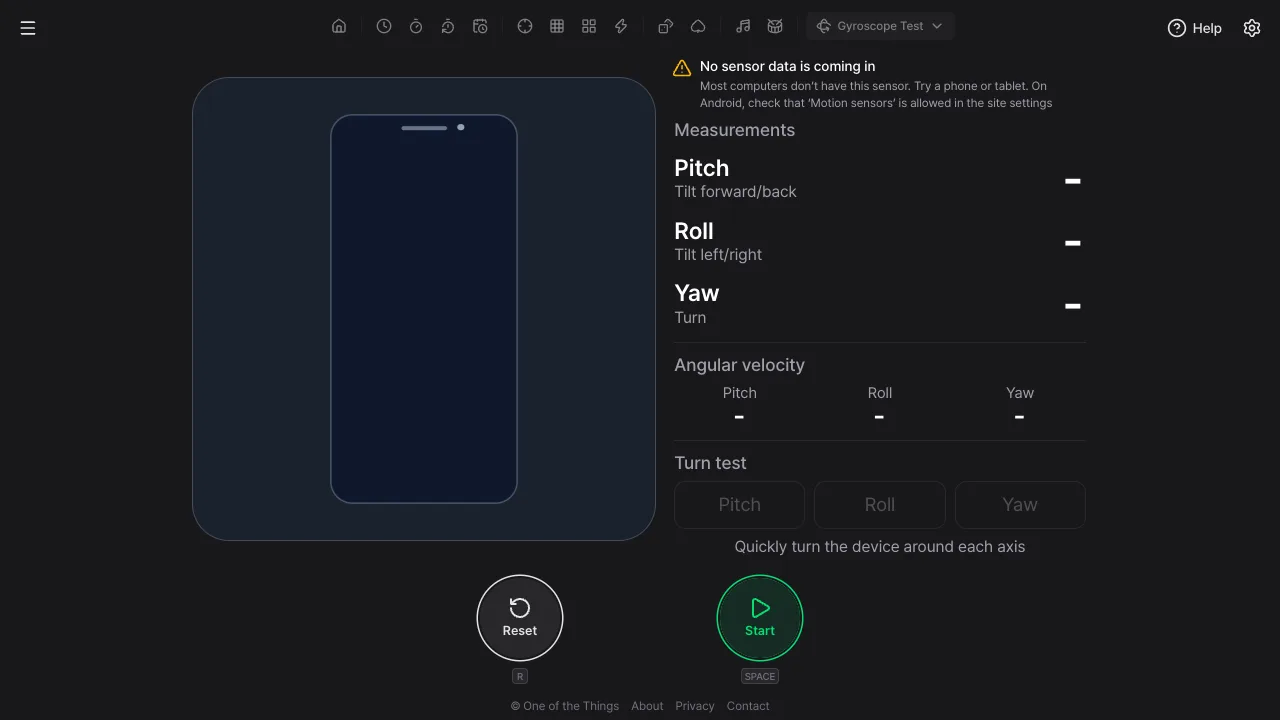
- Most computers have no rotation sensor, so the browser sends no values. Even after Start you will see 'No sensor data is coming in'. Open the page on a phone or tablet. Laptops and 2-in-1 devices that do have the sensor can work.
- I allowed it on iPhone but it still doesn't work.
- Allow and deny are remembered per site. If you tapped 'Don't Allow' once, close this tab, open it again and press Start to allow. If that doesn't help, delete this site under Settings > Apps > Safari > Advanced > Website Data and try again. Sensors only work on a secure connection (HTTPS).
- No values on Android.
- Check that 'Motion sensors' is allowed in Chrome's site settings. Battery saver or privacy settings can also block sensors.
- Roll and Yaw jump around when I hold it upright.
- Held almost vertical (Pitch near ±90 degrees), Roll and Yaw start to look like the same rotation and both swing widely. This is a known limit of Euler angles, not a faulty sensor. The two rows fade and show 'Unsteady when upright'. The drawing uses the pose itself rather than the angles, so it doesn't jump.
- How can I tell that the gyroscope is alive?
- Look at the angular velocity row and the turn test row. Pitch and Roll angles can also come from the accelerometer, which senses gravity, so they can look fine without a gyroscope. The angular velocity is measured by the gyroscope itself, and once the turn test checks all three axes the gyroscope has reacted in every direction.
- I see 'No gyroscope data'.
- The angles arrive but the gyroscope's angular velocity does not. The device may have no gyroscope, or the browser blocks it. The angles then come from the accelerometer and magnetometer, the angular velocity row shows '-' and the turn test is unavailable.
- Why is Yaw 0 the starting direction instead of north?
- Browsers disagree about where Yaw 0 is (an arbitrary direction on some devices, north on others), so the direction you started in is 0 to make every device look the same. After 'Reset', the next start becomes the new reference. This is a rotation sensor check, not a compass.
- What happens when the screen rotates to landscape?
- The values are relative to the device body, so they stay the same, and the drawing is corrected so the top of the phone points the way the real device's top does. If the screen rotates while measuring, a notice appears once. Turning on orientation lock (portrait) makes the drawing move less.
Try it out right away. You can always return to the original settings with 'Reset settings' in the settings panel.
Other guides
- Clock guide
- Timer guide
- Stopwatch guide
- Countdown guide
- Target Time guide
- Number Recall guide
- Sequence Recall guide
- Reaction Time guide
- Random number guide
- Card Flip guide
- Metronome guide
- Rhythm guide
- Touchscreen Test guide
- Multi-touch Test guide
- Dead Pixel Test guide
- Refresh Rate Test guide
- Accelerometer Test guide