Timer guide
The One of the Things timer is a repeating timer that handles everything from a one-off countdown to workout and study intervals. Set an active time and a rest time, alternate them as many times as you like, and each phase tells you where you are with its own sound and color. This guide walks you through starting the timer, setting times, tuning sounds, and saving the setups you use often.
Getting started
When you first open it, a 5-minute timer is ready. You can just press Start without changing anything.
- Open the menu with the menu button at the top left and tap 'Timer'. On a wide screen you can also tap it right in the tool list at the top.
- Press 'Start', the right one of the two buttons at the bottom, or the Space key. On a phone you can also tap the digits once.
- While it runs, that button becomes 'Pause'. Pressing it pauses the timer and the button changes to 'Resume'; press 'Resume' to continue from where you stopped.
- After pausing or finishing, use 'Reset' on the left (R key) to go back to the start.
Reading the screen
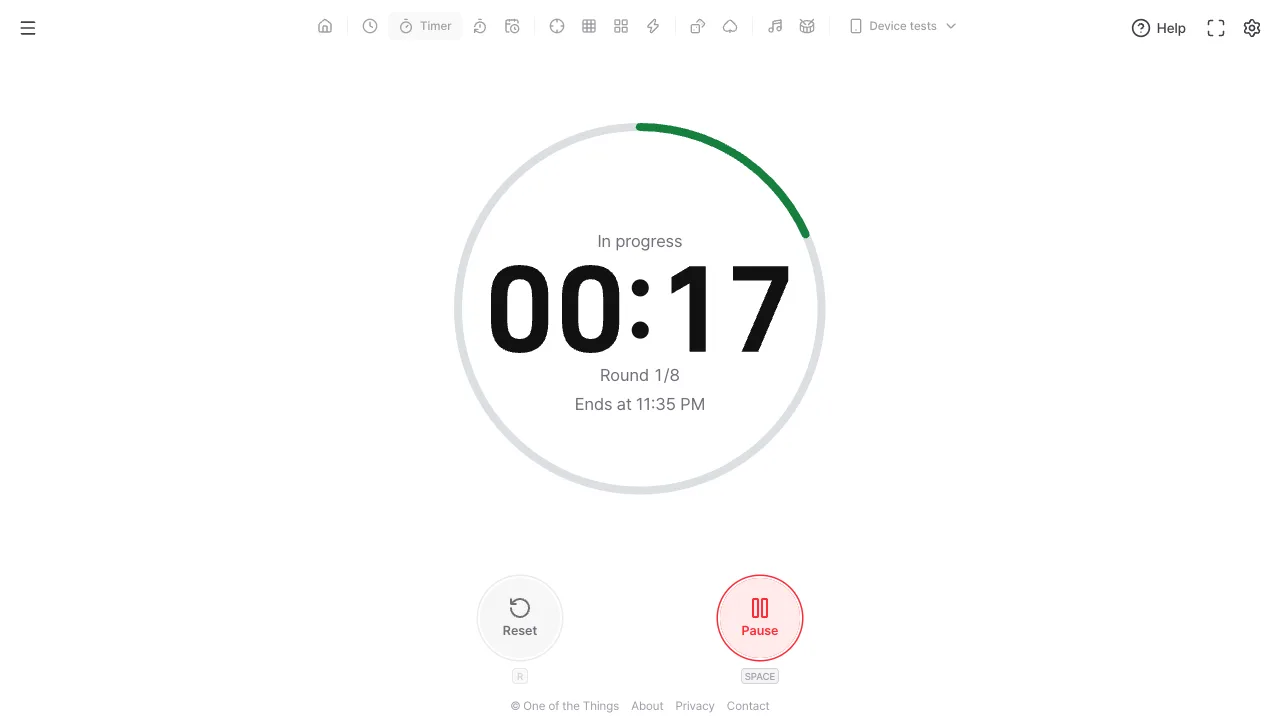
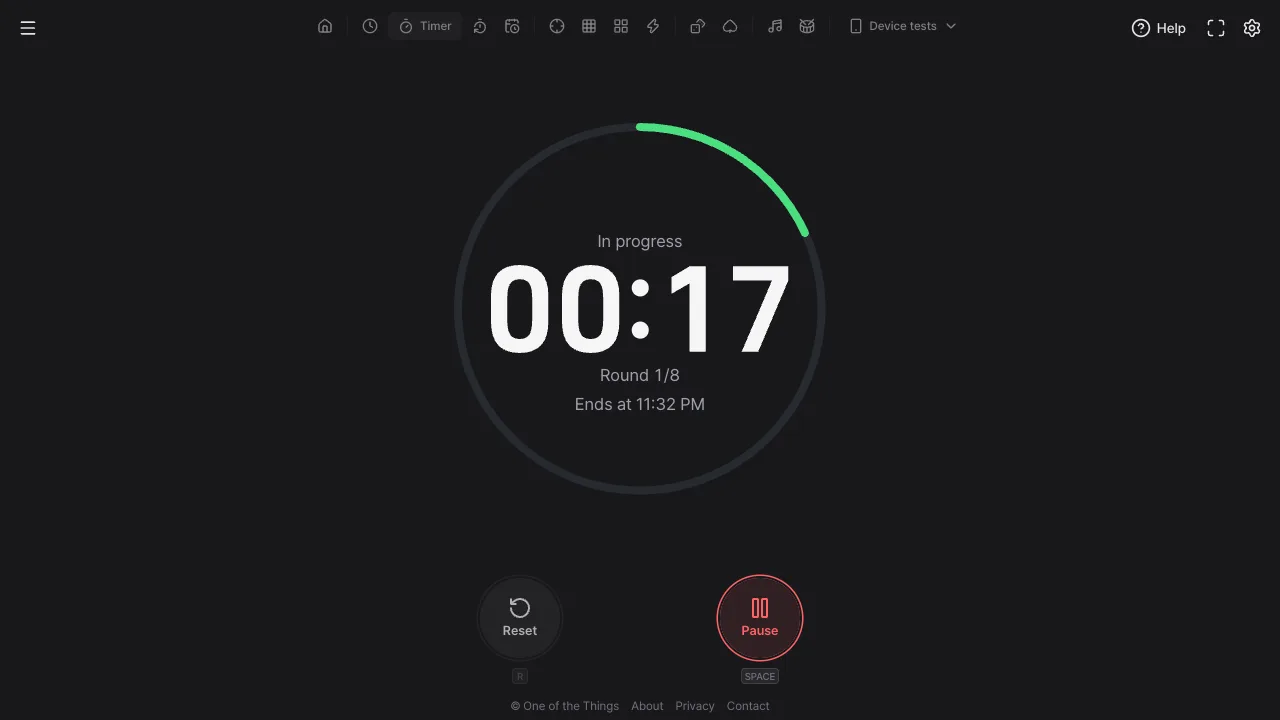
The digits show the time left in the current phase. They round up, so even half a second left still shows as 1, and the moment it reaches 0 is the moment the phase ends.
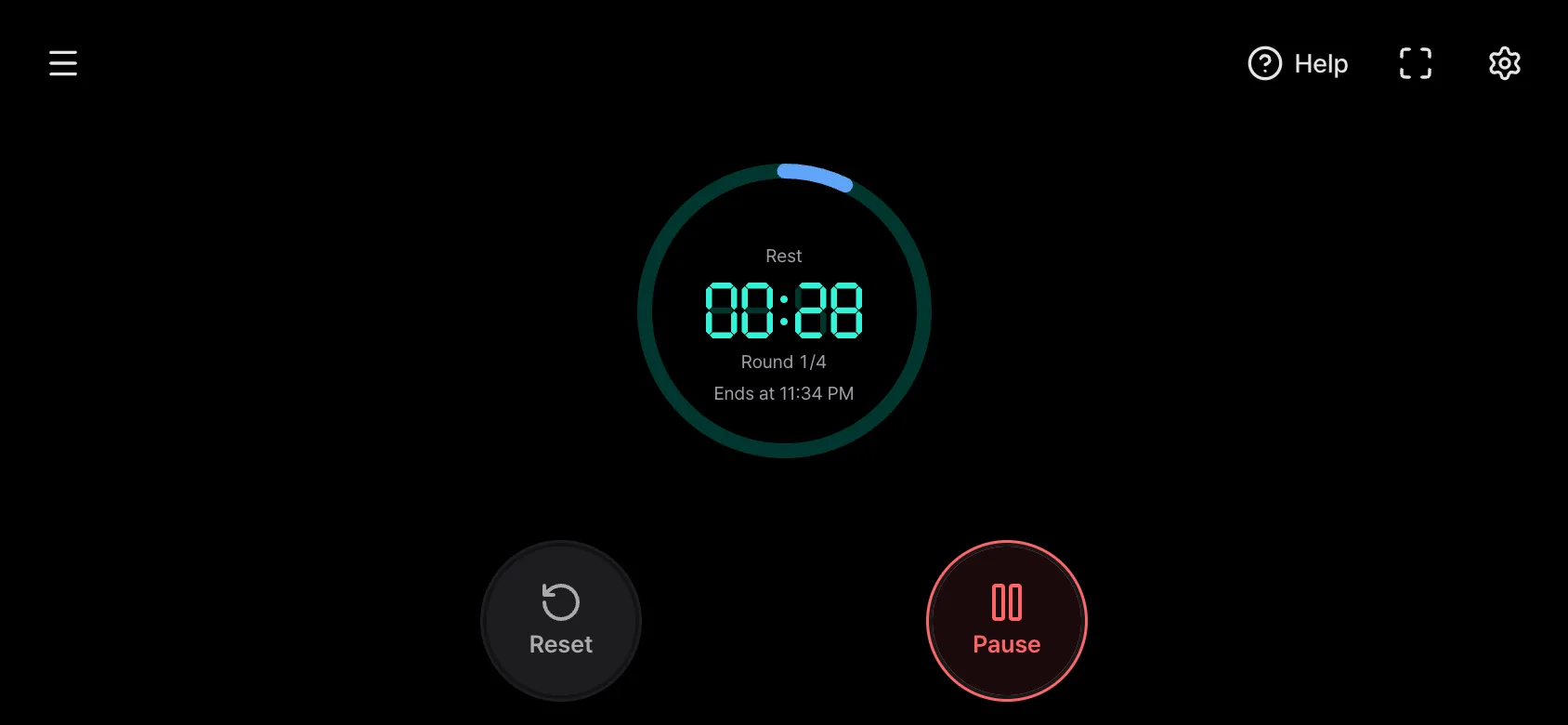
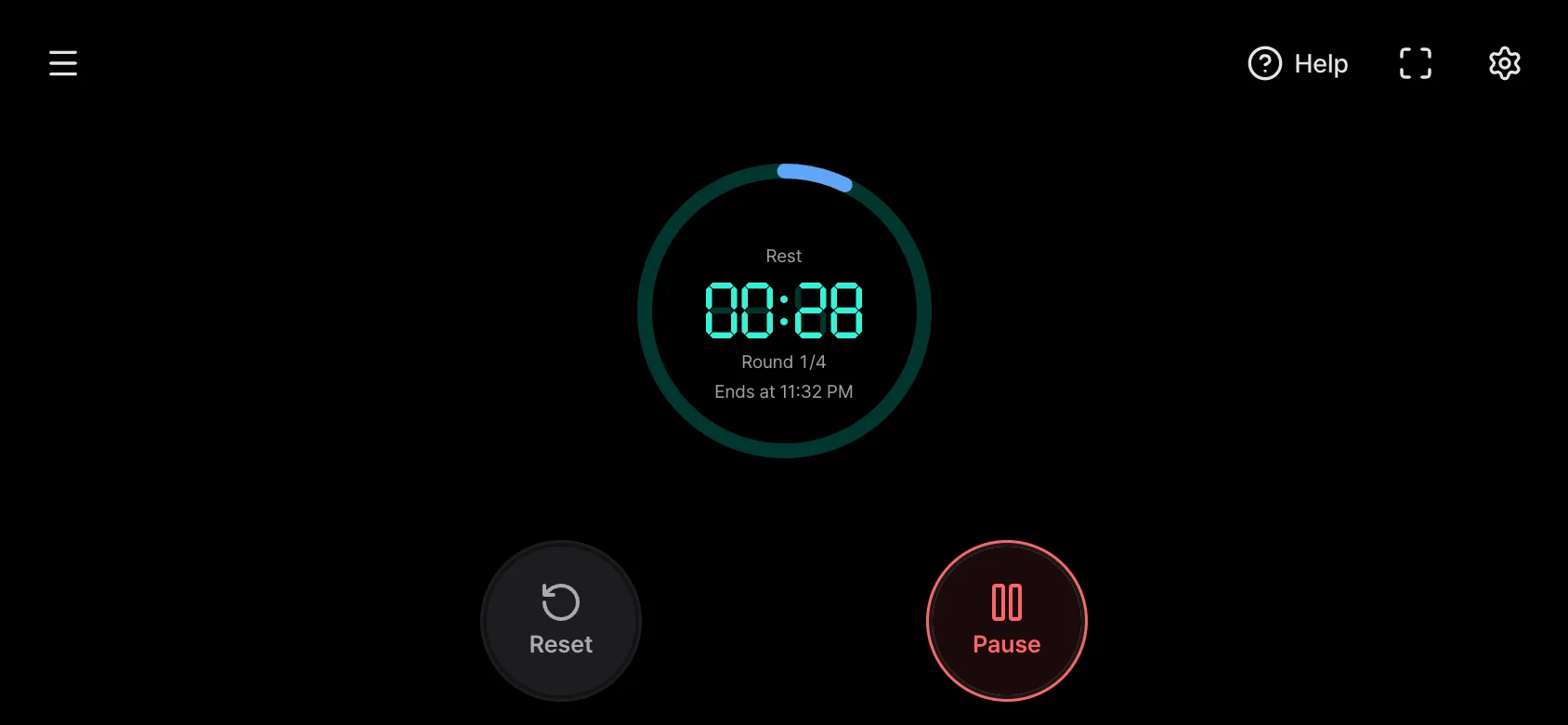
- Phase name (above the digits): 'Ready' before you start, 'Starting' during the start delay, 'In progress' while active, 'Rest' while resting, 'Paused' when stopped and 'Done' when everything is finished.
- Round (below the digits): which round you are on and the total. Endless repeats show something like 'Round 2/∞', and the round is hidden during the start delay.
- Progress ring: each phase has its own color. Start delay is amber, active is green, rest is blue and paused is gray, so you can tell what is happening from across the room.
- End time: when all rounds will be finished, shown only after you start. Pausing pushes it later, and endless repeats have none.
Picking a preset
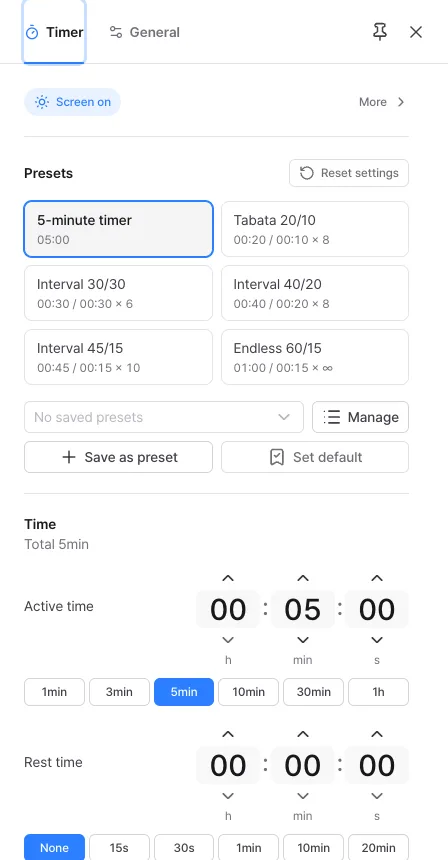
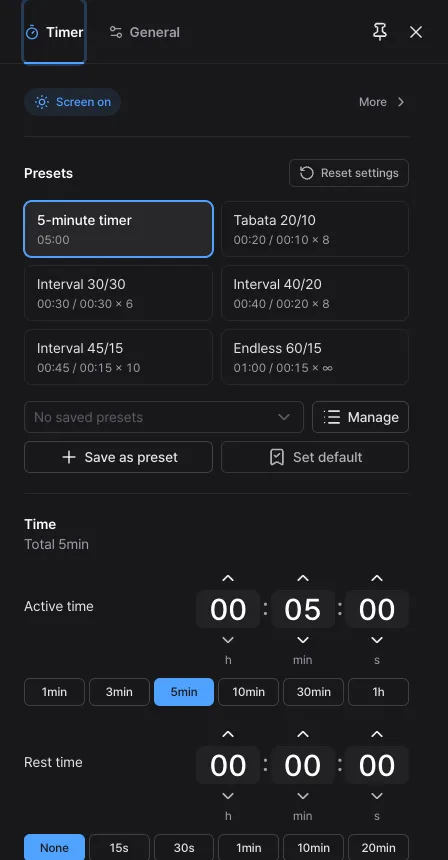
At the top of the settings panel (the gear in the top-right corner), 'Presets' holds six common setups. Tap a tile once and it applies right away. The line under each tile reads 'active / rest × rounds'.
- 5-minute timer: counts 5 minutes once. Good for noodles, brushing teeth or a short break.
- Tabata 20/10: 20 seconds of work and 10 seconds of rest, 8 times. A high-intensity routine that lasts about 4 minutes.
- Interval 30/30 · 40/20 · 45/15: three intervals with different work-to-rest ratios. Pick one that matches your fitness.
- Endless 60/15: 60 seconds active and 15 seconds rest, repeated until you stop it. Good for stretching or circuit training.
Setting your own times
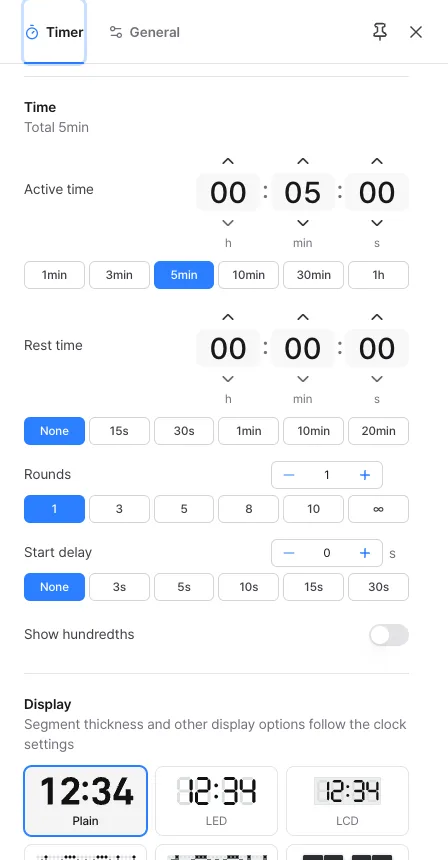
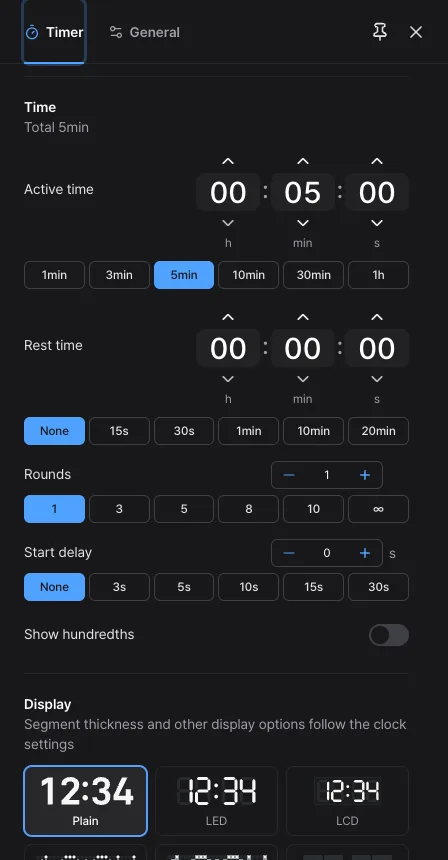
Build your own cycle in the 'Time' group. Right under the group title you see the total time, including the start delay, so you know how long it will take.
- Active time: tap the hour, minute or second box and type, or use the arrows above and below. The buttons underneath (1, 3, 5, 10, 30 minutes, 1 hour) set it in one tap. The maximum is 99 hours 59 minutes 59 seconds.
- Rest time: the break between rounds. 'None' goes straight to the next round. With only 1 round, rest is not used.
- Rounds: how many times the active time runs. Choose ∞ to keep going until you stop it.
- Start delay: the wait between pressing Start and the timer actually starting. It gives you time to put the phone down and get into position.
- Show hundredths: shows the time left down to hundredths of a second. Not used in the Flip style.
Knowing by sound
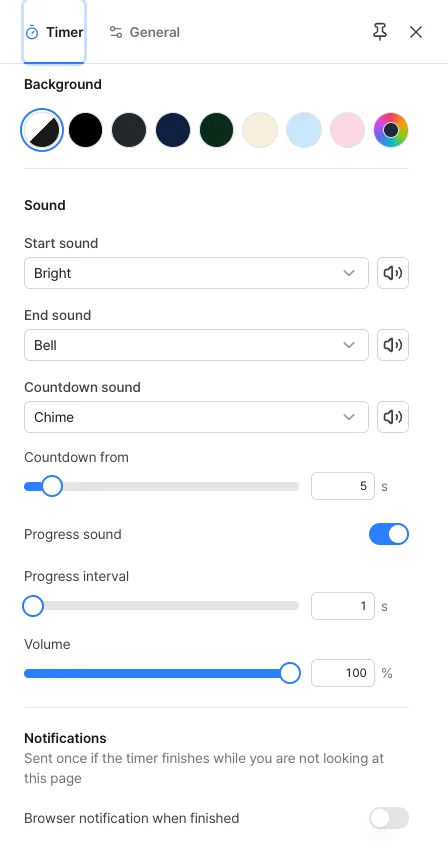
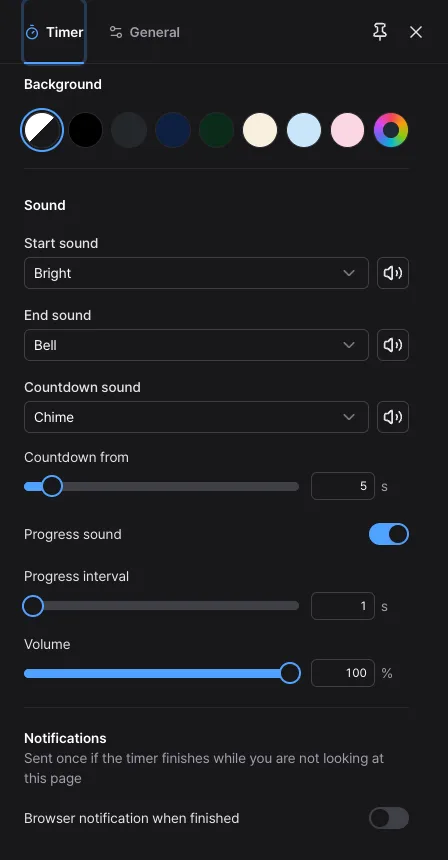
The sounds are split up so you can tell where you are without looking at the screen. Choose each one in the 'Sound' group and use the speaker button next to it to preview.
- Start sound: plays when an active phase starts.
- End sound: plays when an active phase ends, including the last round.
- Countdown sound: plays every second for the last few seconds of each phase (set between 3 and 30 seconds in 'Countdown from', 5 by default). Two falling notes mean active time is ending, two rising notes mean rest is ending, and a single note means the start delay, so you can hear which phase is about to end.
- Progress sound: a small tick every 'Progress interval' (1 to 60 seconds, 1 by default) during active time. It is on by default, so turn the switch off if you don't need it.
- Volume: applies to all sounds together.
Changing the look
The timer uses the same six display styles as the clock (Plain, LED, LCD, two dot styles and Flip), along with color, font, size and background. It also has a few settings of its own.
- Progress ring: 'Fill' makes the ring grow as time passes and 'Drain' makes it shrink. 'None' removes the ring so the digits fill the screen.
- Second hand: turn on 'Second hand' to add a dot that goes around the ring once every 60 seconds. Under 'Second hand motion', choose 'Smooth' or 'Tick'. It is not used when the progress ring is 'None'.
- Show end time: shows when all rounds will be finished, below the digits.
While you do something else
People often leave the timer running and look at another tab or app. Sounds are scheduled ahead of time, so they play on time even when the tab is hidden.
- Browser notification when finished: turn it on in the 'Notifications' group and allow the permission your browser asks for. If the timer finishes while you are not looking at this page, you get one notification. In a hidden tab the browser may slow the page, so the notification can be up to a minute late, but the sounds are not.
- Screen on: turn on 'Screen on' at the top of the settings panel and the screen will not switch off while the timer runs.
- Sound with the screen off: on a phone, keep 'Screen-off sound' at the top of the settings panel turned on (it is on by default). See 'Help' in the menu for details.
- A refresh starts over: the running state is not saved, so reopening the page brings back the starting state. While it runs, don't close the tab or move to another page.
Saving setups you use often
Timer settings are not saved every time you change them. Keep the setups you build in the 'Presets' group.
- Change the times, sounds and look the way you want, then tap 'Save as preset'. If you leave the name blank, it gets an easy name such as 'Interval 40/20'.
- After that, choose it from the box under the built-in tiles. Choosing it also puts the settings in the address, so you can bookmark it.
- To always open with the same setup, tap 'Set default'.
- Use 'Manage' to rename presets, 'Overwrite with current settings' or delete them, and send the same setup to a workout partner with a copied link or a QR code.
Ideas for using it
A few ways to use the timer, with settings that suit each one.
- Home workouts: pick a Tabata or interval preset. They come with a 5-second start delay; raise it to 10 seconds if you need more. The countdown sound lets you get ready for the next move without looking.
- Focused study or work: alternate focus and rest, such as 25 minutes active, 5 minutes rest, 4 rounds. Turning off the progress sound makes it quieter; to hear only the end sound, set the start and countdown sounds to 'None' too.
- Cooking: set only the active time and leave rounds at 1. The end time under the digits (on by default) shows when it will be done at a glance.
- Timing talks and meetings: make it large and go full screen so the speaker can see the time left from far away. Setting the progress ring to 'Drain' makes the shrinking time easy to read.
- Stretching and circuits: use 'Endless 60/15' to rest each time you switch moves, and stop it yourself when you are done.
Frequently asked questions
- Does the timer fall behind while I look at another tab?
- No. The time left is recalculated every time from when you started and how much time has passed, so it never drifts. Sounds are also scheduled ahead on the audio clock, so they play on time even when the tab is hidden.
- I can't hear any sound.
- Browser rules require one tap on the screen before sound can play. If you see a notice at the top, tap the screen. If your phone is in silent mode, see 'Help' in the menu for how to play sound anyway. Also check that each sound is not set to 'None' and that the volume is not 0.
- It waits a few seconds instead of counting right away.
- That preset has a start delay (5 seconds for every built-in preset except the 5-minute timer). While 'Starting' shows above the digits, you are in the start delay. If you don't need it, set the start delay to 'None' in the 'Time' group.
- I refreshed and the timer went back to the start.
- The running state is not saved. Every time the page opens, it starts fresh, so nobody else's timer is left running. Keep the tab open while it runs.
- I set a rest time, but it finishes without resting.
- Rest only happens between rounds. With 1 round it ends without a rest, so set 2 or more rounds. There is no rest after the last round either.
- I don't get a browser notification.
- Check that your browser allows notifications for this site. Even with permission granted, notifications won't show if they are turned off for the browser in your operating system settings. Notifications are only sent when you are not looking at this page.
Try it out right away. You can always return to the original settings with 'Reset settings' in the settings panel.
Other guides
- Clock guide
- Stopwatch guide
- Countdown guide
- Target Time guide
- Number Recall guide
- Sequence Recall guide
- Reaction Time guide
- Random number guide
- Card Flip guide
- Metronome guide
- Rhythm guide
- Touchscreen Test guide
- Multi-touch Test guide
- Dead Pixel Test guide
- Refresh Rate Test guide
- Gyroscope Test guide
- Accelerometer Test guide