Number Recall guide
Number Recall on One of the Things is a game where numbers flash up across the screen and you memorize where they are, then tap them from smallest to largest. The numbers get hidden in the way you choose, so you tap from memory rather than by sight. Your time to success is measured to a thousandth of a second and compared with your best and recent average under the same conditions, so you can keep practicing on your own. This guide covers playing one round, choosing how numbers hide and how hard it is, reading the result, and training yourself with your history.
Get started
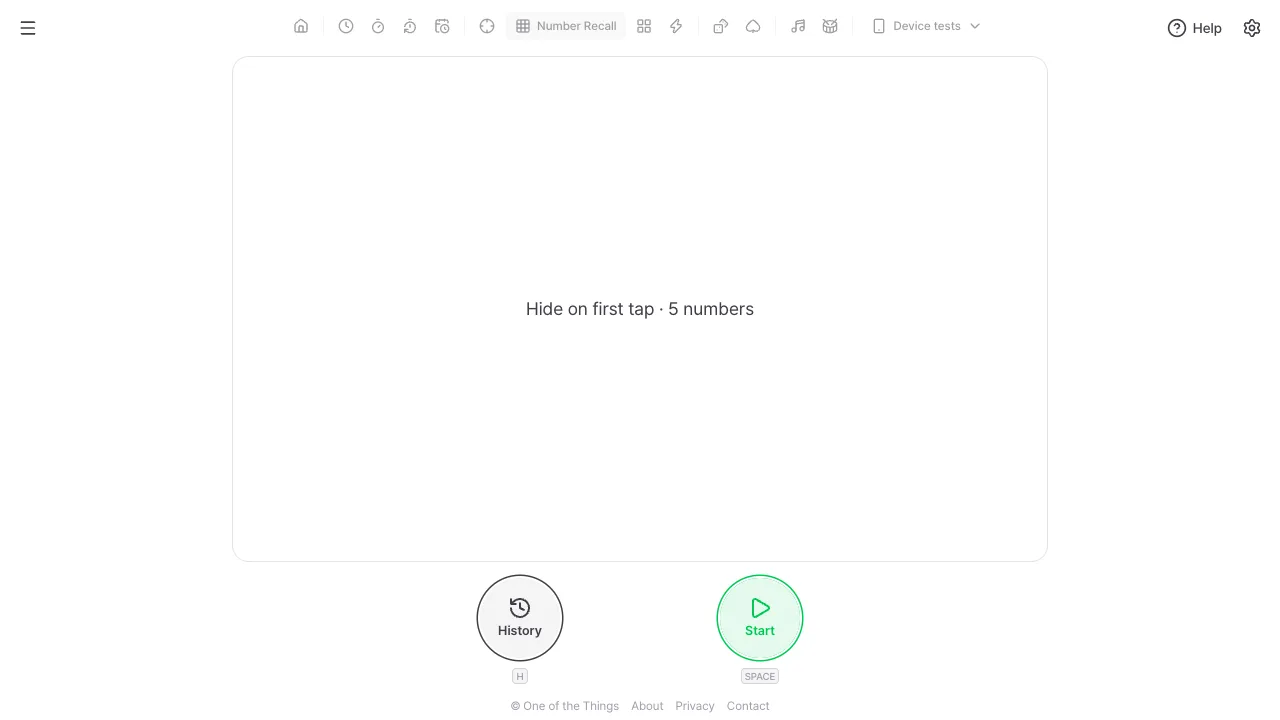
When you first open it, it is set to 'Hide on first tap' with 5 numbers. You can try a round without changing anything.
- Open the menu with the menu button at the top left and tap 'Number Recall'. On a wide screen you can also tap it right in the tool list at the top. The line in the middle of the empty board shows the current hiding method and number count.
- Press the green 'Start' button at the bottom, or press the Space or Enter key. Tapping the board once also starts.
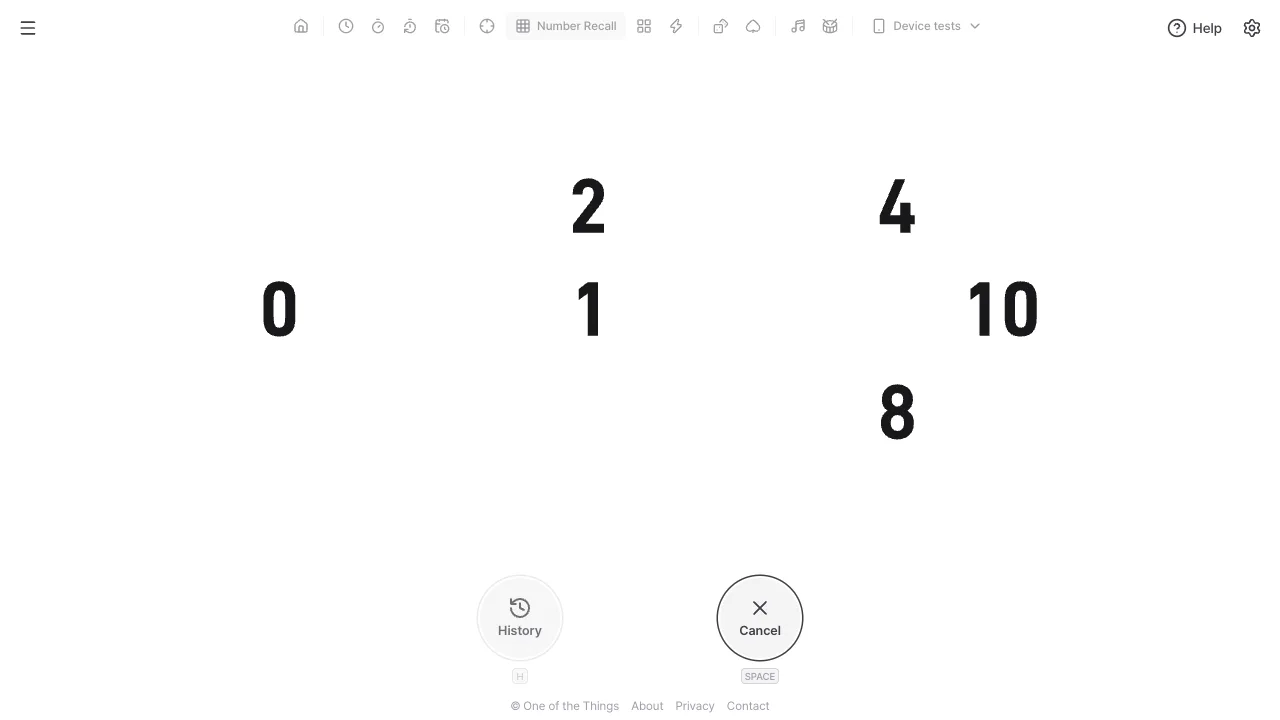
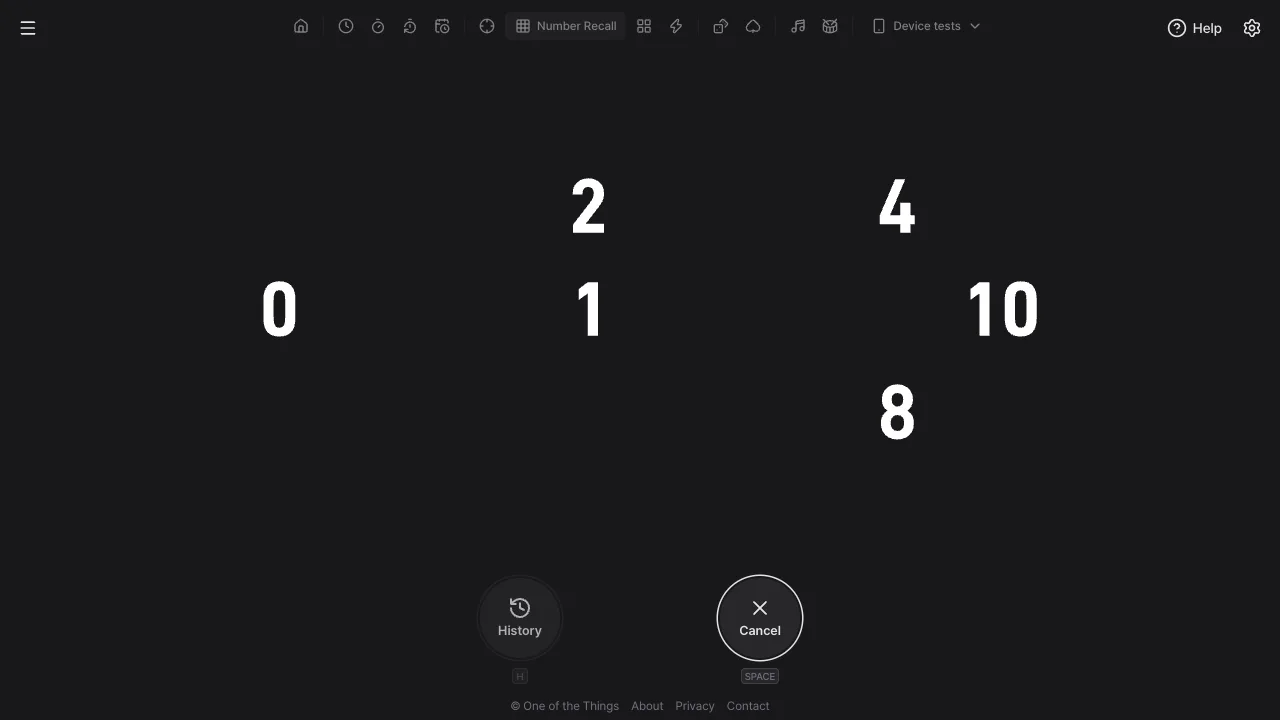
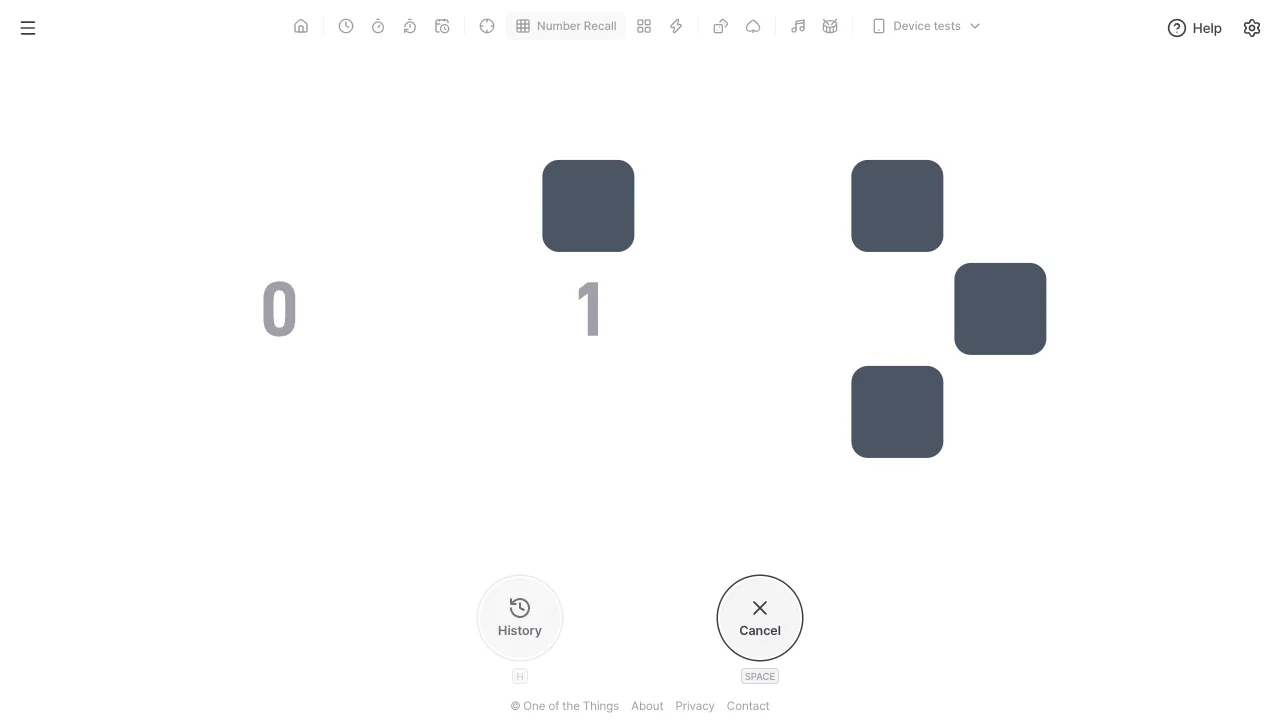
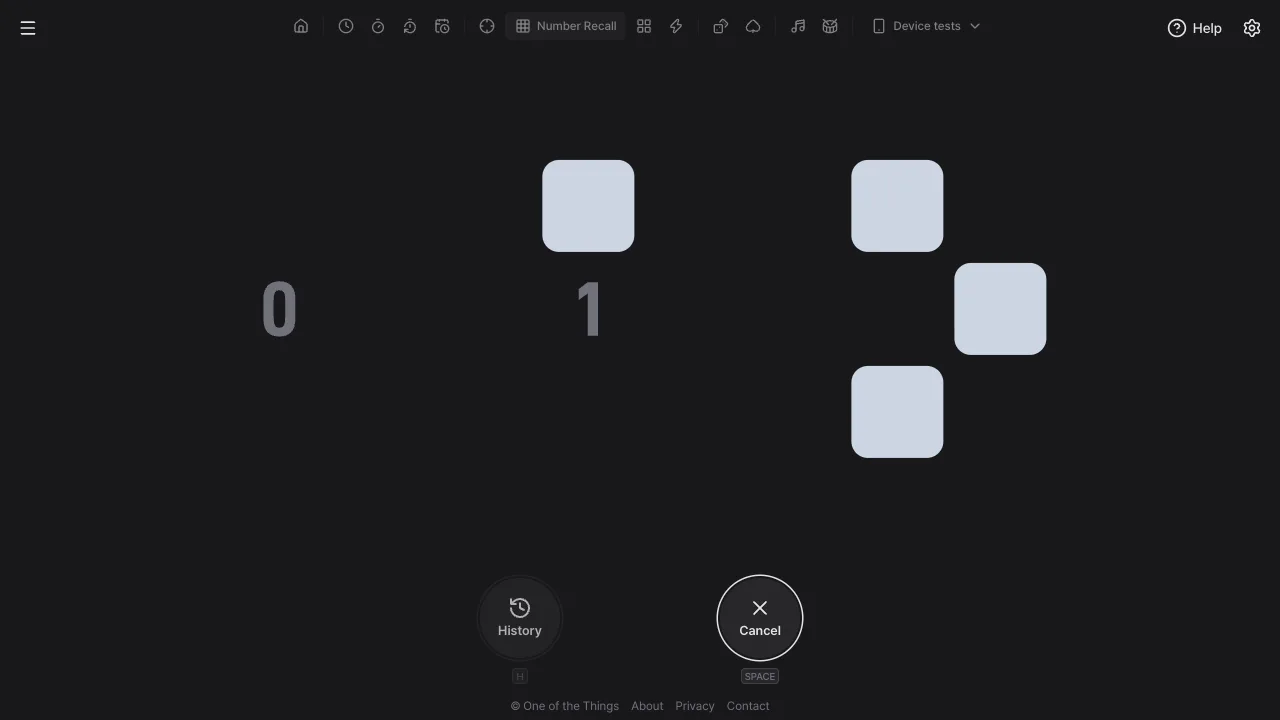
- A 3, 2, 1 countdown plays for three seconds, then the numbers all appear at once across the board. With the starting settings you see a 0 plus 5 numbers.
- Tap the 0 first. At that moment all the other numbers are hidden, so tap the spots you memorized from the smallest number up.
- Get them all right and you see your time to success; get one wrong and you see how many you got right. Press 'Again' to draw a new layout and start the next round with the same settings.
Three ways to hide
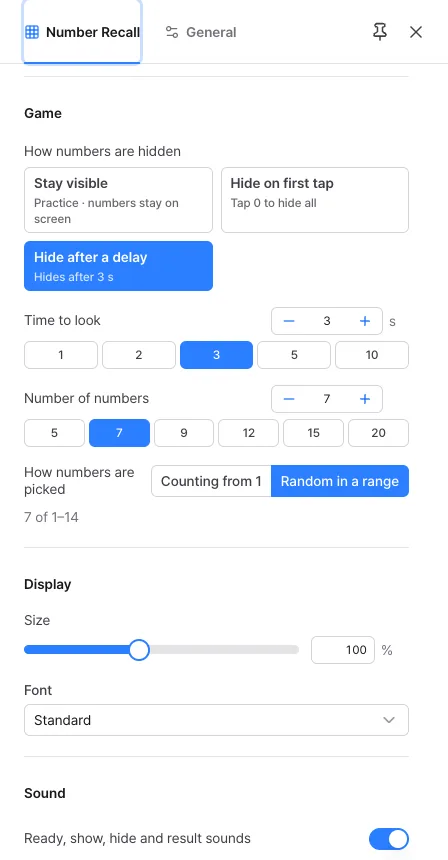
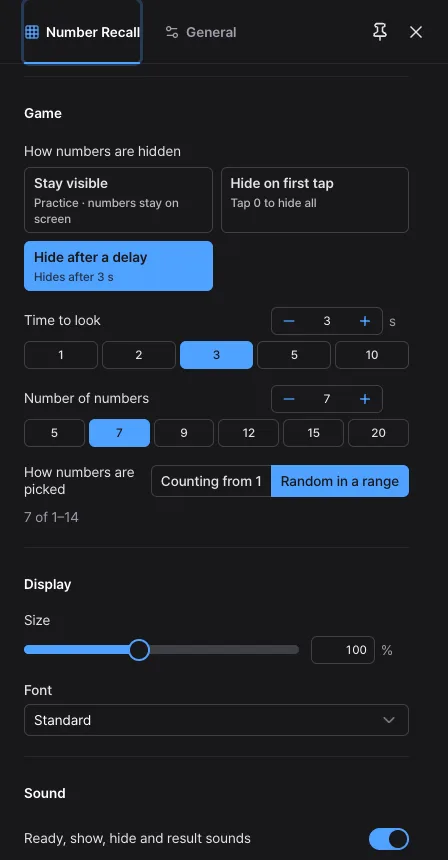
Choose when the numbers hide under 'How numbers are hidden' in the 'Game' section of the settings panel. They go from easiest at the top.
- Stay visible: practice mode, the numbers are never hidden. You can tap from the moment they appear, and each number you tap correctly is removed from the board.
- Hide on first tap (default): a starting 0 appears in addition to your numbers. Since 0 is the smallest you tap it first, and the moment you do, everything else is covered by rounded squares. You tap 0 when you feel you have it all memorized, so you decide how long to look. The 0 does not count toward the number count or your correct answers.
- Hide after a delay: the numbers hide by themselves once 'Time to look' has passed. A thin bar above the board shows the time left (with reduce motion turned on in your device settings, the seconds left are shown instead), and taps while the numbers are visible do not count as answers. Start tapping once they are hidden.
- Correct taps: in the two hiding modes the cover lifts and the number shows faintly, so you can see how far you have got.
Choosing presets and difficulty
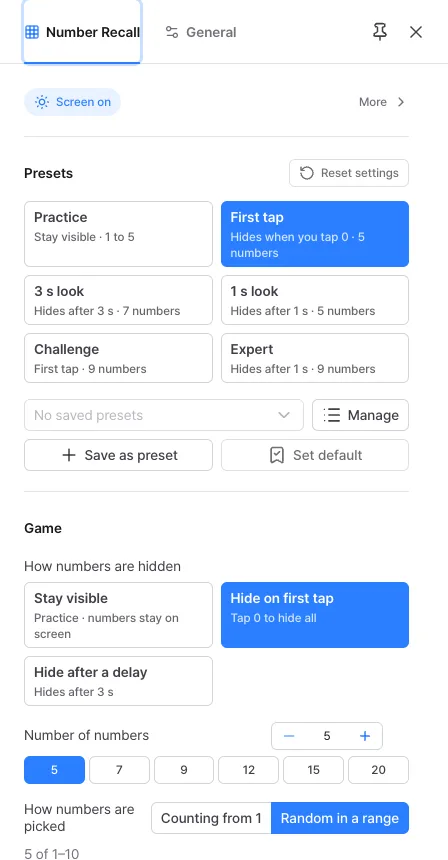
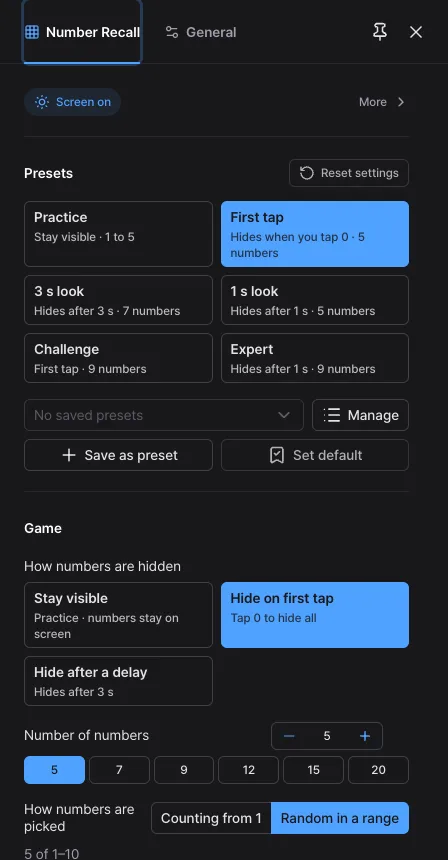
Pick a suitable difficulty in one go from 'Presets' at the top of the settings panel (the gear at the top right), or adjust each setting in the 'Game' section.
- Built-in presets: six of them, 'Practice', 'First tap', '3 s look', '1 s look', 'Challenge' and 'Expert', go from easy to hard, and each tile shows its hiding method and number count on the line below. The starting settings match 'First tap', so that tile is selected. Presets only change the game settings and leave the font and sounds alone.
- How numbers are hidden: choose from the 'Stay visible', 'Hide on first tap' and 'Hide after a delay' tiles (see 'Three ways to hide' above).
- Number of numbers: type 5–20 or tap a quick choice (5, 7, 9, 12, 15, 20). It starts at 5.
- Time to look: appears only with 'Hide after a delay'. 1–10 seconds, with quick choices 1, 2, 3, 5 and 10 s. It starts at 3 seconds.
- How numbers are picked: 'Counting from 1' gives 1, 2, 3 and so on with no gaps. 'Random in a range' (default) picks without repeats from a range up to twice the count, so half the numbers are skipped and you also have to remember which number comes next. The line below shows the current range, such as '5 of 1–10'.
- When you change them: changing a game setting or picking a preset closes the round or result in progress and goes straight to standby with the new conditions (an unfinished round is not recorded; finished rounds stay in your history).
- Size: 'Size' in the 'Display' section (30–200%, it starts at 100%) sets the upper limit for one cell. At 100% a cell is at most about 100px on a side, so on a wide screen the board shrinks and is easier to hit with a mouse, while on a small screen such as a phone it stays exactly as large as fits. You can also change it with a two-finger pinch or Ctrl (⌘) + wheel, and changing it that way does not stop a round in progress. The right size differs by device, so it is not kept in presets or links.
- Font: choose one of eight number styles under 'Font' in the 'Display' section (it starts at 'Standard'). Changing it mid-round does not stop the round.
Reading the result
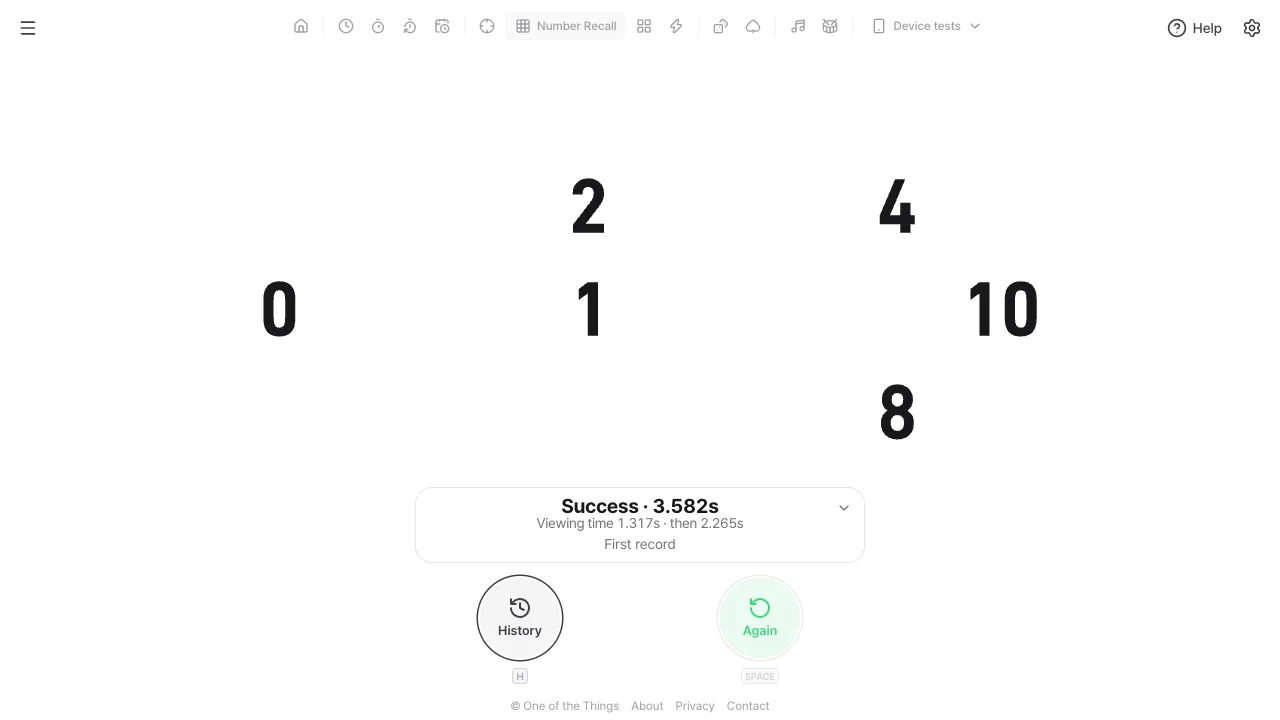
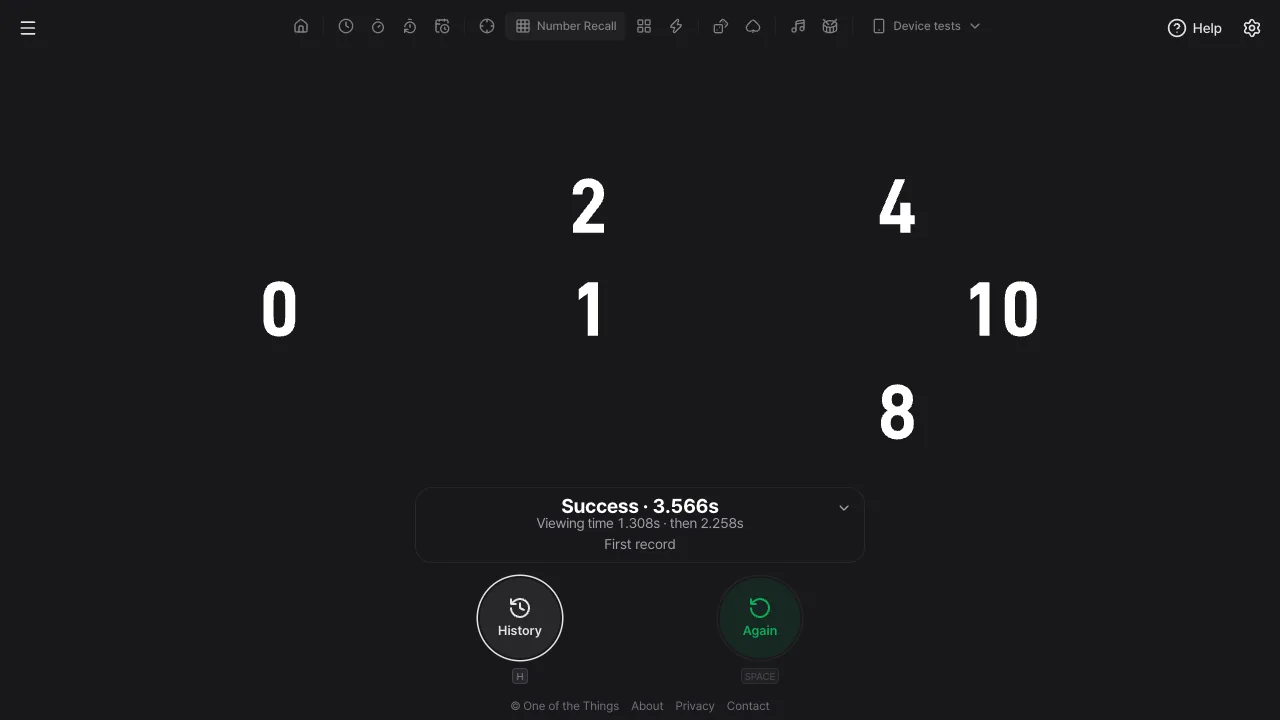
The result appears in a translucent result card at the bottom center of the board. All the numbers show on the board again, so you can check what was where. If the card covers cells, fold it with the arrow button at its top right or the Esc key: only the result line stays, and pressing it unfolds the card again.
- Time to success: the big number after 'Success' is the time from the moment the numbers appeared until you got the last one right. It is shown to a thousandth of a second, and your best and averages use this time too.
- Split times: 'Hide on first tap' splits it into 'Viewing time' (until you tap 0) and 'then' (the time to tap the rest), and the two add up exactly to the time to success. 'Hide after a delay' shows the 'Tap' time from the moment the numbers hid until you finished, and the time to success is the time to look plus this time. 'Stay visible' shows no split.
- Comparison line: when you succeed, a line below compares the round with your earlier results under the same conditions. Your first success shows 'First record' (see 'Training yourself' below).
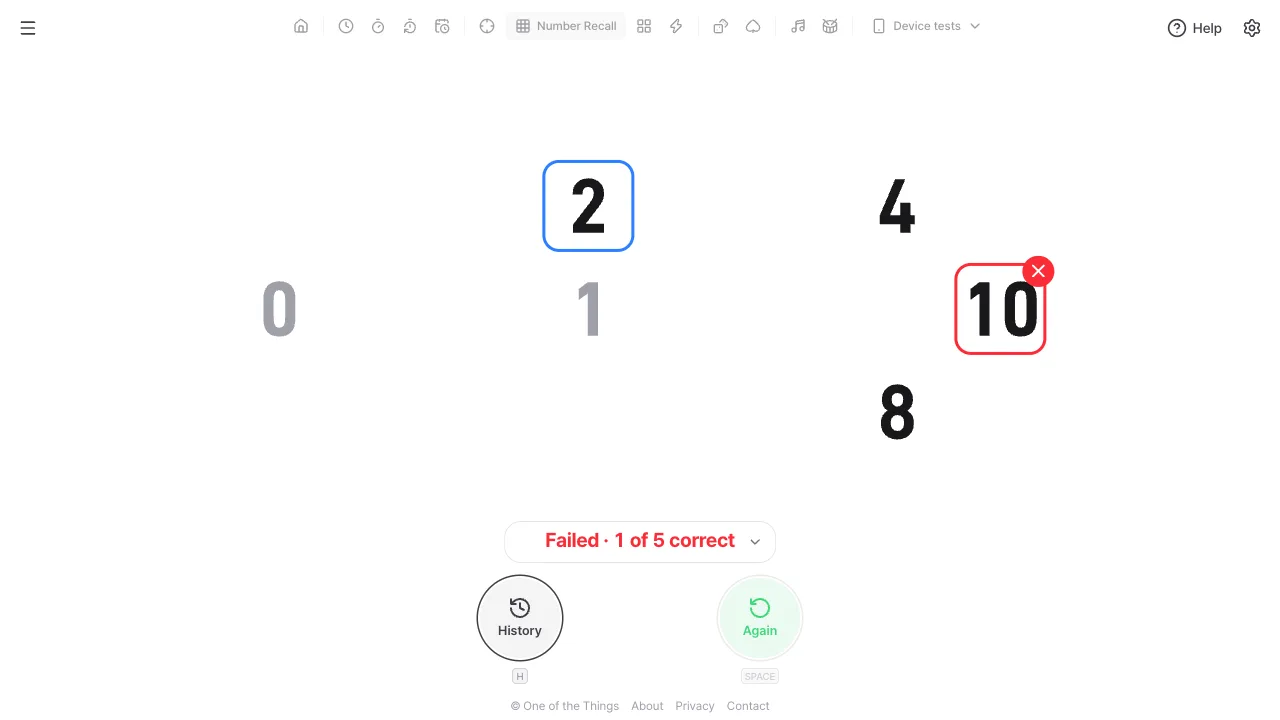
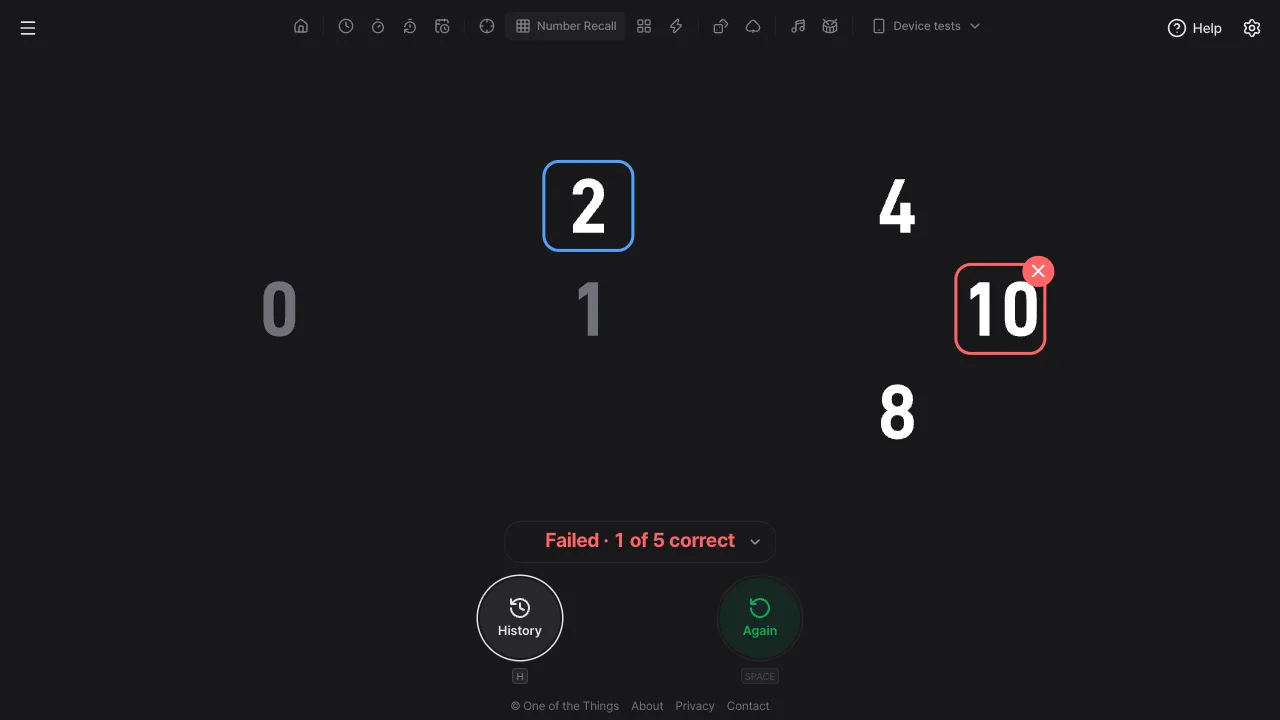
- Failure: tapping a number out of order ends the round right away and shows how many you got right, as in 'Failed · 1 of 5 correct'. The cell you tapped by mistake gets a red border and ×, the cell you should have tapped gets an accent-colored border, and all remaining numbers are revealed.
- Empty cells: tapping a cell with no number or one you already got right does nothing. It does not count as a mistake.
- Again: press 'Again' (Space) to draw a new layout with the same settings and go straight into the countdown. For the first second after a result the button is briefly off, so repeated taps cannot start the next round by accident.
Training yourself
Every finished round goes into your history automatically, and rounds under the same conditions are compared so you can see yourself improve. The conditions are the combination of hiding method, number count, how numbers are picked and time to look.
- Comparison right in the result: if you beat your fastest time under the same conditions it reads like 'New best · −0.215s vs. previous', otherwise like 'Best … · +0.120s vs. recent average'. A minus means you got faster, and the average is taken from the successful rounds among the last 10 under those conditions.
- Standby screen: when you have history for the current conditions, a line such as 'Best … · recent success rate 80%' appears below the conditions line.
- Next step suggestions: once you have played the last 10 rounds under the same conditions with a success rate of 90% or more, 'Add one more number?' (when below 20 numbers) and 'Shorten by 1 s?' (with Hide after a delay at 2 seconds or more) buttons appear under a successful result. Pressing one changes that value and starts the next round right away. Nothing changes on its own.
- History window: open it with the 'History' button at the bottom (the H key), on the standby and result screens only. At the top are 'Best', 'Success rate (last 10)' and 'Recent average' for the current conditions, and below, each round's date and conditions with its time to success or a count such as '2 of 5', newest first.
- Storage and clearing: the last 100 rounds are kept in this browser on this device and do not show on other devices. 'Clear history' in the history window removes everything at once, and you can bring it back with 'Undo' in the notice that appears.
Playing on a phone
On a phone you tap the cells directly with your finger. Whichever way you hold it, the board is drawn as large as fits on the screen (only on a large screen does the 'Size' setting shrink it).
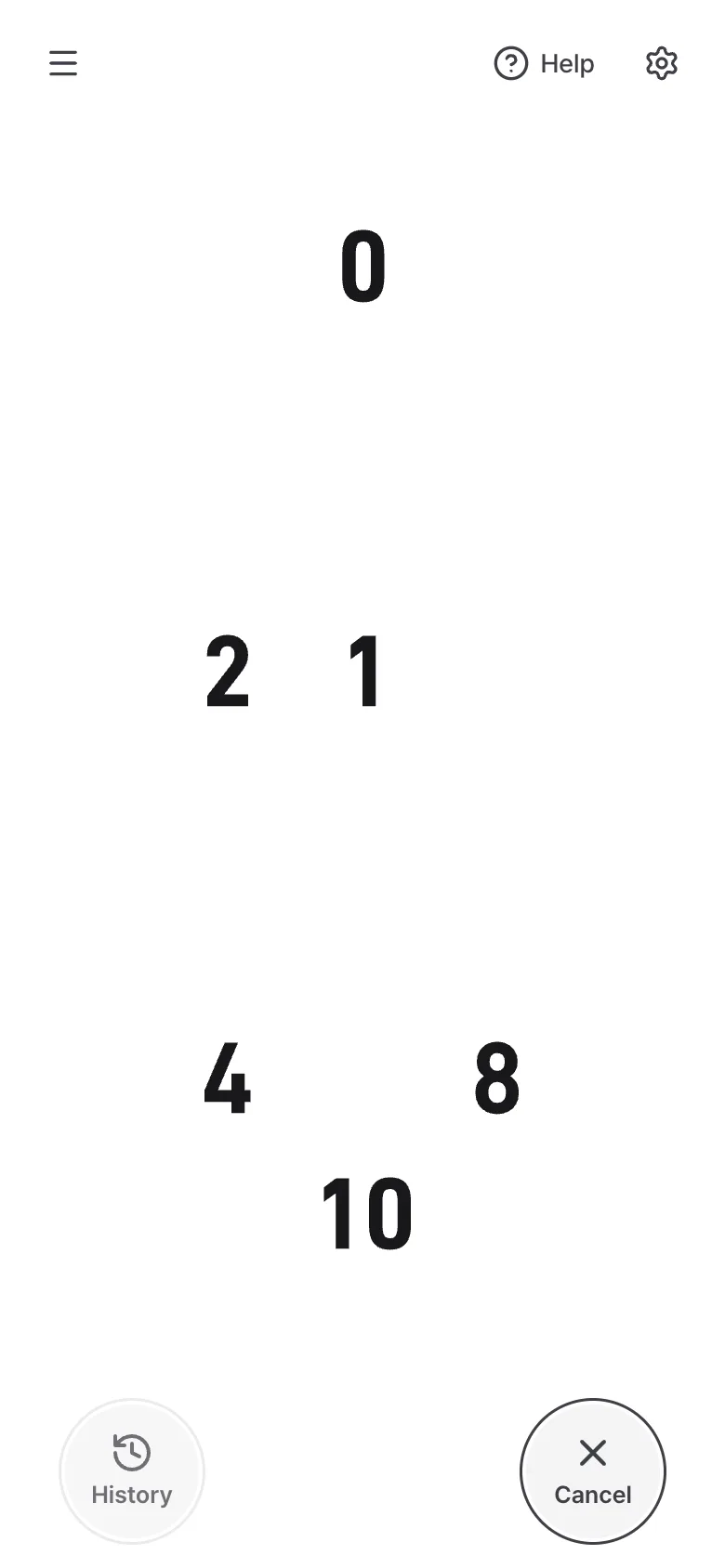
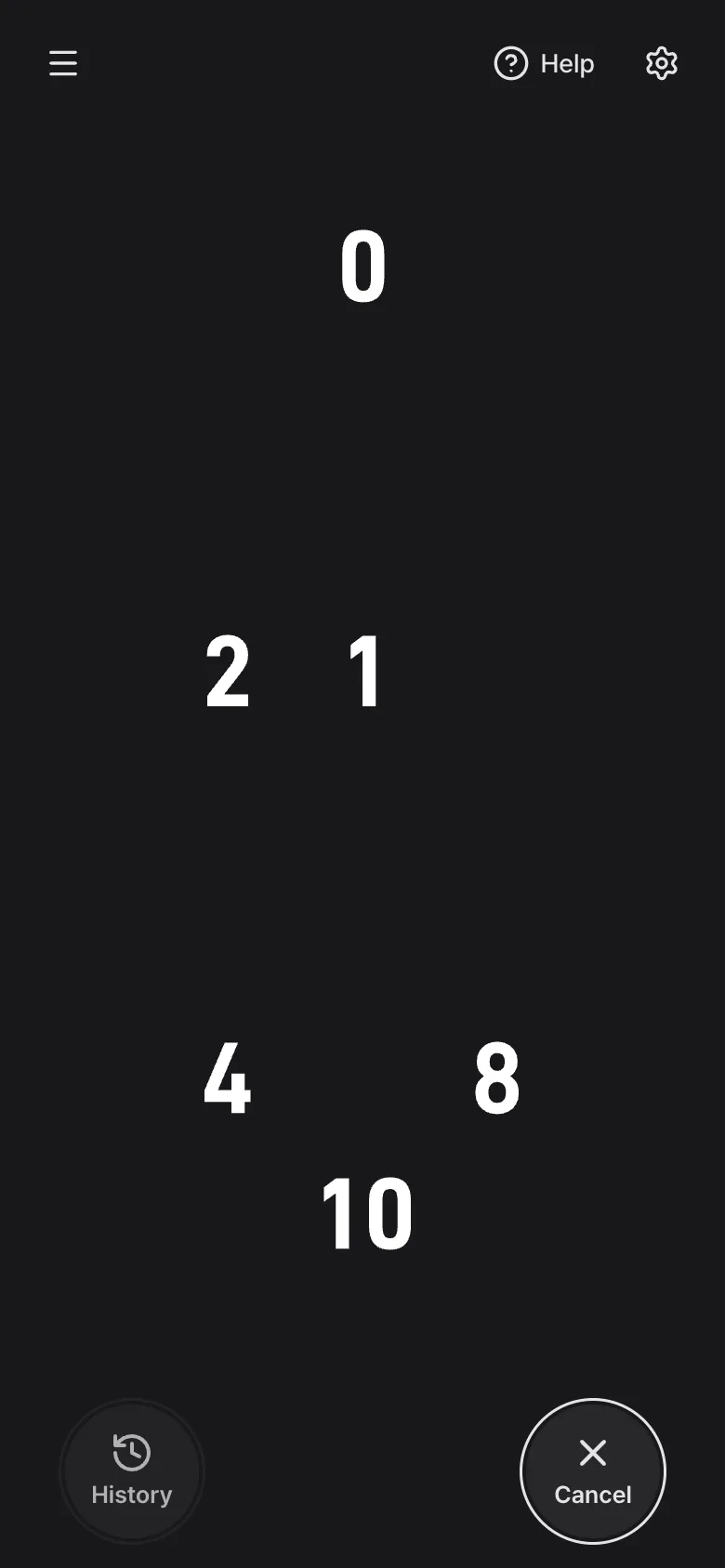
- Portrait: when the screen is taller than it is wide, the board of 8 columns by 5 rows is turned into 5 columns by 8 rows. Numbers that run left to right in landscape run top to bottom in portrait, but their arrangement relative to each other stays the same.
- Turning the phone: if the screen orientation changes mid-round, the layout you memorized would look different, so the round is cancelled and not recorded. Settle on an orientation before you start.
- The moment you touch: a cell is judged the instant your finger lands, without waiting for you to lift it. If several fingers land almost together, they are judged one at a time in the order they touched.
- Phone in landscape: when the screen is short, the control buttons move to a narrow column at one edge so the board can be drawn larger.
- Screen on: while 'Screen on' at the top of the settings panel is on (it starts on), the screen does not turn off by itself from the countdown until you finish tapping.
Sounds
Turn sounds on and off in the 'Sound' section of the settings panel. If your phone is in silent mode, see 'Help' in the menu for how to get sound anyway.
- Ready, show, hide and result sounds: turns the 3, 2, 1 countdown, the sound when the numbers appear, the sound when they hide with 'Hide after a delay', and the success and failure sounds on or off together (it starts on). The failure sound plays the instant you tap wrong.
- Sound on each correct tap: a short sound every time you tap a number correctly (it starts on). With 'Hide on first tap', tapping 0 to hide the numbers plays only this sound.
- Volume: applies to every sound (it starts at 100).
Saving the settings you use
Settings are not saved each time you change them, so a reload returns to your default settings (the starting settings if you have not set a default). A preset holds the hiding method, number count, time to look, how numbers are picked, the font and the sound switches. Volume and size are not included because they differ by device.
- Change things as you like, then press 'Save as preset' in 'Presets' at the top of the settings panel (up to 12, names up to 20 characters). If you leave the name empty, it is named after its conditions, such as 'Hides after 3 s · 9 numbers'.
- From then on, just pick it in the selection box below the built-in tiles. Picking one also changes the address to that setup, so you can bookmark it.
- If you always want to open with the same settings, press 'Set default'.
- In 'Manage' you can rename, overwrite or delete presets and send the same conditions to a friend with a copied link or QR code.
- To go back to the starting state, press 'Reset settings' to the right of the 'Presets' title. This also clears the settings you saved with 'Set default', but you can bring them back with 'Undo' in the notice that appears. Your history is not cleared.
Ways to use it
A few examples and settings that suit them.
- A short daily practice: play about 10 rounds a day with the same preset (for example '3 s look'). Keeping the conditions the same builds up your best and success rate, and when a next step suggestion appears, move up one step at a time.
- A warm-up before focusing: a few rounds of 'First tap' before you start studying or working help wake up your eyes and hands. A round takes only a few seconds.
- Playing with children: use 'Practice' (Stay visible · 1 to 5) to learn the order of numbers and how to tap, then move on to 'First tap' once it feels easy.
- Competing with friends: pick the same preset or send a preset link so the conditions match, then take turns and compare times to success. The numbers and spots are drawn anew every round, so comparing the average of several rounds is fairer.
Frequently asked questions
- Why does a 0 appear with 'Hide on first tap'?
- Without the 0, you would tap the smallest number while still looking at it, so you would actually memorize one number fewer, and with random numbers the time to find that smallest number would vary from round to round. The 0 is always the same digit and easy to find, and after tapping it you tap every one of your numbers from memory. That is why the 0 does not count toward the number count or your correct answers, and why it does not appear in the other two modes.
- I tapped a number with 'Hide after a delay' and nothing happened.
- While the numbers are visible, taps on the cells do not count as answers. Tapping while you can see them would not test your memory. Start tapping once the bar above the board runs out and the numbers are hidden. The 'Tap' time is also measured from the moment they hide.
- My round suddenly disappeared.
- Opening the settings panel or the menu, switching tabs or apps, going to another page, reloading, or a change in screen orientation cancels the round, and it is not recorded. While the page is hidden the round would not be fair, and after the orientation changes the layout you memorized looks different. Change settings on the standby or result screen.
- There is no sound.
- Browsers require one tap on the page before sound can play. If a notice appears at the top, tap the screen. If your phone is in silent mode, see 'Help' in the menu for how to get sound anyway. Also check that 'Ready, show, hide and result sounds' and 'Sound on each correct tap' are on and that the volume is not 0.
- My history is gone. Can I see it on another device?
- History is saved only in this browser on this device. It does not show on other devices, and it can disappear if you clear site data or use a private window. It is never sent to One of the Things servers.
- Can I choose cells with the keyboard?
- No. This is a game about remembering where numbers are, so cells are tapped only with a finger or a mouse. On the keyboard, Space and Enter start, cancel and play again, and the H key opens the history window. Shaking the device is not used either.
Try it out right away. You can always return to the original settings with 'Reset settings' in the settings panel.
Other guides
- Clock guide
- Timer guide
- Stopwatch guide
- Countdown guide
- Target Time guide
- Sequence Recall guide
- Reaction Time guide
- Random number guide
- Card Flip guide
- Metronome guide
- Rhythm guide
- Touchscreen Test guide
- Multi-touch Test guide
- Dead Pixel Test guide
- Refresh Rate Test guide
- Gyroscope Test guide
- Accelerometer Test guide