Sequence Recall guide
Sequence Recall on One of the Things is a game where cells on a board light up one at a time and you tap them back in the same order. Each time you get it right the sequence grows by one cell, and when you miss, the longest sequence you completed becomes your level for the round. With no numbers to lean on, you remember only places and order, which makes it good practice for short-term memory, and as rounds pile up your best and recent average show your progress. This guide covers playing one round, setting the difficulty with board size, speed and lives, reading the result, training on your own, and saving the settings you use most.
Get started
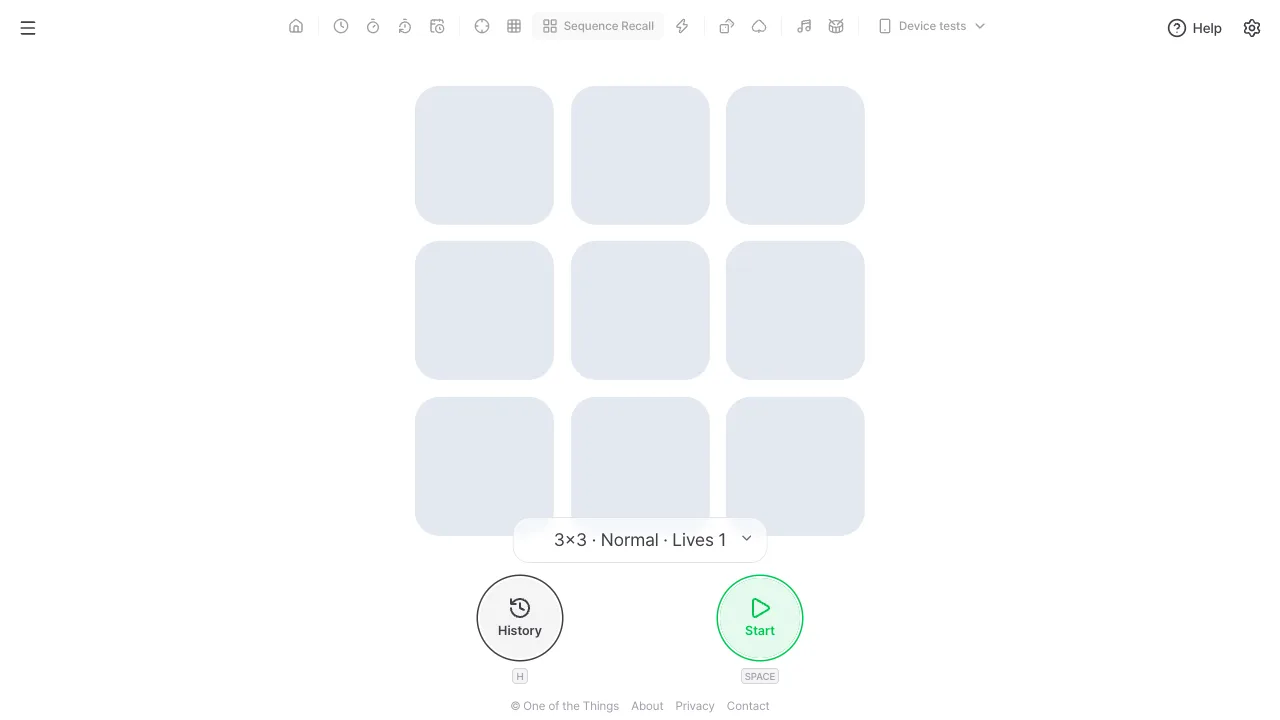
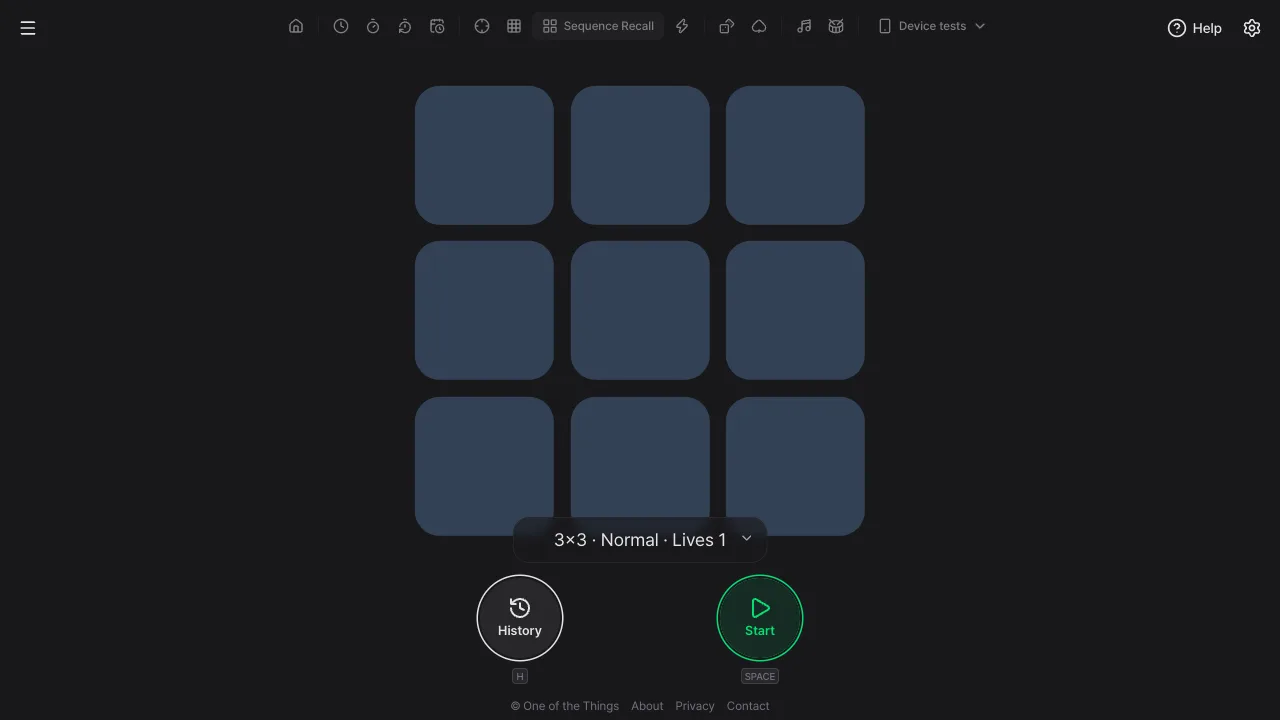
When you first open it, the board is 3×3 at 'Normal' speed with 1 life and a starting length of 1 cell. You can try a round without changing anything.
- Open the menu with the menu button at the top left and tap 'Sequence Recall'. On a wide screen you can also tap it right in the tool list at the top. A board of nine cells sits in the middle.
- Press 'Start' at the bottom right, or press the Space or Enter key. Tapping the board once also starts a round.
- After a three-second 3, 2, 1 countdown, the cells turn into hollow outlines and light up one by one. Remember which cells lit up and in what order.
- When the last cell goes dark, all the cells fill in at once. Now tap the cells that lit up, in the same order.
- Get the whole sequence right and it grows by one cell and plays again from the start. Miss, and the round ends with your level and the time taken. Press 'Again' to start the next round with a new sequence and the same settings.
How a round goes
After the countdown, a round repeats watching and tapping, climbing one level at a time, and ends with the result once you run out of lives.
- Get ready: after you press 'Start', the board dims and a 3, 2, 1 countdown plays over it with sounds. Pressing the same button now (it reads 'Cancel') ends the round without recording it.
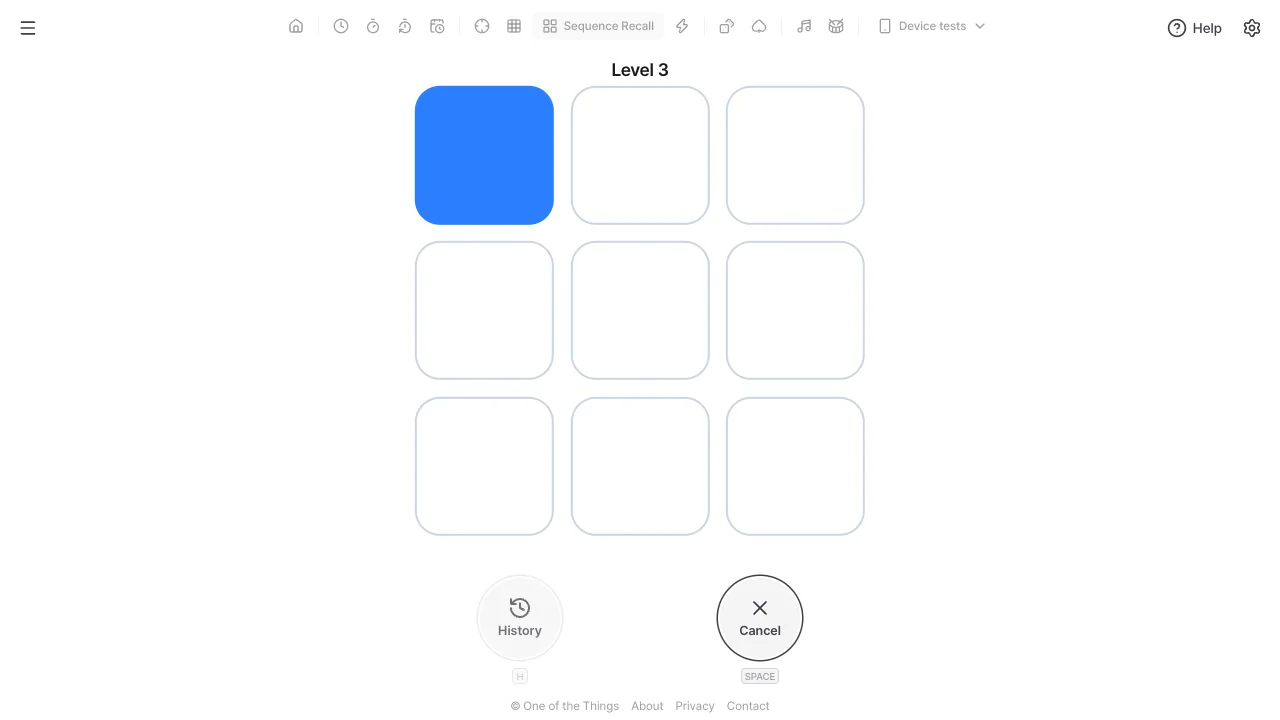
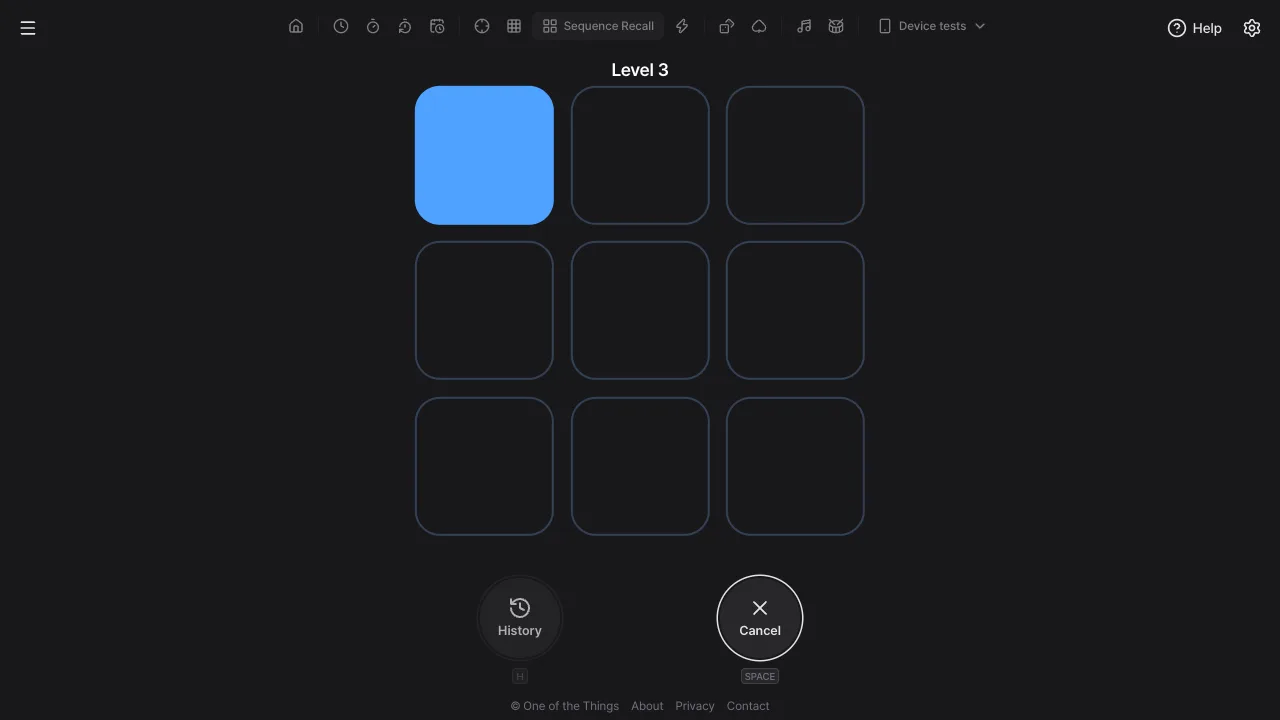
- Watch: the current sequence length appears above the board, like 'Level 3', and the cells turn into hollow outlines. Cells light up one by one in the accent color with a short sound. Taps during this part are ignored.
- Tap: when the last cell goes dark, all the cells fill in at once to show it is your turn. A tap counts the moment your finger or mouse button goes down, not when you let go, and the tapped cell flashes briefly. Cells are tapped with a finger or a mouse; the keyboard cannot tap them.
- When you get it right: after the full sequence, the outlines of all cells glow briefly in the accent color, then the sequence plays again from the start with one more cell added at the end. The earlier part stays the same.
- When you miss: the cell you tapped turns red and the cell you should have tapped gets an accent-color outline. If you have lives left, the same sequence plays again from the start after a moment; if not, you go to the result. With 3 lives, dots next to the level above the board show the lives left.
- Repeated cells: the same cell never lights twice in a row, but it can come back later in the sequence. When it does, just tap it again.
- When a round is cut off: if the page is hidden by switching tabs or apps, if you open the settings panel or the menu, go to another page, or reload, the round is cancelled and not recorded. Turning your phone sideways does not cut it off.
Choosing a preset and difficulty
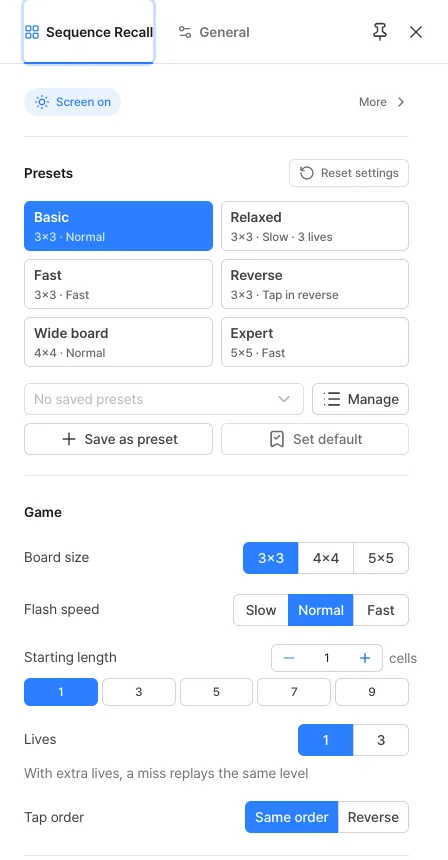
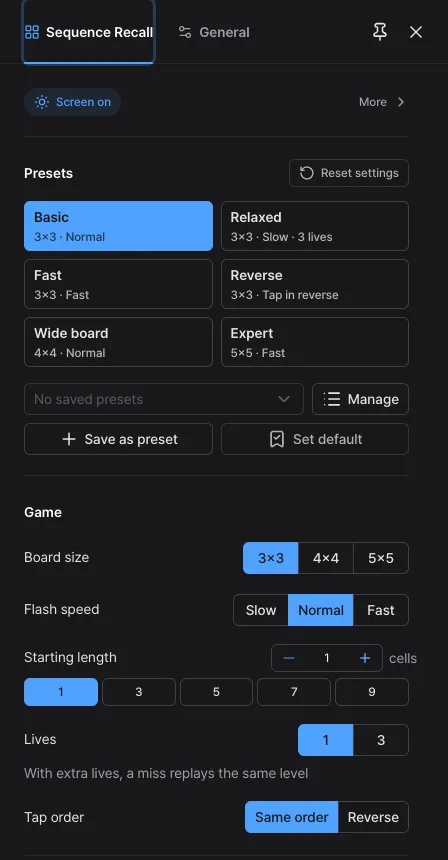
Set the difficulty in the 'Presets' and 'Game' sections of the settings panel (the gear at the top right). More cells, faster flashes and reverse order all make it harder.
- Built-in presets: tap one of the six tiles in the 'Presets' section at the top ('Basic', 'Relaxed', 'Fast', 'Reverse', 'Wide board', 'Expert') to change board size, flash speed, lives and tap order at once. They leave the starting length as it is. The starting settings are the same as 'Basic'.
- Board size: choose 3×3 (default), 4×4 or 5×5. The more cells, the harder it is to remember positions.
- Flash speed: with 'Slow' each cell stays lit for 0.8 s with a 0.4 s pause before the next, 'Normal' (default) is 0.55 s and 0.3 s, and 'Fast' is 0.35 s and 0.2 s.
- Starting length: set the length of the first level's sequence from 1 to 9 cells (default 1, quick choices 1, 3, 5, 7, 9). Once you are comfortable, raise it to skip the easy early levels.
- Lives: with '1' (default) the round ends on your first miss; with '3' you can miss up to twice and watch the same level again.
- Tap order: 'Same order' (default) or 'Reverse'. 'Reverse' means starting from the cell that lit last, so you have to flip the sequence in your head.
- Changing settings: changing a value in the Game section or picking a preset closes the running round or the result and goes straight to standby with the new settings. Rounds that already finished stay in your history.
Reading the result
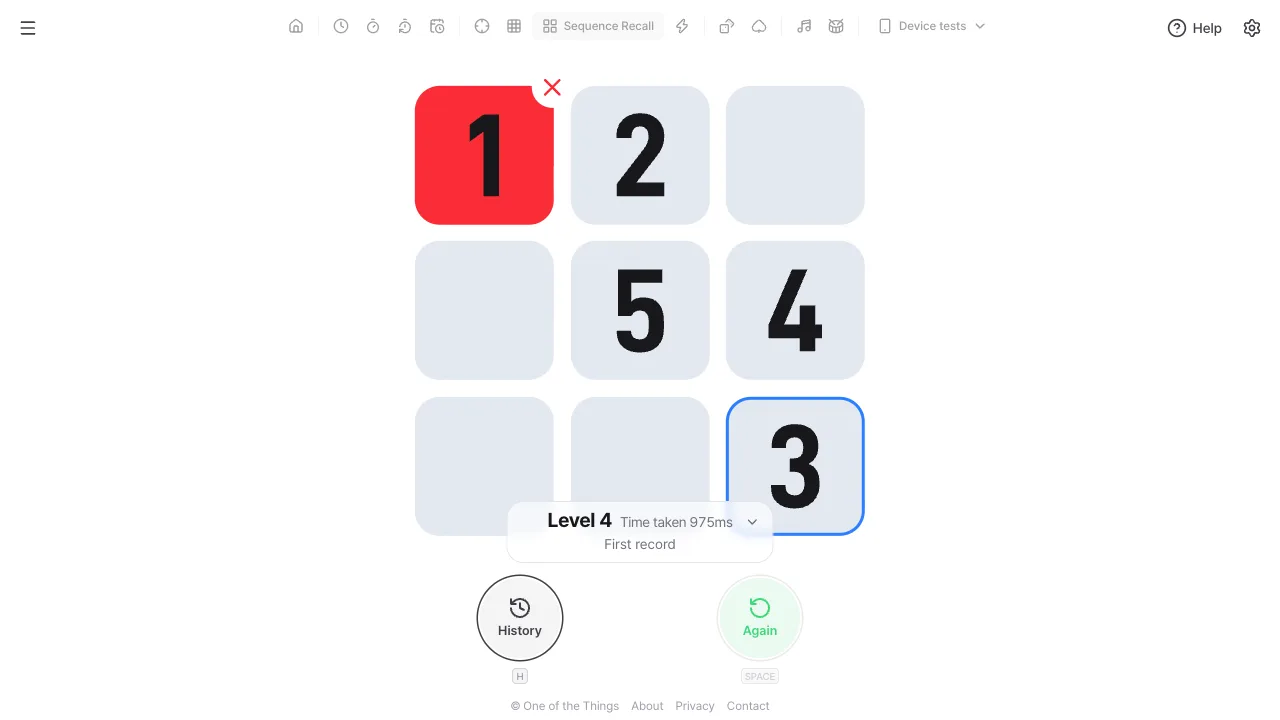
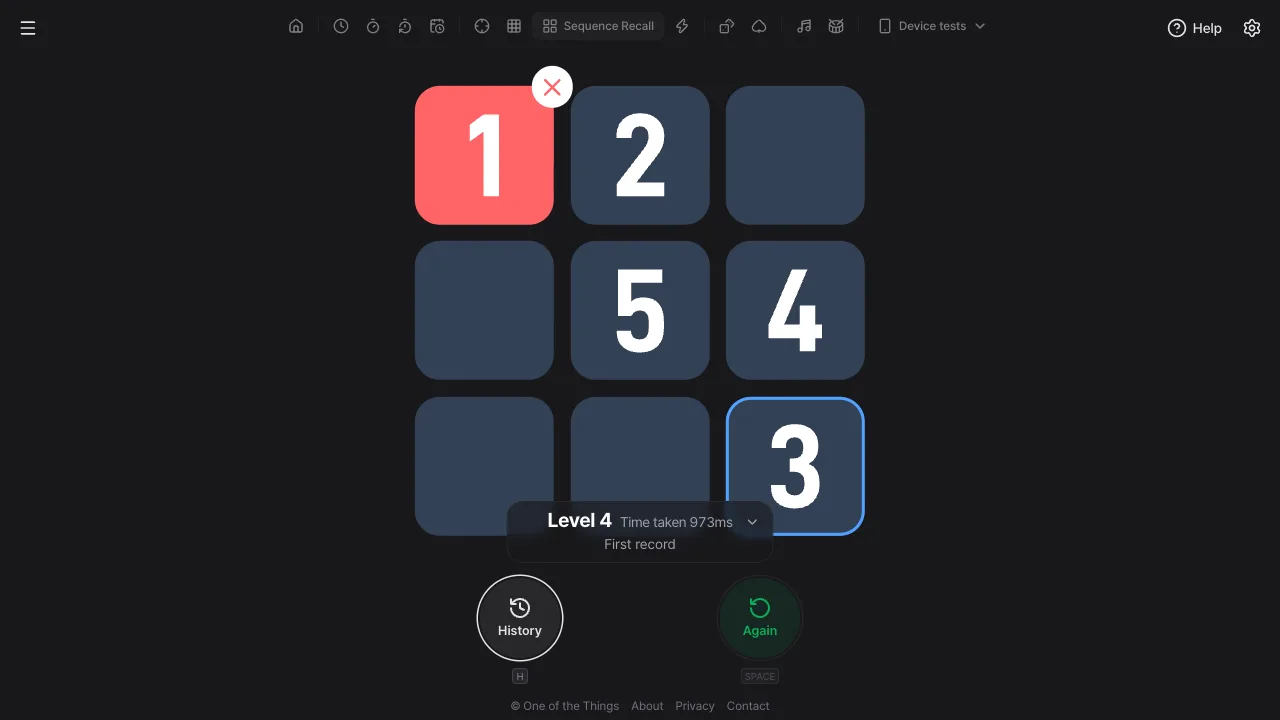
When your lives run out, the sequence you missed appears on the board as numbers, and a translucent result card at the bottom center of the board shows your level, the time taken and a comparison with your past records. If the card covers cells, fold it with the arrow button at its top right or the Esc key: only the level line stays, and pressing it unfolds the card again.
- Level: the bold 'Level 4' is the length of the longest sequence you completed. If you miss on the very first level, you see 'Level 0' and 'No level cleared'.
- Time taken: from the moment it became your turn to the moment you tapped the last cell, on the last level you completed, in ms (thousandths of a second). At the same level, shorter is better.
- Numbers for the missed sequence: the cells of the level you missed are numbered 1, 2, 3… in the order they lit up. Even in 'Reverse', the numbers follow the order they lit up. If a cell has five or more numbers, only the first four are shown.
- Wrong cell and right cell: the cell you tapped by mistake is red with an × at its corner, and the cell you should have tapped has an accent-color outline.
- Comparison line: the bottom line compares this round with your past records for the same setup (see 'Training on your own' below).
- Again: press 'Again' (Space or Enter) or tap the board to get ready for a new round with a new sequence and the same settings. For the first second after a result the button is briefly off, so a finger still tapping cells does not start the next round by accident.
- Going all the way: if you complete every level up to 99, the round ends there, and no numbers are shown since nothing was missed.
Training on your own
When a result appears, the round is added to your history automatically and compared with your past records in one line. Only rounds with the same board size, flash speed, lives and tap order are compared.
- Comparison line: the first round with a setup shows 'First record'. Beating your best shows 'New best · previously Level 8', and falling short shows 'Best: Level 9 · recent average 6.4'.
- At the same level: if you match your best level, the time taken on the last level decides, as in 'Same as best, Level 9 · +215ms'. If you were faster, it becomes 'New best · same Level 9 · −215ms'.
- Starting length: it is not part of the comparison. The score is the length of the sequence itself, so reaching level 7 from a starting length of 5 counts the same as reaching it from 1.
- Best on standby: on the standby screen, the setup line is followed by your best for that setup, like 'Best: Level 9'.
- History window: open it with the 'History' button at the bottom (the H key); it cannot open while a round is running. At the top you see the current setup's 'Best', the time taken on its last level ('Its last level') and the 'Recent average' level of the last 10 rounds, and below, each round's date, setup, level and time taken, newest first.
- Storage: the last 100 rounds are kept in this browser on this device and do not show on other devices. 'Clear history' in the history window removes everything at once, and you can bring it back with 'Undo' in the notice that appears.
Size and sound
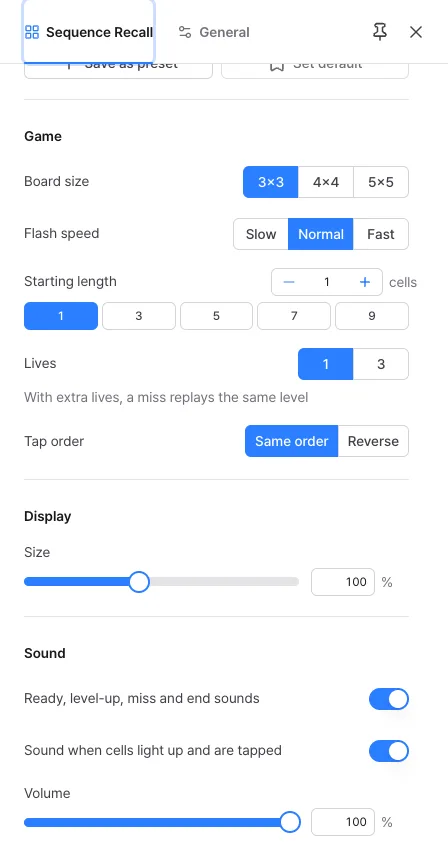
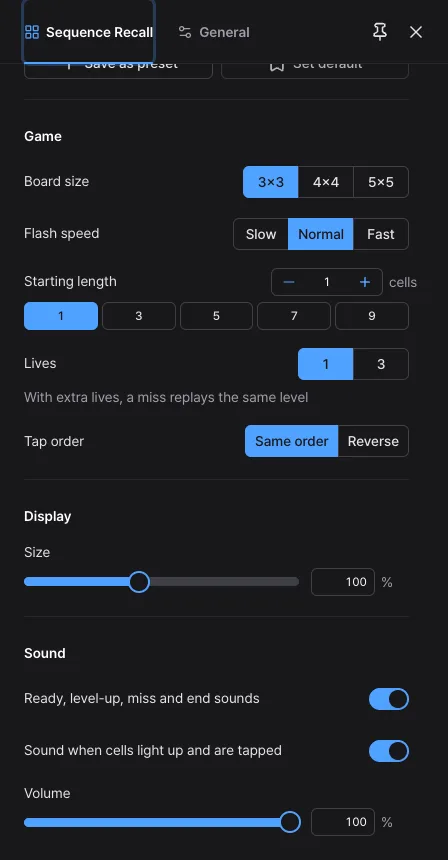
Set the cell size in the 'Display' section of the settings panel and sounds in the 'Sound' section. Changing them does not close the result screen.
- Size: 'Size' in the 'Display' section (30–200%, it starts at 100%) sets the upper limit for one cell. At 100% a cell is at most about 140px on a side, so on a wide screen the board shrinks, while on a small screen such as a phone it stays exactly as large as fits. You can also change it by spreading or pinching two fingers or with Ctrl (⌘) + wheel.
- 'Ready, level-up, miss and end sounds': turns the countdown, level-up, miss and end-of-round sounds on or off together (on at first).
- 'Sound when cells light up and are tapped': a short sound when a cell lights up and when you tap one (on at first). Turn it off to follow the sequence by sight alone.
- Why every cell sounds the same: if each cell had its own pitch, you could memorize a tune instead of positions, and it would no longer train your memory for places.
- Volume: applies to every sound (100% at first).
Saving the settings you use
Settings are not saved each time you change them, so a reload returns to your default settings (the starting settings if you have not set a default). Your own presets hold board size, flash speed, starting length, lives, tap order and the sound switches. Volume and size are not included because they differ by device.
- Change the settings as you like, then press 'Save as preset' in 'Presets' at the top of the settings panel. If you leave the name empty, it is named after the setup, such as '3×3 · Normal · Lives 1'.
- From then on, just pick it in the selection box (up to 12). Picking one also changes the address to that setup, so you can bookmark it.
- If you always want to open with the same settings, press 'Set default'.
- In 'Manage' you can rename, overwrite or delete presets and send the same setup to a friend with a copied link or QR code.
- To go back to the starting state, press 'Reset settings'. This also clears the settings you saved with 'Set default', but you can bring them back with 'Undo' in the notice that appears.
Ways to use it
A few examples and settings that suit them.
- A short daily session: play a few rounds a day with 'Basic' and watch whether 'Recent average' in the history window goes up. Keep the same setup so your rounds can be compared.
- Working-memory practice: the 'Reverse' preset makes you flip what you saw in your head, which works your memory harder than simply repeating it.
- Playing with children: 'Relaxed' (slow, 3 lives) gives time to watch and lets them miss twice and keep going. It is all lights and sounds, so no reading is needed.
- Competing with friends: match the setup with the same preset and take turns. The higher level wins, and at the same level the shorter time taken wins.
- Skipping ahead: if you always get past level 5, set the starting length to 5 to skip the easy early levels. Your records are still compared within the same setup, whatever the starting length.
Frequently asked questions
- I tapped cells while the sequence was showing and nothing happened.
- Taps are ignored while the sequence is shown. While the cells are hollow outlines it is not your turn yet; once the last cell goes dark and all the cells fill in, start tapping. Taps made too early do not count as misses.
- Can the same cell come up twice?
- Never twice in a row, since it would be hard to tell one flash from two. It can come back later with other cells in between, and then you simply tap it again. On the result screen, such a cell shows more than one number.
- There is no sound.
- Browsers require one tap on the page before sound can play. If a notice appears at the top, tap the screen. If your phone is in silent mode, see 'Help' in the menu for how to get sound anyway. Also check that 'Ready, level-up, miss and end sounds' and 'Sound when cells light up and are tapped' are on and that the volume is not 0.
- I opened settings and my round disappeared.
- Opening the settings panel or the menu, or switching tabs or apps, cancels the round. During those moments the display freezes or input goes elsewhere, so the round would not be fair. A cancelled round is not recorded. Change settings on the standby or result screen. Changing a setting in the 'Game' section also closes the result screen and returns straight to standby with the new settings (finished rounds stay in your history).
- My history is gone. Can I see it on another device?
- History is saved only in this browser on this device. It does not show on other devices, and it can disappear if you clear site data or use a private window. It is never sent to One of the Things servers.
- How is this different from Number Recall?
- In Number Recall, numbers appear briefly around the screen, you remember where they were and tap them from smallest to largest, and your score is the time it takes. In Sequence Recall there are no numbers: you remember the order in which cells light up, the sequence grows each time you get it right, and the level you reach is your score. Only the idea is borrowed from the Corsi block-tapping task in psychology, which looks at memory for sequences of places.
Try it out right away. You can always return to the original settings with 'Reset settings' in the settings panel.
Other guides
- Clock guide
- Timer guide
- Stopwatch guide
- Countdown guide
- Target Time guide
- Number Recall guide
- Reaction Time guide
- Random number guide
- Card Flip guide
- Metronome guide
- Rhythm guide
- Touchscreen Test guide
- Multi-touch Test guide
- Dead Pixel Test guide
- Refresh Rate Test guide
- Gyroscope Test guide
- Accelerometer Test guide