Random number guide
The Random number tool on One of the Things draws numbers at random from a range you choose. Pick a range and a count, such as six lottery numbers, dice, a coin flip or one number from 1 to 100, and the result appears in large boxes. You can give each box its own range, and choose the reveal style, sorting and sounds. This guide walks through your first draw, setting the range, using coins and dice, choosing how numbers are revealed, and saving the setups you use often.
Getting started
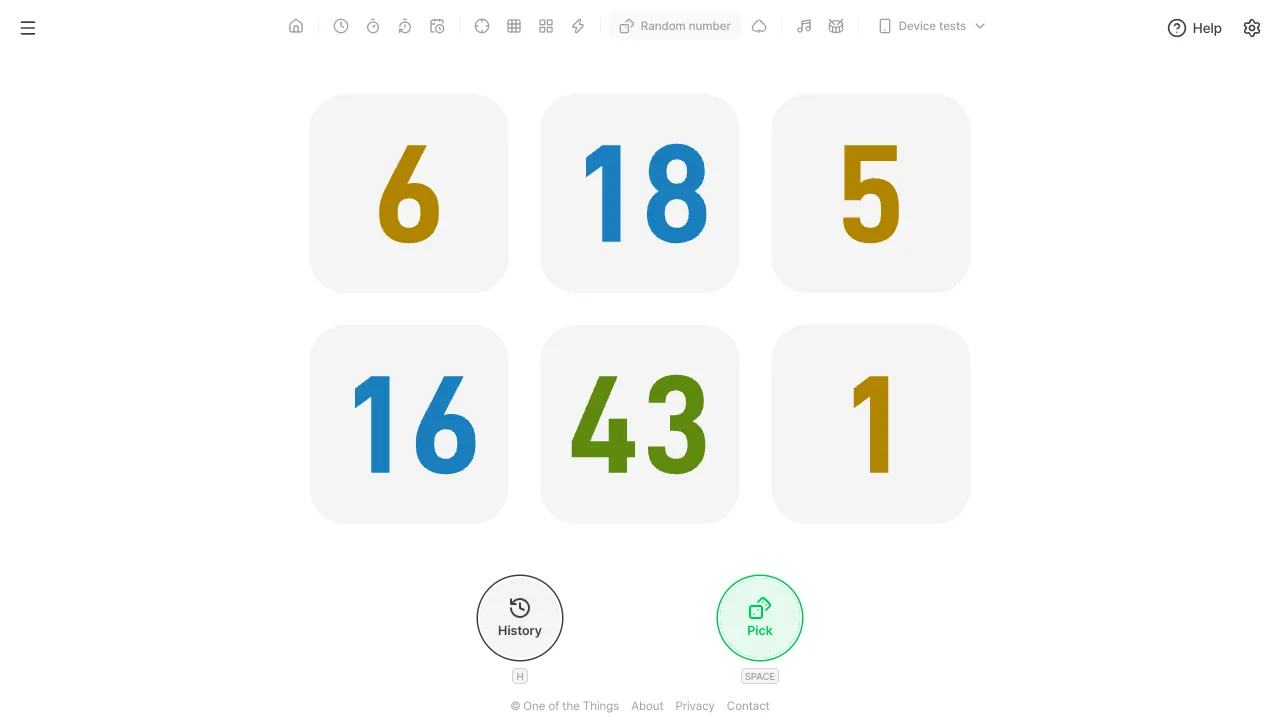
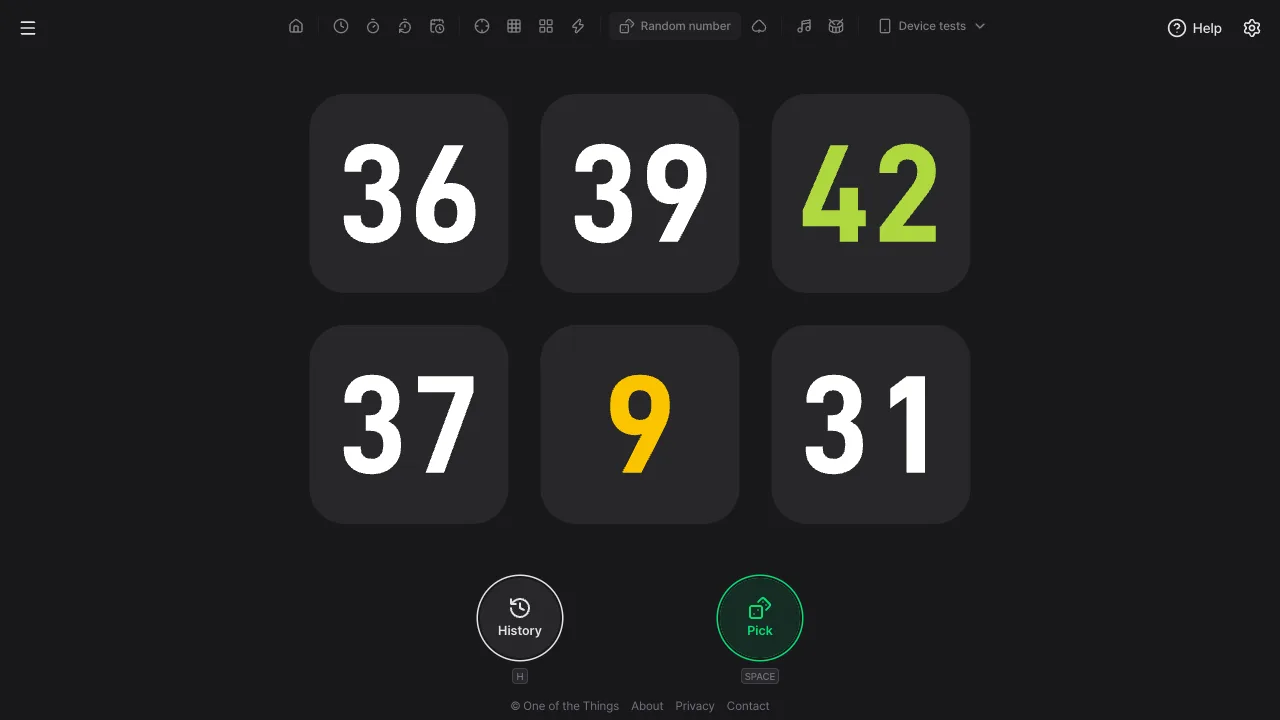
When you first open it, it is ready to draw 6 numbers from 1 to 45 with no duplicates. You can just press Pick without changing anything.
- Open the menu with the menu button at the top left and tap 'Random number'. On a wide screen you can also tap it right in the tool list at the top.
- Press 'Pick' at the bottom right, or the Space or Enter key. On a phone you can also tap the number area once.
- The boxes start spinning. With the default mode (Manual, one) the same button becomes 'Stop', and each press stops one box from the left. Press quickly several times and all remaining boxes stop at once.
- When every box has stopped, you have your result. Press 'Pick' again for a new draw. Earlier results are in 'History' on the left (H key).
Choosing a preset
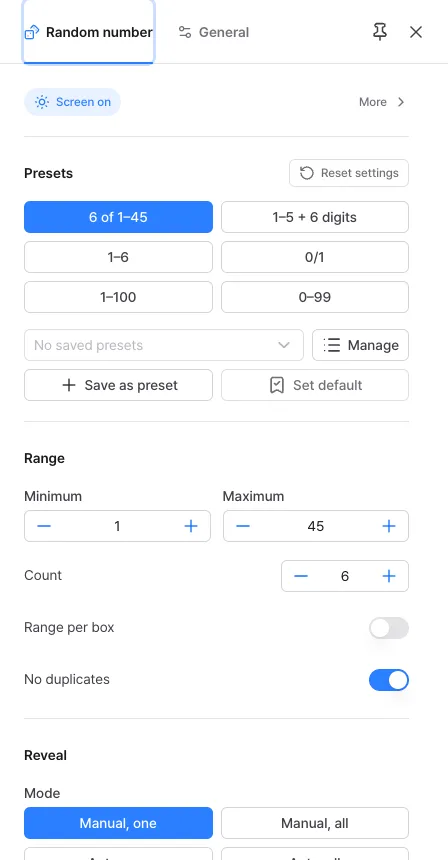
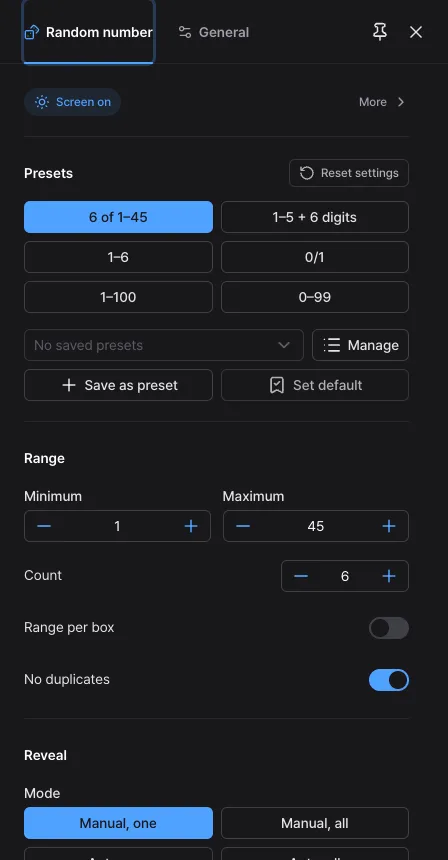
Tap a button in the 'Presets' group at the top of the settings panel and the range, count and duplicate setting change at once. The chosen button fills with the accent color.
- 6 of 1–45: draws 6 numbers from 1 to 45 with no duplicates. This is the default.
- 1–5 + 6 digits: the first box is 1–5 and the other six boxes are 0–9, so each box has its own range. Each position has a different ball color. It also sets 'Sort result' to 'None', so changing the sort deselects this button.
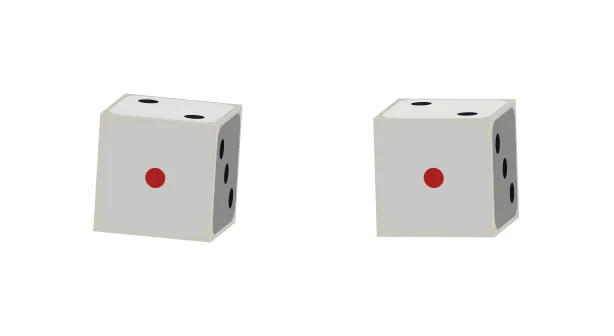
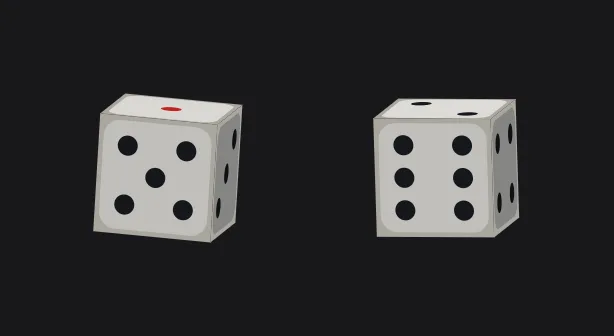
- 1–6: the range for rolling one die. Unless 'Dice theme' is 'Off' (it starts as 'White'), it shows a die.
- 0/1: the range for flipping one coin. Unless 'Coin theme' is 'Off' (it starts as '0 / 1'), it shows a coin.
- 1–100: draws one number. Use it for picking a number or a percentage.
- 0–99: draws one number of up to two digits.
Setting the range and count
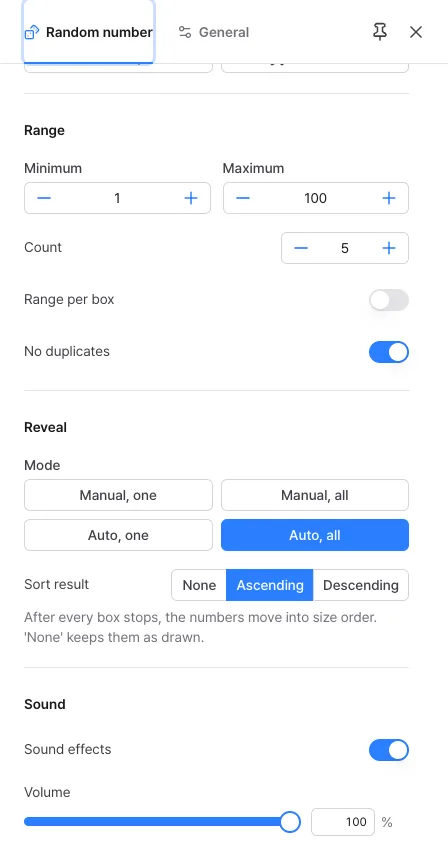
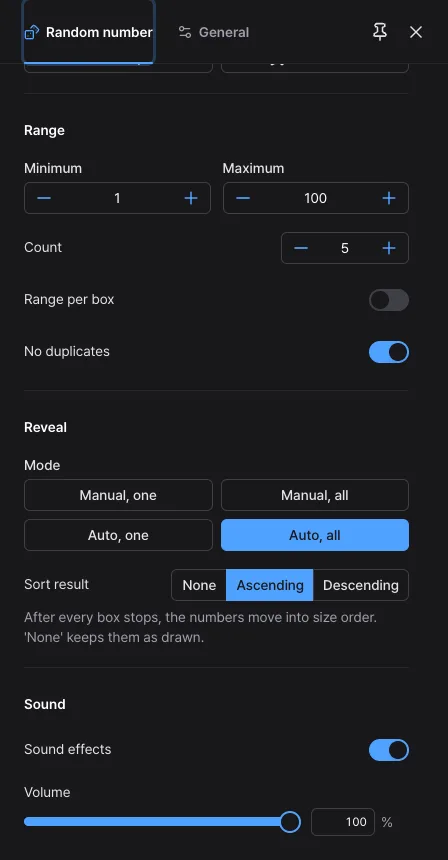
In the 'Range' group you decide which numbers to draw and how many. Changes apply at once: the earlier result is cleared and boxes for the new setting appear.
- Minimum and Maximum: the range to draw from. You can use -9999 to 9999, and both end numbers can be drawn.
- Count: how many numbers to draw at a time, 1 to 50. That many boxes are placed, and many boxes are split evenly over several rows.
- No duplicates: when on (the default), the same number never appears twice. When off, the same number can come up again.
- If you see 'Minimum is greater than maximum' or 'Count is larger than the range allows without duplicates', the values do not fit together. The setting is not changed until you fix the values, and then it applies at once.
A different range for each box
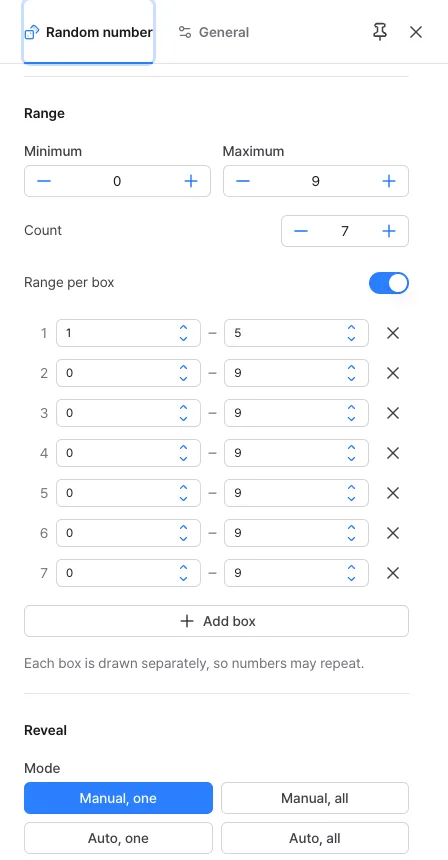
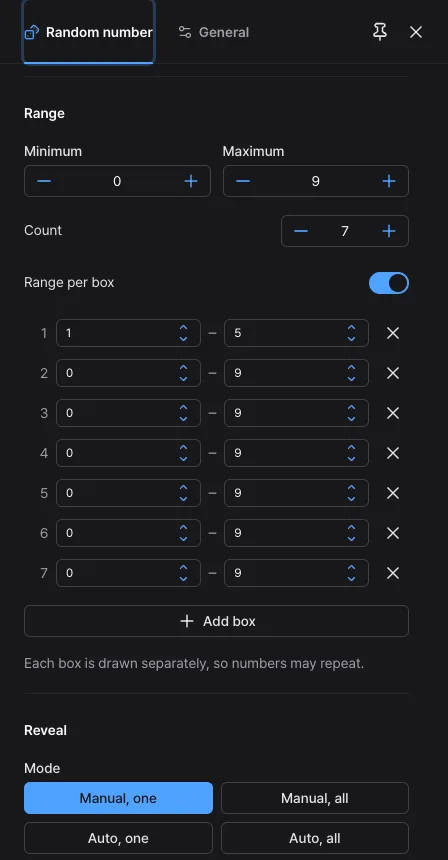
Turn on 'Range per box' to give each box its own range. Use it when the boxes do not share one range, like a number whose digits have different ranges.
- When you turn it on, a list of boxes is built from the current Minimum, Maximum and Count. Each box has a row with its number, minimum, maximum and a delete button.
- 'Add box' copies the last box's range and adds it at the end (up to 50 boxes). The last remaining box cannot be deleted.
- Each box is drawn separately, so numbers can repeat, and 'No duplicates' is hidden. The coin and dice themes are not used either.
- While it is on, changing Minimum, Maximum or Count above rebuilds the box list from those values. Set the range first, then edit boxes one by one.
- If any row has a minimum greater than its maximum, an error appears under that row and the list is not changed. Turning the switch off clears the list and all boxes share one range again.
Coins and dice
When the range matches exactly, coins or dice appear instead of number boxes. The result is decided the moment you press 'Pick', just like numbers, and the picture only moves so that it stops on that side.
- Coin: with a range of 0–1 (the '0/1' preset), a 'Coin theme' appears in the Range group. Choose '0 / 1' (default), 'Sun / Moon' or 'O / X', or 'Off' to use number boxes. 0 is the gold heads side and 1 is the silver tails side. Raise the count to flip several at once.
- Dice: with a range of 1–6 (the '1–6' preset), a 'Dice theme' appears. Choose 'White' (default, only the 1 pip is red) or 'Red', or 'Off' to use number boxes. One die is rolled per count.
- When you stop coins or dice with 'Manual, one', the button shows which one is next, like 'Stop · 2/3'. They keep spinning a little after you press and then stop, and the button reads 'Stopping…' meanwhile.
- The themes do not appear if 'Range per box' is on or the range is not 0–1 or 1–6.


Choosing how numbers are revealed
'Mode' in the 'Reveal' group decides how the numbers stop. In every mode the result is already decided when you press Pick, and the effect only shows it.
- Manual, one (default): press to spin all boxes, then each press stops one box from the left. It stops the moment you press, and pressing quickly several times stops all remaining boxes.
- Manual, all: press to spin all boxes, then press once more and they all slow down and stop together.
- Auto, one: press and the boxes stop by themselves one by one from the left at a steady pace. Even with many boxes it finishes within a few seconds. While spinning the button reads 'Skip', and pressing it shows the result at once.
- Auto, all: press and all boxes spin and then stop together by themselves. 'Skip' works here too.
- Sort result: 'None' keeps the order drawn, while 'Ascending' and 'Descending' move the numbers into size order after every box has stopped. Sorting only changes the placement, not the result.
- Sound: use 'Sound effects' in the 'Sound' group to turn the roll, stop and finish sounds on or off, and 'Volume' to set the loudness. If your device has reduce motion turned on, the result appears the moment you press, without the effect.
Shortcuts and history
You can draw from the keyboard or by moving your phone, and every result is kept in the history.
- Shortcuts: Space and Enter do whatever the button does at the moment (Pick, Stop or Skip). H opens the history. A short tap on the number area is the same as Space.
- Shaking: on a phone, turn on 'Shake to start or stop' in the 'General' tab of the settings panel and you can draw by shaking the phone. It only works on devices with a motion sensor.
- History: 'History' on the left shows the time, range and result of up to the last 100 draws. If boxes have different ranges they are written together like '1–5, 0–9 ×6', and coins show side names such as 'Sun, Moon'. Sorting follows the setting from when that draw was made.
- 'Clear history' deletes everything. Instead of a confirmation window you get a notice that lets you undo it.
- Screen readers: once every box has stopped, the result is read out once.
Saving setups you use often
Random number settings are not saved every time you change them. A refresh brings back the default settings, so keep the setups you use in the 'Presets' group.
- Change the range, count, 'Range per box', 'No duplicates', coin or dice theme, 'Sort result', 'Mode' and 'Sound effects' the way you want, then tap 'Save as preset'. If you leave the name blank, it is named after the range, like '1–45 ×6'. Volume is not part of a preset.
- After that, choose it from the box under the built-in presets (up to 12, names up to 20 characters). Choosing it also puts the settings in the address, so you can bookmark it.
- To always open with the same setup, tap 'Set default'.
- Use 'Manage' to rename, overwrite or delete presets, and send the same setup to someone with a copied link or a QR code. To go back to the start, tap 'Reset settings'. This also clears the settings you saved with 'Set default', but you can bring them back with 'Undo' in the notice that appears.
Ideas for using it
A few ways to use Random number, with settings that suit each one.
- Deciding a speaking or cleaning order: set Minimum 1 and both Maximum and Count to the number of people, and turn on 'No duplicates'. Everyone comes up exactly once.
- Picking one person: set a range like seat numbers 1–30 and draw a count of 1. With 'Auto, all' you only have to press once.
- Lottery number fun: draw with the '6 of 1–45' preset and set 'Ascending' to get them in order. It is for fun and does not improve your chances of winning.
- Deciding with a coin flip: use the '0/1' preset with the 'Sun / Moon' theme.
- Board game dice: use the '1–6' preset and raise the count to suit the game. 'Auto, all' is handy for rolling everything at once.
- Drawing on a big screen: show it on a projector or TV and stop one box at a time with 'Manual, one' to build suspense during a presentation.
Frequently asked questions
- Can I change the result by pressing at a certain moment or speed?
- No. The result is decided the moment you press 'Pick', using the browser's cryptographic random numbers (crypto.getRandomValues), and it is recorded then. When the boxes stop, how fast you press and in what order have no effect on the result; they only shape the on-screen effect.
- A red error message appears in the Range group.
- It reads 'Minimum is greater than maximum' or 'Count is larger than the range allows without duplicates'. While there is an error, the screen and the draw stay on the last setting that was valid, and only the message is shown. Fix the values and it applies at once; closing the settings panel puts the input boxes back to the last valid values.
- I turned on 'No duplicates' but the same number came up.
- If 'Range per box' is on, each box is drawn separately, so the same number can come up and 'No duplicates' is not used. To draw without repeats from one range, turn that switch off.
- Sometimes the 'Pick' button does not respond.
- Just after a draw ends, the button dims for under a second so rapid presses do not start a new draw, and it is also blocked after you stop by hand until the sorting effect finishes. In a manual mode, pressing while the boxes spin stops the next box instead of starting a new draw.
- I want to see an earlier result.
- Open 'History' (H key) to see up to the last 100 draws. History is stored only in this device's browser, so it is not shared with other devices, and clearing browser data removes it.
- Where does my information go?
- There is no sign-up, and your default settings, presets and history are stored only in this device's browser. The numbers you draw and your settings are not sent to any server. See the Privacy Policy for details.
Try it out right away. You can always return to the original settings with 'Reset settings' in the settings panel.
Other guides
- Clock guide
- Timer guide
- Stopwatch guide
- Countdown guide
- Target Time guide
- Number Recall guide
- Sequence Recall guide
- Reaction Time guide
- Card Flip guide
- Metronome guide
- Rhythm guide
- Touchscreen Test guide
- Multi-touch Test guide
- Dead Pixel Test guide
- Refresh Rate Test guide
- Gyroscope Test guide
- Accelerometer Test guide