Clock guide
The One of the Things clock is a large digital clock that opens right in your browser. With no install and no sign-up, it turns a phone, tablet or computer screen into a clock. This guide walks you through opening the clock, changing its style, colors and time zone, keeping it on screen, and saving the settings you like.
Getting started
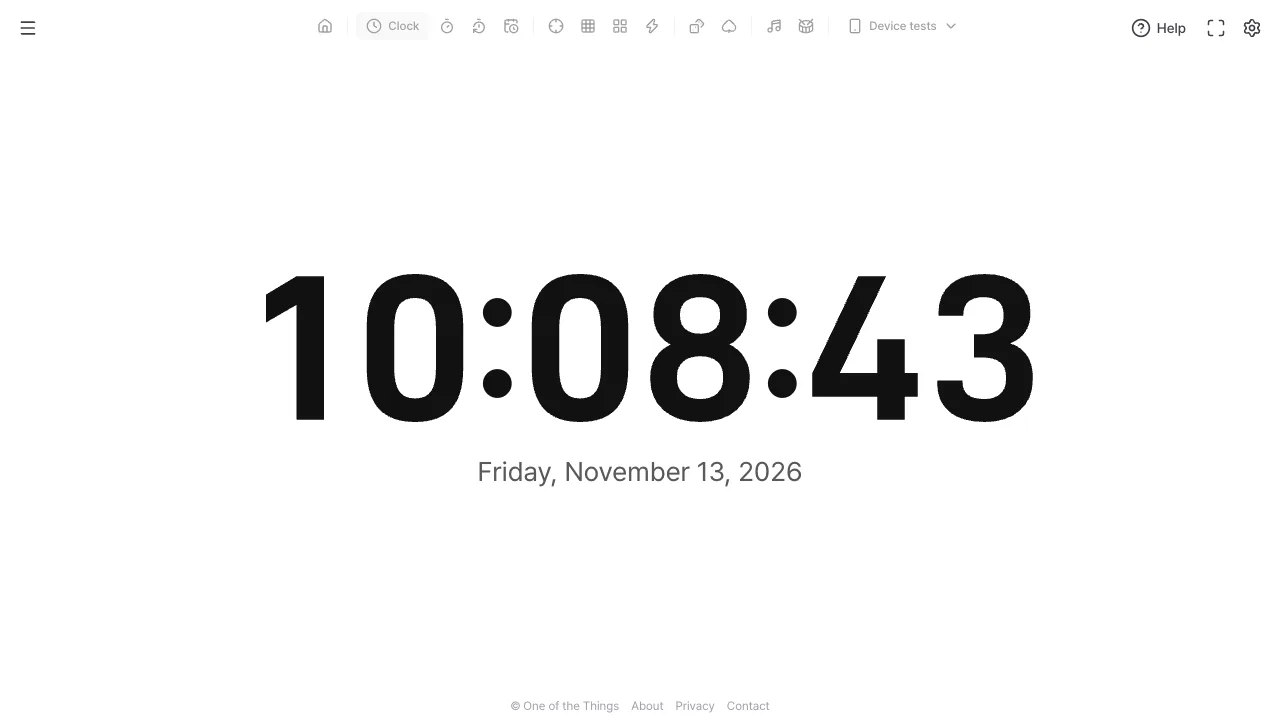
The clock shows the current time as soon as the page opens. There is no start button to press.
- Open the menu with the menu button at the top left and tap 'Clock'. On a wide screen you can also tap it right in the tool list at the top.
- Hours, minutes, seconds and today's date appear large in the middle of the screen. The digits resize automatically to fit the window.
- Tap the gear (Settings) in the top-right corner to open the settings panel, where you change the style, colors, time and date.
- Tap the full screen button to the left of the gear (four corners) to hide the menu and buttons and leave only the clock. Press Esc or the 'Exit full screen' button in the top-right corner to leave.
Choosing a display style
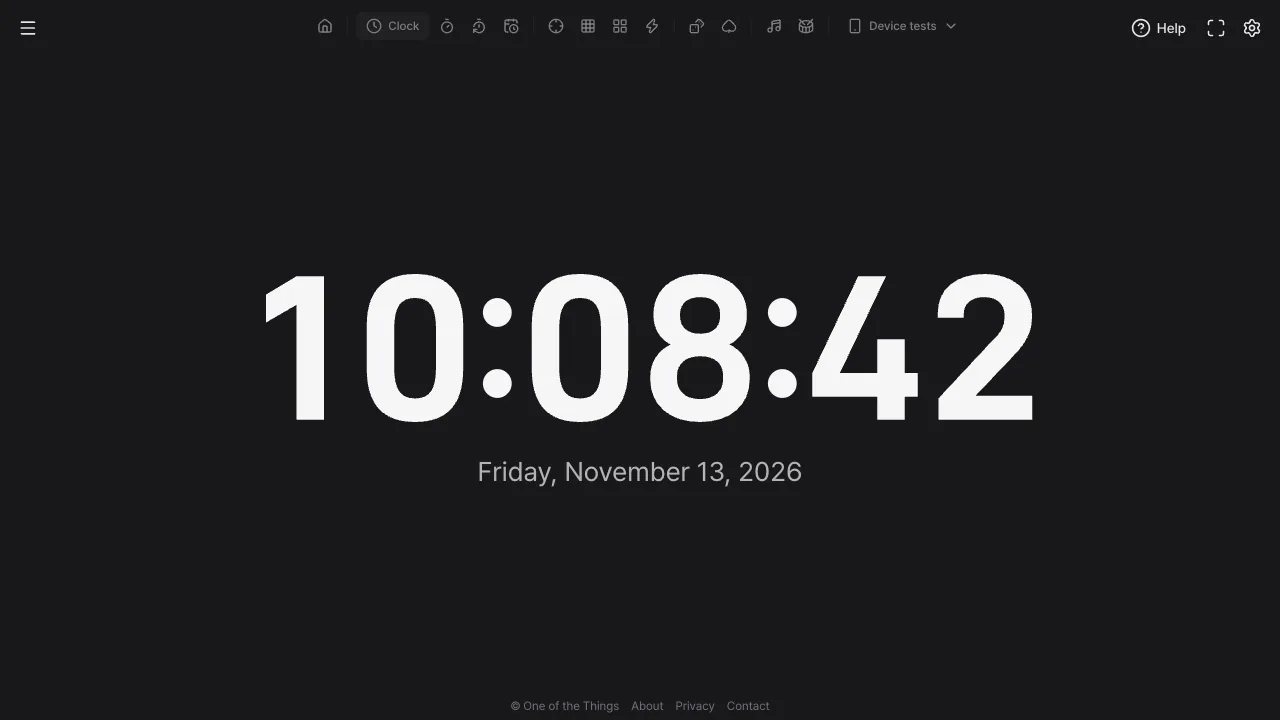
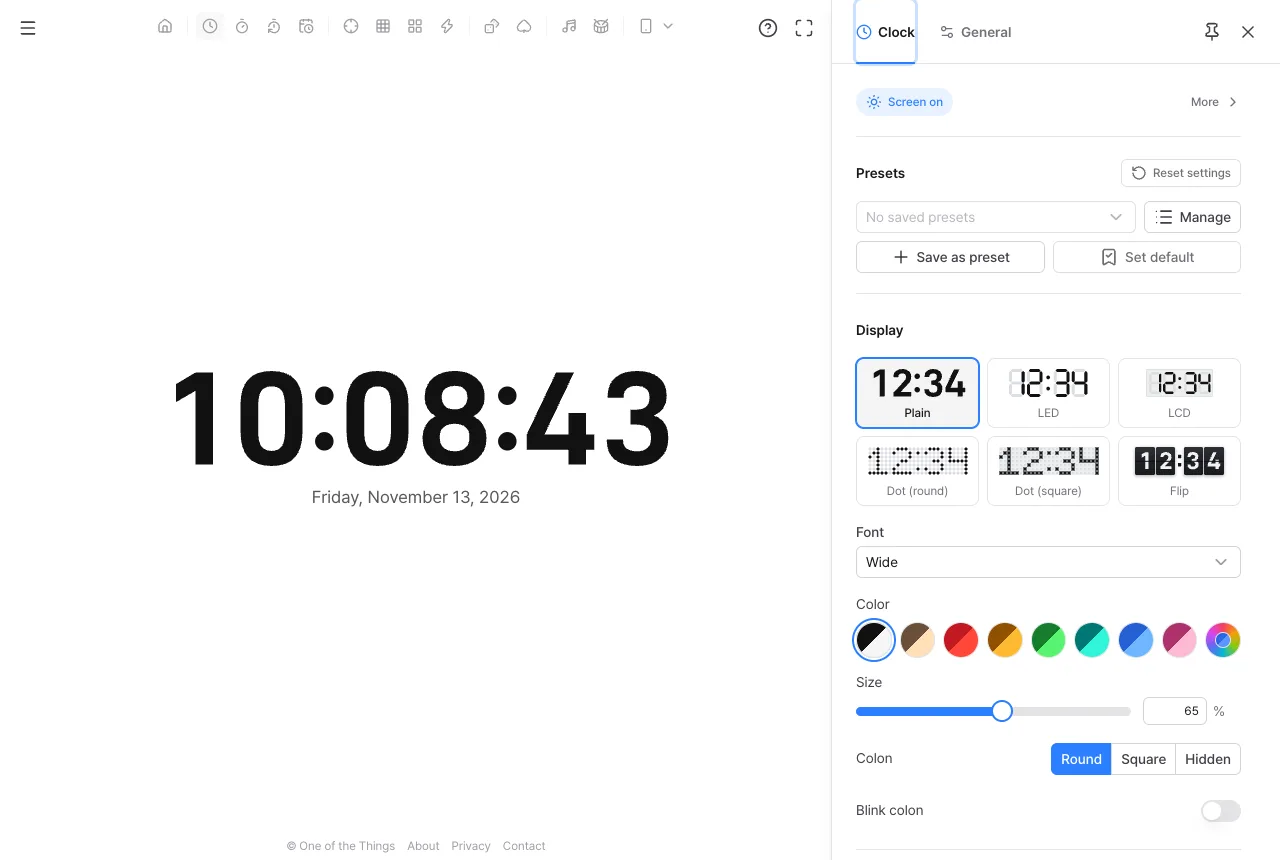
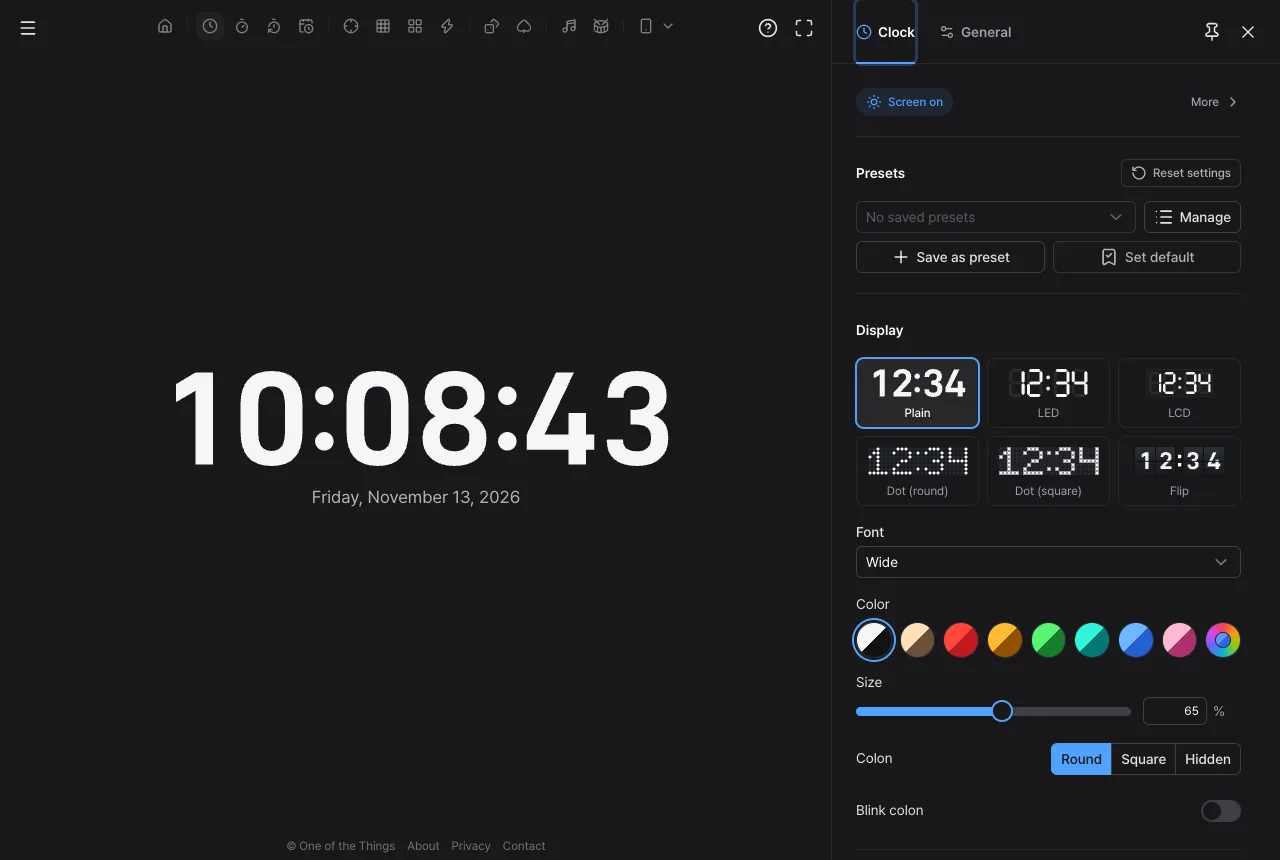
Under 'Display' in the settings panel, pick one of six ways to draw the digits. Each one applies instantly, so try them one by one to find the look that suits your room. Every style is drawn with vector shapes rather than images, so it stays sharp even on a big screen.
Plain
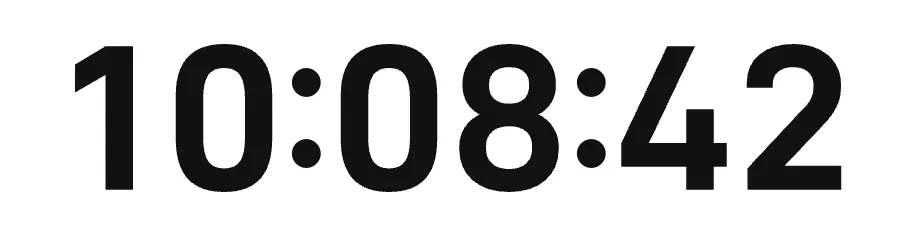
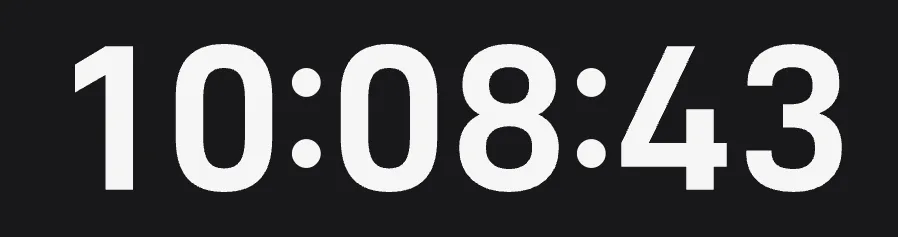
Digits drawn from a font. You can choose from eight fonts (Standard, Modern, Narrow, Wide, Soft, Clean, Tech and Retro), which makes this the most customizable style.
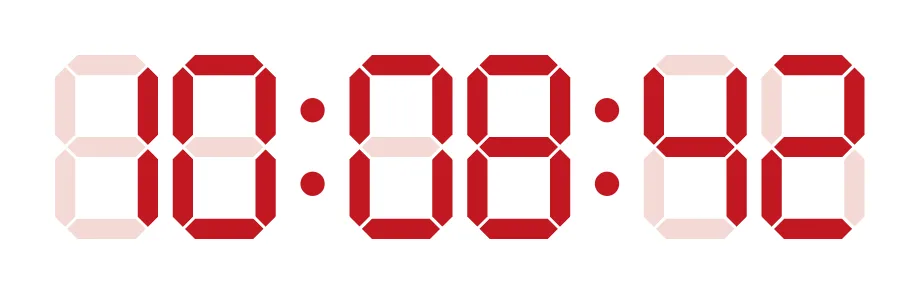
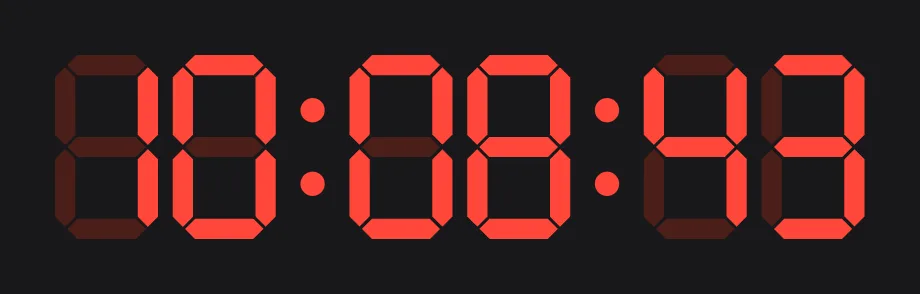
LED
Seven-segment digits. Unlit segments show faintly, like an electronic scoreboard. You can change the segment thickness or hide the unlit parts.
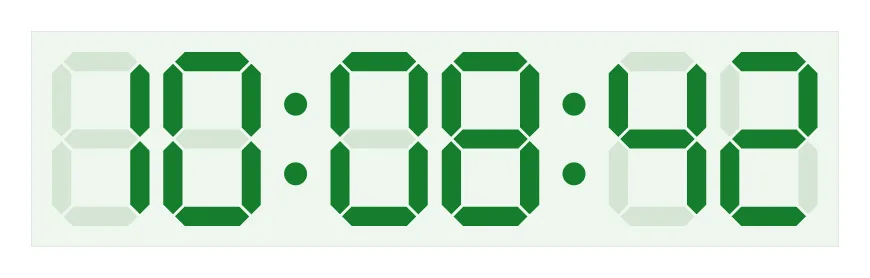
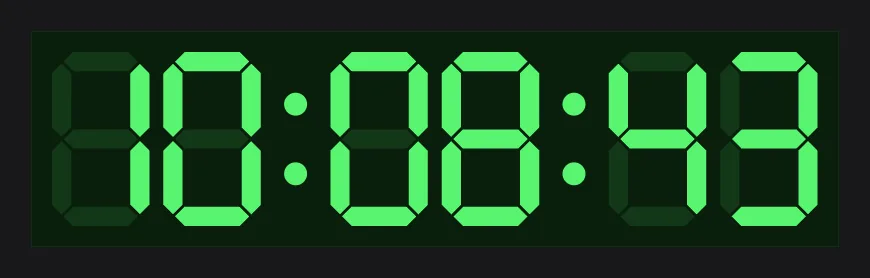
LCD
Liquid-crystal digits like a calculator or digital watch. The digits sit inside a panel, like an old desk clock.
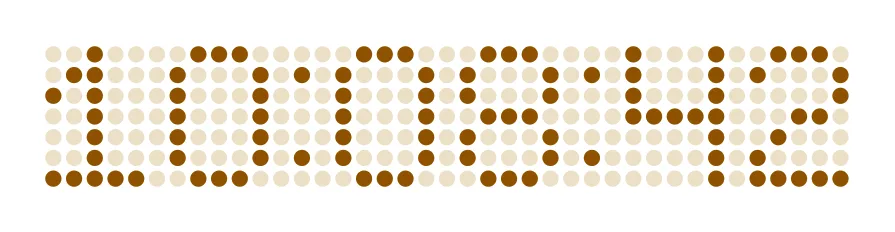
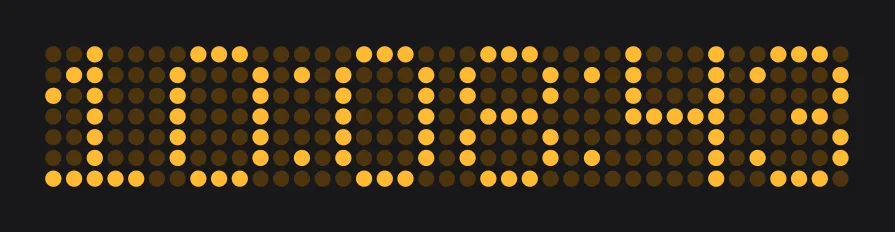
Dot (round)
Dot-matrix digits made of round dots, like a train station or bus display.
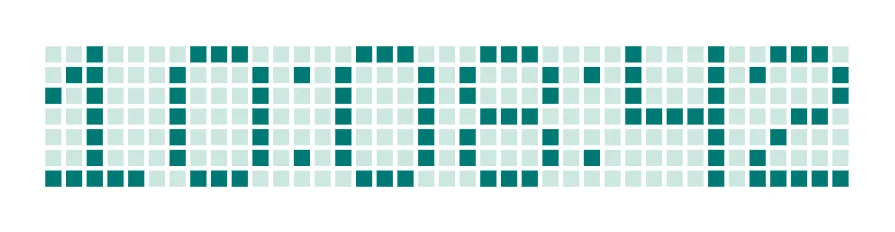
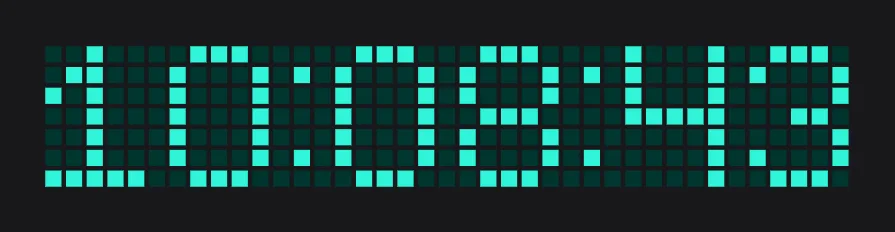
Dot (square)
Dot-matrix digits made of square dots. Crisper than round dots, with a pixel-game feel.
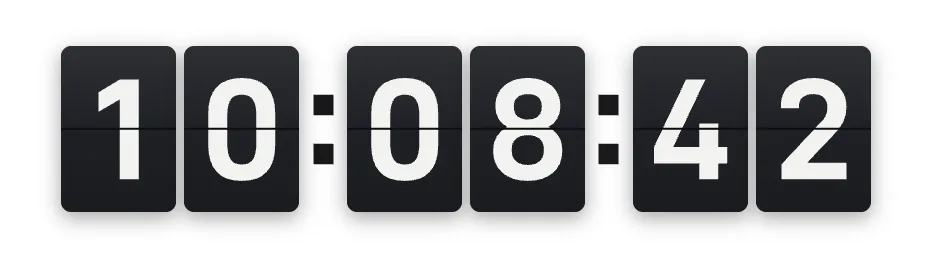
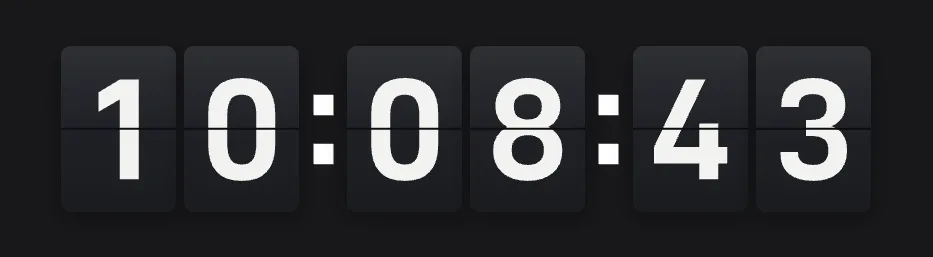
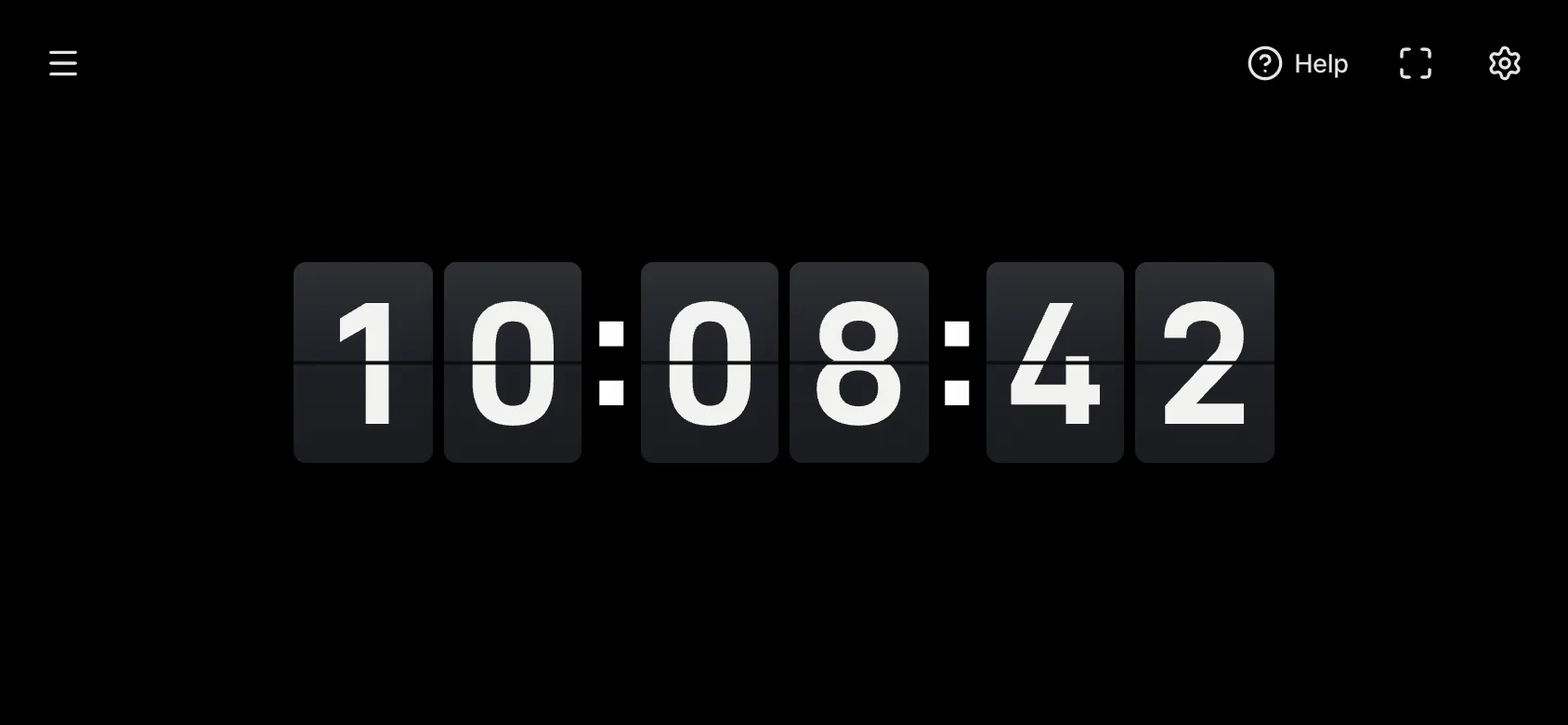
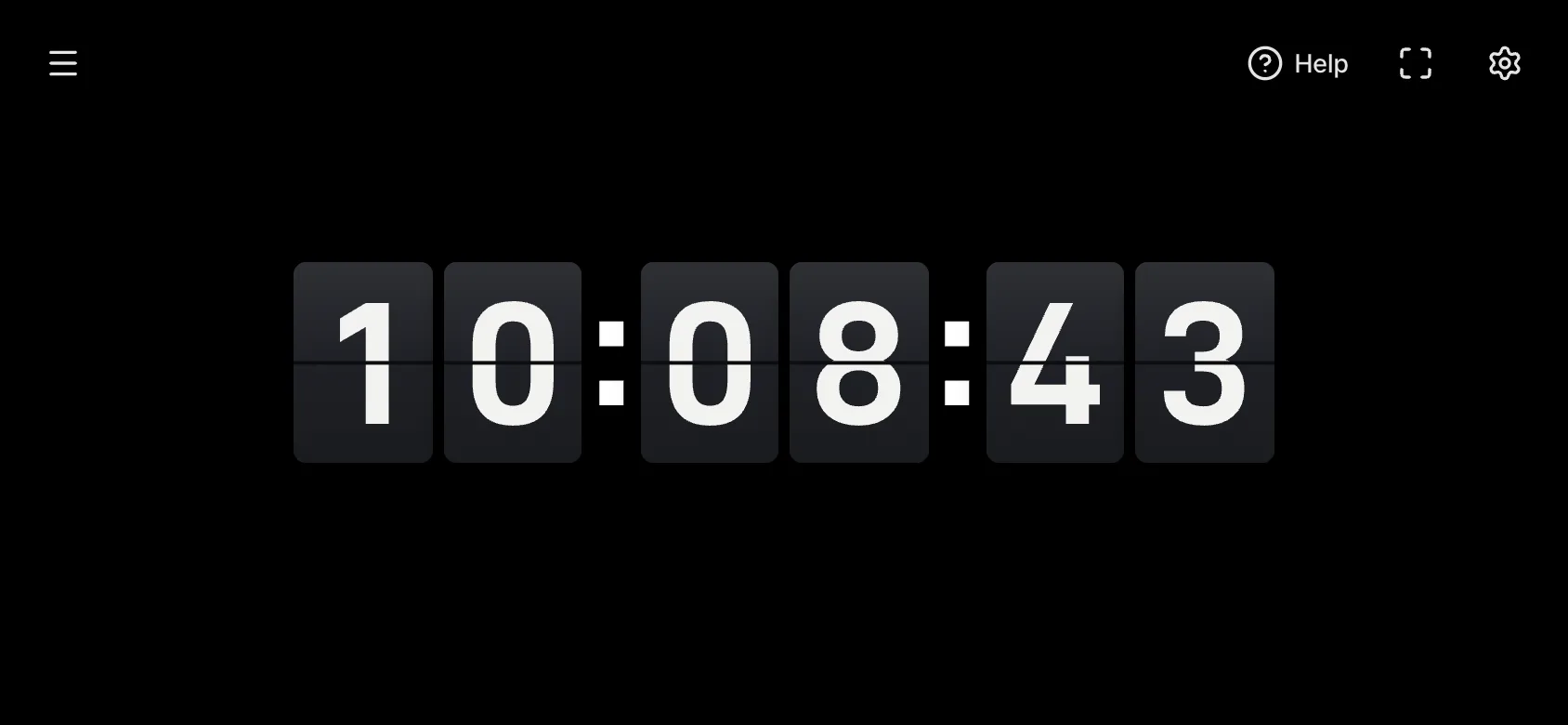
Flip
A flip clock whose cards turn over when a digit changes. You can pick one of six card shapes and set the font, 'Card color', 'Digit color', 'Digits per card', 'Separators' and 'Flip duration'.
Changing colors, fonts and size
Changes show up on the clock immediately while the settings panel is open. On a wide screen, tap the pin (Pin settings panel) at the top of the panel so it stays open while you compare options.
- Color: choose Mono, Warm white, Red, Amber, Green, Teal, Blue or Baby pink, or tap the rainbow circle (Custom) to pick any color.
- Size: use the slider to set the digit size from 25% to 100% of the screen. Go big for viewing across a room, smaller on a desk.
- Font: in the Plain and Flip styles, pick the digit font. The default, 'Wide', is easy to read from a distance; 'Narrow' takes less width even with seconds shown.
- Colon: make the colons between the digits Round, Square or Hidden (Shown or Hidden in the dot and Flip styles). Turn on 'Blink colon' to blink them every second.
- Background: follow the App theme, or use Black, Graphite, Navy, Forest, Cream, Sky, Baby pink, or a color you pick yourself.
Time and date display
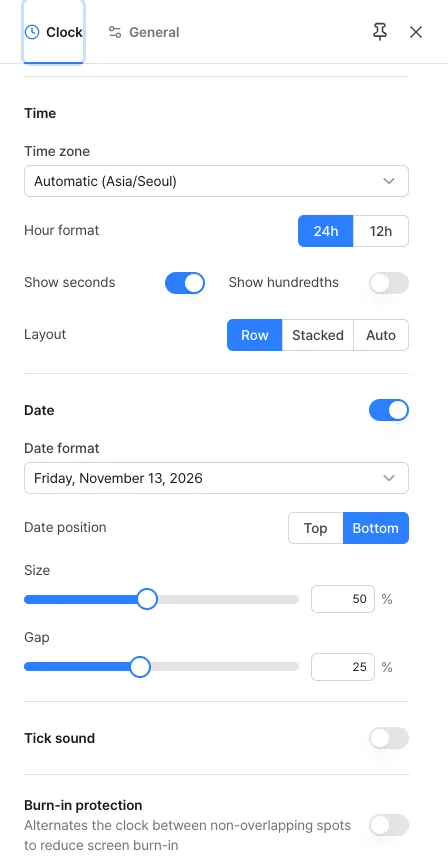
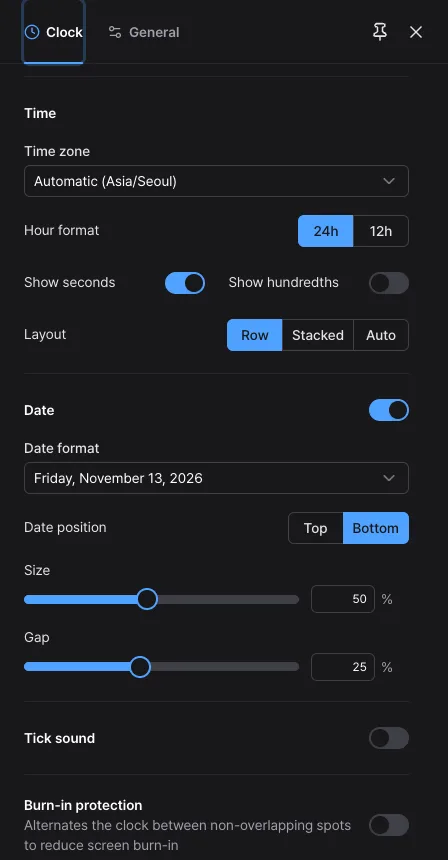
The 'Time' and 'Date' groups in the settings panel decide what is shown.
- Hour format: 24h shows 13:00, 12h shows 01:00. In 12-hour mode you can place AM/PM to the left or right of the clock, next to the date, inside the first flip card, or hide it.
- Show seconds: turn it off to keep only hours and minutes, which makes the digits bigger. With seconds on, you can also show hundredths (not in the Flip style), handy when you need an exact moment.
- Layout: choose Row, Stacked or Auto. See 'Using it upright on a phone' below.
- Date: turn it on or off with the switch on the right. There are four formats, from a long one with the weekday to a short numeric one, and you can put the date above or below the clock.
- Size: set the date width as a share of the clock width, from 10% to 100% (50% at first). At 100% the longest date of the year is as wide as the clock, so shorter formats get bigger text at the same setting. The text size stays the same from day to day, and a bigger date makes the clock digits smaller.
- Gap to date: widen or narrow the space between the clock and the date.
Using it upright on a phone
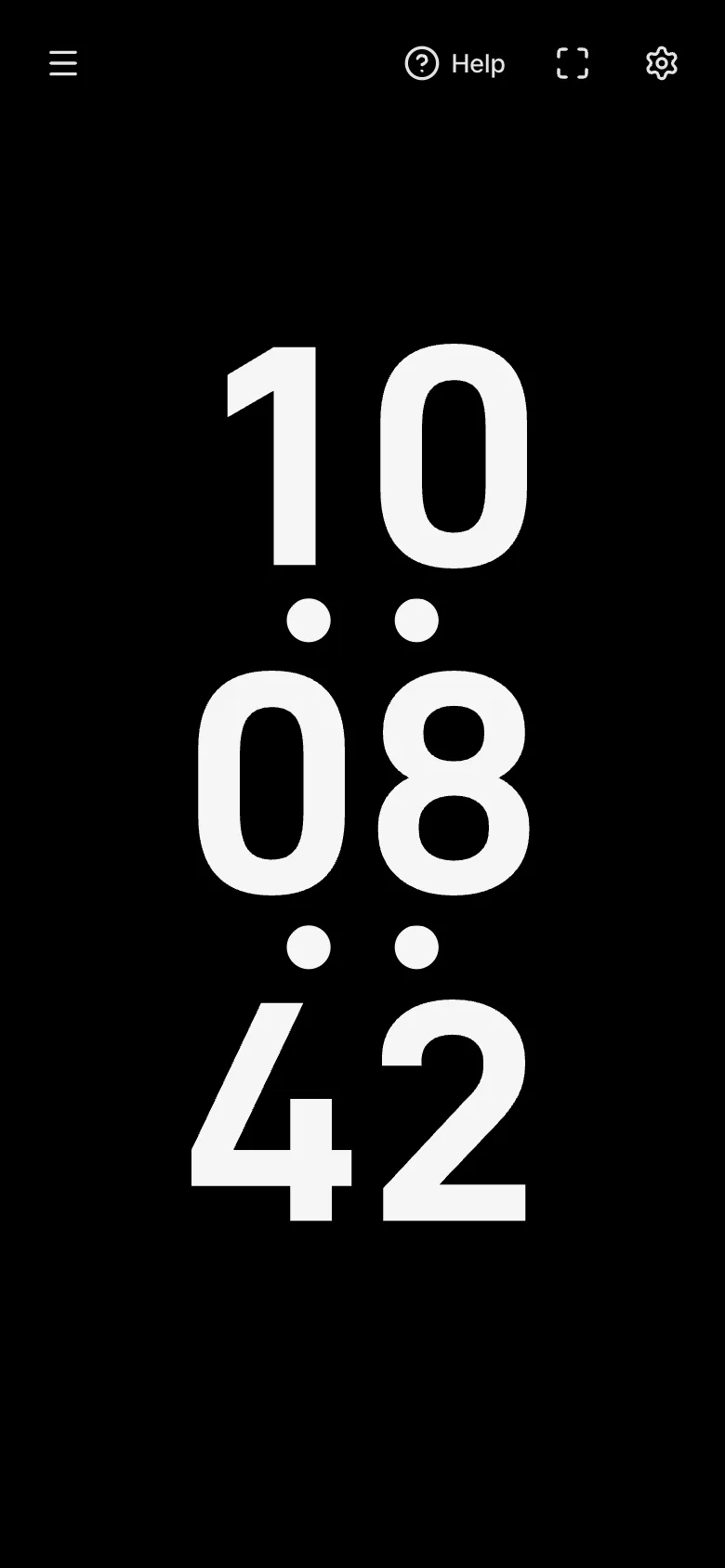
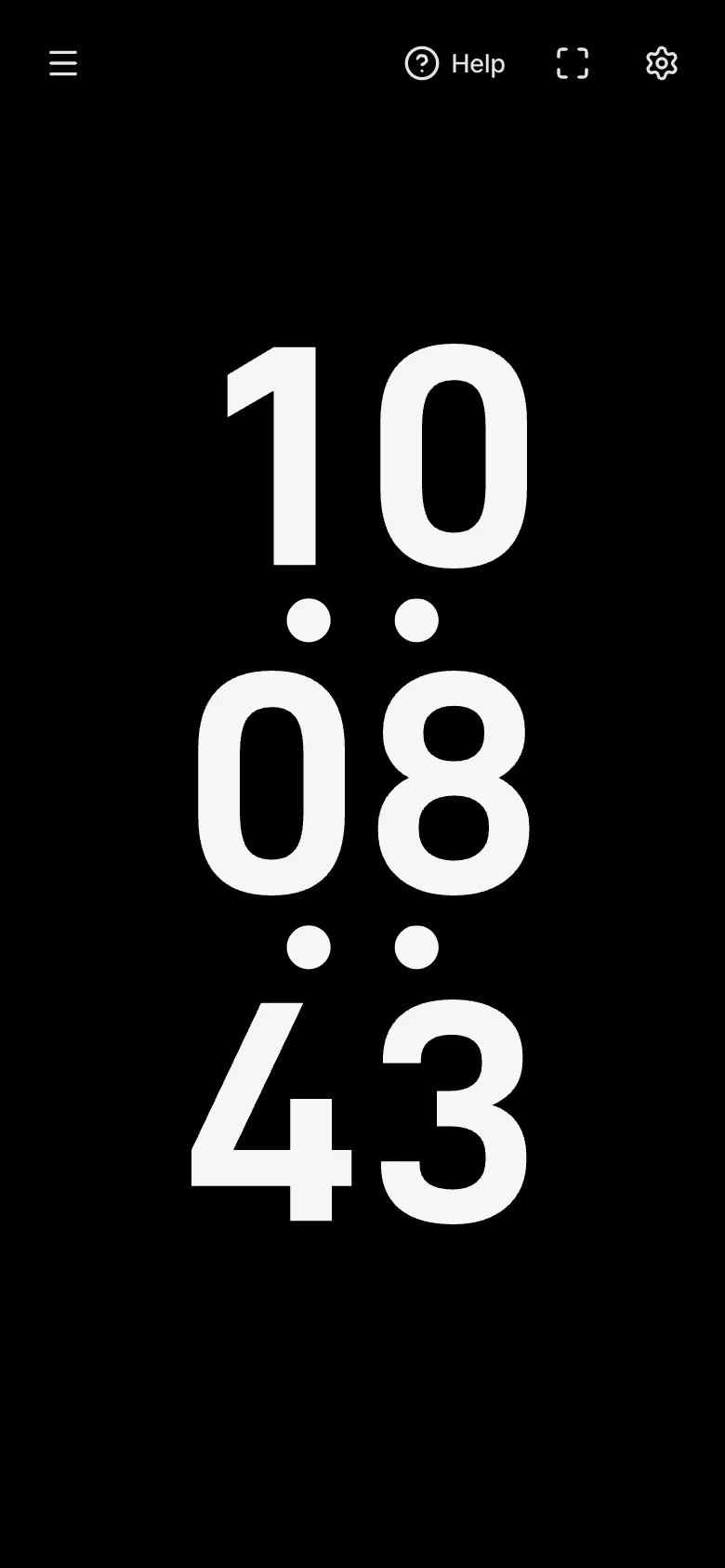
When you use your phone upright, switch Layout to Stacked or Auto. Hours, minutes and seconds then stack in three lines, about twice as big as in a single line. The default Row layout is limited by the narrow width, so the digits get small.
- Layout: it is at the bottom of the Time group in the settings panel. Auto uses the stacked layout when the screen is tall (height at least 1.4 times the width).
- In the stacked layout every line has the same size, with a horizontal colon between lines. Colon shape and blinking still apply.
- The stacked layout does not show hundredths, AM/PM, the date or flip separator cards. The values are kept and come back in the row layout.
- While the settings panel is open the layout does not change. Closing it picks again to fit the screen.
- The layout is not stored in presets or shared links, so a phone preset opened on a computer does not turn stacked.
Seeing the time in another country
The time zone starts as 'Automatic', following your device. If your device's time zone changes while you travel, the clock changes with it.
To see another city's time, open the 'Time zone' box and search by city or region. Each entry shows its current offset from UTC, which already includes daylight saving time where it is in effect. Once you choose a zone, the time, date and AM/PM all follow that place.
If you often check the time of family or colleagues abroad, make a preset with their time zone. See 'Saving the settings you use' below.
Keeping it on
A clock is usually left on for a long time. When you stand a phone or tablet up like a desk clock, these features help.
- Screen on: turn on 'Screen on' at the top of the settings panel and the screen will not switch off while you watch the clock. Because of browser rules, you may need to tap the screen once for it to take effect.
- Full screen: hides the menu and buttons and shows only the clock. On browsers without full screen, such as Safari on iPhone, use 'Add to Home Screen' to open it without the address bar (see 'Help' in the menu).
- Burn-in protection: to keep the same digits from leaving marks on an OLED screen, the clock alternates between two non-overlapping positions at the interval you set. With 'Black background in full screen' on (it is on by default), the background turns black in full screen so those pixels switch off.
- Tick sound: turn on the switch next to the 'Tick sound' group title to play a short sound each time the second changes (each minute if seconds are hidden). Styles other than Flip choose from four beeps, and Flip from four card sounds. The default, 'Match display style' ('Match card style' for Flip), picks the sound that suits the current look.
- Center in the browser window: on a computer, if the address bar and tabs make the clock look low, turn this on to center it in the whole window.
Saving the settings you use
Clock settings are not saved every time you change them, so even if someone else changes them for a moment, a refresh always brings back the same look. Keep the settings you like in the ways below. Everything is in the 'Presets' group at the top of the settings panel.
- Once it looks the way you want, tap 'Set default'. The clock will open with these settings next time.
- To switch between several looks, tap 'Save as preset' and give it a name. After that, just choose it from the list.
- Use 'Manage' to rename presets, 'Overwrite with current settings' or delete them, and send the same settings to another device with a copied link or a QR code.
- To start over, tap 'Reset settings' on the right of the 'Presets' group title. This also clears the settings saved with 'Set default'; use 'Undo' in the notice that appears to bring both back.
Ideas for using it
Here are a few ways people use the clock, with settings that suit each one.
- Desk clock: stand up a spare tablet or old phone and use the Flip or LCD style. Turn on 'Screen on' and keep it plugged in.
- Exam halls, meeting rooms and classrooms: put it on a projector or large monitor in full screen so everyone sees the same time. Showing seconds makes start and end times easy to match.
- Streaming and recording: pick your own background color and hide the date, then capture the clock window as it is in your screen-capture software.
- A clock for the night: red or amber digits on black at a small size won't dazzle. If it stays on for long, turn on burn-in protection.
- Working across time zones: make presets with the other city's time zone and switch to them when needed.
- Checking the time while cooking or exercising: set the size to 100% and hide seconds so it reads at a glance from across the room.
Frequently asked questions
- Is the time accurate?
- It shows your device's own clock. If your phone or computer sets its date and time automatically, it matches internet standard time. The screen redraws exactly when the second changes, so the digits never lag behind.
- My settings go back to the start when I refresh.
- By design, settings are not saved every time you change them. To always open with your settings, tap 'Set default' under 'Presets' in the settings panel. You can also bookmark the address (choosing a preset puts its settings in the address).
- My screen keeps turning off.
- Turn on 'Screen on' at the top of the settings panel, and tap the screen once if a notice asks you to. Low power mode (battery saver) can block it, so turn that off; if the screen still goes off, lengthen the device's auto-lock time. Pages opened in Safari or Chrome work better than pages opened inside messaging apps.
- Does the clock keep running without an internet connection?
- Yes. Once the page has opened, the clock runs on your device's clock and never asks a server for the time, so it keeps going if the connection drops. You do need a connection to open the page again.
- On iPhone, the address bar stays even after I tap Full screen.
- Safari on iPhone does not support full screen for web pages. Choose 'Add to Home Screen' from the Share button and open the clock from its home screen icon to see it without the address bar. Turning the phone sideways also makes the address bar smaller.
- Where does my information go?
- There is no sign-up, and your settings and presets are stored only in this device's browser. The clock does not send the time or your settings to any server. See the Privacy Policy for details.
Try it out right away. You can always return to the original settings with 'Reset settings' in the settings panel.
Other guides
- Timer guide
- Stopwatch guide
- Countdown guide
- Target Time guide
- Number Recall guide
- Sequence Recall guide
- Reaction Time guide
- Random number guide
- Card Flip guide
- Metronome guide
- Rhythm guide
- Touchscreen Test guide
- Multi-touch Test guide
- Dead Pixel Test guide
- Refresh Rate Test guide
- Gyroscope Test guide
- Accelerometer Test guide